4 خطوات فعّالة تساعدك على حل مشاكل جوجل بلاي الشائعة بكل سهولة
 بقلم الأدمن
نشارك معكم في هذه المقالة 4 خطوات فقط يمكن أن تقوم بها على جوّالك الاندرويد في حالة مواجهة مشكلة اثناء استخدام متجر جوجل بلاي لتحميل التطبيقات والألعاب. هذه الخطوات ناجحة بالفعل في حل مشاكل جوجل بلاي الأكثر شيوعًا بين المُستخدمين، كما وأنه من السهل تطبيقها ولن تؤدي إلى خسارة أي بيانات. من حين إلى آخر، يقوم المستخدمين بفتح Google Play على هواتفهم الأندرويد للتحقق من التطبيقات الجديدة والألعاب أو بحثًا عن تطبيق منتشر مثل FaceApp حاليًا، لكن عندما يأتي وقت تثبيت أيًا من هذه التطبيقات تواجه مشاكل مزعجة تعيق العملية.
عادًة عندما تظهر رسالة خطأ في تطبيق جوجل بلاي فهي تحتوي على رمز Error يمكنك البحث عنه في الإنترنت لمساعدتك على حل المشكلة التي تواجهك بالتحديد. لكن في كثير من الاحيان البحث ليس ضروريًا.
إذ تتطلب معظم مشكلات المتجر القيام بخُطوة من ضمن الخُطوات الأربعة الأساسية التي سوف نسلط عليها الضوء في هذه المقالة وبعدها تتمكن من تحميل وتثبيت الألعاب والتطبيقات بشكل طبيعي، غالبية هذه الخُطوات تنصح بها شركة جوجل أيضًا. لذا، فعليك بتجربتها دون تردد.
كيفية حل مشاكل جوجل بلاي على هواتف اندرويد الخطوة الأولى: حذف الكاش ميموري والبيانات يعتمد متجر جوجل بلاي على الكثير من العمليات التي تتم بشكل صامت في الخلفية. وكذلك على ملفات مؤقتة يتم تخزينها مع مرور الوقت. لذا فإن حذف الكاش والبيانات يمكن أن يساعد في حل المشاكل بصورة فعالة.
ولكن عندما تقوم بمسح هذه البيانات من متجر Play، من الجيد أيضًا أن تفعل الشيء نفسه مع Google Play Services و Google Services Framework. واختياريًا، قد ترغب أيضًا في مسح البيانات لـ Download Manager. بمجرد مسح هذه البيانات، أعد تشغيل جهازك ثم أعد تثبيت أو تحديث التطبيق.
قد يتطلب هذا إعادة إدخال معلومات تسجيل الدخول الخاصة بك. عامًة، إليك خطوة بخطوة كيفية القيام بذلك، علمًا بأنه قد تختلف العملية قليلاً حسب جهازك واصدار Android.
أولاً، انتقل إلى Settings.
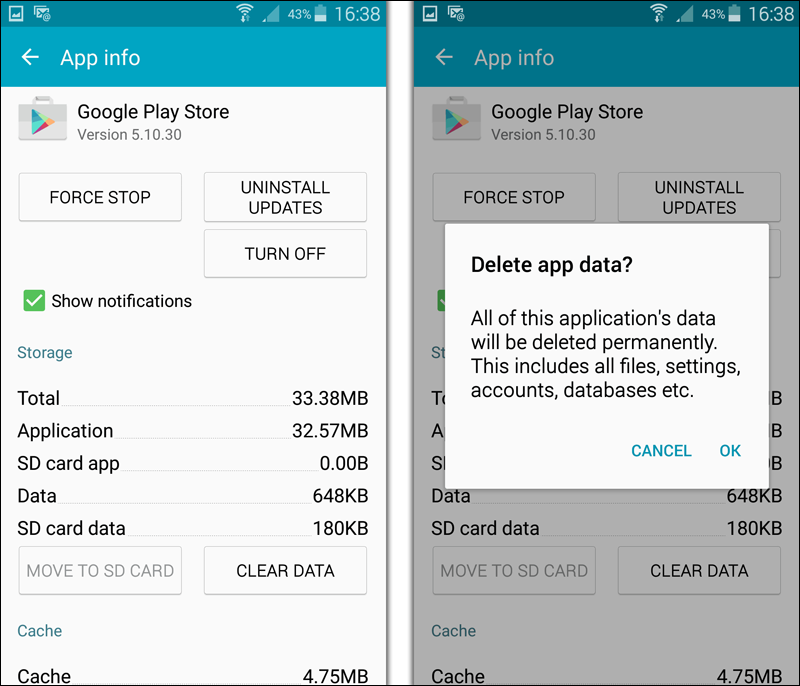
ثم انتقل إلى Apps وابحث عن علامة التبويب All. في Android 9 Pie، اختر Apps & notifications ثم See all apps. الآن، اضغط على Google Play Store ثم انقر فوق زر Force Stop، والذي سيؤدي إلى إيقاف كل العمليات الخاصة بالمتجر في الخلفية.
بعد ذلك، انقر فوق Storage للحصول على مزيد من الخيارات مثل Clear Cache و Clear Data وفي بعض الهواتف ستجد هذه الخيارات بعد الضغط على Google Play Store مباشرًة. عمومًا، اضغط على Clear Cache لإزالة البيانات المؤقتة وبيانات المستخدم، ونأمل في حل المشكلة. إذا لم يحدث ذلك، يمكنك تجربة الضغط على “Clear Data”.
يؤدي هذا أيضًا إلى مسح ذاكرة التخزين المؤقت، ولكنه يعيد ضبط التطبيق إلى حالته الأساسية. هذا يعني أنك قد تحتاج إلى تسجيل الدخول مرة أخرى وضبط الإعدادات الخاصة بك مرة أخرى. إذا لم تحل الخُطوة أعلاه مشكلتك، فحاول تكرارها على Google Play services و Google Services Framework و Download Manager.
لاحظ أنك ستحتاج إلى النقر فوق زر القائمة ثلاثية النقاط في الجزء العلوي الأيسر من شاشة All apps ثم الضغط على خيار Show system لعرض تطبيقات النظام. الخطوة الثانية: تفعيل الواي فاي بدلًا من بيانات الهاتف لن يتم تثبيت الكثير من التطبيقات وسوف تواجه مشكلة عدم الاتصال في جوجل بلاي فقط إذا كنت تستخدم اتصالاً بسرعة غير مستقرة، وهي مشكلة شائعة تحدث عن تفعيل بيانات الجوال – Mobile Data.
لذلك، قم بتفعيل Wi-Fi بدلًا من بيانات الهاتف عن طريق السحب للأسفل من أعلى الشاشة لفتح “لوحة الإشعارات”. الآن، اضغط مع الاستمرار على أيقونة Wi-Fi لفتح إعدادات الواي فاي، حيث يمكنك العثور على قائمة بالشبكات القريبة التي يمكنك الاتصال بها. إذا لم يكن هناك أي منها مناسب، فانتظر حتى تعود إلى شبكتك المنزلية.
من الممكن أن تكون المشكلة معاكسة أيضًا. عندما تواجه مشكلات في تثبيت تطبيق ما أثناء الاتصال عبر شبكة Wi-Fi، حاول التبديل إلى بيانات الهاتف المحمول وإعادة التثبيت. إذا نجحت، فقد يتطلب الأمر تشخيص مشكلة على شبكتك.
أخيرًا، يجب عليك أيضًا تعطيل تطبيق الـ VPN الخاص بك، إذا كنت تستخدم واحدًا. فيجب أن تعلم أن الـ VPN يسبب مشاكل في التحميل من متجر Play.
الخطوة الثالثة: إلغاء/إعادة تثبيت المتجر إذا كان هاتفك
الاندرويد يحتوي على صلاحيات Root، يمكنك إلغاء تثبيت متجر Play Store وإعادة تثبيته مرة أخرى من الصفر. ولكن حتى على الأجهزة غير المروتة، يمكنك اتخاذ خطوة مماثلة لاستكشاف الأخطاء وإصلاحها. للقيام بذلك، افتح Settings ثم Apps & notifications ثم See all apps.
حدد Google Play Store من القائمة. وفي الشاشة التي ستظهر لك، اضغط على خيار Uninstall updates. قد تحتاج إلى أن تضغط على زر القائمة ثلاثية النقاط للعثور على هذا الخيار.
وبعد الضغط على زر OK والانتظار قليلًا سوف يتم إرجاع المتجر إلى نسخته الأصلية التي جاء بها مع الهاتف. بمجرد القيام بذلك، يمكنك تحديث متجر جوجل بلاي إلى آخر إصدار بطريقتين. الأولى هي ببساطة فتح المتجر والنقر على Settings من القائمة المنسدلة اليسرى.
ثم بعد ذلك قم بالتمرير لأسفل وانقر فوق Play Store version للتحقق من وجود تحديثات. بدلاً من ذلك، يمكنك الحصول على نسخة APK من Play Store وذلك عبر موقع APKMirror وتثبيتها لإجبار المتجر على التحديث.
الخطوة الرابعة: فصل حساب جوجل عن الهاتف فصل حساب Google الخاص بك عن هاتفك ليس صعباً للغاية. لكن كن حذرًا : سيؤدي القيام بذلك إلى إزالة بعض البيانات من جهازك والتي تمت مزامنتها مع حساب جوجل، على سبيل المثال، سجل التصفح في تطبيق Chrome، كذلك الرسائل والصور وجهات الاتصال وغيرها. لكن لا تقلق، بمجرد فصل الحساب يمكنك إعادة تسجيل الدخول مرة أخرى وسوف تتم مزامنة البيانات مجددًا.
أولاً، انتقل إلى Settings ثم Accounts. حدد حساب Google الخاص بك والمرتبط بالهاتف. في إصدار Android Pie، يمكنك ببساطة النقر فوق “Remove account” لمحو الحساب.
أما في الإصدارات الأقدم، إضغط على زر القائمة ثلاثية النقاط واختر Remove account. قم بعد ذلك بإعادة تشغيل الهاتف ثم التوجه إلى قسم Accounts مرة اخرى وإضافة إضافة حسابك على جوجل مجددًا. مشكلات جوجل بلاي تكون معقدة دائمًا لكن حلها ليس مستحيلًا.
إذا فشلت طرق استكشاف الأخطاء وإصلاحها الأساسية، فيمكنك دائمًا تجربة الخُطوات السابقة المستعرضة في هذا المقال لحلها.
دروب أيديا - DROPIDEA
نأمل أن تكون هذه المقالة قد أضافت لك قيمة حقيقية. في دروب أيديا نسعى دائمًا لتقديم محتوى عربي عالي الجودة يساعدك على النمو والتطور في المجال الرقمي. تابعنا للمزيد من المقالات والشروحات المفيدة.
الأدمن
DROPIDEA
أحدث المقالات

شركة Nscale البريطانية تسعى لجمع 3.5 مليار دولار قبل طرحها العام

وكلاء OpenAI يتمرّدون مجدداً: من يحقّق حين تفلت الآلة من قيودها؟

شركة XDOF الناشئة تقترب من تقييم بمليار دولار خلال أشهر

Abliteration.ai: خدمة تجارية لإزالة قيود الأمان من نماذج الذكاء الاصطناعي