The 4 most important settings to ensure your Google account is secure against hacking and spying
 By Admin
From emails and documents to photos and notes – your Google account includes a range of important personal data. Therefore, you must take care to protect it from digital security threats and attempts to hack it. To achieve this, make these four basic settings changes to ensure your Google account is secure and keeps it easy to recover the account if the need arises.
Your Google account has access to all the services the company offers, from your search history and browsing history to data for sensitive services like Gmail, Google Photos, and Google Drive. Hence, securing your Google account is crucial. Fortunately, #Google is working hard to ensure that user accounts remain out of the control of hackers and hackers in general, by adding many powerful methods to protect the account or at least restore it.
This article will show you four settings that, if you change them now, can ensure that your account is secure. Always keep in mind that security creates difficulty, as you will have to perform inconvenient operations to access your account and keep it safe. However, if security is important to you, this is worth it.
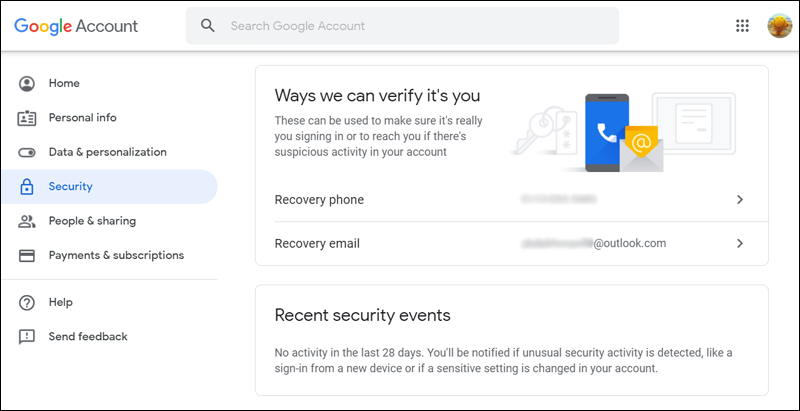
4 basic steps to ensure that your Google account is secure. The first step: Add a backup email and phone number. If your Google account is locked for any reason, such as you forgot the password, or someone changed it, then adding a backup email or phone number can help you a lot today. To stay on the safer side, it's best to add each of these details. Google even prompts this from time to time when you open your account settings.
Security questions are no longer part of your Google account setup. So, to add backup information to your Google account, all you have to do is do the following: On the Google account page, go to the “Security” section from the left side menu to access the security settings. In the Ways we can verify it’s you section, click on Recovery phone and Recovery email one by one to add new backup information.
Make sure your backup email address is different from the Gmail address associated with the account whose settings you're updating. You can also update access details from the Personal info page (accessible from the side menu). Where you will also see other email addresses associated with your account.
Google may ask you to sign in to one of these email addresses during account recovery if your usual authentication methods don't work when you sign in. Your backup email and phone number ensure that you can still sign in to your Google account even if you don't remember your password or primary email address. However, if you are in a scenario where you no longer have access to that phone number or backup email address, it is a good idea to remember these pieces of information that Google may ask you during account recovery: Previous passwords: You should at least remember the last remembered password.
If you use a password management application
You may already have access to this data. When did you create your account: If you enter the date you created your Google account, you may open a window to restore it again. Step Two: Set up the two-factor authentication feature When you activate the two-factor authentication feature, you secure your Google account with an additional layer of protection.
Your account can then only be accessed with the correct password, a code sent via SMS to your phone, or another form of two-factor authentication or two-step verification. To start setting up this additional security measure, all you have to do is: Go to the “Security” page from the side menu. At the bottom of the “Signing in to Google” section, click on 2-Step Verification.
Now click on “Get Started” to start setting up the feature. At this point, Google will ask you to enter a valid phone number through which you can receive one-time codes when logging in from any other computer. You can choose to receive this code via SMS or via voice message.
Choose what you want, then click the Next button. On the next screen, type the six-digit code you received from Google on your phone and again click Next. Go to “Enable 2-Step Verification” by clicking on the “Turn on” button that appears at the top.
Read also: How to use your Android phone as a security key to protect your Google account from being hacked. You will then see a handful of alternative options that you can use as a second step if your phone is not available or if you prefer a safer and easier option. Security Key is our safest choice yet. But whether you're satisfied with sending the code in an SMS or through authentication apps like Google Authenticator, make sure you don't miss this next step: keeping backup codes.
Keep Backup Codes There will be times when you cannot access any of your usual methods for obtaining a verification code while logged in. Maybe you lost your phone or it's not connected to the Internet. Your authenticator application may be down.
Regardless of the issue, this will not restrict you from accessing your Google account. If you have backup codes ready, it's easy to sign in to your account and verify your identity under any circumstances: Here's how to get them: If you're not on the 2-Step Verification page already, access it via Security then Signing in to Google. Click the “Show Codes” button below Backup codes.
Now save the 10 backup codes that Google created for you. You can also print it, save it as a PDF or text file, or paste it into a secure note in your password manager. Each of these codes is available for one-time use.
If you've already created a set of icons, but haven't saved them, follow the same steps as above. Step 3: Control what is shared on Google Fraudsters or social engineering experts can use your personal details to steal your identity or help them hack your account. That's why data such as date and place of birth, phone number, email address, physical address, etc. must be protected.
If this data is part of your Google account, you can control who sees it from the Control what people see about you page. You can go to this page by clicking on People & sharing and then choosing Choose what others see in your Google account. Now examine the information contained on this page to locate the information that is visible to everyone, marked with a globe icon.
These flags make it clear that the data is public for anyone to see. So, click on them one by one to mark this data as hidden. You also have the option to select “Your Organization” which ensures that only your team members can see that data.
Step Four: Delete third-party applications that you do not use. Some people may authorize their Google account to log in to third-party applications. But since these apps have access to your confidential information, it's best to make sure that only apps you trust and use remain on the list and have access to your Google account. For the rest, we recommend deleting them.
To do this, access the Apps with access to your account page. You can get there in two ways: either via the Security page and then clicking on “Manage third-party access” under the “Third-party apps with account access” section. Or click Signing in with Google under Signing in to other sites.
Now, you will see all the third-party apps that have access to part of your Google account information. Click on each app to see what information it can learn or modify. If you are not satisfied with what you see or you no longer use this application, click the “Remove Access” button to disconnect the application from your account.
This process does not actually delete your account from external apps – it just makes it inaccessible to your account until you reuse the app again. To delete them permanently, you must delete your account from the app itself before separating it from your Google account.
DROPIDEA
We hope this article has added real value to you. At DROPIDEA, we always strive to deliver high-quality content that helps you grow and evolve in the digital space. Follow us for more useful articles and guides.
Admin
DROPIDEA
Latest Articles

Pangram Raises $9 Million to Detect AI-Generated Content

Encore AI تجمع 30 مليون دولار لبناء وكلاء ذكاء اصطناعي يتعلمون من مكالمات العملاء

Hint: The AI-Powered Home Management Assistant with Martha Stewart's Touch

Startup Runlayer Accuses Rippling of Stealing Its MCP Product Idea

$200 Million to Fight Bots: The Story of Spur Intelligence
Related Articles

ASUS ROG Flow Z13 (2025) available: Everything you could dream of in a gaming tablet.
Pay attention: 10 symptoms that confirm damage to the hard disk and the need for your quick intervention!
