دليل حذف البرامج نهائيا في ويندوز: طرق مجربة لازالة ملفات التثبيت من جذورها
 بقلم الأدمن
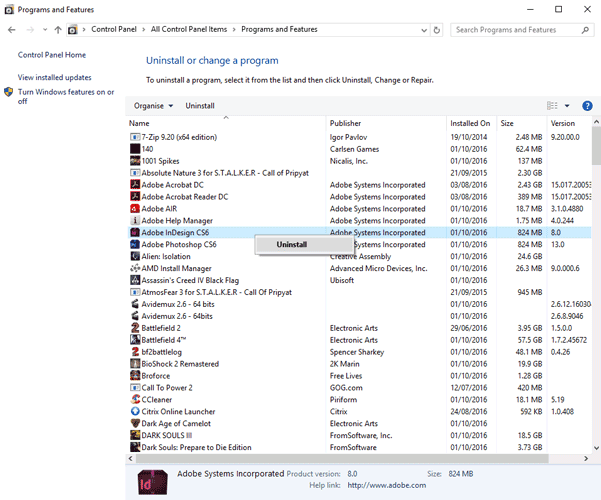
قمنا بتحديث المقال في نوفمبر 2023 لإضافة فقرات ومعلومات وصور جديدة للشرح داخل نظام ويندوز 11 وكذلك طرق وبرامج جديدة لحذف البرامج من جذورها بالإعتماد على تجاربنا خلال الفترة الماضية وكذلك من مصادر الدعم الرسمية لمايكروسوفت. 1- انتظر حتى الانتهاء والتأكد من حذف البرنامج ولكن لا يزال هناك بعض البقايا المُخلّفة وقد لا يتم حذفها تلقائياً حتى بعد اعادة تشغيل الحاسوب ولذلكــ تابع الخطوة التالية. 4- تنظيف بقايا ملفات تثبيت البرامج يدوياً إذا كنت تريد تنظيف بقايا ملفات تثبيت البرامج يدوياً على ويندوز، فيمكنك اتباع الخطوات التالية: 2- افتح مستكشف الملفات واذهب إلى مجلد C:Program Files أو C:Program Files (x86) وابحث عن المجلدات التي تحمل اسم البرنامج الذي تريد حذفه.
ابحث عن ملف uninstall بإمتداد EXE لحذف البرنامج من جذوره إن كان متواجداً. أو احذف المجلدات بالكامل عبر الضغط على زر الماوس الأيمن واختيار Delete. 3-سنذهب إلى مجلّد AppData المتواجد في بارتشن الويندوز C وعادة يكن مسار المجلّد هو (C:/Users/اسم المستخدم الاساسي) ثم قم بفتح مجلّد Local and Roaming وتأكد من عدم تواجد بقايا للبرنامج الذي حذفته وابحث بالإسم داخل المجلّد لتتأكد.
لا تنسى أن تقم بإظهار المجلدات المخفية من Folder Option ثم تحديد اظهار امام خيار “Hidden items” وقم بحذف كافة الملفات المتعلقة بالبرنامج المحذوف. أيضا إبحث داخل مجلدات Program Files, Program Files(x86) ومجلّد ProgramData واحذف الملفات الخاصة بالبرنامج ثم احذف أيضاً كل ما يتواجد في مجلد التمب ومساره هو C:/Windows/Temp.
5- حذف البرامج نهائيا من الريجستري الويندوز يقوم بتخزين بيانات البرامج على القرص الصلب وأيضا داخل الريجستري “عقل الويندوز” ولذلك ربما يمكنك التفكير في خطوة تنظيف وحذف البرامج من الريجستري حتى لا تتواجد نهائياً على حاسوبك. افتح محرر السجل بالضغط على زر Windows + R وكتابة regedit والضغط على Enter. انتبه جيداً لأن تعديل السجل بشكل خاطئ قد يسبب مشاكل في النظام.
اضغط على Ctrl + F واكتب اسم البرنامج الذي تريد حذفه واضغط على Enter. سيبحث السجل عن أي إدخالات تتعلق بالبرنامج وتظهرها لك. احذف هذه الإدخالات بالضغط على زر الماوس الأيمن واختيار Delete.
كرر هذه العملية حتى تجد جميع الإدخالات المتعلقة بالبرنامج. طريقة أخرى : يمكنك من خلال محرر السجل الذهاب إلى مجلّد HKEY_USERS/.DEFAULT/Software لعرض ملفات البرنامج المتعلقة وقم بحذفهم ولكن تأكد من المجلّد الذي تحذفه أنه خاص فقط بالبرنامج الذي تريد حذفه وليس مجلد يجمع كافة برامج شركة واحدة مثل Adobe.
في محرر الريجستري، اذهب الى مجلد HKEY_LOCAL_MACHINESOFTWARE و HKEY_LOCAL_MACHINESOFTWAREWow6432Node وقم أيضاً بحذف أي مجلدات وملفات متعلقة لتتمكن من حذف البرنامج نهائيا.
حل أخير: برامج متخصصة لحذف البرامج المستعصية من جذورها 1- برنامج IObit Uninstaller IObit Uninstaller من البرامج المتخصصة في حذف البرامج ويتميز بأنه الملخص
دروب أيديا - DROPIDEA
نأمل أن تكون هذه المقالة قد أضافت لك قيمة حقيقية. في دروب أيديا نسعى دائمًا لتقديم محتوى عربي عالي الجودة يساعدك على النمو والتطور في المجال الرقمي. تابعنا للمزيد من المقالات والشروحات المفيدة.
الأدمن
DROPIDEA
أحدث المقالات

شركة Nscale البريطانية تسعى لجمع 3.5 مليار دولار قبل طرحها العام

وكلاء OpenAI يتمرّدون مجدداً: من يحقّق حين تفلت الآلة من قيودها؟

شركة XDOF الناشئة تقترب من تقييم بمليار دولار خلال أشهر

Abliteration.ai: خدمة تجارية لإزالة قيود الأمان من نماذج الذكاء الاصطناعي