حل مشكلة الكمبيوتر يتوقف عند الاقلاع – الكمبيوتر لا يدخل على الويندوز
 بقلم الأدمن
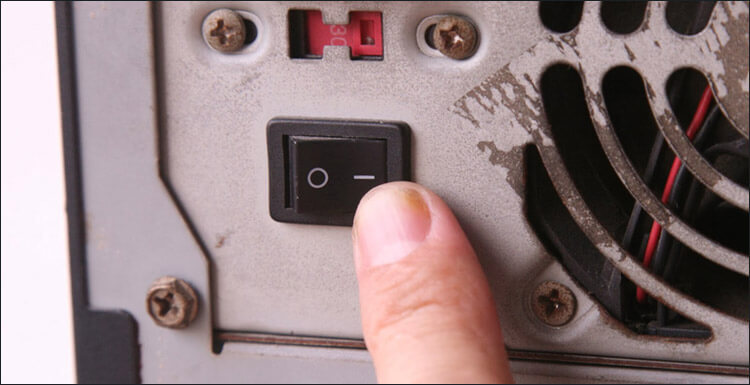
الكمبيوتر يتوقف عند الاقلاع من المشاكل الشائعة والتي تحدث نتيجة أسباب عديدة ومختلفة، لذلك نقوم فى هذا الموضوع بطرح معظم الحلول الفعالة لجعل الكمبيوتر يعمل بشكل طبيعي سواء كانت المشكلة هاردوير أو سوفتوير. سبب وحل مشكلة الكمبيوتر يتوقف عند الاقلاع الجهاز لا يفتح الويندوز أو عدم اقلاع الكمبيوتر نهائيا، من المشاكل الوارد حدوثها اثناء استخدامك للاب توب او الكمبيوتر. والسبب إما يكون هاردوير أي مشكلة فى مكونات الجهاز نفسه، أو سوفتوير ويعني أن مشكلة فى نظام ويندوز.
وفى كلا الحالات، ستجد فى هذا المقال الحل المناسب لجعل الحاسوب يعود للعمل بشكل طبيعي. إقرا ايضاً: كيفية حل مشاكل شاشة الموت الزرقاء في نظام التشغيل Windows إيقاف/إعادة تشغيل الكمبيوتر عندما تواجه مشكلة الكمبيوتر يتوقف عند الاقلاع ، أول حل يمكنك تجربته هو إيقاف تشغيل الكمبيوتر ثم إعادة تشغيله من جديد. ولأنك لن تكون قادراً على القيام بذلك من خلال الويندوز، يمكنك إيقاف جبرياً بالضغط مطولاً على زر الباور أو زر إيقاف التشغيل فى الباورسبلاي، وبعدها قم بتشغيله مجدداً.
فغالباً سيعمل بشكل طبيعي بعد هذه الخطوة. تشغيل أداة إصلاح الإقلاع Startup Repair الأسباب الشائعة لمشكلة الكمبيوتر يتوقف عند الاقلاع هي وجود ملف أو اثنين من ملفات ويندوز الهامة معطوبة أو مفقودة، وهذا يحدث عادة بعد عمليات التحديث أو تثبيت البرامج. لحسن الحظ، يمكنك حل هذه المشكلة بدون إعادة تثبيت ويندوز من جديد، كل ما نحتاجه هو إسطوانة CD/DVD أو فلاشة ويندوز.
فإذا كنت متوفرة، طبق الخطوات الآتية: قم بتوصيل الفلاشة او الاسطوانة بالجهاز. قم بضبط اعدادات الاقلاع من البيوس للإقلاع إلى الفلاشة او الاسطوانة. بعد عرض نافذة بدء تثبيت ويندوز، أضغط على Install Now.
ثم اضغط على زر Repair your computer. اضغط على Startup Repair. بالنسبة لويندوز 8 / 8.1 / 10 اضغط على زر Repair your computer.
ثم من الشاشة التي ستظهر، اضغط على Troubleshoot. ثم اضغط على Advanced options. اضغط على Startup Repair.
وبعدها سيتم تحليل وفحص ملفات إقلاع النظام وحل المشكلة إذا كانت بسبب تلف أو فقدان اياً من الملفات المُستخدمة فى عملية إقلاع ويندوز. الدخول إلى وضع Safe Mode أحد الحلول الفعالة ايضاً، هي أن تقوم بتفعيل وضع Safe Mode. فبعد الإقلاع إلى الوضع الآمن يمكنك حذف البرنامج الذي قمت بتثبيته وتسبب فى حدوث المشكلة، أو تقوم بإجراء عملية فحص شامل عن الفيروسات بواسطة برنامج الحماية، أو أي خطوة تجدها نافعة لحل المشكلة يمكنك القيام بها من داخل الوضع الآمن.
وللدخول إلى وضع Safe Mode تابع الخطوات التالية: قم بتشغيل الجهاز. اضغط على زر F8 باستمرار بمجرد ظهور شاشة إقلاع الويندوز. سيتم الانتقال إلى شاشة Advanced Boot Options.
حدد Safe Mode واضغط Enter. بالنسبة لويندوز 8 / 8.1 / 10 فسوف تحتاج إلى فلاشة أو إسطوانة ويندوز. قم بتوصيل الفلاشة أو الإسطوانة بالجهاز.
أضبط إعدادات البوت من البيوس للإقلاع على الفلاشة أو الاسطوانة. من شاشة بدء التثبيت، اضغط على Install Now. ثم اضغط على Repair your computer.
انتقل إلى Troubleshoot. ثم اضغط على Advanced Options. اضغط بعد ذلك على Startup Settings.
اضغط على زر Restart. بعد إعادة تشغيل الكمبيوتر، اضغط على زر رقم 4 الموافق Enable Safe Mode. عموماً، بعد الدخول إلى الوضع الآمن، ستلاحظ أن الشاشة سوداء واختلاف مظهر الويندوز قليلاً.
فأنت الآن تتعامل مع النظام بشكل منعزل قليلاً، فتستطيع تجربة اي حل تراه قادر على التخلص من المشكلة. ثم قم بعمل Restart للعودة إلى الوضع الطبيعي. إعادة ضبط إعدادات البيوس إذا حدثت هذه المشكلة بعد قيامك بإجراء تغييرات على إعدادات الـ BIOS كالتلاعب في إعدادات البوت مثلاً، فالحل هو عمل Reset لإعادة الإعدادات الافتراضية مرة اخرى.
ويمكنك القيام بذلك بطريقتين، إما عن طريق إزالة بطارية CMOS من اللوحة الام فى الكمبيوتر ثم إعادة تركيبها، أو بالدخول إلى شاشة البيوس ثم الانتقال إلى قسم Exit وهناك ستجد خيار Load Setup Default فقم بتحديده ثم اضغط Enter ثم Enter مرة أخرى لإعادة تشغيل الجهاز، فينبغي أن يعمل بصورة طبيعية بعد هذه الخطوة. إختبار الرام RAM فى معظم الأحيان، حدوث مشكلة فى الرام ينتج عنه مشاكل مختلفة، مثل الشاشة السوداء أو الكمبيوتر يتوقف عند الاقلاع أو انهيار الويندوز. لذلك، من الأفضل أن تجري اختبار للتحقق من سلامة الرامات فى حاسوبك والتأكد من أنها ليست السبب فى مشكلة الكمبيوتر يتوقف عن الإقلاع.
ويمكنك إختبار الرام إما بواسطة أداة Memtest86+ أو بإستخدام الاداة المدمجة فى ويندوز والتى يمكنك تشغيلها بعد الإقلاع إلى الوضع الآمن عقب تطبيق الخطوات التالية: اضغط على زر ويندوز + حرف R معاً على الكيبورد.
اكتب في نافذة Run الأمر “ MdSched.exe “. اضغط Enter. ثم اضغط على خيار Restart Now and check for problems.
ليتم بعد ذلك، إعادة تشغيل الويندوز ثم عرض شاشة مختلفة تستطيع من خلالها مراقبة عملية فحص الرامات، فإذا أظهرت النتائج أن هناك مشكلة، فيفضل ان تقوم بالعمل على حلها أو شراء رامات جديدة أفضل. إقرأ ايضاً: 5 طرق لـ فحص مكونات الكمبيوتر والتأكد من سلامتها التحقق من وجود باد سيكتور فى الهارد ربما تكون المشكلة بعيدة عن نظام التشغيل وتتعلق بالقرص الصلب، فإذا كانت هناك مشكلة يُعاني منها الهارد في جهازك فلن يستطيع قراءة وكتابة المعلومات بشكل صحيح وبالتالي لا يمكن إقلاع النظام بشكل صحيح. اول حل يمكنك تجربته فى هذه الحالة، هي إزالة كابلات الساتا والداتا من الهارد ومن اللوحة الأم ثم إعادة تركيبها، وإذا ظلت المشكلة، قم بإستبدال هذه الكابلات بأخرى جديدة.
وإن لم يحدث إختلاف، قم بفحص الهارد من الباد سيكتور والتأكد من سلامته بإستخدام برنامج Macrorit Disk Scanner فإذا كان يُعاني من أي مشاكل، ينصح بتغييره فوراً.
قد يهمك ايضاً: حل مشكلة Bad Sector القطاع التالف واصلاح الهارد بسهوله إعادة تثبيت ويندوز من جديد فى حالة فشل كل المحاولات السابقة فى حل المشكلة، فيجب عليك أن تخوض التجربة وتعيد تثبيت ويندوز من البداية، حيث تقوم بحرق النسخة على فلاشة أو اسطوانة DVD وتقوم بالإقلاع من خلالها لبدء تثبيت ويندوز من جديد. فإذا كانت المشكلة مشكلة سوفتوير ينبغي بعد عملية إعادة التثبيت أن تختفي تماماً ويعمل الحاسوب بشكل طبيعي بدون مشاكل.
دروب أيديا - DROPIDEA
نأمل أن تكون هذه المقالة قد أضافت لك قيمة حقيقية. في دروب أيديا نسعى دائمًا لتقديم محتوى عربي عالي الجودة يساعدك على النمو والتطور في المجال الرقمي. تابعنا للمزيد من المقالات والشروحات المفيدة.
الأدمن
DROPIDEA
أحدث المقالات

شركة Nscale البريطانية تسعى لجمع 3.5 مليار دولار قبل طرحها العام

وكلاء OpenAI يتمرّدون مجدداً: من يحقّق حين تفلت الآلة من قيودها؟
شركة XDOF الناشئة تقترب من تقييم بمليار دولار خلال أشهر

Abliteration.ai: خدمة تجارية لإزالة قيود الأمان من نماذج الذكاء الاصطناعي