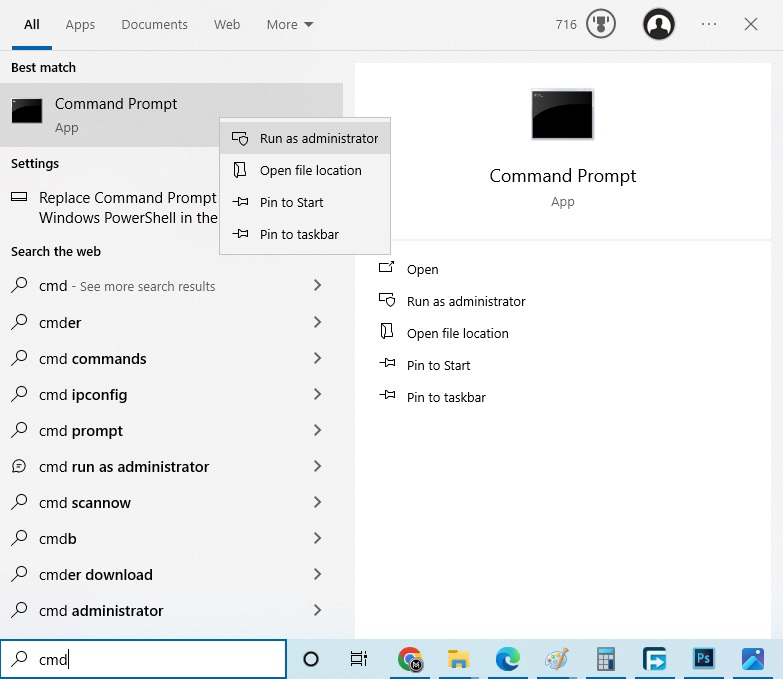
حل مشكلة: الموقع يحتوي على برامج ضارة – This site ahead contains harmful programs
 بقلم الأدمن
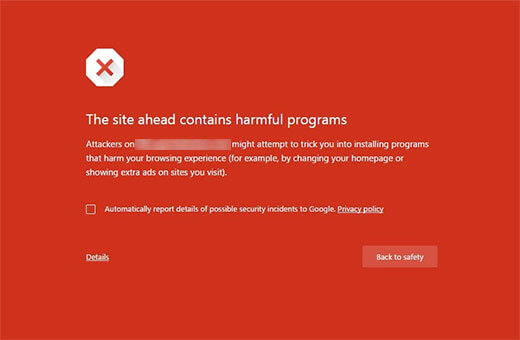
صورة توضيحية لرسالة الموقع يحتوي على برامج ضارة يعتبر ظهور رسالة (الموقع يحتوي على برامج ضارة) من أسوأ المشاكل التي من الممكن أن تواجهك في موقعك، وذلك لأن ظهور هذه الرسالة سيدفع المستخدمين لتجنب دخول موقعك والخروج منه مباشرةً، خوفًا منهم على بياناتهم ومعلوماتهم من السرقة والاختراق، وهذا ما يسبب خسارة عدد كبير من الزوار والعملاء. ومن أجل ذلك ينبغي عليك حل هذه المشكلة بالسرعة القصوى لتحافظ على موقعك وزوارك، ونحن في هذه المقالة سنقوم بتعريفك على مشكلة ظهور رسالة (الموقع يحتوي على برامج ضارة) وأسبابها ونضع لك حلولًا تساعدك على حلها.
ماذا تعني رسالة الموقع يحتوي على برامج ضارة؟ تقوم محركات البحث بفحص جميع مواقع الإنترنت، وعندما تجد أن هناك موقعاً يحتوي على برامج ضارة من شأنها أن تضر حاسوب أو بيانات المستخدم يقوم المتصفح بعرض رسالة (الموقع يحتوي على برامج ضارة). وبالتالي إذا ظهرت هذه الرسالة على موقعك أو على أي موقع آخر تقوم بتصفحه، فهذا يعني أن هذا الموقع تم اختراقه أو أنه يحتوي على ملفات ضارة، ويقوم المتصفح بتحذيرك من تصفح الموقع حيث يقوم بتصنيفه كموقع غير آمن.
وفي بعض الأحيان، تظهر رسالة الخطأ حتى بعد إصلاحه. الأسباب التي تؤدي إلى ظهور رسالة الموقع يحتوي على برامج ضارة توجد العديد من الأسباب التي من الممكن أن تسبب هذه المشكلة وفيما يلي سنذكر لك أهمها: اختراق الموقع من قبل بعض المخترقين وزرع برمجيات مضرة أو ملفات التجسس والاختراق. عرض إعلانات من شبكات إعلانية تعتبر غير موثوقة، وبالتالي تقوم هذه الشبكات بعرض إعلانات مرتبطة بمواقع مخترقة أو تحوي برامج ضارة.
استخدام بعض القوالب أو الإضافات الغير موثوقة التي تحتوي على سكريبتات ضارة للمستخدم. السماح للجميع بنشر تعليقات دون مراجعتها والتأكد فيما إذا كانت تحتوي على محتوى احتيالي. وضع روابط غير موثوقة داخل الموقع والتي من الممكن أن تؤدي إلى مواقع تحتوي على ملفات ضارة.
عدم استخدام شهادة SSL لحماية الموقع. في حال كنت تريد التحقق من الموقع الخاص بك يمكنك استخدام
أداة تحليل التصفح الآمن من Google . صفحة أداة تحليل التصفح الآمن من Google
طرق حل مشكلة ظهور رسالة (الموقع يحتوي على
برامج ضارة) يوجد نوعان من الحلول المتبعة لحل هذه المشكلة، وكلاهما يكونان من خلال البحث عن البرمجيات الضارة أو عن الأسباب التي من الممكن أن تسبب المشكلة وإزالتها، ويكمن الاختلاف بينهما بالطريقة التي تتم من خلالها عملية البحث عن سبب المشكلة أو عن البرمجيات الضارة، وفيما يلي سنستعرض لك هذين النوعين. 1. البحث عن مسبب المشكلة وإزالته في هذه الطريقة ستقوم بمراجعة مكونات وملفات موقعك من أجل البحث عن سبب الخطأ وإزالته، وذلك دون الاعتماد على إضافات الحماية والأمان أو إضافات أخرى، لكن لتقوم بذلك يجب عليك اتباع خطوات من مصدر موثوق لتفادي حدوث أي مشكلة، كما ينصح ب إنشاء نسخة احتياطية
للموقع قبل البدء بأي خطوة. تتضمن خطوات هذه الطريقة ما يلي: التحقق من تحديث قوالب وإضافات الموقع من الممكن أن تحتوي القوالب والإضافات القديمة على العديد من الثغرات التي يستخدمها المقرصنون للدخول إلى موقعك وتخريبه، لذلك يجب عليك التأكد من تحديث القوالب والإضافات المفعلة على موقعك، لأن ذلك قد يكون كفيلًا بمنع المخربين من الدخول إلى موقعك ويحل المشكلة.
يمكنك اتباع الخطوات التالية للتأكد من وجود تحديثات للقوالب أو الإضافات المفعلة على موقعك. أولًا قم بتسجيل الدخول إلى الووردبريس ثم من خلال لوحة التحكم، ضع مؤشر الفأرة على ( الرئيسية ) وانقر على ( تحديثات ). انقر على تحديثات ضمن القائمة المنسدلة الخاصة بتبويب الرئيسية
ستظهر لك صفحة توضح جميع التحديثات المتوفرة لموقع الووردبريس الخاص بك بما في ذلك تحديثات القوالب والإضافات، يمكنك من خلالها تحديث جميع القوالب والإضافات بسهولة من خلال تحديدها والنقر على تحديث الإضافات أو تحديث القوالب. القيام بتحديد القالب أو الإضافة التي تريد تحديثها والنقر على تحديث
كما يفضل إزالة جميع القوالب والإضافات الغير ضرورية
أو الغير مستخدمة كي لا يقوم المتسللون باستخدام الثغرات التي قد تكون موجودة فيها من أجل اختراق موقعك. التحقق من ملفات الووردبريس البرمجية إذا كنت تمتلك خبرة برمجية جيدة فيمكنك التحقق من ملفات الووردبريس البرمجية والتأكد من أنها سليمة، لأن المخترقين والمخربين سيقومون بوضع الأكواد الخبيثة في هذه الملفات مما يتسبب بظهور رسالة الموقع يحتوي على برامج ضارة. لكن لا يفضل الدخول إلى ملفات الووردبريس من قبل أي شخص، لأن التعامل مع هذه الملفات يتطلب خبرة برمجية عالية وأي خطأ فيها من الممكن أن يتسبب بتعطيل الموقع بشكل كامل.
كما يمكنك الاستعانة ب خدمات حماية الووردبريس في موقع خمسات من أجل الاستفادة من خبرات المختصين الموجودين ضمن الموقع في فحص الملفات البرمجية لموقعك والمساعدة على حل المشكلة.
التحقق من الأشخاص الذين يملكون إمكانية الوصول لإعدادات للموقع تعتبر هذه الخطوة من الخطوات المهمة في حل مشكلة ظهور رسالة (الموقع يحتوي على برامج ضارة) فمن خلالها ستعرف من هم الأشخاص الذين يمتلكون إمكانية الوصول إلى موقعك وإعداداته، فإذا كان هناك شخص يمتلك إمكانية الوصول إلى الموقع ولم تقم أنت بمنحه إياها أو لم يكن شخصًا موثوقًا، فاحذف عضويته على الفور، لأنه قد يعمل على تخريب موقعك وبالتالي ظهور رسالة (الموقع يحتوي على برامج ضارة). يمكنك معرفة أعضاء موقعك من خلال لوحة تحكم الووردبريس عن طريق وضع مؤشر الفأرة على ( أعضاء )، ومن ثم النقر على ( كافة الأعضاء ). ستظهر لك قائمة تضم جميع الأعضاء المسموح لهم بالوصول إلى الموقع، ويمكنك حذف أي عضو مشبوه أو أي شخص لا تعرفه من خلال النقر على ( حذف ) ضمن خيار العضو.
صورة توضح طريقة معرفة أعضاء موقع الووردبريس التحقق من شهادة أمان SSL إن حدوث أي مشكلة في شهادة SSL قد يؤدي إلى إظهار رسالة (الموقع يحتوي على برامج ضارة) للزوار أو حدوث غيرها من المشاكل، لذلك ينبغي عليك التأكد من أن شهادة أمان SSL سليمة وتعمل بشكل صحيح. ومن أبرز المشاكل التي تحصل في شهادة SSL مشكلة المحتوى المختلط وتحدث هذه المشكلة بسبب اختلاف صيغ الروابط الموجودة في موقعك مثل أن يكون بعضها بصيغة http وبعضها https، كما يجب عليك التأكد من صلاحية شهادة أمان SSL الخاصة بموقعك ففي حال كانت منتهية فيجب عليك تجديدها على الفور حتى تتجنب حدوث المشاكل.
2. استخدام إضافات الحماية والأمان تعتمد هذه الطريقة بشكل أساسي على استخدام إضافات الحماية والأمان من أجل البحث عن البرامج الضارة وإزالتها بشكل تلقائي، ففي هذه الطريقة كل ما عليك فعله هو تثبيت إحدى هذه الإضافات على موقعك واستخدامها بالشكل الصحيح لحل مشكلة ظهور رسالة (الموقع يحتوي على برامج ضارة). اقرأ أيضًا: تأمين وحماية مواقع الووردبريس من كافة الثغرات | دليل شامل
هناك بعض الإضافات الموثوقة توفر لك حماية موقعك وحذف الملفات الخبيثة بشكل دوري، وتستطيع حماية موقعك بشكل كامل من خلال لوحة تحكم الإضافة ومتابعة الإشعارات بشكل دوري بسهولة. هناك العديد من الإضافات تقوم بهذه المهمة ولكن سأستعرض لك أشهرهم: 1.
إضافة Wordfence Security صورة تعبيرية لإضافة Wordfence Security
تمكنك هذه الإضافة من حماية موقعك من هجمات الاختراق، وتقدم لك مراقبة أمنية في الوقت الفعلي، وتقوم بحظر طلبات البرامج الضارة، وغيرها الكثير. يتميز Wordfence بأنه سهل الاستخدام ويأتي بسعر 99$، وتوجد نسخة مجانية محدودة الميزات. الميزات: فحص البرامج الضارة للتحقق من الملفات والإضافات والقوالب قبل تحميلها.
المصادقة الثنائية (2FA) وحدود تسجيل الدخول لمنع هجمات القوة الغاشمة. مراقبة زيارات الموقع والتحليلات في الوقت الحقيقي. حظر عمليات تسجيل الدخول للمسؤولين الذين يستخدمون كلمات مرور معروفة تم اختراقها.
صفحة تسجيل الدخول CAPTCHA التي تمنع الروبوتات من تسجيل الدخول. الحصول على التنبيهات والإشعارات من خلال البريد الإلكتروني أو الرسائل القصيرة أو برنامج Slack. تقوم هذه الإضافة بالتحقق من ملفاتك الأساسية وقوالبكَ وإضافاتِك الخاصة، بحثاً عن عناوين URL السيئة أو الرسائل غير المرغوب بها، وهذا يؤدي إلى تحسين موقعك بالنسبة إلى محركات البحث وعمليات إعادة التوجيه.
هناك أيضاً ميزة Live Traffic التي تمكنك من مراقبة الزيارات ومحاولات الاختراق في الوقت الفعلي، ويمكنك أيضاً حظر المهاجمين بناءً على قواعد متقدمة. تأتي النسخة المدفوعة مع ميزات إضافية مثل قاعدة جدار الحماية في الوقت الفعلي، أو وضع قائمة سوداء لعناوين IP أو حظر بلد معين.
الذهاب لصفحة تحميل Wordfence Security النسخة المجانية
2. إضافة All In One WP Security & Firewall تعد هذه الإضافة من أكثر إضافات الووردبريس شهرةً وانتشاراً، وهي إضافة مجانية ومتوفرة باللغة العربية.
تأتي الإضافة مع لوحة تحكم لمراقبة موقعك الإلكتروني؛ حيث تسمح لك قواعد وإعدادات الأمان ووجدار الحماية وإضافة العديد من إجراءات الأمان والحماية بشكل تدريجي على موقعك. المميزات: “تأمين تسجيل الدخول” لمنع هجمات القوة الغاشمة (brute force attacks). حماية الملفات والتحرير والنسخ الاحتياطي والاستعادة.
حماية جدار الحماية منع التعليقات غير المرغوب بها ماذا يمكن أن تفعل؟ تحمي هذه الإضافة موقعك من الهجمات الضارة، وتؤمن حسابات المستخدمين الخاصة بك، كما توجد إمكانية إضافة ( Google reCaptcha ) إلى صفحة تسجيل مستخدم الووردبريس لحمايتك من تسجيل مستخدم البريد العشوائي. يمكنك كذلك فرض تسجيل الخروج لجميع المستخدمين بعد فترة زمنية، أو عرض محاولات تسجيل الدخول الفاشلة أو القدرة على رؤية قائمة بجميع المستخدمين الذين قاموا بتسجيل الدخول حاليًا إلى موقعك.
أيضاً؛ تسمح لك بإدراج عناوين IP محددة في القائمة السوداء، وغيرها الكثير. الذهاب لصفحة تحميل All In One WP Security & Firewall 3.
إضافة iThemes Security صورة تعبيرية لإضافة iThemes Security ithemes إضافة قوية لحماية موقعك وتأمينه، وتأتي بسعر 80$ للحصول على كل الميزات، وهناك نسخة مجانية محدودة الميزات. يمكنك من خلال الإضافة إصلاح الثغرات الأمنية الشائعة في الووردبريس، وإيقاف الهجمات الآلية وغيرها.
يمكنك بسهولة فحص موقعك الخاص بحثاً عن نقاط الضعف والعمل على إصلاحها، ويمكنك إيقاف عمل الروبوتات أو فرض كلمات مرور قوية لجميع الحسابات. الميزات: منع الهجومات الضارة فحص البرامج الضارة اكتشاف الخطأ 404 فرض كلمة مرور قوية لجميع المستخدمين. النسخة المدفوعة، تحوي على ميزات إضافية مثل المصادقة الثنائية، وزيادة عمليات فحص البرامج الضارة و(Google reCaptcha) وغيرها الكثير.
الذهاب لصفحة تحميل iThemes Security 4.
إضافة Malcare صورة تعبيرية لإضافة Malcare
تعتبر إضافة Malcare من أشهر إضافات الحماية والأمان، وتعد من أسرع الإضافات في العثور على البرامج الضارة وإزالتها، حيث تمكنك من تنفيذ المهمة ببضع نقرات وبخطوات بسيطة. قد تستغرق عملية البحث عن البرامج الضارة وإزالتها بضع دقائق أو بضع ساعات ويعتمد ذلك على حجم موقعك وكمية البيانات الموجودة فيه، ويوجد عدة نسخ من الإضافة إحداها مجانية لا تتطلب دفع المال.
مميزات إضافة Malcare: تكتشف البرامج الضارة بسرعة. لا تؤثر على سرعة موقع الووردبريس الخاص بك. تزيل جميع البرامج الضارة بدون ترك أثر لها.
سهلة الاستخدام، ولا تتطلب خبرة كبيرة. الذهاب لصفحة تحميل إضافة Malcare بعد الانتهاء من فحص الموقع والعثور على الثغرات وإغلاقها؛ يجب عليك فحص جميع ملفات موقعك وقاعدة البيانات.
ملحوظة : يجب الانتباه إلى أن هذه الإضافات لا تقوم بتأمين موقعك بشكل كامل، وذلك لأن الكود الذي تم وضعه وتسبب في اختراق موقعك، قد يكون مصدره ثغرة معينة في موقعك، أو قد يكون مصدره خارجياً وليس ضمن محتوى موقعك، و. لكن يبقى إغلاق الثغرات أمراً مهماً جداً لا يمكن تجاهله.
استخدام أدوات مشرفي المواقع (Google Search Console) للتأكد من حل المشكلة بعد أن قمت بحل مشكلة ظهور رسالة (الموقع يحتوي على برامج ضارة) يجب عليك التأكد من أن موقعك قد أصبح سليمًا ولا يعاني من أي مشاكل أمنية، وللقيام بذلك يمكنك استخدام أدوات مشرفي المواقع (Google Search Console) التابعة لشركة جوجل.
انقر على ابدأ الآن لاستخدام أدوات مشرفي الموقع
لاستخدام هذه الأداة توجه إلى Google Search Console وقم بتسجيل الدخول إلى لوحة تحكم Google Search Console الخاص بموقعك، ومن ثم انتقل إلى تبويب مشاكل الأمان ضمن خيار الأمان والإجراءات الأمنية. ستظهر لك صفحة تتضمن جميع المشكلات الأمنية والتحذيرات التي اكتشفها جوجل في موقعك، كما ستجد بعض الروابط التي أرفقتها جوجل لمساعدتك في حل هذه المشاكل، وفي حال لم توجد أي مشاكل أمنية في موقعك سيظهر لك إشعار (لم يتم رصد أي مشاكل أمنية) داخل الصفحة.
انقر على مشاكل الأمان وأخيرًا إن لم يكن يوجد أي مشاكل أمنية في موقعك واستمر جوجل بإظهار رسالة (الموقع يحتوي على برامج ضارة) للزور فعندها يجب عليك ملء البيانات في هذا النموذج وإرسالها إلى جوجل للتأكد من حل هذه المشكلة.
صورة توضح النموذج الذي يجب تعبئته وإرساله إلى جوجل وفي النهاية يجب عليك مراقبة أداء موقعك بشكل مستمر وعدم اتخاذ بعض السلوكيات الخاطئة التي قد تؤدي إلى اختراق موقعك، مثل استخدام القوالب والإضافات والملفات والسكربتات الغير موثوقة أو تتبع الروابط المجهولة، فيجب أخذ هذا في الاعتبار إلى جانب استخدام أدوات الأمان والحماية المختلفة.
اقرأ أيضًا:
مشاكل الووردبريس الأكثر شيوعًا، وطرق حلها
دروب أيديا - DROPIDEA
نأمل أن تكون هذه المقالة قد أضافت لك قيمة حقيقية. في دروب أيديا نسعى دائمًا لتقديم محتوى عربي عالي الجودة يساعدك على النمو والتطور في المجال الرقمي. تابعنا للمزيد من المقالات والشروحات المفيدة.
الأدمن
DROPIDEA
أحدث المقالات

شركة Nscale البريطانية تسعى لجمع 3.5 مليار دولار قبل طرحها العام

وكلاء OpenAI يتمرّدون مجدداً: من يحقّق حين تفلت الآلة من قيودها؟

شركة XDOF الناشئة تقترب من تقييم بمليار دولار خلال أشهر

Abliteration.ai: خدمة تجارية لإزالة قيود الأمان من نماذج الذكاء الاصطناعي