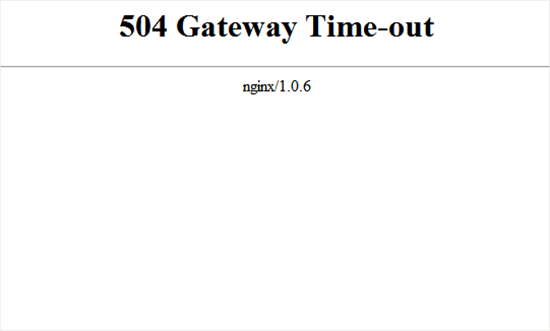
إذا ظهر لك هذ الخطأ، فهذا يعني أن المستخدمين لا يمكنهم الوصول إلى موقعك الخاص، وهي رسالة تظهر وتختفي أحياناً سبب المشكلة غالباً تظهر مشكلة (انتهت مهلة البوابة 504)، عندما لا يستطيع الخادم الاتصال بخادم أعلى لإكمال الطلب، أي أن هذه المشكلة تظهر بسبب مزود خدمة الاستضافة الخاص بك. على سبيل المثال؛ إذا كنت تستخدم جدار حماية لموقع الويب مثل (Sucuri)، ولم تتمكن من الاتصال بخادم الووردبريس، فسترى خطأ مهلة البوابة 504، ففي بعض الأحيان قد تظهر لك الرسالة بشكل مختلف، وذلك على حسب شركة الاستضافة التي تتعامل معها أو المتصفح الذي تستخدمه.
على سبيل المثال: 504 Gateway Timeout HTTP 504 504 ERROR Gateway Timeout (504) HTTP Error 504 – Gateway Timeout Gateway Timeout Error ويبقى السبب الأكثر شيوعًا للخطأ هو عدم قدرة الخادم الوكيل (proxy server) على الوصول إلى الخادم الرئيسي (upstream server). الحل #1: بداية عليك الانتظار وإعادة المحاولة مرة أخرى في بعض الأحيان يكون السبب خللاً مؤقتاً في الخادم الذي تعتمد عليه، وما عليك سوى الانتظار لبعض الوقت وإعادة المحاولة.
الحل #2: إيقاف VPN في بعض الأحيان، قد لا يتمكن خادم VPN الخاص بك من الحصول على استجابة من خادم استضافة الووردبريس المُدار، وسيؤدي ذلك إلى خطأ. إذا كنت تستخدم خدمة VPN لتصفح الويب، فحاول تعطيلها.
الحل #3: إيقاف تشغيل جدار حماية موقع الويب في حال كنت تستخدم جدار حماية لموقعك مثل (Sucuri أو Cloudflare)، فيجب عليك محاولة إيقاف جدار الحماية بشكل مؤقت، وهذا سيسمح لك بالاتصال بالخادم بشكل مباشر. فإذا اختفت المشكلة، فهذا يعني أن الخادم الخاص بالاستضافة قام بحظر عناوين IP لجدار الحماية والتي يمكن أن تسبب هذه المشكلة.
في هذه الحالة، عليك التواصل مع مزود خدمة جدار الحماية للحصول على قائمة عناوين IP الخاصة به، ثم الاتصال بمزود خدمة الاستضافة الخاص بك لإدراج عناوين IP هذه في القائمة البيضاء. الحل #4: تعطيل وكيل الشبكة (Network Proxy) الخاص بك إذا تقوم بالاتصال بالإنترنت من خلال (proxy server)، فلن يتمكن هذا الخادم في بعض الأحيان من الحصول على استجابة من موقعك.
حاول الوصول إلى موقعك الخاص باستخدام اتصال إنترنت مختلف، أو استخدم الخدمات المتوفرة عبر الإنترنت لمعرفة ما إذا كان موقعك الخاص معطلاً لك أو للجميعِ. إذا كان الموقع معطلاً لك فقط، فأنت بحاجة إلى تغيير إعدادات الشبكة.
الحل #5:تغيير خوادم DNS
عندما تستخدم عناوين خوادم DNS، فإن هذا يساعد جهاز الحاسوب على الاتصال بالخوادمِ المختلفة على الإنترنت، وإذا كانت خوادم DNS التي تستخدمها معطلة أو غير قادرة على الاتصال بموقعك الإلكتروني؛ فقد ترى خطأ 504 gateway timeout. خطوات تغيير خوادم DNS على أجهزة الكمبيوتر التي تعمل بنظام Windows؛ يمكنك العثور عليها ضمن لوحة التحكم» شاشة مركز الشبكة والمشاركة على أجهزة كمبيوتر Mac؛ يمكنك العثور عليها ضمن الإعدادات» الشبكة، وبعد ذلك عليك الضغط فوق “خيارات متقدمة” واختيار تبويت DNS.
حاول زيارة موقعك مرة أخرى، وإذا أدى هذا إلى حل الخطأ، فقد انتهيت من كل شيء، وكانت المشكلة في اتصالك بالإنترنت، وقد تم حلها. الحل #6: تحسين قاعدة البيانات قد تؤدي قاعدة بيانات الووردبريس الفاسدة أيضًا إلى حدوث نفس المشكلة المذكورة.
غالباً ستكون بيانات الووردبريس الخاصة بك آمنة، ومع ذلك؛ قد تحتاج قاعدة البيانات الخاصة بك إلى حذف المهام الغير هامة. يمكن القيام بذلك بسهولة عن طريق تحسين قاعدة بيانات الووردبريس باستخدام phpMyAdmin أو باستخدام إضافة خارجية مثل WP-Sweep. في بعض الأحيان قد تسبب الإضافات أو القوالب هذه المشاكل، أو قد يكون بداخلها كود خاطئ يؤدي إلى ذلك.
اقرأ أيضًا: مشاكل الووردبريس الأكثر شيوعًا، وطرق حلها
دروب أيديا - DROPIDEA
نأمل أن تكون هذه المقالة قد أضافت لك قيمة حقيقية. في دروب أيديا نسعى دائمًا لتقديم محتوى عربي عالي الجودة يساعدك على النمو والتطور في المجال الرقمي. تابعنا للمزيد من المقالات والشروحات المفيدة.

الأدمن
DROPIDEA
أحدث المقالات

كوجنيشن تنفي محاولة سبيس إكس الاستحواذ عليها في سباق الذكاء الاصطناعي

OpenAI تطلق نظام «المعالجة الآمنة الخاصة» لحماية خصوصية عملائها

لماذا اشترت سترايب منصة أوبن راوتر بمليارات الدولارات؟

لماذا لن يعالج الذكاء الاصطناعي السرطان قريباً؟