حلول فعالة لمشكلة كاميرا الماك بوك لا تعمل
 بقلم الأدمن
لم يعد بإمكاننا تخيل أجهزة ماك بوك الخاصة بنا بدون كاميرات بعد الآن، وخصوصًا أن اجتماعات ومكالمات الفيديو أصبحت جزء لا يتجزأ من حياة كل مستخدم تقريبًا. على الرغم من أن عدم عمل كاميرا الماك بوك أمر مزعج بلا شك، إلا أنه لحسن الحظ من السهل جدًا إصلاحها بنفسك في معظم الحالات، وسنناقش في هذه المقالة حل مشكلة كاميرا الماك بوك التي لا تعمل. تأتي معظم أجهزة ماك اليوم مزودة بكاميرا أمامية مدمجة، يشار إليها غالبًا باسم كاميرا FaceTime.
تقع بالقرب من الحافة العلوية للشاشة ويتم تشغيلها عند فتح تطبيق قادر على التقاط الصور أو تسجيل فيديو أو إجراء مكالمة فيديو. نظرًا لأنه يتم تنشيط فيس تايم تلقائيًا، فلا داعي للتساؤل عن كيفية توصيل الكاميرا على جهاز الماك بوك. ومع ذلك، تفشل عملية التنشيط في بعض الأحيان، ومن الجيد معرفة ما يجب فعله من أجل أن تعمل الكاميرا كما كانت مجددًا.
في هذه الحالة، من الضروري تنفيذ حلول لإصلاح المشكلة على الفور. ستناقش هذه المقالة حل مشكلة كاميرا الماك بوك التي لا تعمل.
أسباب مشكلة كاميرا الماك بوك لا تعمل عندما
لا تعمل كاميرا الماك بوك الخاصة بك بشكل صحيح، فسوف تظهر لك رسالة أنها غير متصلة أو غير متاحة. قد يفاجئك الخطأ “لا توجد كاميرا متصلة” في أي وقت مع أي تطبيق إذا وجد أن الكاميرا الخاصة بك لا تعمل بالشكل المطلوب. لكن لا تتعجل في افتراض أنك الآن بحاجة إلى “توصيل” الكاميرا مرة أخرى بطريقة أو بأخرى أو أن هناك مشكلة داخلية في الهاردوير تتطلب حلها عن طريق الضمان والدعم الفني: لا يأتي نظام التشغيل macOS مزودًا بتطبيق إعدادات الكاميرا.
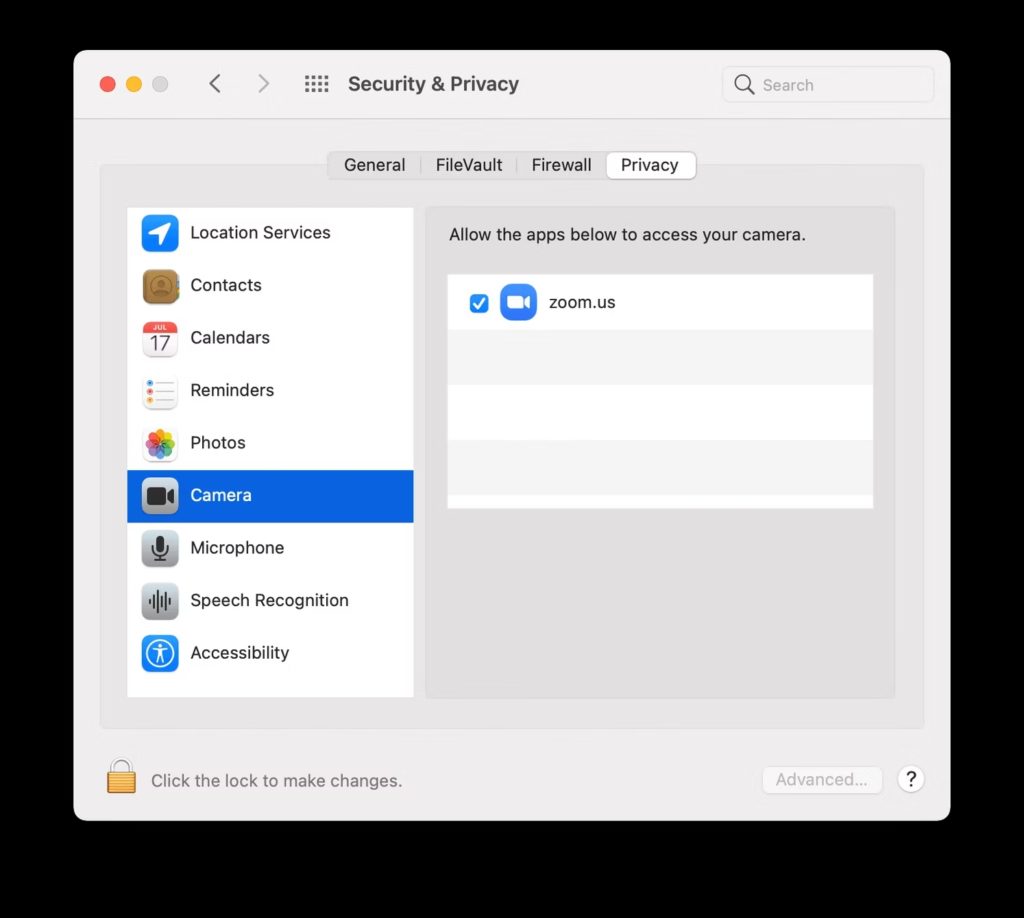
تأتي معظم التطبيقات التي تستخدم كاميرا الماك بوك مزودة بخيارات التكوين الخاصة بها، لذلك لا يوجد مفتاح تشغيل وإيقاف – لا ماديًا ولا برمجيًا. حتى إذا كنت تعتقد أن الأمر قد يكون بسبب مشكلة في الهاردوير، يمكنك عادة حل مشكلة عدم عمل كاميرا الماك بوك بسرعة كبيرة بنفسك بمساعدة بعض الحيل الصغيرة فيما يلي دليل شامل للنصائح التي يمكنك استخدامها لإعادة الكاميرا إلى العمل مرة أخرى عن طريق خطوات وحلول بسيطة: حل مشكلة كاميرا الماك بوك التي لا تعمل جميع الحلول أدناه، هي بسيطة وسهلة ولا تتطلب أي معرفة تقنية كبيرة ولا تتطلب دعوة متخصص لإجرائها، وهي فعالة ومُجربّة مُسبقًا وأثبتت كفاءتها، لذا لا تتردد في تجربتها: تحقق من أذونات الكاميرا الخاصة بك إذا كنت تواجه مشكلات في حل مشكلة كاميرا الماك بوك الخاص بك، فإن أول ما عليك فعله هو التحقق من أذونات استخدام الكاميرا. انقر على قائمة ابل في الزاوية اليسرى من شريط القائمة وحدد تفضيلات النظام.
ابحث عن الأمان والخصوصية وانتقل إلى علامة التبويب الخصوصية. قم بالتمرير لأسفل إلى الكاميرا وتأكد من أن التطبيق الذي تريد استخدام الكاميرا معه يحتوي على علامة اختيار بجواره قم بتمكين الكاميرا الخاصة بك بواسطة أداة Terminal في بعض الأحيان، قد تكون الكاميرا الخاصة بك قيد الاستخدام بواسطة أحد التطبيقات ولم يتم إيقافها بشكل صحيح حتى يتمكن التطبيق الجديد من محاولة استخدام كاميرا الويب. هذا يعني أنك قد تحتاج إلى استخدام أداة Terminal لإنهاء العملية.
افتح التطبيق من خلال Finder > Applications > Utilities > Terminal واكتب الأوامر التالية: sudo killall VDCAssistant يؤدي هذا إلى إيقاف عملية VDCAssistant وهو ما سيُساعد في تشغيل الكاميرا. فقط اكتب ذلك السطر أعلاه عندما يُطلب منك ذلك بواسطة Terminal، وستُحل المشكلة بأكملها. يمكنك أيضًا تجربة الأمر التالي: Sudo killall AppleCameraAssistant على الرغم من أن هذا قد يقتصر على نظام التشغيل OS X ولا يعمل على أجهزة الماك بوك التي تعمل على نظام تشغيل Big Sur macOS، ألا أنه حل أثبت فاعليته وفقًا لآراء الكثير من المُختصين.
تحقق من وجود عدة تطبيقات تستخدم الكاميرا في آنٍ واحد نحن نعلم أن كاميرا الماك بوك يتم تشغيلها تلقائيًا بواسطة التطبيقات التي تستخدمها. ولكن من المهم أيضًا ملاحظة أن تطبيقًا واحدًا فقط يمكنه استخدام الكاميرا في نفس الوقت. لذا، عندما لا تعمل كاميرا الويب الخاصة بجهاز الماك بوك، تأكد من عدم منعك من الوصول إلى الكاميرا لأن بعض التطبيقات الأخرى تستخدمها في الوقت الحالي: قم بتشغيل مراقب النشاط من التطبيقات قم بإنهاء كافة التطبيقات أو الأدوات المساعدة الأخرى المفتوحة التي قد تستخدم الكاميرا (مثل Skype وFaceTime وPhoto Booth) إذا لم تكن متأكدًا من التطبيقات التي يمكنها الوصول إلى الكاميرا الخاصة بك، فاحفظ عملك وأغلق جميع التطبيقات المفتوحة لاستبعاد كل شيء إذا تم تطبيق تلك الخطوات بالشكل الصحيح، سيتم حل مشكلة كاميرا الماك التي لا تعمل.
اقرأ أيضاً: افضل برامج الكاميرا للكمبيوتر – يمكنك استخدامها لتسجيل كاميرا الويب حل مشكلة كاميرا الماك قد يكمن في إعادة تشغيل الجهاز إذا لم يساعد إنهاء التطبيقات على حل مشكلة كاميرا الماك بوك، فقد يكون هناك احتمال أن بعض العمليات تستخدم الكاميرا في الخلفية. من المؤكد أن إعادة التشغيل ستحل المشكلة، مما يتيح لك الوصول الكامل إلى الكاميرا مرة أخرى.
لإعادة تشغيل جهاز ماك الخاص بك: حدد أيقونة ابل في شريط القائمة العلوي انقر فوق إعادة التشغيل بالنسبة لأجهزة M1 Mac، لإعادة التشغيل، اضغط على قائمة Apple > إعادة التشغيل. إعادة تعيين وحدة تحكم إدارة النظام إذا وجدت أن الكاميرا على جهاز الماك لا تعمل بشكل ثابت ولا يبدو أن أيًا مما سبق قد يساعدك، فيمكنك محاولة إعادة تعيين ما يعرف باسم وحدة تحكم إدارة النظام (SMC). تُدير SMC الكثير من وظائف الأجهزة على جهاز الماك بوك الخاص بك وقد تكون إعادة تعيينها بمثابة حل مشكلة كاميرا الماك بوك.
لإعادة ضبط SMC على جهاز ماك بوك (2017 أو أقدم): قم بإيقاف تشغيل جهاز الكمبيوتر الخاص بك قم بتوصيل محول الطاقة الخاص بك اضغط باستمرار على مفاتيح Shift + Control + Options وزر الطاقة في نفس الوقت انتظر 30 ثانية قبل تحرير المفاتيح، مما سيؤدي إلى تشغيل جهاز ماك احتياطيًا لإعادة ضبط SMC على أجهزة الماك بوك (لعام 2018 أو أحدث): قم بإيقاف تشغيل جهاز Mac الخاص بك اضغط مع الاستمرار على زر الطاقة لمدة 10 ثوانٍ حرر زر الطاقة وانتظر بضع ثوانٍ أخرى قم بتشغيل جهاز الماك مرة أخرى تحقق لمعرفة ما إذا كنت لا تزال تواجه مشكلة عدم عمل كاميرا الماك بوك. إذا استمرت المشكلة، انتقل إلى أيٍ من الحلول الأخرى الواردة في مقالتنا. استخدم أداة Apple Diagnostics من أجل حل مشكلة كاميرا الماك عندما يفشل كل شيء آخر، فإن الملاذ الأخير لك هو أداة تشخيصات ابل.
لاستخدامها، قم بإيقاف تشغيل جهاز ماك الخاص بك، وفصل الأجهزة الخارجية غير الضرورية، وتأكد من وضع الجهاز على سطح مستوٍ وصلب في مكان جيد التهوية. بالنسبة لأجهزة ماك التي تحتوي على معالج Intel، قم بتشغيل الجهاز الخاص بك واضغط مع الاستمرار على المفتاح D على الفور. اتركه بمجرد رؤية شريط التقدم على الخلفية السوداء.
بالنسبة إلى مُعالجات Apple silicon، اضغط مع الاستمرار على زر الطاقة أثناء بدء تشغيل جهاز الماك. حرر بمجرد رؤية خيارات بدء التشغيل. اضغط على Command + D.
انتظر حتى يكتمل الاختبار واحفظ أي رموز مرجعية تحصل عليها كنتيجة – ستحتاج إلى التحقق منها في صفحة الرموز المرجعية لأداة تشخيصات ابل لمعرفة ما هي المشكلة التي في جهازك بالتحديد. كما ترى في القائمة، تشير الرموز NDC001 وNDC003 وNDC004 وNDC005 وNDC006 إلى احتمال وجود مشكلة في كاميرا الماك بوك الخاص بك.
ختامًا إذا لم تتمكن أي من الحلول المقترحة أعلاه من حل مشكلة كاميرا الماك بوك الخاصة بك، فابحث عن مركز صيانة رسمي تابع لآبل أو فني معتمد لإجراء صيانة لجهاز الماك الخاص بك. تذكر أنه لا يزال هناك أيضًا احتمال لحدوث مشكلات في الهاردوير الخاص بالكاميرا الخاصة بك، والتي من المستحيل إصلاحها باستخدام تعديلات السوفت وير. اقرأ أيضاً: تطبيق يمكنك من استخدام كاميرا الايفون على الكمبيوتر ككاميرا ويب
دروب أيديا - DROPIDEA
نأمل أن تكون هذه المقالة قد أضافت لك قيمة حقيقية. في دروب أيديا نسعى دائمًا لتقديم محتوى عربي عالي الجودة يساعدك على النمو والتطور في المجال الرقمي. تابعنا للمزيد من المقالات والشروحات المفيدة.
الأدمن
DROPIDEA
أحدث المقالات

شركة Nscale البريطانية تسعى لجمع 3.5 مليار دولار قبل طرحها العام

وكلاء OpenAI يتمرّدون مجدداً: من يحقّق حين تفلت الآلة من قيودها؟
شركة XDOF الناشئة تقترب من تقييم بمليار دولار خلال أشهر

Abliteration.ai: خدمة تجارية لإزالة قيود الأمان من نماذج الذكاء الاصطناعي