كيفية تفعيل التحويلات Conversions في جوجل أنالتكس
 بقلم الأدمن
كصاحب موقع/متجر الكتروني، من المهم أن تعرف كيف يتصرّف الزوّار داخل موقعك، ما هي الإجراءات التي يقومون بها أثناء زياراتهم، وهو مايتطلب منك القيام بتفعيل التحويلات Conversions داخل حسابك على جوجل أناليتكس. سنتعرف في هذا الشرح على أهم الفوائد التي يمكن تحصيلها من خلال تفعيل التحويلات في حساب إحصائيات جوجل الخاص بموقعك، بالإضافة إلى شرح عملي وتطبيقي على تفعيل التحويلات داخل الحساب لمعرفة أهم الإجراءات التي يقوم بها زوار موقعك، وبالتالي تستطيع أخذ القرار لتحسين جهودك التسويقية.
ما هي التحويلات في جوجل أنالتكس، وكيف نستفيد منها؟
تشير التحويلات في جوجل أناليتكس إلى إجراء معين يقوم به الشخص داخل الموقع، ويمكنك إنشاء التحويلات في حسابك على إحصائيات جوجل من أجل تتبّع الإجراءات التي يقوم بها زوّارك أثناء تصفح الموقع، وهو ما يساعدك على فهم سلوك الزوّار بصورة أفضل، وبالتالي يمكنك تقديم تجربة تصفح مناسبة بصورة كبيرة مع نوعية الزوّار. في الإصدار الجديد من جوجل أناليتكس GA4 أصبح إنشاء التحويلات أكثر سهولة من الإصدارات السابقة، وهو ما يحفزّك على بدء تفعيل التحويلات داخل حسابك للحصول على الكثير من البيانات التي تساعدك في اتخاذ القرار، واليك أهم الأمثلة على استخدام التحويلات في إحصائيات جوجل: من خلال التحويلات تستطيع التعرّف على عدد العملاء الذين دخلوا إلى صفحة (المتجر) فقط. تستطيع التعرّف على عدد العملاء الذين قاموا بإضافة المنتجات إلى السلة، وبالتالي تستطيع معرفة نسبة تفريغ السلة داخل متجرك .
إمكانية التعرّف على عدد العملاء الذين وصلوا إلى صفحة الدفع داخل المتجر، ولم يكملوا عملية الشراء. التعرّف على الزوّار الذين قاموا بتنزيل ملف من داخل موقعك. معرفة الزوّار الذين استخدموا شريط البحث داخل موقعك.
من خلال التحويلات تستطيع معرفة الزوار الذين قاموا بتعبئة نموذج إدخال بيانات داخل موقعك. ستكون قادرًا على التعرف على الزوّار الذين قاموا بمشاهدة فيديو داخل موقعك حتى النهاية. إمكانية التعرّف على عدد الزوّار الذين قاموا بتعبئة نموذج إرسال بيانات داخل الموقع.
معرفة عدد الزوّار الذين قاموا بالنقر على زر الاتصال داخل المتجر أو الموقع. كما لاحظت فإن هناك الكثير من البيانات المفيدة بشكل كبير جداً، والتي يمكنك الوصول عليها إذا قمت بتفعيل التحويلات داخل حساب جوجل أناليتكس الخاص بموقعك. في الفقرات التالية سنقوم بشرح عملي وتطبيقي لطريقة إنشاء التحويلات وتفعيلها، قبل البدء أنصحك أولا بالتأكد من أنك لديك حساب في جوجل أناليتكس وقمت بالفعل بربط موقعك بالحساب حتى تستطيع تحصيل أكبر قدر من الفائدة.
خطوات تفعيل التحويلات Conversions في إحصائيات جوجل إذا كنت لازلت تستخدم الإصدار القديم من إحصائيات جوجل، فأنصحك بالتبديل إلى الإصدار الجديد GA4 والذي يوفّر الكثير من المميزات لك، بالإضافة إلى أن جوجل أعلنت بشكل رسمي أنها ستقوم بحذف الإصدار القديم خلال الأشهر المقبلة.
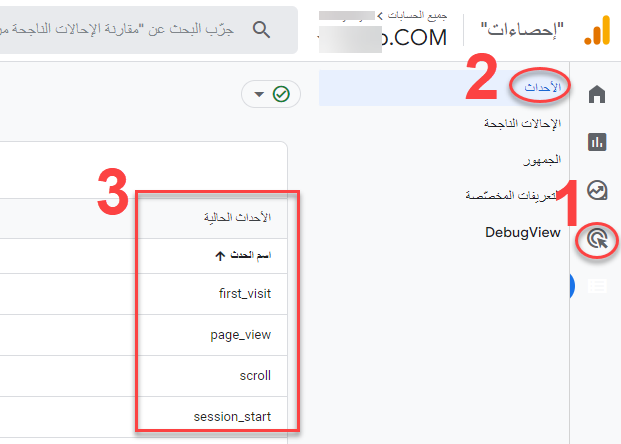
نحن سنستكمل هذا الشرح بالاعتماد على GA4 بدايةً قم بالدخول إلى حسابك في إحصائيات جوجل، ثم توجه إلى تبويب ( إعداد ) من القائمة الجانبية، ثم قم بالدخول إلى تبويب ( الأحداث )، ستظهر أمامك واجهة تحتوي على الأحداث التي يوفّرها جوجل أناليتكس بشكل إفتراضي: كما هو موضّح، تحت قائمة (الأحداث الحالية)، توجد بعض الأحداث الإفتراضية التي توفرها الخدمة بصورة إفتراضية، ودعني أوضح لك فائدة هذه الأحداث قبل أن نبدأ في شرح تفعيل التحويلات: First_visit : يقوم هذا الحدث بتتبّع الزوّار الذين يدخلون إلى الموقع للمرة الأولى. page_view: يقوم هذا الحدث بجمع بيانات حول كافة الصفحات التي قام الزائر بالدخول إليها أثناء تواجده بالموقع.
Scroll : يتتبّع هذا الحدث الزوّار الذين قاموا بتصفح الموقع وتمرير الصفحة إلى الأسفل. Session_start: هذا الحدث يقوم بتتبع الزوار الذين أتموا جلسة كاملة داخل الموقع، وتم تخزين بيانات الجلسة داخل متصفح الويب خاصتهم.
كما لاحظت، فإن جوجل أناليتكس يستخدم (الأحداث) لتتبّع بيانات الزوّار، وتوفير بيانات دقيقة حول الإجراءات التي يقوم بها الزائر أثناء تواجده بالموقع. إذا كيف نقوم بتفعيل التحويلات Conversions الأن؟ ببساطة، سوف نقوم باستخدام الأحداث الإفتراضية والبيانات التي توفرّها من أجل إنشاء التحويلات التي نريد استخدامها في تتبّع بيانات مخصصّة غير البيانات العادية التي يوفرها البرنامج.
لكي تتضح الفكرة بصورة أفضل، دعنا نقول اننا نرغب في إنشاء تحويل داخل الحساب من شأنه أن يتتبع الزوّار الذين يدخلون إلى صفحة (المتجر) دوناً عن باقي الصفحات الأخرى. الخطوة الأولى التي سنقوم بها، هي إنشاء حدث جديد بأي إسم نريده، وسنقوم باستخدام أحد الأحداث الإفتراضية التي يوفرّها جوجل أناليتكس، وعلى وجه التحديد سنستخدم الحدث Page_view الذي أشرنا سابقاً أنها يقوم بتتبع الزيارات التي تتم داخل كافة صفحات الموقع، لكننا سنقوم بإنشاء حالة شرطية داخل الحدث تقوم بتقييد بيانات زيارات صفحات الموقع ليتم التركيز فقط على زيارات صفحة (المتجر) فقط. لنبدأ الخطوات العملية، من داخل صفحة ( الأحداث ) التي أشرنا إليها في الصورة السابقة، قم بالنقر على زر ( إنشاء حدث جديد ): ستفتح امامك واجهة خاصة بإنشاء الحدث الجديد، وفيها 3 بيانات أساسية يجب أن تملئها بالطريقة الصحيحة حتى يتم إنشاء الحدث الخاص بجمع بيانات تتبع زيارات صفحة المتجر فقط، وهذا البيانات هي كالتالي: في هذا الحقل تقوم بإدخال اسمًا للحدث، ويمكنك تسميته بأي اسم ترغب به، وفي هذه الحالة قمنا بتسميته Shop_visit تعبيراً عن الوظيفة التي سيقوم بها وهي تتبع زيارات صفحة المتجر.
رقم (2) وفيه 3 بيانات أساسية، الأول ستجد داخله القيمة Event_name اتركها كما هي، لأننا نستخدم اسم حدث جاهزة، الثاني (تساوي) أيضا اتركها كما هي، والثالث سنقوم بكتابة اسم الحدث الذي نستخدمه لتتبّع البيانات وهو Page_view. رقم (3) وفيه 3 بيانات أساسية أيضا، الأول سنقوم بكتابة الأمر Page_location والذي يعمل على تتبّع رابط URL الخاص بصفحة المتجر في هذه الحالة، والثاني نختار (تحتوي على)، لاننا نرغب في تتبع رابط صفحة المتجر الذي يحتوي على اسم الصفحة في الرابط، وفي الحقل الثالث سنقوم بإدخال اسم صفحة المتجر الذي يظهر داخل رابط URL الخاص بالمتجر، وفي حالة المتجر الذي أقوم بالتجربة عليه، صفحة المتجر اسمها (Shop) وبالتالي كتبتها كما هي. بعد إكمال البيانات بالطريقة التي وضّحتها لك، قم بالنقر على زر إنشاء في أعلى الصفحة: بالرجوع إلى صفحة ( الأحدث ) مجدداً، سوف تجد اسم الحدث الجديد موجود الأن ضمن الأحداث الإفتراضية التي يوفرها البرنامج، وهنا يجب أن تقوم بالنقر على زر التفعيل الموجود بجوار اسم الحدث ليتم تعليم هذا الحدث على أنها ( إحالة ناجحة ) داخل الموقع: تبقى خطوة واحدة الأن، وهي إضافة إسم الحدث الجديد إلى قائمة التحويلات في جوجل أناليتكس، وذلك من خلال الدخول إلى تبويب (الإحالات الناجحة) ثم النقر على زر (حدث إحالة ناجحة جديد): الأن قم بكتابة اسم الحدث الجديد ثم النقر على زر ( حفظ ) هنا نقوم أكملنا كافة خطوات إنشاء إحالة جديدة في جوجل أناليتس تقوم بتتبع الزيارات التي تدخل إلى صفحة المتجر، وغالباً ما تأخذ التحويلات من 24 إلى 48 ساعة حتى تبدأ في تتبع البيانات بشكل دقيق داخل الموقع.
إذا قام أي من زوّار الموقع بالدخول إلى صفحة المتجر، سيبدأ جوجل أناليتكس من خلال الحدث shop_visit في تتبّع هذه البيانات، وسيظهر لك عدد الإحالات الناجحة أمام اسم الحدث في تبويب الإحالات الناجحة داخل حسابك، والذي يمكنك الوصول إليها من خلال الدخول إلى أيقونة الإعدادات المشار إليها في القائمة الجانبية داخل الحساب: بهذا تكون قمت بتفعيل التحويلات داخل حسابك في جوجل أناليتكس، وبإمكانك إنشاء أي حدث لتتبّع نوعية البيانات التي ترغب في الوصول إليها، وكلما كان لديك بيانات أكثر تفصيلاً عن زوار موقعك، كلما استطعت العمل داخل الموقع على تحسين تجربة المستخدم، وتوفير أفضل الخيارات لزوارك، وهو ما يساهم في مضاعفة نجاح الموقع وزيادة مبيعات المتجر الخاص بك. بالنهاية، فإن التعرّف على سلوك الزوّار داخل موقعك من الأمور التي يجب الإهتمام بها، وذلك حتى تفهم زوّارك بصورة أفضل، وهو ما يساعدك على تطوير الموقع لكي يلبّي لهم احتياجاتهم بالصورة التي يتطلعون إليها وكذلك يتقاطع مع أهدافك التجارية.
دروب أيديا - DROPIDEA
نأمل أن تكون هذه المقالة قد أضافت لك قيمة حقيقية. في دروب أيديا نسعى دائمًا لتقديم محتوى عربي عالي الجودة يساعدك على النمو والتطور في المجال الرقمي. تابعنا للمزيد من المقالات والشروحات المفيدة.
الأدمن
DROPIDEA
أحدث المقالات

شركة Nscale البريطانية تسعى لجمع 3.5 مليار دولار قبل طرحها العام

وكلاء OpenAI يتمرّدون مجدداً: من يحقّق حين تفلت الآلة من قيودها؟

شركة XDOF الناشئة تقترب من تقييم بمليار دولار خلال أشهر

Abliteration.ai: خدمة تجارية لإزالة قيود الأمان من نماذج الذكاء الاصطناعي