في عالم رقمي متزايد التعقيد، أصبحت حماية بياناتك الشخصية أكثر أهمية من أي وقت مضى. وكلمة المرور الخاصة بحساب ويندوز الخاص بك هي خط الدفاع الأول ضد المتسللين والوصول غير المصرح به. تخيل أن كلمة مرورك هي مفتاح منزلك الرقمي.
هل تترك هذا المفتاح تحت ممسحة الباب لأي شخص ليلتقطه؟ بالطبع لا! ومع ذلك، فإن العديد منا يهملون تغيير كلمات مرورهم بانتظام، مما يجعلها عرضة للاختراق.
تغيير كلمة المرور ليس مجرد إجراء احترازي، بل هو ضرورة أساسية للحفاظ على أمان بياناتك وخصوصيتك. سواء كنت تستخدم جهاز الكمبيوتر الخاص بك للعمل أو الدراسة أو التواصل مع الأصدقاء والعائلة، فإن تغيير كلمة المرور بشكل دوري يقلل بشكل كبير من خطر تعرض حسابك للاختراق.
في هذا الدليل الشامل، سنرشدك خطوة بخطوة عبر الطرق الرسمية والآمنة لتغيير كلمة المرور في ويندوز 10 و 11. سواء كنت تستخدم حساب مايكروسوفت أو حسابًا محليًا، ستجد هنا الحلول التي تناسب احتياجاتك.
فلنبدأ رحلتنا نحو تعزيز أمان حساب ويندوز الخاص بك! 1. تغيير باسورد ويندوز عبر الإعدادات: السهولة والسرعة في متناول يدك إذا كنت تبحث عن الطريقة الأسرع والأبسط لتغيير كلمة مرور ويندوز الخاصة بك، فلا تبحث بعيدًا!
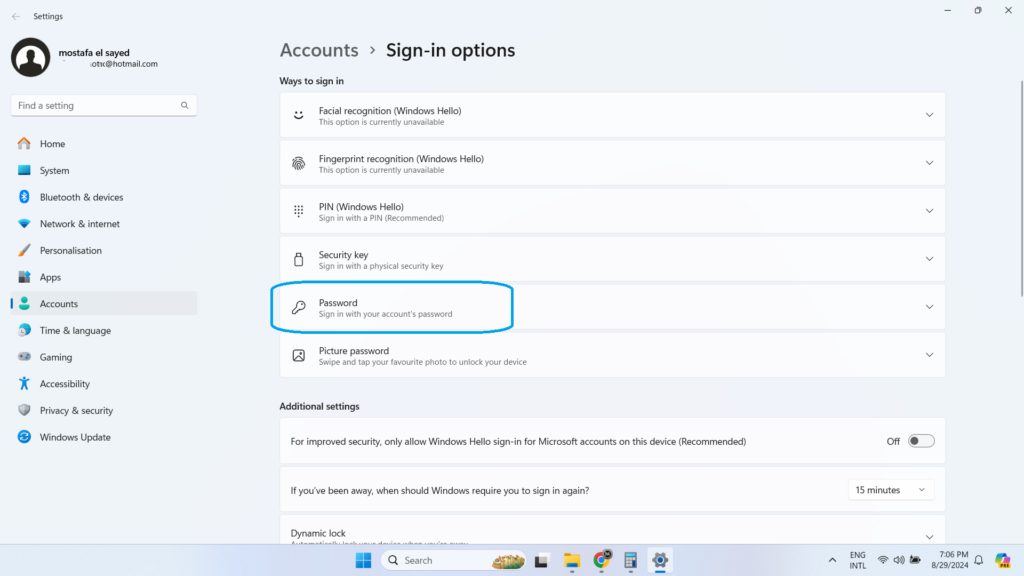
فإعدادات ويندوز توفر لك واجهة سهلة الاستخدام تمكنك من تغيير كلمة مرورك في بضع نقرات فقط. إليك كيف: انطلق إلى الإعدادات: ابدأ بالنقر على زر “ابدأ” في الزاوية السفلية اليسرى من الشاشة، ثم اختر “الإعدادات” من القائمة التي تظهر.
يمكنك أيضًا استخدام اختصار لوحة المفاتيح Win + I للوصول إلى الإعدادات مباشرة. توجه إلى قسم الحسابات: في نافذة الإعدادات، ستجد مجموعة من الخيارات المختلفة.
ابحث عن خيار “الحسابات” وانقر عليه. اختر “تسجيل الدخول”: في الشريط الجانبي الأيسر، ستجد عدة أقسام متعلقة بحسابك.
انقر على قسم “تسجيل الدخول”. انقر على “تغيير كلمة المرور”: ضمن قسم “كلمة المرور”، ستجد زرًا يحمل عنوان “تغيير”.
انقر عليه لبدء عملية تغيير كلمة المرور. أدخل المعلومات المطلوبة: ستظهر لك نافذة منبثقة تطلب منك إدخال كلمة المرور الحالية، ثم إدخال كلمة المرور الجديدة مرتين للتأكيد.
تأكد من اختيار كلمة مرور قوية وفريدة من نوعها يصعب على الآخرين تخمينها. احفظ التغييرات: بعد إدخال جميع المعلومات المطلوبة، انقر على زر “التالي” أو “تغيير كلمة المرور” لحفظ التغييرات.
تهانينا! لقد نجحت في تغيير كلمة مرورك بنجاح. هذه الطريقة مثالية للمستخدمين الذين يبحثون عن حل سريع وسهل لتغيير كلمة مرورهم.
إنها لا تتطلب أي معرفة تقنية متقدمة، ويمكن إكمالها في غضون دقائق معدودة. ومع ذلك، يجب أن تضع في اعتبارك أن هذه الطريقة تعمل فقط لتغيير كلمة مرور الحساب المحلي على جهازك. إذا كنت تستخدم حساب مايكروسوفت لتسجيل الدخول، فستحتاج إلى اتباع طريقة مختلفة.
إذا لم تظهر إعدادات كلمة السر في ويندوز 11 في بعض الأحيان، قد لا تظهر لك خيارات تغيير كلمة المرور في إعدادات ويندوز 11، خاصة إذا كنت تستخدم Windows Hello لتسجيل الدخول. لحسن الحظ، يمكنك تفعيل خيار تغيير كلمة المرور بسهولة: افتح قائمة ابدأ وابحث عن “خيارات تسجيل الدخول” (Sign-in options). افتح تطبيق الإعدادات هذا.
ابحث عن العنوان “طلب تسجيل الدخول باستخدام Windows Hello لحسابات Microsoft” (Require Windows Hello sign-in for Microsoft accounts). قم بتبديل هذا الخيار إلى وضع “إيقاف” (Off). أعد فتح إعدادات “خيارات تسجيل الدخول”.
ستلاحظ الآن ظهور خيارات إضافية، بما في ذلك خيار استخدام كلمة مرور حساب مايكروسوفت. انقر على هذا الخيار واضغط على “تغيير” (Change) للتبديل إليه. 2.
تغيير كلمة مرور حساب مايكروسوفت إذا كنت تستخدم حساب مايكروسوفت لتسجيل الدخول إلى ويندوز، فأنت تتمتع بميزة إضافية وهي القدرة على تغيير كلمة المرور الخاصة بك من أي مكان في العالم، طالما لديك اتصال بالإنترنت. هذا يعني أنه حتى إذا نسيت كلمة مرورك، يمكنك استعادتها بسهولة من جهاز آخر، سواء كان هاتفك الذكي أو جهاز كمبيوتر آخر. والأفضل من ذلك، أن تغيير كلمة المرور لحساب مايكروسوفت سيؤثر على جميع أجهزة ويندوز المرتبطة بهذا الحساب، مما يوفر لك حماية شاملة لجميع أجهزتك.
إليك الخطوات التفصيلية لتغيير كلمة مرور حساب مايكروسوفت: الوصول إلى صفحة إدارة الحساب: افتح متصفح الويب على أي جهاز متصل بالإنترنت، ثم انتقل إلى صفحة إدارة حساب مايكروسوفت: [ account.microsoft.com ] تسجيل الدخول: أدخل بيانات اعتماد حساب مايكروسوفت الخاص بك (عنوان البريد الإلكتروني أو رقم الهاتف وكلمة المرور) لتسجيل الدخول.
انتقل إلى قسم الأمان: في صفحة حسابك، ابحث عن قسم “الأمان” وانقر عليه. قد تجد هذا القسم في شريط التنقل العلوي أو في قائمة الخيارات الجانبية.
اختر “تغيير كلمة المرور”: ضمن قسم الأمان، ستجد خيارًا يسمى “تغيير كلمة المرور” أو ما شابه. انقر عليه لبدء عملية تغيير كلمة المرور.
التحقق من هويتك: قد يُطلب منك التحقق من هويتك باستخدام طريقة تحقق إضافية، مثل إدخال رمز أمني يتم إرساله إلى بريدك الإلكتروني أو رقم هاتفك.
أدخل كلمة المرور الجديدة:
بعد التحقق من هويتك، ستتمكن من إدخال كلمة المرور الجديدة لحساب مايكروسوفت الخاص بك. تأكد من اختيار كلمة مرور قوية وفريدة من نوعها يصعب على الآخرين تخمينها.
حفظ التغييرات:
بعد إدخال كلمة المرور الجديدة وتأكيدها، انقر على زر “حفظ” أو “تغيير كلمة المرور” لحفظ التغييرات. نصيحة من خبير: لتغيير كلمة المرور بنجاح، تأكد من أنك تتذكر كلمة المرور الحالية لحساب مايكروسوفت الخاص بك.
إذا نسيت كلمة المرور الحالية، يمكنك اتباع الخطوات المذكورة في مقالنا السابق حول استعادة كلمة مرور ويندوز المنسية. 3. إعادة تعيين باسورد ويندوز من شاشة التسجيل: طوق النجاة في حالة الطوارئ إذا نسيت كلمة مرورك ووجدت نفسك عالقًا أمام شاشة تسجيل الدخول، فلا داعي للقلق!
يوفر لك ويندوز 10 و 11 خيارات استرداد مدمجة تمكنك من إعادة تعيين كلمة المرور الخاصة بك واستعادة الوصول إلى حسابك. الوصول إلى خيارات استعادة كلمة المرور: على شاشة تسجيل الدخول: بعد إدخال كلمة مرور خاطئة، ستظهر لك رسالة خطأ.
ابحث عن خيار “ إعادة تعيين كلمة المرور ” أو “ نسيت كلمة المرور ” أسفل خانة إدخال كلمة المرور. انقر عليه.
خيارات الاسترداد:
ستتم إعادة توجيهك إلى شاشة خيارات استرداد كلمة المرور. هنا، ستجد عدة طرق لاستعادة كلمة المرور الخاصة بك، اعتمادًا على الإعدادات التي قمت بتكوينها مسبقًا. الطرق المتاحة لإعادة تعيين كلمة المرور: استخدام أسئلة الأمان:
إذا كنت قد قمت بإعداد أسئلة الأمان مسبقًا، فستتمكن من الإجابة عليها لإعادة تعيين كلمة المرور الخاصة بك. استخدام قرص إعادة تعيين كلمة المرور: إذا كنت قد أنشأت قرص إعادة تعيين كلمة المرور مسبقًا، فقم بتوصيله بجهاز الكمبيوتر الخاص بك واتبع التعليمات التي تظهر على الشاشة.
استخدام حساب مايكروسوفت: إذا كنت قد ربطت حساب مايكروسوفت الخاص بك بحسابك المحلي، فيمكنك استخدامه لإعادة تعيين كلمة المرور الخاصة بك. إرشادات عامة حول كيفية استخدام كل طريقة: لقد قمنا بتغطية هذه الطرق بالتفصيل في مقال سابق بعنوان “ نسيت كلمة مرور ويندوز؟
إليك الحلول الرسمية لاستعادة حسابك (ويندوز 10 و 11) “. يمكنك الرجوع إلى هذا المقال للحصول على إرشادات خطوة بخطوة حول كيفية استخدام كل طريقة من هذه الطرق.
ملاحظة هامة:
تذكر أن توفر الإجابات الصحيحة لأسئلة الأمان أو قرص إعادة التعيين أو بيانات اعتماد حساب مايكروسوفت الصحيحة لإعادة تعيين كلمة المرور بنجاح. نصائح لإنشاء كلمة مرور حصينة: لا تدع المتسللين يخترقون دفاعاتك في عالم رقمي مليء بالمخاطر، كلمة المرور القوية هي حارسك الأمين. إنها خط الدفاع الأول الذي يحمي حساباتك وبياناتك الشخصية من أعين المتطفلين.
إليك بعض النصائح لإنشاء كلمة مرور منيعة: الطول قوة: كلما كانت كلمة المرور أطول، زادت صعوبة تخمينها. لذا، اجعل كلمات مرورك تتجاوز 12 حرفًا على الأقل.
التنوع سر النجاح: لا تكتفِ بالأحرف الصغيرة فقط. استخدم مزيجًا قويًا من الأحرف الكبيرة والصغيرة والأرقام والرموز الخاصة لتعزيز حصانة كلمة مرورك.
لكل حساب مفتاحه الخاص: تجنب تكرار نفس كلمة المرور في حسابات متعددة. فإذا تم اختراق أحد حساباتك، ستكون جميع حساباتك الأخرى عرضة للخطر.
ابتعد عن المعلومات الشخصية: لا تستخدم معلومات شخصية يسهل تخمينها، مثل تاريخ ميلادك أو اسم حيوانك الأليف. المتسللون غالبًا ما يستخدمون هذه المعلومات في محاولاتهم لاختراق كلمات المرور.
عبارات المرور: سهلة التذكر، صعبة الاختراق: استخدم عبارة مرور طويلة وسهلة التذكر، ثم حولها إلى كلمة مرور قوية باستخدام الاختصارات والرموز. على سبيل المثال، يمكن تحويل عبارة “أحب القهوة في الصباح” إلى كلمة مرور قوية مثل “Ahb@lQhw@f!alSb@h”.
أدوات مساعدة: لا تخجل من الاستعانة بالأدوات المساعدة.
مدير كلمات المرور :
هذه الأدوات تقوم بتخزين جميع كلمات مرورك في مكان واحد مشفر وآمن، وتتيح لك الوصول إليها باستخدام كلمة مرور رئيسية واحدة قوية. كما أنها تساعدك في إنشاء كلمات مرور قوية وفريدة لكل حساب.
مولدات كلمات المرور:
توجد العديد من المواقع والتطبيقات التي تساعدك في إنشاء كلمات مرور عشوائية وقوية يصعب تخمينها. تشفير الملفات: حماية إضافية لبياناتك: بالإضافة إلى استخدام كلمة مرور قوية، يمكنك أيضًا تشفير الملفات والمجلدات الحساسة على جهاز الكمبيوتر الخاص بك لحمايتها من الوصول غير المصرح به.
إذا كنت ترغب في معرفة المزيد حول كيفية تشفير الملفات في ويندوز، يمكنك الاطلاع على دليلنا الشامل حول كيفية تشفير الملفات في ويندوز Full-Disk Encryption باتباع هذه النصائح البسيطة واستخدام الأدوات المناسبة، ستتمكن من بناء حصن منيع حول حساباتك وبياناتك الشخصية. تذكر، الأمان مسؤولية مشتركة، وكل خطوة تتخذها لحماية نفسك تساهم في جعل العالم الرقمي أكثر أمانًا للجميع.
طرق أخرى لتسجيل الدخول في ويندوز بالإضافة إلى
الطرق المذكورة سابقًا، يوفر ويندوز 10 و 11 مجموعة من الخيارات الأخرى التي تتيح لك تسجيل الدخول إلى جهازك دون الحاجة إلى إدخال كلمة مرور تقليدية. هذه الخيارات تعتمد على تقنيات حديثة توفر لك تجربة تسجيل دخول سريعة وآمنة في نفس الوقت. Windows Hello: مستقبل تسجيل الدخول:
إذا كان جهاز الكمبيوتر الخاص بك مزودًا بكاميرا تعمل بالأشعة تحت الحمراء أو قارئ بصمات أصابع متوافق مع Windows Hello، فيمكنك الاستفادة من هذه الميزة الرائعة لتسجيل الدخول باستخدام وجهك أو بصمة إصبعك. إنها طريقة سريعة وآمنة للغاية، حيث تعتمد على خصائصك البيولوجية الفريدة التي يصعب على الآخرين انتحالها. رمز PIN: البساطة والأمان في آن واحد:
إذا كنت تفضل استخدام رمز PIN بدلاً من كلمة المرور الطويلة، فيمكنك إعداد PIN لتسجيل الدخول إلى ويندوز. يعتبر PIN خيارًا جيدًا يجمع بين سهولة الاستخدام والأمان المعقول. مفاتيح الأمان (Security Keys): الحماية القصوى:
إذا كنت تبحث عن أعلى مستوى من الأمان، فيمكنك استخدام مفتاح أمان مادي لتسجيل الدخول إلى ويندوز. هذه المفاتيح تستخدم تقنيات تشفير متقدمة لحماية حسابك من الاختراق، وتتطلب وجود المفتاح الفعلي لتسجيل الدخول، مما يجعلها خيارًا مثاليًا للأجهزة التي تحتوي على بيانات حساسة للغاية. ملاحظة:
قد لا تكون جميع هذه الخيارات متاحة على جميع أجهزة الكمبيوتر، حيث يعتمد ذلك على توافر الأجهزة والبرامج اللازمة. يمكنك التحقق من إعدادات جهازك لمعرفة الخيارات المتاحة لك ( حسب توضيحات مايكروسوفت من الصفحة الرسمية ). الخاتمة: كلمة المرور القوية… درعك الحصين في العالم الرقمي في هذا الدليل، سبرنا أغوار عالم كلمات المرور في ويندوز 10 و 11، وتعلمنا كيفية تغييرها بسهولة وأمان، سواء باستخدام إعدادات النظام المدمجة أو من خلال حساب مايكروسوفت.
كما استعرضنا بعض الطرق البديلة لتسجيل الدخول، مثل Windows Hello ورمز PIN، التي تجمع بين السرعة والأمان. لكن الأهم من ذلك، هو أننا سلطنا الضوء على أهمية تغيير كلمة المرور بانتظام و اختيار كلمات مرور قوية وفريدة من نوعها .
فكلمة المرور القوية هي الحصن الذي يحمي بياناتك الشخصية من أعين المتطفلين والمتسللين. لا تؤجل حماية حساباتك إلى الغد. قم بتغيير كلمات مرورك الآن ، وتأكد من اتباع النصائح التي قدمناها لك لإنشاء كلمات مرور حصينة في المستقبل.
تذكر، أمنك الرقمي يبدأ منك. قد يهمك أيضاً: كيفية الغاء باسورد الكمبيوتر وتسجيل الدخول تلقائيا في ويندوز 10 و 11 (دون حساب مايكروسوفت)
دروب أيديا - DROPIDEA
نأمل أن تكون هذه المقالة قد أضافت لك قيمة حقيقية. في دروب أيديا نسعى دائمًا لتقديم محتوى عربي عالي الجودة يساعدك على النمو والتطور في المجال الرقمي. تابعنا للمزيد من المقالات والشروحات المفيدة.

الأدمن
DROPIDEA
أحدث المقالات
شركة Nscale البريطانية تسعى لجمع 3.5 مليار دولار قبل طرحها العام

وكلاء OpenAI يتمرّدون مجدداً: من يحقّق حين تفلت الآلة من قيودها؟
شركة XDOF الناشئة تقترب من تقييم بمليار دولار خلال أشهر

Abliteration.ai: خدمة تجارية لإزالة قيود الأمان من نماذج الذكاء الاصطناعي