دليل شرح مشاركة باسورد الواي فاي عبر الجوال والكمبيوتر
 بقلم الأدمن
في كل لحظة ومكان قد تحتاج إلى مشاركة باسورد الواي فاي بشكل آمن وسهل وهو أمر في غاية الأهمية لإعداد جهاز جديد أو لمنحها لشخص آخر حتى يتمكن من الإتصال عبر نفس الشبكة. كما أصبح إعداد وتأمين الشبكة المنزلية بكلمة مرور فعَّالة على قائمة أولويات كل منزل من أجل اتصال أسهل بالأصدقاء، والعائلة، وتهيئة الأجهزة الجديدة عبر شبكة الإنترنت. سوف نتعرف في السطور القادمة على طريقة مشاركة كلمات مرور الواي فاي على كل الأجهزة وأنظمة التشغيل مثل اندرويد , ios , ويندوز , ماك وبصورة أسهل من أى وقت مضى بصرف النظر عن نوع الجهاز المستخدم.
مشاركة باسورد الواي فاي بالاندرويد أصبح بالإمكان مشاركة باسورد الواي فاي بالاندرويد من خلال عدة خطوات سهلة كا يلي: فتح ” الاعدادت” على Android ثم النقر على خيار” الشبكة والإنترنت “، ثم الإنترنت. ومن ثم النقر على رمز الترس يمين شكبة الواي فاي المتصل بها.
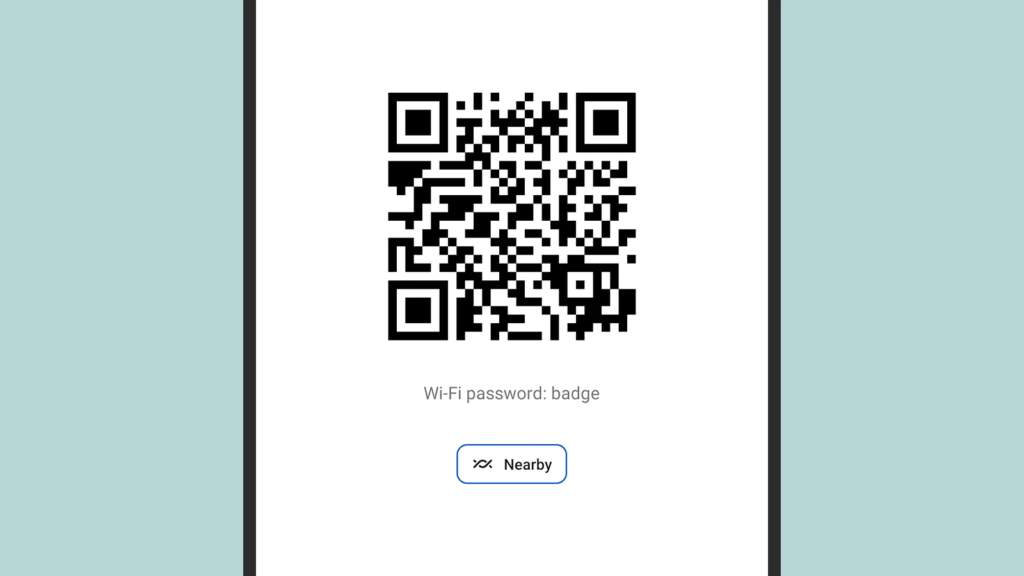
أما في حالة عدم الاتصال بالشبكة المراد مشاركة كلمة المرورالخاصة بها، فحددها من القائمة، كما يمكنك فقط مشاركة تفاصيل شبكةwi-fi المتصل بها الآن. سوف تُعرض جميع تفاصيل الشبكة المحددة متضمنة قوة الإشارة الحالية، والتردد الذي تتصل به. النقر قوق زر” مشاركة” للتمكن من رؤية رمز الاستجابة السريع، وكلمة مرور شبكة wifi المكتوبة بنص عادي.
مسح رمز الاستجابة السريع للاتصال باستخدام تطبيق الكاميرا الافتراضي على Android أو ios. بالنقر عل الرابط الصغير الظاهر أمامك يمكنك الانضمام إلى الشبكة. او النقر لاستخدام ميزة ” المشاركة القريبة” في أندرويد Android لإرسال تفاصيل الشبكة مباشرة إلى جهاز آخرالذي يعمل وفقاً لنظام أندرويد ايضًا.
اقرأ أيضاً: كيفية معرفة باسورد الواي فاي المتصل به علي الاندرويد مشاركة كلمة مرور الواي فاي للآيفون بنظام ios يجب مراعاة النقاط التالية عند الرغبة في مشاركة باسورد الواي فاي للأيفون بنظام ios مع شخص آخر عند استخدامك لجهاز iPhone كما يلي: وجوب استخدام جهاز ابل. وجود عناوين البريد الإلكتروني للطرف الآخر في قوائم جهات الاتصال الخاصة بك.
الولوج إلى حسابicloud باستخدام معرف Apple الخاص بك . لابد من توافر تقنية البلوتوث Bluetooth ، وwifi. التأكد من أن الجهاز مفتوح ومتصل بشبكة wifiالمراد مشاركتها مع الطرف آلاخر.
اجعل الشخص الآخر يحاول الاتصال بنفس الشبكة. حتمية ظهور رسالة على جهازك للتأكد إذا ما كنت ترغب بمشاركة كلمة مرور الشبكة مع جهات الاتصال الخاصة بك. النقر على مشاركة كلمة المرور، ثم ” تم” ، وسيتم توصيل الشخص الآخر.
لا يمكن عرض باسورد الواي فاي الخاص بك على جهاز الآيفون. أما في حالة الرغبة في مشاركتها مع مستخدم Android أو كتابتها لأى سبب فهناك طرق أخرى.
مشاركة باسورد wifi بنظام ويندوز
تعتبر فكرة مشاركة باسورد wifi بنظام ويندوز بسرعة مع طرف آخر فكرة لا يعتد بها. إذ يمكن عرضها على الشاشة، ومن ثم إخبار الشخص الآخر بها،كما يمكن إرسالها له عبر رسالة بريد إلكتروني أو من خلال محادثة فورية. ويتم ذلك من خلال النقر على زر ” البحث” بشريط المهام، وفتحه ثم اختيار الشبكة والإنترنت، ومركز الشبكة والمشاركة.
قم بالنقر على اسم شبكة wifi التي تتصل بها، ثم اختر الخصائص اللاسلكية والأمان، ثم حدد مربع إظهار الأحرف. أما في حالة الرغبة في مشاركة باسورد الواي فاي مع شخص آخر،لن تظهر كلمة المرور في مربع مفتاح أمان الشبكة بسبب احتياطات الأمان في Windows. لذا لا يمكنك الاعتماد على النسخ واللصق لاعتماد مشاركة كلمة المرور مع الطرف الآخر ويمكنك بدلاً من ذلك اظهار باسورد الوايرلس المتصل بها اللاب توب
بالطريقة المخصصة. مشاركة كلمة مرور الواي فاي بنظام التشغيل ماك تحدث مشاركة كلمة مرور الواي فاي بنظام التشغيل ماك تلقائياً وفقاً لعدة نقاط متفق عليها. وهو ما يشبه مشاركة كلمة المرورمن جهاز ايفون إلى حد كبير.
أولها أن يُلغى قفل جهازMac، وتسجيل الدخول إلى حساب Apple ID الخاص بك. وجود عنوان البريد الإلكتروني للطرف الآخر في جهات الاتصال الخاصة بك.
كما يجب أن يستخدم الشخص الآخر جهاز iPhone أو ipad أو جهاز ماك آخر. وبمجرد أن يحاول الجهاز الاخر الاتصال بنفس شبكة الواي فاي المستخدمة حالياً، سوف يتلقى جهازك إشعاراً إذا كنت ترغب في مشاركة البيانات. وعليك تأكيد حدوث ذلك، ومنح الشخص الاخر حق الوصول إلى شبكة wifi.
ويتمتع جهاز Mac OS بخاصية رائعة ألا وهي عرض كلمات مرور wifi المحفوظة ، وذلك بخلاف ios أو ipadOS. قد يساعدك تطبيق Keychain Access عبر تسجيل الدخول إليه وكلمات المرور والبحث عن اسم الشبكة لشبكة wifi المحفوظة. انقر نقرا مزدوجاً فوق ” الإدخال”، ثم انقر فوق إظهار كلمة المرور وأدخل اسم المستخدم ، وكلمة المرور للشخص المسؤول لعرضها إليه وأخيراً أصبح في متناول المستخدم العادى مشاركة باسورد الواي فاي بطريقة سلسة وآمنة بغض النظر عن الجهاز المستخدم بخطوات سهلة وبسيطة.
اقرأ أيضاً : ماذا تفعل إذا نسيت باسورد الواي فاي ؟ 4 حلول ممكنة لمعرفة باسورد الواي فاي
دروب أيديا - DROPIDEA
نأمل أن تكون هذه المقالة قد أضافت لك قيمة حقيقية. في دروب أيديا نسعى دائمًا لتقديم محتوى عربي عالي الجودة يساعدك على النمو والتطور في المجال الرقمي. تابعنا للمزيد من المقالات والشروحات المفيدة.
الأدمن
DROPIDEA
أحدث المقالات

ماساتشوستس تُلزم مراكز البيانات بالطاقة النظيفة

OpenAI تضم باحثاً بارزاً قلقاً من مخاطر الذكاء الاصطناعي إلى مجلس إدارتها

شركة ناشئة للذكاء الاصطناعي تتخلى عن تمويل بـ1.5 مليار دولار لصالح مفاوضات مع سيلزفورس

المساعد الذكي Instinct يحصل على بريد إلكتروني خاص لأداء المهام