12 of the most important Excel functions that everyone should know
 By Admin
Excel is one of the most important office programs that helps the user organize and analyze his personal or professional data, whether in the field of finance and investment or in the field of statistics and analysis. It is an indispensable tool. The most important feature of this program is the presence of Excel functions that achieve various purposes and mathematical and logical operations. In this article, we will review the 12 most prominent functions and their uses.
How to use Excel functions We know the Function function in
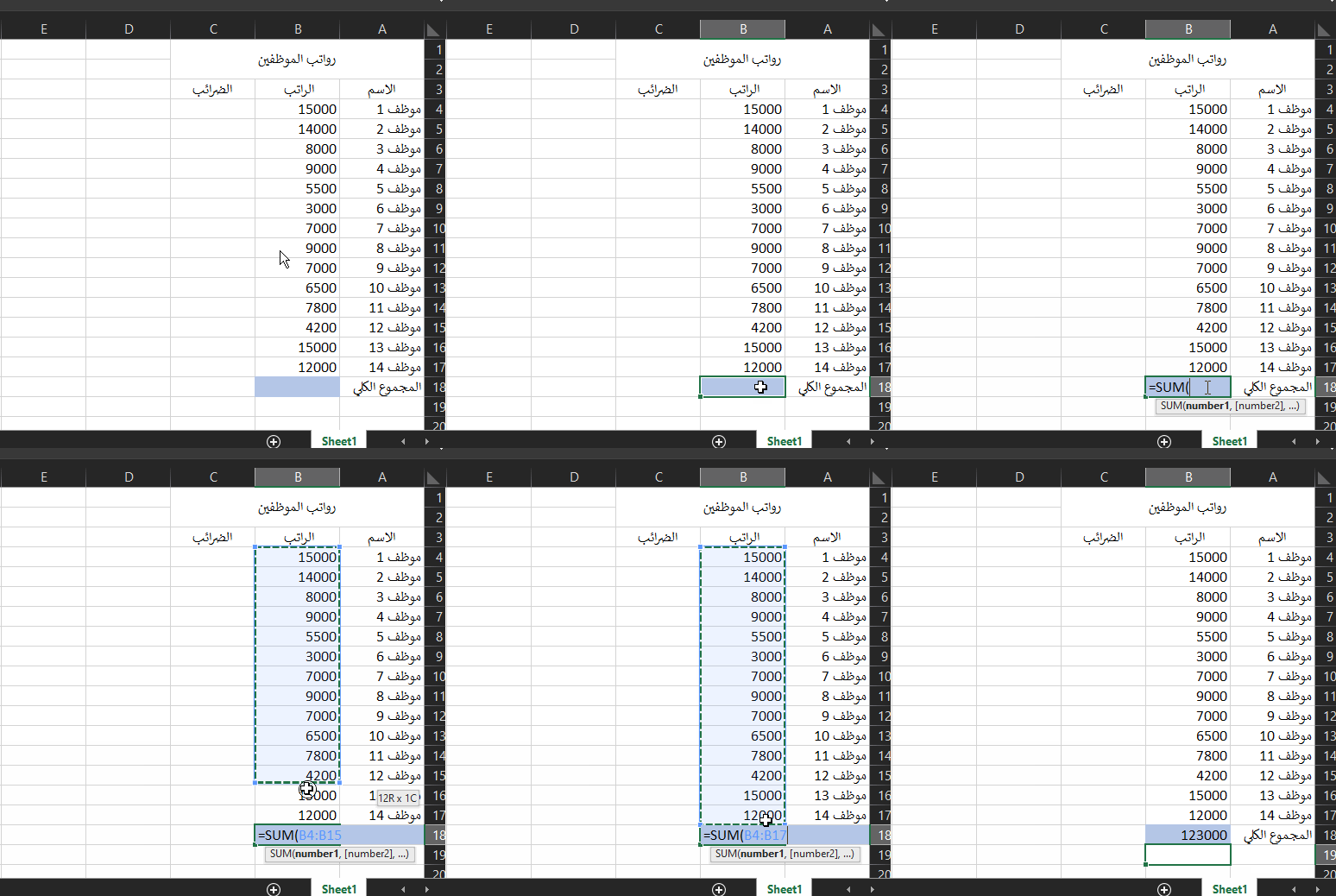
Excel is a pre-defined mathematical equation, and the function allows you to perform mathematical, analytical, and logical operations in order to reduce the time and effort expended if you want to calculate this information manually. The function is written starting with the equal sign “=” and followed by the keyword in capital letters, and with parentheses “()”. Some functions do not contain more information, while other Excel functions require providing more details (which in most cases are cell locations) and are called parameters. Summing numbers using SUM is one of the simplest functions you will need in your file. For example, you may need to calculate the grand sum of employees' monthly salaries.
Here's how to use it: Select the cell in which you want to store the sum and click on it. Type “=” and then “SUM” and open a parenthesis (“)”. Type the cells, cell range, or numbers you want to sum.
You can drag and drop your mouse over the range of cells you want instead of typing. Close the parenthesis “(”) and press Enter. Calculating the arithmetic average using AVERAGE You may also need to calculate the arithmetic average of employee salaries, or, for example, the financial return on average from each customer in your business.
To use the AVERAGE method, follow the steps in the previous paragraph. The only difference here is that the keyword is “AVERAGE”. Removing commas from a number using TRUNC Sometimes you want the result of an operation without any commas (like our previous example). You can determine the degree of removal by entering a new, optional parameter. For example, if we want to remove the first decimal place of the number 503.18 in cell A6, we will write the function in the form: TRUNC(A6, 1), and this will give us the number 503.1.
Returning to our example, if we want to completely eliminate the commas, we can ignore the second parameter because it is optional and its default value is “0”, that is, without any numbers after the comma. Here we can use the functions interconnectedly in the same cell (the arithmetic average function and the elimination function) so we have: TRUNC(AVERAGE(B4:B17)) We can obtain the elimination of a number from the tens or hundreds category if we set the second parameter negative, such as “-1” for rounding from the ones category, “-2” from the tens category, and so on, and the place will be replaced with a zero. Finding the Minimum and Maximum Values Using MIN and MAX The MIN and MAX functions enable you to find the value The smallest and largest for a group of numerical cells. Referring to the previous example, if we want to determine the minimum and maximum salary, we can do so by specifying the range of cells for salaries.
Finding the Median Value Using MEDIAN Note that the difference between the MEDIAN method and the AVERAGE method is that the MEDIAN method returns you an intermediate value in the specified range you specified, while AVERAGE calculates the average mathematically (by summing the cells and dividing them by their number). In general, the median value is considered more accurate compared to the arithmetic mean to determine an average value. Counting cells that contain a value using COUNT Sometimes you need to count the number of numeric cells that contain a value. Take our previous example and assume that we need to know which employees won monthly awards.
Insert Date and Time with NOW When you edit receipts or paper transactions and need to attach the date they were issued, the NOW function gives you a quick shortcut to insert the current date as you want. The field will be updated as you continually edit the file. Rounding numbers using ROUND Note that the difference between this function and TRUNC is that TRUNC removes the place while ROUND rounds the number. If we take the previous example (503.18), the ROUND(503.18, 1) function will return the value 503.2 compared to the TRUNC function, which will return 504.1. The difference here is that the second parameter is not optional.
Calculating multiplication of numbers using PRODUCT The PRODUCT function and the SUM function are similar in their operation, the only difference - intuitively - is that the first uses the multiplication operation and the other the addition operation. Considering our example, let us assume that we want to calculate the tax percentage from each employee’s salary by determining the employee’s salary and multiplying it by (20% for example). Notice that we have dragged the first cell from the bottom left corner of all the other employee cells, and this will apply the function we inserted to all the other cells.
Merging the content of several cells using CONCAT The CONCAT function helps us merge the text strings present in several cells into just one cell. For example, we can use it to merge the “First Name,” “Father’s Name,” and “Surname” fields into a new field, “Full Name.” Counting the number of characters in a cell using LEN The LEN function allows you to count the number of characters in a specific cell. Here, by character, we mean any part of a text string. It does not have to be a letter, but rather it can be a symbol, a number, or even a blank space. Removing white spaces using TRIM Sometimes a cell contains white spaces that need to be eliminated, whether for the purpose of formatting or in order to obtain correct results. For example, if there are white spaces in the cell whose length we previously calculated, this will lead to giving inaccurate results.
There are dozens of other useful functions in Excel, and in this article we have only touched on a drop in a vast ocean. You will also notice that you can create complex equations and relationships by merging Excel functions with each other in one cell. In conclusion, functions in Excel are one of the most important advantages of this program and will save you a lot of time and effort.
Related articles:
The 8 best sources for downloading free Excel templates that make it easier for you to complete your projects. Learn how to link an Excel file with PowerPoint - linking data and charts (explanation with animated images)
DROPIDEA
We hope this article has added real value to you. At DROPIDEA, we always strive to deliver high-quality content that helps you grow and evolve in the digital space. Follow us for more useful articles and guides.
Admin
DROPIDEA
Latest Articles

Nscale Acquires Anyscale for $1.65 Billion to Expand Its Dominance in AI Infrastructure

How Is AI Accelerating Meta's New App Launches?

Okta Acquires Security Firm Permiso for Around $200 Million

Microsoft Gains $3.2 Billion from Its Investment in Anthropic



