4 ways that enable you to easily turn off Windows 10 Firewall
 By Admin
There are many reasons to turn off the built-in Windows Firewall. Whether it's to test a program, install an alternative firewall program, or because Windows Firewall is conflicting with another program you're using. Whatever the reason, it is very easy to disable it through a few simple steps and in multiple ways that we will review below.
In addition, this procedure generally works on all versions of Windows including Windows 7, 8.1, and 10. Usually,
Firewall software
It is absolutely necessary if you are concerned about protecting your computer while connected to the Internet, as it is a border between the device and the network. To make things clearer, the firewall checks all data coming from the Internet to the device. If the data is compatible with the firewall protection rules, it will be allowed to pass to the computer. If it is not compatible or is detected to contain malware, it will not be allowed to pass to your device.
Whether this data is coming from a web browser, download manager, or any program installed on the computer, the firewall will always be running in the background. On the other hand, the built-in Windows Firewall is far from perfect, and can be more harmful than helpful. So, you may suddenly discover that it is restricting your downloads, preventing you from remotely connecting to another computer, or preventing the installation/running of certain software, which is very annoying.
Especially if there is another firewall program installed on your computer. Therefore, we have prepared this article to explain 4 methods that will result in turning off Windows Firewall either temporarily or permanently.
So let's start directly... Quick note:
Don't disable Windows Firewall unless you have a good reason, but if you have another firewall program that does the same jobs, feel free to do so. 4 ways to turn off Windows Firewall without programs Method 1: Through the Windows Security application As we mentioned in the introduction, there is more than one way that allows you to stop Windows Firewall. If you are using Windows 10, you can do this directly through the Windows Security app
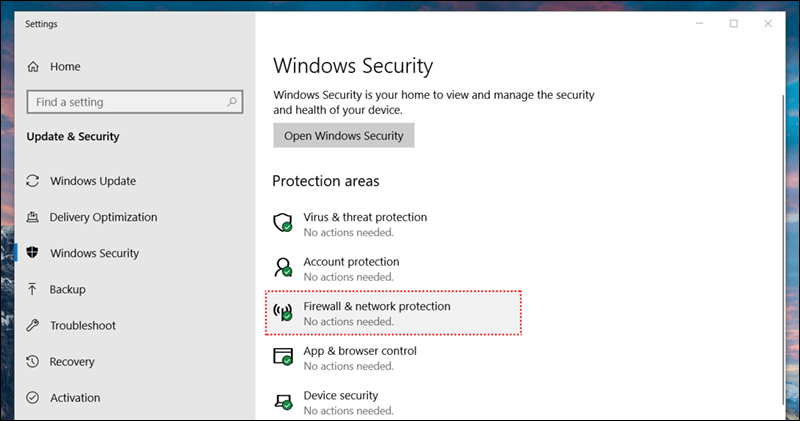
– or formerly Windows Defender Security Center – as it brings together almost all the protection settings offered by Microsoft for Windows 10, and of course, Firewall among them. So, launch the Windows Security app by double-clicking on its mini icon in the Notification Area on the taskbar.
Then from the home page, click on Firewall & network protection and there you will find settings for controlling the status of Windows Firewall. Alternatively, you can also access this page through the Settings app.
All you have to do is press the Windows key + the letter i together, then go to the Update & Security section, then to the Windows Security page, and from the right side, press Firewall & network protection to go directly to the same desired page. On the Firewall Settings page, you will find the types of networks where you can disable the firewall. Whether Domain Network, Private Network or Public Network.
If you need to turn off the firewall for the Internet only, you can just disable the firewall for the public network only. There you will also find some other options, such as disabling a specific program from accessing the Internet, adding exceptions to specific programs, or returning firewall settings to their default state...etc. Once you click on Domain Network or Private Network or Public Network you can simply deactivate the Windows Defender Firewall button as this will disable the firewall immediately.
The second method: Through the Control Panel - If the previous method does not seem easy to you, or you are using an old version of Windows other than Windows 10 because there is no Windows Security application. You can then follow this method, which will enable you to disable Windows Firewall from the Control Panel.
If you are using Windows 7, 8, or 8.1, press the Windows key + the letter R together on the keyboard and type the “control” command in the Run window and press the Enter button to open the Control Panel window immediately. Now, click on System and Security, then on Windows Firewall, and finally click on the Turn Windows Firewall on or off option from the left side menu. The previous step will direct you to the Customize settings page to customize firewall settings for either the private network or the public network.
So, from this page, you will select the second option (Turn off Windows Firewall (not recommended) for both networks and click OK at the end of the page to save the changes. Windows Firewall has been successfully turned off.
The third method: through the command prompt
Prompt If you are looking for an easier and faster method than the previous two methods, and that is compatible with all versions of Windows, this is what you will find in this third method, where we rely on the Windows Command Prompt. As we know, there are many commands that allow you to manage the Windows system and its services through the CMD.exe tool, including those for turning the firewall on or off.
All you have to do at first is open the command prompt with administrator privileges by typing “cmd” or “command prompt” in the Start menu search bar, then click on the Run as administrator option. If you're using a version other than Windows 10, you'll find this option in the menu that appears after you right-click the cmd tool from the search results. Once you open the command prompt with administrator powers, as we explained in the previous lines, enter the attached command and execute it by clicking on the Enter button: netsh advfirewall set allprofiles state off. If the command is executed successfully, “OK” will appear immediately on the second line.
Thus, the firewall has been disabled for the three networks: Domain Network, Private Network, and Public Network, and you should receive a notification stating this. Later, if you want to return everything to normal and activate the firewall again, you can enter the following command: netsh advfirewall set allprofiles state on, which will lead to the opposite result and activate the firewall for all three networks again.
Fourth method: modify registry values most often
When you turn off the Windows Firewall using the previously mentioned methods, it automatically returns to work without user intervention, and this is a common problem on Windows 10 devices. Therefore, if you encounter the problem and discover that the firewall was activated on its own, you can disable it permanently by making a simple modification to the registry values. But before you start anything, you must save a backup copy of the Registry Editor to avoid...
Computer problems if incorrect values are changed from those mentioned in the explanation here. So, to open the registry, you will press the Windows key + the letter R together on the keyboard, then type the “regedit” command in the Run window and press Enter.
When the registry window appears, go to the following path: HKEY_LOCAL_MACHINESYSTEMCurrentControlSetServicesMpsSvc After selecting the mpssvc folder from the left submenu, on the right you will find the values that you can edit. Here you will double-click on the value called “Start” and from the editing window replace the number 2 with the number 4 in the Value data field and press OK. After that, close the registry window.
This way you have prevented the firewall from being activated automatically.
DROPIDEA
We hope this article has added real value to you. At DROPIDEA, we always strive to deliver high-quality content that helps you grow and evolve in the digital space. Follow us for more useful articles and guides.
Admin
DROPIDEA
Latest Articles

Nscale Acquires Anyscale for $1.65 Billion to Expand Its Dominance in AI Infrastructure

How Is AI Accelerating Meta's New App Launches?

Okta Acquires Security Firm Permiso for Around $200 Million

Microsoft Gains $3.2 Billion from Its Investment in Anthropic



