4 ways that enable you to protect the folder with a password - and understand the types of file encryption through Windows
 By Admin
Are you looking for a way to protect your folder with a password on your Windows device? Do you want to protect your data in Windows? If your answer is “yes,” then you are reading the right topic, as we present to you some methods that you can use to protect the folder with a password.
We previously talked about how to fully encrypt files in Windows 10 while keeping your data and files in the form of a backup copy, which is very important. What are the best ways to protect certain folders using a strong password? 4 Ways to Protect a Folder with a Password Although there are many ways to protect a folder in Windows, we are writing here about some of the best methods that are identified and used by most people.
With an understanding of the encryption method used within each program and the method is explained. [bctt tweet=”4 ways to #protect the folder with a password in Windows 10” username=”majnooncomputer”] 1- Built-in encryption within Windows This is one of the best ways to use to protect the folder with a password. Most of the time you will get a built-in encryption program from “Microsoft”, but if you are using a home version of “Windows” you may not find the built-in encryption program. It is the best option because there is no need to download any applications specialized in dealing with data theft.
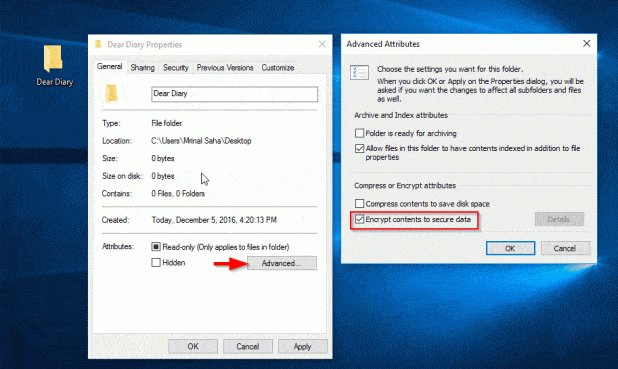
To encrypt any folder using a password, follow these steps: 1- Select the desired folder and right-click on it. 2- Go to properties and select the General tab. 3- Click Advanced and select the option “Encrypt contents to secure data.”
to secure data). 4- Now you are done, and by doing this, you will encrypt all the important files in this folder. Read also: How to protect your flash drive with a password that no one else knows 2- Use 7-Zip to encrypt files The 7-Zip application is another better alternative to securing your personal information using a password, and you can download it for free from the Internet.
7-Zip is mainly known for supporting a variety of compressed files, but it is also used as a security application. To protect any information using 7-Zip, follow these steps: Install 7-Zip in the operating system. Right-click the folder you want to protect and select Compress with 7-Zip. In the encryption option, enter the password to encrypt the data.
Now you have protected your data, just delete the unprotected folder. Read also: The best free file compression programs 3- Third-party programs There is another good way to protect the folder with a password, which is to use third-party programs, and one of these programs is “wise folder hider”, and its most important characteristic is simplicity in use. Anyone who is not familiar with technology can easily use this application to hide a folder or protect it with a password.
4- Encryption programs. The last method that we will present in our topic to protect the folder with a password is encryption programs. This method is one of the best ways to encrypt folders using a password. You can use a specially designated encryption program that can apply different algorithms to your data to protect it from hackers and other data theft. There are many data encryption programs available online that use different algorithms and different description systems to ensure security. Read also: How to protect and encrypt the SD memory card on Android phones. You can also use VeraCrypt, which is one of the professional programs used by many professionals, which can completely encrypt everything on your device. It is the best option if you are looking to hide a lot of data in one place.
We consider these four methods to be the best for protecting folders with a password and encrypting files in Windows. Have you tried one of them before? Did you find it useful to you?
Which of these methods do you think is the most appropriate and easiest?
Have you ever tried other ways to protect your data?
DROPIDEA
We hope this article has added real value to you. At DROPIDEA, we always strive to deliver high-quality content that helps you grow and evolve in the digital space. Follow us for more useful articles and guides.
Admin
DROPIDEA
Latest Articles

Nscale Acquires Anyscale for $1.65 Billion to Expand Its Dominance in AI Infrastructure

How Is AI Accelerating Meta's New App Launches?

Okta Acquires Security Firm Permiso for Around $200 Million

Microsoft Gains $3.2 Billion from Its Investment in Anthropic



