Contents of the topic Toggle How to search for backlinks and ensure their quality Warning Unnatural links = problem The first step #1: Check with Google The second step #2: Collect information The third step #3: Manually examine the links The fourth step #4: Sites or links The fifth step #5: Cleaning and inventory How to search for backlinks and ensure their quality If you are one of the people who have been immersed in the field of business for many years, and you have relied on yourself to improve your site’s results in search engines, or you may Use companies that provide SEO services to build external links to your site.
In either case, a person may wonder whether or not you need to clean up external links. This tutorial contains a five-step process that outlines how to determine if you have a problem, how to analyze it, and then how to clean up. Before starting this: Warning about abnormal connections
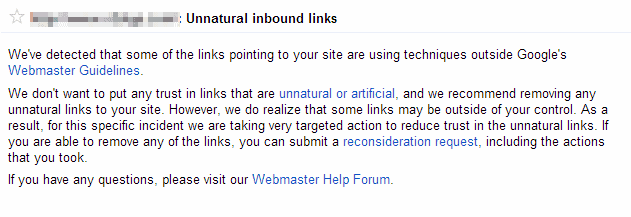
= Problem: If you are one of the people who received a Google alert regarding illegal links that were not published normally, please move to the second step. Webmaster Tools - Warning for Unnatural Links Step #1: Check with Google It is clear and known to optimization experts that you cannot write to Google and ask them to tell you if you have some bad links or not. But you can get an idea from Webmaster Tools with the complete list of links, and to access that list follow the following instructions: Google Webmaster Tools - Links to your site (1) Before downloading anything, we must look at the numbers: Webmaster Tools - The most link-creating entities (2) In the total number of links coming to my site, there are approximately 6,265 links, 3,000 of these links are coming from one site, and this is considered a fairly high percentage. If you have statistics similar to these that we showed you, then you should start. Seriously thinking about starting work on cleaning these links and reducing their number.
If we look at the list adjacent to the list of those who create the most links to your site, we will find another list that indicates the most content that has been linked to your site, and if these statistics indicate a large percentage of the home page, then you are really in trouble and you must start immediate work to get out of it. Finally, click on the More >> button below “More content in terms of availability of links to it.” If you find that the source domains are few in number compared to the links coming from them, this issue may pose a problem for you in terms of the quality of the incoming links. For example: You may place a link to your site in Footer “at the bottom of the page” for a site. This would publish your site’s link on all pages of the site, which may expose you to a violation in Google.
Follow the following image Webmaster Tools - Source Domains (3) Note that we use the phrases “may” and “it is possible” because there are no strict laws restricting this matter, but as experts in search engine optimization, we have to judge according to what our mind dictates. Google is always looking for quality, quality, purpose, and many factors, so it is not important how many external links there are, but rather the quality of these links, and the strength of the topics’ connection to this link. So, we see in the picture 3,051 links from 31 sites. This, in my personal opinion, is a slightly high number, and we must work to clean up some of those links.
Second Step #2: Collect information Suppose you have decided that your site has a problem, or that you have actually received a message from Google stating that you are in violation, what can we do and where do we start? Well, the answer is to disavow external links, and to start with it, we must first collect lists of links related to us, and these lists are collected through Google’s webmaster tools, and we will now mention downloading lists of linked sites in detail. Continue: Go to: Control Panel - in Webmaster Tools >> Search visits >> Links to a site.
(See Image No. 1) Webmaster Tools - List of External Links (4) As we notice, we have several options for downloading the list: We download this table: The table that is displayed in front of us only when we log in to that area. We download more form links: in this case a list of all external links coming to your site will be downloaded. Download the latest links: It is clear from its name that does not require explanation.
After downloading the list in CSV format, we open it in Excel and delete the highlighted lines as shown in Figure 5. Removing duplicate links using Excel (5) After we have obtained a list of sites linked to us, which issue external “Backlinks” to us, what is the next step that we must take? #1 We will need to know which of these links are still working and which have stopped working, and on this basis we determine the next step that we must take, but examining these links one by one is very difficult work and will take a lot of our time, so we will use a tool: called Screaming Frog. The function of this tool is to check All links and show which ones are still in service and which sites have actually stopped working.
#2 If you have a program or software that checks links whether they contain NoFollow or not, it would also be a good idea to put them in a list separately so that you can classify them later, and look at the sites that allow your links to exceed the page ranking. After doing these steps, you will be left with a small list to work on, which will contain a small number of links that may have been converted via 301, or those that have been transferred permanently. We will work on this list manually.
Third Step #3: Manually checking the links. In this step, we will manually check the group of links that remained with us, and we will divide this stage into 8 sections, each of which shows a specific situation that might encounter us while examining these links. #1 Open the page in the browser: If the page does not load, and you encounter the error 404 / Not Found error (mark this link and go to the next link). If the page opens but no data is displayed within this page, you should look for texts that are hidden in the same color as the background, or hidden within CSS files.
2# View the source code of the page: This is done by right-clicking on a page and choosing to view the page code. The shortcut of CTRL+U can also be used in most browsers, and viewing the source helps us verify the nature of the result. #3 Do a search for your site’s link within the page: You can search for your site’s link after removing www, as it is possible for your site to be published without using it. If you do not find the site, mark the link as (deleted). If you find the link, confirm that it appears normally on the site.
#4 Check whether your site is marked with a “NoFollow” tag or not: If you find a “NoFollow” tag at the header of the page, immediately specify that the link does not exceed the page rank. #5 If you do not find the mark in the header of the page, and you do not find it in your link code either, then mark it as saying that this page passes “PageRank” #6 If you encounter one of the following cases, mark the link to disavow it immediately: The link is displayed in an abnormal way. This link appears on the right or left sidebar or in the footer (not in the main content).
This link appears in the comments. The link does not appear on the page (in other words it is hidden). The presence of the link on a page that contains a link with the title “Add your site link” or “Add a post” or anything like that.
A spam-like page, or similar, created for the sole purpose of “Black Hat” SEO (it may use keywords heavily, or may state that it is search engine friendly). #7 If the link passes all these tests, conduct the following final test on it: Does the link add value to site visitors?
The link, for example, does not appear to be a branch of another topic. The link does not appear to be a paid listing. #8 Determine whether you should disavow the link or not and provide a convincing reason for your choice and let us move on to the next step.
Fourth Step #4: Sites or Links Focus with me on this last step, as it may cause you some complexity. We have already downloaded all the pages that contain links to your personal website, but we are not finished yet. There are two steps left for us to do: 1- Download the list of linked sites using the following option: From these 3 options we choose to download this table. Webmaster Tools - Site List 2- Compare the links you have left with the sites you just downloaded. When we load all the sites, you will notice that you only get the URLs, such as website.com.
To check this list with the list of links you worked on, add a new column in the Excel spreadsheet called “Basic Scope.” Before adding it to the “Basic Scope” column, we need to do some arrangements: Open a new worksheet in Excel (this step is important) and copy the list of links to that table. Select the [Data] option, [Text to Columns], [Delimited] and then make the delimiter to [/]. This will leave you with a list of root sites for which you only need to clean the www on some of them.
Then copy and paste it back into the “Base Range” column. As long as you don't sort or delete anything from the list, it will match exactly the links you have. Webmaster Tools - Cleaning Links After performing these steps, drag the links that you obtained from Google and paste them under the links from the first list, and delete the repetition as we did previously, after which we will be left with a new group of links and we must re-perform the second and third steps with the new links that appeared to us.
Step #5: Cleaning and Inventory When you have finished this process, you should have four main lists: Removed Links: If the link has been removed from the page, or the page has been removed completely, you should add the site to this list. Removal of the site (Domain): Or the site has been completely removed or the site is currently facing problems. Sites set NoFollow: If the link is set with a Nofollow tag, or there is a 302 redirect between the page and your website.
Disclaimer: These are links that you could not remove by hand. There are many steps to remove unwanted links from the Internet, as mentioned by Google, such as contacting the site owner, who will often respond to this matter. Do not hesitate to ask any question that comes to your mind regarding this article, as we always welcome meaningful discussions.
#backlinks #All Backlinks Report #Your Site's External Links #How to Collect Sites Related to My Site #Backlinks
DROPIDEA
We hope this article has added real value to you. At DROPIDEA, we always strive to deliver high-quality content that helps you grow and evolve in the digital space. Follow us for more useful articles and guides.

Admin
DROPIDEA
Latest Articles

Nscale Acquires Anyscale for $1.65 Billion to Expand Its Dominance in AI Infrastructure

How Is AI Accelerating Meta's New App Launches?

Okta Acquires Security Firm Permiso for Around $200 Million

Microsoft Gains $3.2 Billion from Its Investment in Anthropic