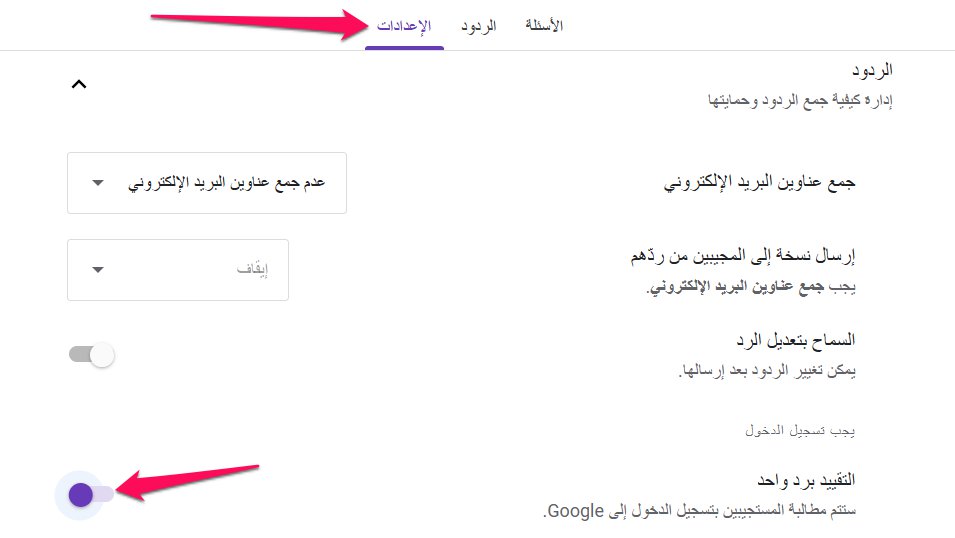
Google Forms Smart Settings 9 Settings in Google Forms What is Google Forms? Why is it important? Electronic forms Google Forms Google Workspace Absolute ease Smart integration Google Sheets Unlimited flexibility Make decisions backed by accurate data Hidden settings 9 settings in Google Forms that you should know 1- Determine the number of responses allowed for each user Application steps: Settings Responses Limit to 1 response Important information: Users with a Google account are required to collect email addresses 2- Collect email addresses with answers Link each answer to an email address Email Verified Application steps: Settings Responses Collect email addresses Verified mail Manual input Responder input Important information: Verified mail Manual input Limit one-time responses 3- Convert the form to an automatic online test Correction Smart online test Application steps: Settings Make this a quiz When to show the result immediately after submission After manual review Share Feedback Important information: Displaying correct answers Manual review Collecting email addresses 4- Adding answer keys and feedback to questions Self-correcting Feedback Application steps: 1.
After activating the test mode, the answer key (Answer Key) and feedback (Feedback) Important information: For essay questions or open-ended answers Manual review Related article: Explanation of adding images and questions in Google Forms 5- Customizing the header image and changing the color palette Completely changing the appearance of the form Application steps: Customize the theme (Choose image) Header Upload Done Theme options Important information: The ideal image dimensions 1600 x 400 pixels Read also: An explanation of adding images and questions to Google Forms Adding multiple sections and applying conditional logic in forms An organized journey Separate sections Conditional logic “Are you satisfied with our services?” “Yes” “No” Application steps: 1. Create a new section Add section 2. Apply conditional logic ⋮ Go to section based on answer 3.
Managing sections ⋮ Important information: Avoid excessive branching and merging 7- Activate the progress bar to manage respondents’ expectations Visual progress bar Application steps: Settings Presentation Show progress bar Important information: Number of sections Conditional logic for sections Important article: How to create an interactive test in Google Slides 8- Use ready-made templates and create custom templates Ready-made Google templates Progress bar Conditional sections Application steps: First: Use ready-made templates Template gallery (Template gallery) Second: Create custom templates (alternative method) ⋮ Create a copy (Make a copy) Share Important information: The official template gallery Previous settings 9- Link the form to Google Sheets tables to automatically save responses Analyzable reports FILTER PIVOT TABLE Application steps: Responses Link to spreadsheets Create a new spreadsheet Choose an existing spreadsheet Create (Create) Important information: Automatic update Unlinking ⋮ Responses Other settings You may also be interested in: Learn how to link an Excel file with PowerPoint Google Workspace Labs Google Workspace Google Gemini Google Forms Google Forms Gemini Gemini 9 settings in Google Forms Read also: 8 tools for creating online tests - Quizzes for everyone
DROPIDEA
We hope this article has added real value to you. At DROPIDEA, we always strive to deliver high-quality content that helps you grow and evolve in the digital space. Follow us for more useful articles and guides.

Admin
DROPIDEA
Latest Articles

Nscale Acquires Anyscale for $1.65 Billion to Expand Its Dominance in AI Infrastructure

How Is AI Accelerating Meta's New App Launches?

Okta Acquires Security Firm Permiso for Around $200 Million

Microsoft Gains $3.2 Billion from Its Investment in Anthropic



