View hidden files on the flash drive - Solve the problem of files not appearing on the flash memory
 By Admin
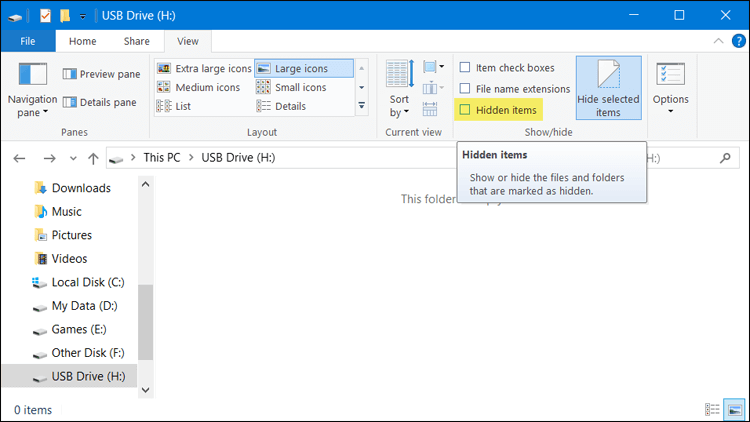
Based on the lines of this article, we share with you a method to view hidden files on the flash drive and solve the problem of folders/files suddenly disappearing in Windows without using external programs. How to view hidden files on the flash drive without programs Sometimes, suddenly, when you connect the flash memory to the computer and start browsing your files stored on it through File Explorer on Windows, you find a message This Folder is Empty, which means that the content of the flash drive is completely empty, as if you had formatted it. Sometimes the cause is a virus that deleted all the folders or files inside the flash drive, but to make sure of that, you should try the following solutions to view the files only if they are hidden and not deleted.
Activate the option to show hidden items in Windows 10. You may have run a program or removed the flash drive from the computer without doing Eject first, or there is a virus that may have ultimately led to the hiding of your files stored on the flash drive. In such a case, all you have to do is activate the Show Hidden Items option in Windows 10 to show any file that has been hidden. Just follow the following steps: Go to File Explorer. Click on the flash memory section.
Click on the View section at the top of the toolbar. Mark “✔” next to the Hidden Items option. After that, any hidden folder or file inside the flash drive will be displayed. If there is a virus that hides the files, it should appear in this way.
But if it does not work, there is another method that we will show you. Read also: Explanation of removing the Shortcut virus from the flash drive - final solutions to get rid of the Shortcut virus Using the CMD command to display hidden files If the previous attempt did not succeed in displaying the hidden files on the flash drive, fortunately there is another way without using programs as well, just by relying on a command that shows the hidden files forcibly. This method is effective with any storage disk, whether flash memory, SD card, CD/DVD, whatever.
If you are experiencing this problem, follow these steps: Open the command prompt in Windows 10 by pressing the Windows button + the letter X on the keyboard. From the menu that will appear, click on (Command Prompt (Admin). Click Yes to open the command prompt with administrator powers.
In this black Command Prompt window, enter the following command: attrib -h -r -s /s /d Make this modification, then press Enter and wait a few seconds until the command is completed. Once this is done, go and open the flash drive again, where you will find all the folders or files appear again and you can deal with them without any problems.
DROPIDEA
We hope this article has added real value to you. At DROPIDEA, we always strive to deliver high-quality content that helps you grow and evolve in the digital space. Follow us for more useful articles and guides.
Admin
DROPIDEA
Latest Articles

Nscale Acquires Anyscale for $1.65 Billion to Expand Its Dominance in AI Infrastructure

How Is AI Accelerating Meta's New App Launches?

Okta Acquires Security Firm Permiso for Around $200 Million

Microsoft Gains $3.2 Billion from Its Investment in Anthropic



