The best programs to permanently delete files from the computer and prevent them from being recovered
 By Admin
Permanently deleting files from your computer is one of the main concerns when you sell your hard drive, or the entire device, to someone else, or when there are a lot of sensitive files stored on the storage drive and you are afraid that anyone but you will see them. The traditional method of deleting files using the Delete button on the keyboard is not effective and does not truly delete the file as some people think. When you delete the file and empty the Recycle Bin you are not actually erasing the data, you are deleting the reference so that the installed operating system cannot find it.
This means that all the deleted data is still there and can be easily recovered using the many recovery programs available. To completely erase data from the old HDD storage disk, you need to install one of the programs that we will highlight here. It uses complex algorithms to permanently destroy the data by overwriting it on the hard disk. As a result, the deleted files will not leave any traces of them - even recovery programs will not find them when scanning. Therefore, we recommend using it when deleting personal or confidential files that you are keen to prevent from being revealed by others.
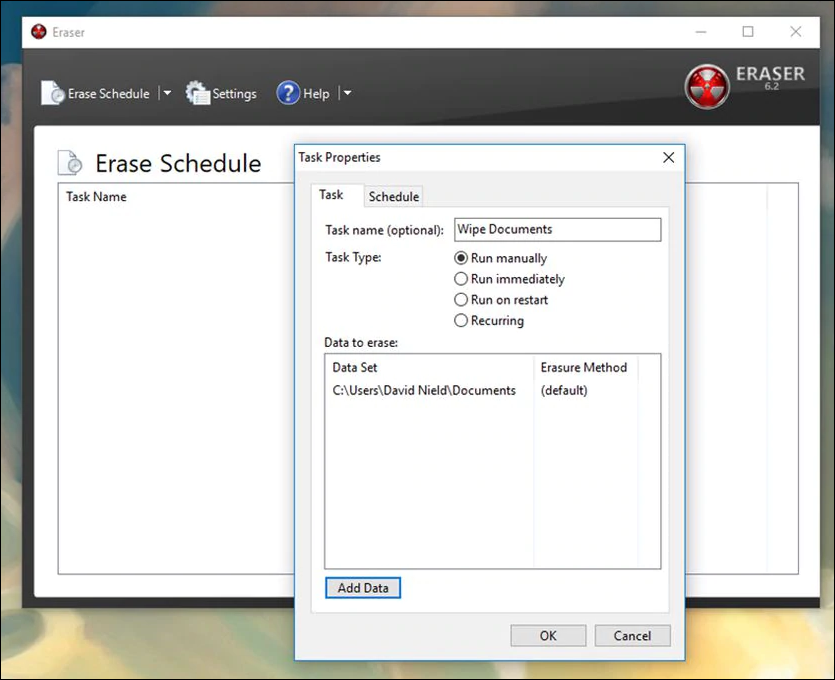
6 of the most powerful programs for permanently deleting files from the computer. The first program: Eraser. Eraser is considered one of the best programs for destroying and permanently deleting data and has wide popularity and a good reputation among users. The program is free and has a very simple graphical interface that is easy to handle to permanently erase all selected data from the disk. Eraser works by scheduling tasks to erase data. This means that you can set up a task to run immediately after it is created, run the deletion command manually, or leave it entirely to the program, just specify the time when you want to get rid of these files permanently, and it also allows you to redo the same task on a daily, weekly, or monthly basis.
Eraser also supports a number of file overwriting methods and methods, each of which differs in terms of the number of times the data is overwritten. For example, you can select the Gutmann method to write random data to the location of the deleted files on the storage disk; Which makes the original data a thing of the past. When the hard drive is scanned by a recovery program, it will find random data that has nothing to do with the files that were actually deleted. When you add files and folders to the deletion queue in Eraser, you can drag and drop them directly to the program window. This speeds up the process of selecting the data you want to delete. Overall, Eraser has very useful features and supports multiple methods for erasing traces of data, perhaps more so than most of the other data destruction programs on the list.
So I recommend it to be your first choice. Download the program The second program: Hardwipe We cannot talk about programs to permanently delete files from the computer without mentioning Hardwipe, the free program that has many characteristics and features that make it worth trying by those who want to destroy data on the hard disk. Hardwipe allows overwriting data on the storage disk through more than one available means, whether overwriting specific files or folders, permanently deleting files from external storage disks (flash memory, microSD cards) or deleting data from a specific section within the hard disk, overwriting the empty space on the disk so that it erases traces of previously deleted files.
Finally, it allows you to empty the contents of the Recycle Bin and destroy it automatically. Hardwipe combines all of this in a simple and perfectly designed interface that makes it more usable by beginners or those with little experience in dealing with modern technology. Simply select the file, folder or disk whose contents should be permanently destroyed and choose which data overwriting method to use. The program supports powerful data destruction methods and methods, including DoD 5220.22-M, GOST R 50739-95, Gutmann and Schneier.
Finally, Hardwipe works on all versions of the Windows operating system from Windows Download the third program: File Shredder Tool NoVirusThanks is a limited liability company founded in 2009 with the main goal of creating and developing programs and services related to computer and Internet security. File Shredder Tool is one of these programs, which aims to help users erase traces of their sensitive data from multiple storage units so that no one can recover it using file recovery programs.
This software can remove data in a safe, fast and easy way. Using File Shredder Tool, you can also remove large files that may exceed 4 GB in size without a problem, and it supports more than one level of data destruction, whether by overwriting it once, 3, 7, or even 35 times. Of course, the higher the level, the longer the process takes.
File Shredder Tool has a number of interesting features, such as the ability to randomly rename files before deleting them so that the file name cannot be discovered. It also integrates with Windows Explorer's options menu to easily identify the files and folders you want to delete. File Shredder Tool is a very light program that will not take up a lot of hard disk space when installed, and it is completely free for home and commercial use. Download the program The fourth program: TweakNow SecureDelete TweakNow SecureDelete is also a file destruction program that is well worth a try, and it should be your first destination if you are looking for a fast and practical tool to permanently delete data and ensure that it is not retrieved again by recovery programs.
This program has the ability to delete many files and folders at once, even deleted files stored in the “Trash Bin” can be deleted permanently. It also has one of the best user interfaces I've seen among the many file deletion programs I've tried. Along with this, it can also format entire hard disk contents and remove all files at once.
In addition to the above, TweakNow SecureDelete supports three data overwriting methods: DoD 5220.22-M, Gutmann, and Random Data, which are pretty powerful without exaggeration, however the program offers the ability to repeat any of these methods up to 100 times for a more comprehensive scan. The only drawback of the program is that it does not display a confirmation message after pressing the Delete button to delete the selected files. Rather, clicking this button leads to deleting the files and overwriting them directly - so be sure of your decision before pressing Delete. Download the program The fifth program: ASCOMP Secure Eraser Initially, the ASCOMP Secure Eraser program is not just a way to destroy data and permanently delete it from the hard disk, but it also includes a set of additional tools such as cleaning the system from unnecessary temporary files to free up space on the internal hard disk.
But if we limit our talk to the file deletion tool specifically, we can say that it is a very effective tool not only for deleting specific files and folders, but also storage units that the program can deal with and delete their digital contents permanently. ASCOMP Secure Eraser has an easy-to-understand graphical interface that is well-designed and organized so that beginners will not face complications in use. You can easily scan individual files, folders, partitions, as well as entire storage drives using the appropriate button on the home screen.
Regardless of what you want to delete, you will find that ASCOMP Secure Eraser has various methods and techniques that help permanently erase traces of data as if they had never been stored on this disk. To change the method used when erasing a hard drive or partition, simply press the small arrow next to the Start deletion button to choose from the drop-down menu.
You can also adjust the settings so that the program restarts or shuts down the computer after the deletion task is completed. However, the program works with both HDD and SSD drives as well as USB-connected storage devices. ASCOMP Secure Eraser can be installed on Windows 10 including Windows XP, Windows Server 2012, 2008 and 2003.
Download the program The sixth program: CCleaner While the CCleaner program is usually used when there is a need to save space on the hard disk, as it packs a lot of tools with different functions to clean the computer from temporary files or preview images, etc.; However, it also includes a tool that can easily destroy the contents of storage disks, so it can be excluded from your choices when you want to get rid of specific files or folders. Although it is a sub-tool within CCleaner, it does the job very efficiently and provides multiple ways to overwrite files at different levels. You can also select more than one storage unit to scan them all in a row at once, knowing that it supports both HDD and SSD disks.
Using it is very easy, like using CCleaner to clean your computer. All you have to do is open the program and go to the “Tools” section from the side menu and then select Drive Wiper to access this data wiping feature. Now make sure Entire Drive is selected from the Wipe drop-down menu and then select the disks or partitions whose digital content you wish to delete.
After completing, press the Wipe button, then be patient until the data destruction process is completed successfully! The time it takes here depends on the writing level selected in the Security drop-down menu.
Download the program
DROPIDEA
We hope this article has added real value to you. At DROPIDEA, we always strive to deliver high-quality content that helps you grow and evolve in the digital space. Follow us for more useful articles and guides.
Admin
DROPIDEA
Latest Articles

Nscale Acquires Anyscale for $1.65 Billion to Expand Its Dominance in AI Infrastructure

How Is AI Accelerating Meta's New App Launches?

Okta Acquires Security Firm Permiso for Around $200 Million

Microsoft Gains $3.2 Billion from Its Investment in Anthropic



