The best PDF editing programs in 2024: a comprehensive guide for computer and phone
 By Admin
In an increasingly digital world, PDF files have become an integral part of our daily lives. Whether you're a student reviewing lecture notes, an employee drafting contracts, or even an avid reader who enjoys e-books, you've surely come across these handy, portable files.
But what if you need to edit a PDF file?
Maybe you want to add an annotation, correct a typo, or even rearrange the pages. Here comes the role of PDF editing programs, which are the magical tools that give you the ability to manipulate these files as you wish. In this comprehensive guide, we walk you through the best PDF editing software available in 2024, whether you use a computer (Windows, Mac, or Linux), a smartphone (iOS or Android), or prefer to work online.
We'll cover a variety of software, from free and simple options to advanced professional solutions, highlighting the pros and cons of each to help you choose the perfect tool for your needs. Why is editing PDF files a necessity in today's world? In a digital age with increasing reliance on digital documents, PDF files have become the ideal choice for exchanging information thanks to their universal format and ability to maintain content design across different devices and systems.
However, the need to modify these files comes in many life and professional scenarios. When do you need to edit a PDF file? Correcting errors: Whether they are simple typos or outdated information that needs updating, editing PDF files allows you to quickly and easily correct these errors without having to recreate the file from scratch.
Updating information: You may need to add new information or delete unnecessary data to keep up with developments or changes in your project or research. Customize Documents: You can add your company logo, signature, or even annotations to personalize your PDF files and make them more professional. Merge and split files: You may want to merge multiple PDF files into one, or split a large file into smaller files to make them easier to share and manage.
Improve accessibility: You can add meta tags or convert text to speech to make PDF files more accessible to people with disabilities. Advantages of editing PDF files: Save time and effort: Instead of recreating documents from scratch, you can simply edit the required parts, saving you a lot of time and effort. Preserve original formatting: PDF editing software ensures that the original document formatting is preserved, including fonts, colors, and images, ensuring a professional and consistent look.
Effective collaboration: Add comments and notes to PDF files and share them with others to facilitate collaboration and exchange of ideas. Enhanced security: Some programs provide security features such as digital signature and file encryption to protect your sensitive documents. Whether you are a student, employee, employer, or even a private individual, the ability to edit PDF files gives you greater flexibility in working with digital documents, and helps you get your tasks done efficiently and effectively.
The Best PDF Editing Programs Whether you want to add comments, correct errors, merge files, or even convert them to other formats, PDF editing programs provide you with the tools necessary to accomplish these tasks efficiently and quickly. Together we'll review a variety of software, from simple options to advanced solutions, highlighting the pros and cons of each to help you choose the perfect tool for your needs. 1.
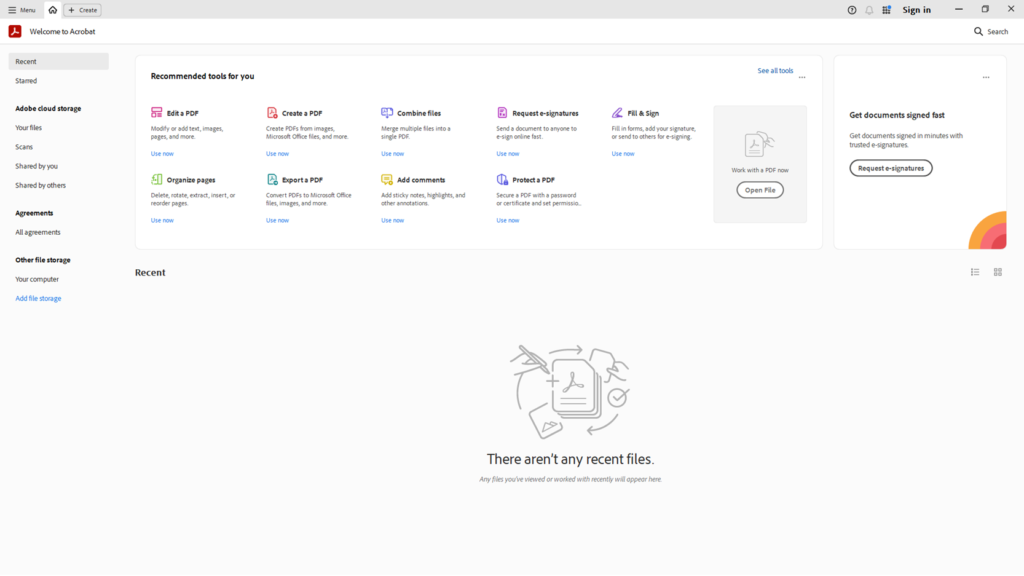
Adobe Acrobat Pro DC: The best PDF editor ever (Windows, macOS, iOS, Android) Adobe Acrobat Pro DC is a legend in the world of PDF editing software, providing a comprehensive package of advanced tools that meet the needs of professionals and businesses alike. Whether you want to create new PDF files from scratch, edit existing documents, or even add advanced layers of security and protection, Acrobat Pro DC has you covered.
Features that make Acrobat Pro DC the perfect choice for professionals: Multi-source PDF creation: You can convert almost any document to PDF, from Word and Excel files to scanned images, while maintaining their original format and quality. Comprehensive editing of texts and images: Edit and format texts as you wish, and add, delete or move images with ease. Seamless collaboration and efficient review: Add comments and feedback, track changes, and share documents with your team for smooth review and productive collaboration.
Unparalleled security and protection: Secure your sensitive files with passwords, encryption, digital signatures, and even fine-grained access and modification permissions. Bidirectional conversion: Convert PDF files to other formats such as Word and Excel, or vice versa, while preserving the formatting as much as possible. Advanced OCR technology: Extract text from scanned images or files containing text images, and turn them into editable and searchable text.
Flexible access across devices and the cloud: With Acrobat Pro DC mobile apps and integration with Adobe Document Cloud, you can access and edit your files from anywhere, at any time. Free vs Paid version: Acrobat Pro DC is available in two versions: Adobe Acrobat Reader DC (Free): Allows you to view, annotate, fill out forms, and sign PDF files. Adobe Acrobat Pro DC (paid): Provides all the features of Reader plus advanced tools for editing, converting, and creating PDF.
Pricing: Pricing for Acrobat Pro DC starts at $14.99 per month for the annual prepaid plan. You can also get a free 7-day trial to try out the full features before purchasing. In short, Adobe Acrobat Pro DC is the perfect choice for professionals looking for the ultimate in PDF editing power and flexibility.
Although it may be a bit expensive, the advanced features it offers make it a valuable investment for anyone who deals with PDF files on a regular basis. The official Acrobat program page. 2.
Foxit PDF Editor: The perfect balance of ease and power (Windows, macOS, iOS, Android) If you're looking for a powerful alternative to Adobe Acrobat Pro DC at a more attractive price, Foxit PDF Editor is your perfect choice. This software combines ease of use with a wide range of features that meet the needs of casual and professional users alike.
Features that make Foxit PDF Editor an attractive choice: Intuitive user interface: Foxit features an intuitive and well-organized user interface, which makes it easy to navigate between different tools and make edits quickly. Comprehensive text and image editing: You can edit and format texts and add, delete or resize images with ease. Collaborate and Share: Foxit lets you add comments and notes to files and share them with others for review and collaboration.
Creation and organization tools: You can create new PDF files from a variety of sources, merge or split files, rearrange pages, and add page numbering. Security and Protection: Foxit provides security features such as password protection and digital signatures to ensure the safety of your documents. Fast and lightweight performance: Unlike some other software that may be heavy on system resources, Foxit features fast and lightweight performance, making it ideal for devices with lower specifications.
Free vs Paid version: Foxit PDF Editor is available in two versions: Foxit Reader (Free): Allows viewing, annotating, filling out forms, and signing PDF files. Foxit PDF Editor (paid): Provides all the features of Reader plus advanced tools for editing, creating, and organizing PDF. Pricing: Foxit PDF Editor prices start at $8.99 per month or $99 per year.
You can also get a 14-day free trial to try out the full features before purchasing. In short, Foxit PDF Editor represents a balanced option that combines power and ease of use, making it ideal for users looking for an effective alternative to Adobe Acrobat Pro DC at a reasonable price. Visit the official Foxit PDF Editor page.
3. Wondershare PDFelement: All-in-One PDF Editor (Windows, macOS, iOS, Android) If you're looking for a program that combines ease of use with advanced features, PDFelement is an excellent choice. This software provides a comprehensive set of tools that allow you to create, edit and convert PDF files easily, whether you are a beginner or a professional.
Features that make PDFelement an attractive choice: Intuitive user interface: PDFelement features an intuitive and well-organized user interface, which makes it easy to navigate between different tools and make adjustments quickly. Comprehensive text and image editing: You can edit and format texts and add, delete or resize images with ease. Create interactive PDF forms: You can create interactive PDF forms that contain text fields, checkboxes, and buttons, making it easier to collect data from users.
Optical Character Recognition (OCR): Allows you to extract text from scanned images and convert them into editable and searchable text. Convert PDF to other formats: You can convert PDF files to other formats such as Word, Excel, PowerPoint, and HTML. Merge and split PDF files: You can merge multiple PDF files into one, or split a large file into smaller files.
Annotation tools: You can add comments, notes, and highlights to PDF files. Security and Protection: PDFelement provides security features such as password protection and digital signatures. Free vs Paid: PDFelement is available in two versions: PDFelement Standard (paid): Provides all the basic features for editing, creating and converting PDF files.
PDFelement Pro (paid): Provides all the features of Standard plus advanced features like OCR for editing scanned text and creating interactive PDF forms. Pricing: PDFelement Standard prices start at $79, while PDFelement Pro prices start at $129. You can also get a free trial to try out basic features before purchasing.
In short, PDFelement is a powerful and comprehensive PDF editing option that combines ease of use with advanced features, making it suitable for casual and professional users alike. Visit the official PDFelement website. 4.
Nitro PDF Pro: Power and Flexibility in PDF File Management (Windows, macOS, iOS) Nitro PDF Pro is a powerful and versatile software that provides a comprehensive set of tools to edit, create, convert and sign PDF files. It is a powerful alternative to Adobe Acrobat Pro DC, featuring an intuitive user interface and fast performance.
Features that make Nitro PDF Pro an attractive choice: Editing
Comprehensive PDF: Allows you to edit text and images, add annotations, and fill out and sign forms. Create PDF from multiple sources: You can create PDF files from a wide range of files, including Word, Excel, and PowerPoint documents, and images. Convert PDF to other formats: Supports converting PDF files to other formats such as Word, Excel, PowerPoint, and images.
Merge and split PDF files: You can merge multiple PDF files into one, or split a large file into smaller files. Review and Collaboration Tools: Allows you to add comments and notes, track changes, and collaborate with others on PDF files. Security and Protection: Nitro PDF Pro offers security features such as password protection, digital signatures, and file encryption.
Nitro Cloud: Integrates with Nitro Cloud, allowing you to access and edit your files from anywhere. Supported platforms: Windows, macOS Pricing: Starting at $179.99 for a single user license. Visit the official Nitro PDF page.
5. PDF Expert: The perfect choice for Apple users If you use a Mac, iPhone, or iPad, PDF Expert is the best choice for you. This app is specially designed for iOS and macOS, and provides a smooth and fast PDF editing experience on these devices.
Features that make PDF Expert the perfect choice for Apple users: Elegant and easy-to-use user interface: PDF Expert is perfectly designed for iOS and macOS, making it extremely easy to use. Powerful PDF editing: Allows you to edit text and images, add annotations, and fill out and sign forms. Comfortable PDF reading: Provides an excellent reading experience thanks to features such as night mode and the ability to change font size and page layout.
Advanced Annotation: Provides a wide range of annotation tools, such as adding notes, highlights, and drawings. Fill out and sign forms: You can easily fill out and sign electronic forms with PDF Expert. iCloud Integration: Integrates with iCloud, letting you sync your files across all your Apple devices.
Supported platforms: macOS, iOS Pricing: Starting at $79.99 for a single device license. Visit the official PDF Expert. 6.
Soda PDF: Edit PDF anywhere, anytime Soda PDF is a cross-platform PDF editing software, available as a desktop program, a web application, and a browser extension. This software provides a wide range of tools to edit, create, convert, fill and sign PDF files.
Features that make Soda PDF an attractive choice: Cross-platform
You can access Soda PDF from any internet-connected device, whether it's a computer, smartphone or tablet. Comprehensive PDF editing: Allows you to edit text and images, add annotations, and fill out and sign forms. Create PDF from multiple sources: You can create PDF files from a wide range of files, including Word, Excel, and PowerPoint documents, and images.
Convert PDF to other formats: Supports converting PDF files to other formats such as Word, Excel, PowerPoint, and images. Review and Collaboration Tools: Allows you to add comments and notes, track changes, and collaborate with others on PDF files. Security and Protection: Soda PDF offers security features such as password protection, digital signatures, and file encryption.
Supported platforms: Windows, macOS, web, browser Pricing: Starts at $84 per year for the individual plan. Visit the official Soda PDF website 7. PDF Editor from Apple Preview Basic file editing: Commenting and collaborating: Converting and exporting: Electronic signature: Capturing images from documents: Searching and selecting: Support for other systems: Related: The best PDF program for MacBook - here are 5 programs for reading and editing e-books
8. This premium software is available on a wide range of platforms, including desktop computers (Windows and macOS), mobile devices (iOS and Android), and even online through a web browser.
Features of Xodo PDF Reader & Editor: Comprehensive PDF editing: Allows you to edit text and images, add annotations, fill out and sign forms. Convenient PDF Reading: Provides an excellent reading experience with features such as night mode and the ability to change font size and page layout. Advanced Annotation: Provides a wide range of annotation tools, such as adding notes, highlights, and drawings.
Merge and split PDF files: You can merge multiple PDF files into one, or split a large file into smaller files. Convert PDF to other formats: Supports converting PDF files to other formats such as Word, PowerPoint, and Excel. Integration with cloud storage services: Integrates with cloud storage services such as Dropbox, Google Drive, and OneDrive, allowing you to access and edit your files from anywhere.
Free vs. Paid (Xodo Pro): Free: Provides most basic features for editing and reading PDF files, including annotating, filling out, and signing forms. Paid version (Xodo Pro): Provides additional features such as converting PDF to other formats, merging and splitting files, OCR editing, and password protecting files. Pricing: Free version: Completely free to use.
Paid version (Xodo Pro): Available in monthly or annual subscription plans. In short: Xodo PDF Reader & Editor is an excellent choice for individuals and teams looking for a powerful, easy-to-use PDF editor available on a wide range of platforms. With its comprehensive features and integration with cloud storage services, you can easily manage and edit your PDF files anywhere and anytime.
Visit the official Xodo PDF website 9. UPDF: An all-in-one PDF editor with the power of AI (Windows, macOS, iOS, Android) UPDF is a relatively new but powerful and versatile PDF editing software, available on all major platforms (Windows, macOS, iOS, Android). UPDF combines a modern, elegant user interface with a wide range of tools to edit, create, convert, fill and sign PDF files.
UPDF Features: Comprehensive PDF editing: Allows you to edit text and images, add annotations, and fill out and sign forms with ease. Create PDF from multiple sources: You can create PDF files from a wide range of files, including Word, Excel, and PowerPoint documents, and images. Convert PDF to other formats: Supports converting PDF files to other formats such as Word, Excel, PowerPoint, and images.
AI Tools: UPDF offers unique AI-powered features, such as text summarization, translation, and annotation, which make it easier to understand and decode the content of complex PDF files. Comfortable PDF reading: Provides a comfortable reading mode with the ability to customize page widths and change font sizes. Security and Protection: UPDF provides security features such as password protection, digital signatures, and file encryption.
Free vs Paid: Free version: Gives you access to most of the basic features, but with some limitations on the number of tasks you can perform. Paid version: Allows you to access all features without restrictions, including advanced AI tools. Pricing: Free version: Free to use with limitations.
Paid version: Starting at $29.99 per year. Read our article about it: UPDF review for all platforms In short: UPDF is a promising program that combines ease of use with a wide range of features, including unique artificial intelligence tools. If you're looking for a modern, all-in-one PDF editor, UPDF is definitely worth a try.
Visit UPDF Official Website 10. pdfFiller: Workflow Automation and Document Management in One Place (Web, iOS, Android, Windows, macOS) pdfFiller is more than just a PDF editor, it's a comprehensive document management and workflow automation solution. It combines the power of a full-fledged PDF editor with advanced collaboration features and secure electronic signature capabilities, making it an ideal tool for individuals and businesses alike.
Whether you're using a Windows or macOS computer, an iOS or Android smartphone, or even a web browser, you can access pdfFiller and get your tasks done with ease. pdfFiller features: Comprehensive PDF editing: Allows you to edit text and images, add annotations, fill out forms, and sign them with ease. Huge library of forms: pdfFiller provides a library of more than 25 million fillable forms, saving you time and effort in creating new forms.
Electronic signature: You can digitally sign documents and send them for others to sign securely and legally. Workflow automation: You can create custom workflows to automate repetitive tasks, such as submitting documents for approval or collecting signatures. Integration with third-party applications: pdfFiller integrates with many popular applications, such as Google Drive, Dropbox, and Salesforce, making it easier for you to manage your documents and workflow.
Arabic language support: pdfFiller fully supports the Arabic language, including recognizing Arabic texts and converting them to editable texts. Free vs Paid version: Free version: Gives you access to some basic features, such as PDF editing and form filling. Paid version: Gives you access to all advanced features, including electronic signature, workflow automation, and integration with third-party applications.
Pricing: Free version: Free to use with limitations. Paid version: starts from $8 per month. pdfFiller is a comprehensive document management and workflow automation solution that provides a wide range of features that meet the needs of individuals and businesses alike.
With its ease of use, powerful features, and cross-platform compatibility, you can dramatically improve your productivity and simplify your workflow. Visit the official pdfFiller website The best sites for editing PDF files online Quick and easy PDF modifications without downloading software If you are looking for quick and simple solutions to modify PDF files without the need to download or install any software, then online PDF editing tools are the perfect choice for you. These tools allow you to make basic edits to your files directly from your web browser, saving you time and effort.
Here are some of the best tools available: 1. Smallpdf: Smallpdf is a comprehensive website that offers a wide range of free tools for editing, converting and merging PDF files. With its simple and easy-to-use interface, you can easily add text, images, and signatures to your files, compress them to optimize their size, convert them to other formats like Word and JPG, merge or split them, and much more.
Advantages: Ease of use: Simple and intuitive user interface makes it easy to navigate between different tools. Wide range of tools: Provides more than 20 different tools to meet all your PDF editing needs. Speed in performance: It is characterized by fast performance, as you can edit your files within a few seconds.
Security: SSL encryption is used to protect your files during uploading and downloading. Disadvantages: Limitations on free use: The free version allows a limited number of tasks per day. May not be suitable for complex tasks: May not be the best choice for tasks that require advanced editing or handling very large files.
Visit Smallpdf 2. iLovePDF: iLovePDF is another easy-to-use website that provides a variety of tools for editing and converting PDF files. You can use it to add text, images, and signatures, compress files, convert them to different formats, merge or split them, and much more.
Advantages: Simple user interface: Easy to navigate between different tools and make adjustments quickly. Various Tools: Provides a good set of basic tools for editing and converting PDF files. Speed in performance: It is characterized by fast performance, as you can edit your files within a few seconds.
Supports the Arabic language: It recognizes Arabic texts and allows them to be easily modified. Disadvantages: Limitations on free use: The free version allows a limited number of tasks per day. May not be suitable for complex tasks: May not be the best choice for tasks that require advanced editing or handling very large files.
Visit iLovePDF 3. Sejda: Sejda is a powerful online tool that provides a wide range of PDF editing tools, including adding text, images and signatures, editing existing texts, filling out forms, converting files to different formats, and merging or splitting them. Features: Wide range of tools: Provides a comprehensive set of basic and advanced tools for editing PDF files.
Ease of use: It features an intuitive and easy-to-understand user interface. No registration required: You can use Sejda without having to create an account. Disadvantages: Limitations on file size: The free version allows downloading files of limited size.
May be slower than some other tools: May be slower than some other tools, especially when dealing with large files. Visit Sejda website 4.
PDF Candy: PDF Candy is a website that provides a variety of tools for editing and converting PDF files. You can use it to add text, images, and signatures, compress files, convert them to different formats, merge or split them, and much more. Advantages: Simple user interface: Easy to navigate between different tools and make adjustments quickly.
Various Tools: Provides a good set of basic tools for editing and converting PDF files. Speed in performance: It is characterized by fast performance, as you can edit your files within a few seconds. No registration required: You can use PDF Candy without having to create an account.
Disadvantages: Limitations on free use: The free version allows a limited number of tasks per day. May not be suitable for complex tasks: May not be the best choice for tasks that require advanced editing or handling very large files. Visit PDF Candy How to Choose the Best PDF Editor Choosing a suitable PDF editor can be a daunting task, given the huge amount of options available in the market.
However, by understanding your specific needs and evaluating the key features of each software, you can make an informed decision that will ensure you get the perfect tool to meet your requirements. Start by defining your needs: Type of modifications: Do you need simple modifications, such as adding text or a signature, or advanced modifications, such as editing images or converting files to other formats? File size: Are you dealing with small PDF files, or large, complex files that require powerful performance?
Frequency of use: Do you use the PDF editor on a daily basis, or only occasionally? Budget: Are you looking for free software, or willing to invest in paid software for advanced features? Key factors to consider: Ease of use: Choose a program with an intuitive user interface and easy-to-understand tools, especially if you are a beginner.
Basic Features: Make sure the software provides the basic features you need, such as text and image editing, annotating, filling out forms, and e-signing. Advanced features: If you need advanced features, such as optical character recognition (OCR), real-time collaboration, and merging and splitting files, make sure the software you choose supports them. Arabic language support: If you are dealing with PDF files in Arabic, make sure that the program fully supports the Arabic language.
Compatibility: Make sure the software is compatible with the operating system you are using (Windows, macOS, Linux, iOS, Android). Security: If you're dealing with sensitive files, look for software that offers security features like password protection and file encryption. Technical support: Check the availability of technical support from the company developing the program in case you encounter any problems.
Pricing: Compare the prices of different programs and choose the one that fits your budget. Keep in mind that some free programs may have limitations on features or the number of files you can edit. Take advantage of artificial intelligence: Some modern PDF editors use artificial intelligence techniques to improve the user experience and provide advanced features, such as: Automatic field recognition: Artificial intelligence can automatically identify fields in forms and fill them with the correct information.
Automatic correction suggestions: AI can suggest corrections for spelling and grammar errors as you type. Improve image quality: AI can improve the quality of scanned images to make them clearer. Convert documents to other formats: AI can convert PDF documents to other formats, such as Word and Excel, while preserving the formatting as much as possible.
Bonus tip: Before making your final decision, try free trials of the software you're interested in to evaluate their ease of use and features for yourself. By following these tips, you can choose the best PDF editor for your needs and make the process of editing PDF files easier and more efficient. Frequently Asked Questions About PDF Editing Software What types of PDF editors are available?
There are three main types: Desktop software: Downloaded and installed on your computer (such as Adobe Acrobat Pro DC and Foxit PDF Editor). Mobile apps: Designed for smartphones and tablets (such as Adobe Acrobat Reader and Xodo). Online tools: Work directly through the web browser without the need to download programs (such as Smallpdf and iLovePDF).
Are there free PDF editors? Yes, there are many excellent free options, such as Xodo, Sejda, and LibreOffice Draw. However, it may be limited in features compared to paid software.
What are the best paid PDF editors? Adobe Acrobat Pro DC is the gold standard in the industry, but it can be expensive. Other powerful alternatives include Foxit PDF Editor, PDFelement, and Nitro PDF Pro.
Can I edit PDF files on my smartphone? certainly! There are many excellent PDF editing apps available for iOS and Android devices, such as Adobe Acrobat Reader, Xodo, and PDF Expert.
Can PDF files be converted to other formats? Yes, most PDF editors let you convert PDF files to other popular formats, such as Word, Excel, PowerPoint, and JPG.
What is OCR technology and why is it important?
OCR (Optical Character Recognition) is a technology that allows text to be extracted from scanned images or files containing text images and converted into editable and searchable text. This feature is very useful if you want to modify a scanned document or extract information from it. Learn more about it in our article: How to convert images to text and extract it in Word format: A comprehensive guide Can I protect PDF files with a password?
Yes, most PDF editors offer security features such as password protection and file encryption, ensuring that no one can open or modify your files without your permission. Read more about it in our article: How to protect PDF files from modification with a password. Do PDF editing programs support the Arabic language? Most popular programs support the Arabic language, but the quality of Arabic text recognition may vary from one program to another.
Make sure to choose a program known for its accuracy in dealing with the Arabic language. How do I choose the best PDF editor? It depends on your needs and budget.
If you only need basic features, the free software may be enough. If you need advanced features or deal with PDF files on a regular basis, it may be better to invest in a paid program.
Do PDF editing software offer collaboration features?
Yes, some professional programs like Adobe Acrobat Pro DC and Nitro PDF Pro provide collaboration features that allow you to share files with others, track changes, and comment on documents jointly. Can I use AI to edit PDF files? Yes, some recent software is starting to incorporate AI techniques to improve the user experience and provide features like automatic field recognition, auto correction suggestions, and improved image quality.
Conclusion of the article: Thanks to the continuous technological development, editing PDF files is no longer a complex task that requires high technical expertise. Today, there is a wide range of software, applications and tools available that allow you to make adjustments easily and conveniently, whether you are using a computer, a smartphone or even working online. In this comprehensive guide, we've reviewed the best PDF editing software available, from free and simple options to advanced, professional solutions.
We went through the pros and cons of each program, reviewed the supported platforms, and touched on pricing and additional features. We hope this guide has helped you understand the world of PDF editing software and choose the tool that best suits your needs. Remember, choosing the right software depends on your specific requirements, whether you're looking for ease of use, advanced features, collaboration capability, security, or even price.
This article was updated on 7/7/2024 to reflect the latest information and developments in the field of PDF editing software. Related articles:
How to make a fillable PDF file and fill it with data
How to extract images from a PDF file and save them to your computer or mobile phone 3 easy ways to reduce the size of a PDF file Convert PDF to a Word or Excel file that supports Arabic Separating PDF pages - How to split large PDF documents
DROPIDEA
We hope this article has added real value to you. At DROPIDEA, we always strive to deliver high-quality content that helps you grow and evolve in the digital space. Follow us for more useful articles and guides.
Admin
DROPIDEA
Latest Articles

Pangram Raises $9 Million to Detect AI-Generated Content

Encore AI تجمع 30 مليون دولار لبناء وكلاء ذكاء اصطناعي يتعلمون من مكالمات العملاء

Hint: The AI-Powered Home Management Assistant with Martha Stewart's Touch

Startup Runlayer Accuses Rippling of Stealing Its MCP Product Idea