Android Backup: A comprehensive guide to saving all your files
 By Admin
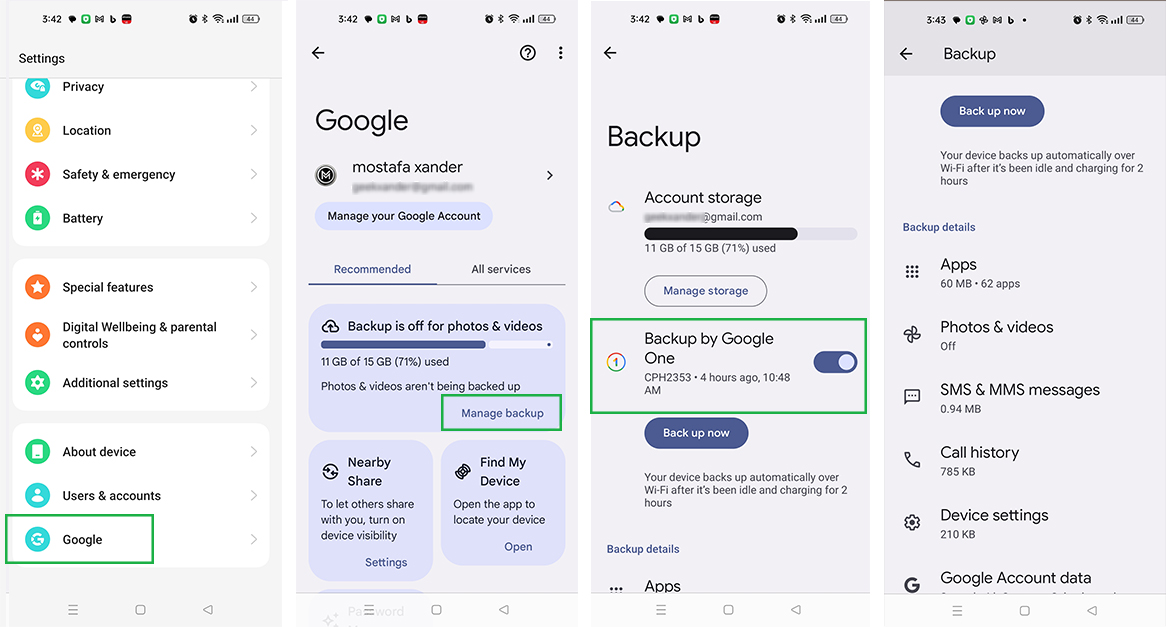
In a world where the importance of data is becoming more and more important day by day, keeping a backup of your data becomes very essential. Whether you want to change your phone, or you just want to keep your data safe, backing up your Android is a step you can't ignore. Quick solution: Back up your Android device with Google One To quickly and easily back up your Android device, follow these steps: Go to Settings on your device.
Select Google then All Services. Tap Backup and turn on Backup with Google One. Tap ‘Backup Now’ if you don't want to wait for your phone to automatically update.
With these simple steps, you can ensure the security of your data and recover it easily at any time. Now, let us move on to explain the steps in detail along with other available solutions to backup your Android device.
What is Android backup simply?
What phone contents are backed up using Google Drive: Photos and videos: They can be automatically uploaded to Google Photos. Files and Folders: These can be kept on Google Drive. Applications and their data (you can take a backup of application data and restore it later separately) Steps to make a backup copy of your Android phone
Choose 'Backup and Restore' or 'System' and then 'Backup'. Add your Google account if it's not already added.
Steps to manually backup your Android phone
Using Google If you need more storage space than the free 15GB, consider subscribing to Google One, where plans are available starting at 100GB at $2 per month. Google One app provides better control over your backups. Check out our dedicated article (Explanation of the Google One cloud storage application) How to back up photos
And videos via Google Photos Download photos from Google Photo and keep a backup copy on your computer or other device. The best alternatives to Google Photo - 8 services for storing photos online. Backing up your Android device to your computer. You can transfer some files and photos via the Nearby share feature to share data between devices easily. Or follow the following solutions to transfer files manually by connecting Android to the computer with a USB cable.
Manually transfer files to Windows To transfer your files from your Android device to your Windows computer, follow these steps: Connect your Android device to your computer using a USB cable. Open 'This PC' on your Windows device and find your Android device. Click on the Android device to open the device folders.
Select the files you want to transfer and drag them to the desired folder on your computer. Using the Android File Transfer application for Mac For Mac users, you must first download and install the Android File Transfer application: Download the Android File Transfer application from the official website and install it.
Connect your Android device to your Mac using a USB cable. Open the app and you will see an interface displaying the files of your Android device. Move the files you want to keep by dragging and dropping to your Mac.
Alternatives: Using Android Backup Apps Alternative Google Options for Android Phone Backup While Google services offer excellent backup solutions, sometimes you may need a more comprehensive solution that ensures you keep a copy of everything at once. Here, specialized external applications come into play. Including (Swift Backup) and (Super Backup & Restore).
Super Backup & Restore Super Backup & Restore is one of the favorite backup applications for many due to its ability to backup specific items such as applications, contacts, text messages, calendars, call logs, and others. Users can specify where to save backups to make them easier to find later, as well as schedule automatic backups and keep them on cloud storage.
How to use Super Backup & Restore to backup
Download and run the Super Backup & Restore application. Choose the path you want to backup to, whether it's an SD card or your phone's internal memory, and then move the files to where you want. You can also use the cloud backup function located in the main menu.
A list of categories of items you can back up will appear (Photos, Apps, etc.). Select the individual items you wish to include in the backup. Click on 'Backup' or 'Backup all' for each option.
If you are not a fan of this particular app, there is a list of the best backup apps for Android. You can view the available options and choose your favourite.
How to restore Android phone backup data transfer
From Android to Android Conclusion: Tips to ensure a safe and easy backup of your Android device To make the most of the Android device backup process, it is important to follow some basic steps that ensure the safety of your data and easy access to it when needed. Here are some key tips: Use a screen lock: To protect your backed up data, use a PIN, pattern, or password. This ensures that your data will not be in the wrong hands if the device is lost or stolen.
Check Android version: Make sure your phone is running the latest version to ensure compatibility with data backup and restore services. Update applications: Before starting a backup, make sure all applications are updated to get the latest fixes and features that may affect the backup process. Stable Wi-Fi connection: Use a stable Wi-Fi connection to ensure a smooth and uninterrupted backup process, especially when transferring large data such as photos and videos.
Charging the device: Make sure that your device is sufficiently charged or connected to the charger during the backup to avoid interruption of the process due to a dead battery. Android backup is not only a preventive step, it is a guarantee of continuous access to your precious data at any time and under any circumstances. By following these tips, you can ensure a safe and easy backup process, giving you peace of mind that your data is safe and can be easily restored when needed.
You may also be interested in: Guide to recovering deleted photos on Android in 3 effective steps
DROPIDEA
We hope this article has added real value to you. At DROPIDEA, we always strive to deliver high-quality content that helps you grow and evolve in the digital space. Follow us for more useful articles and guides.
Admin
DROPIDEA
Latest Articles

Nscale Acquires Anyscale for $1.65 Billion to Expand Its Dominance in AI Infrastructure

How Is AI Accelerating Meta's New App Launches?

Okta Acquires Security Firm Permiso for Around $200 Million

Microsoft Gains $3.2 Billion from Its Investment in Anthropic



