10-step guide: How to reduce Internet data consumption on iPhone
 By Admin
Internet data plans in most countries and regions are limited and expensive. Once your allowable package is exhausted, additional costs can be significant whether by purchasing the package again before the monthly renewal date or being charged on a megabyte basis.
The best way to keep these costs under control is
Reduce data consumption on iPhone. So, let's take a look at the most prominent tips, guidelines, and methods that have been previously tested and proven effective, to use less phone data and save the most package capacity as possible. But before that, here's how to check how much data you have left.
How to Check Data Usage on iPhone Most internet data packages do not roll over to the next month. So, if you over-save, there are no rewards or prizes for that! At the end of the month you may realize that several gigabytes of unused data will expire and be wasted.
Therefore, it is necessary to know how to know how much data you have left. Here are four ways to do this on your iPhone. Use your carrier's app The most convenient way to see data usage on iPhone is to download your carrier's app and sign in.
There you will have all the relevant details, such as the balance, details of the current package, the remaining amount, whether there is an outstanding bill, etc. Contact customer service. Some telecommunications companies allow you to check the remaining Internet data package balance by calling their designated customer service number, sending a text message, or communicating in the chat service. Contact your carrier or do a quick internet search to find out what these numbers and codes are specific to your service provider.
Now that you know how to know how much you are using, here are the ideal ways and tips to reduce data consumption on your iPhone. 1. Reduce data consumption on the iPhone by enabling Low Data Mode. Low data mode on the iPhone is a comprehensive solution to significantly reduce data usage.
To enable it in the Settings app, go to Networks > Network Data Options > Low Data Mode. This option turns off automatic updates, syncing, and background tasks via mobile data. 2.
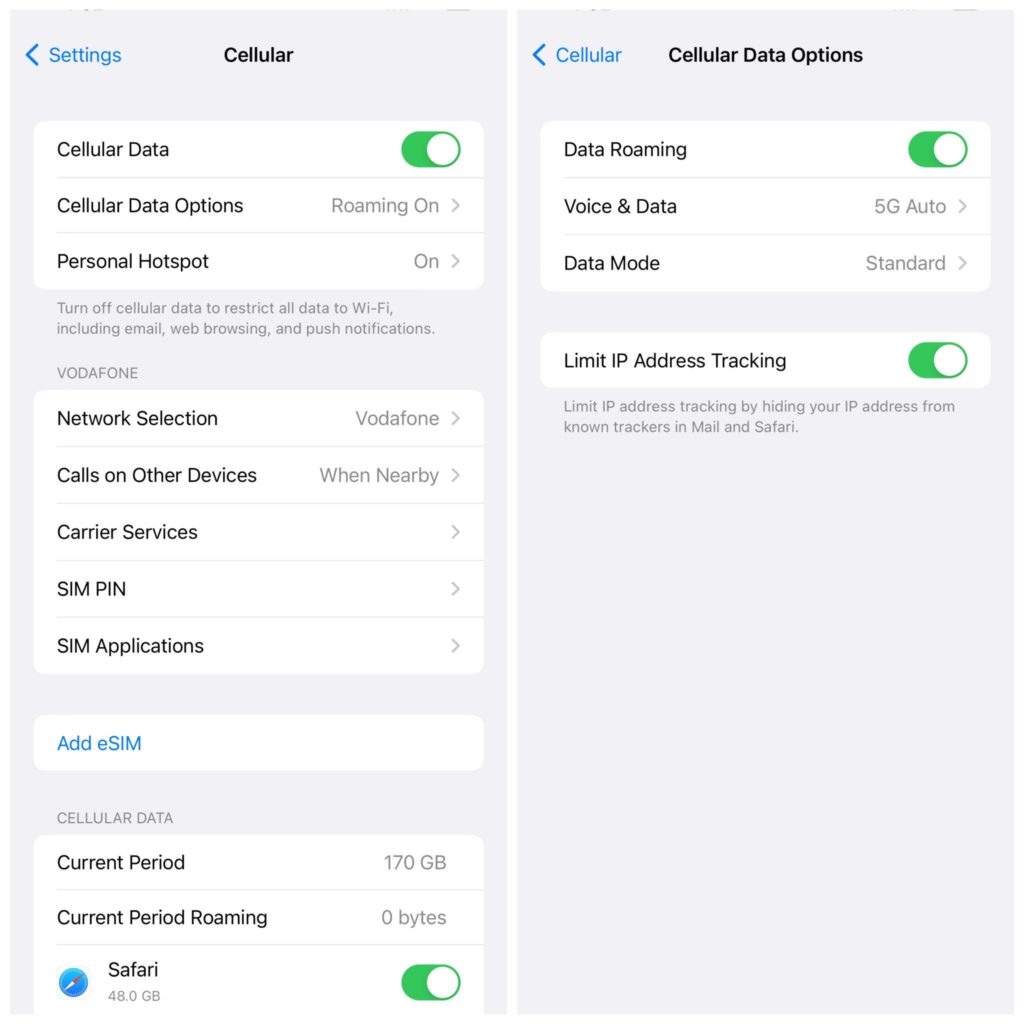
Turn off mobile data for unnecessary apps iOS allows you to disable cellular data for required apps to reduce usage. To do this, go to Settings > Cellular and turn off the switches next to the names of the relevant apps. Want to know something else that will benefit you?
If you have an app or game that works offline, turning off its data will stop in-app ads. Finally, if you make a lot of VoLTE calls, your carrier may count this amount toward your data plan. To address this issue, go to Settings > Cellular and see if your network allows 3G or 4G for calls instead of VoLTE.
According to Apple's recommendations. 3. Watch the video in lower quality in order to reduce data consumption on the iPhone. The high-quality 1080p videos that you enjoy certainly consume a lot of data.
One of the best ways to reduce Internet data usage on iPhone is to play YouTube, Netflix, and other videos from various platforms in lower quality. Most apps give you the option to select video quality through in-app settings. If you're using mobile data to watch Ted Lasso or other Apple TV shows, open Settings > TV > Cellular and select Auto to adjust that quality.
4. Reduce your use of applications that eat up data. Applications such as TikTok, Instagram, Facebook, and Snapchat consume a lot of data. To keep data usage under control, consider using these apps less while using mobile data.
Additionally, try to find settings within the app that allow you to limit data usages. To clarify, I went to your Facebook account, then Settings, and then I chose Internet Data Usage, and I was able to freely customize my usage experience in order to reduce data consumption on my iPhone. 5.
Turn off automatic downloads and updates via mobile data Updates and sync options can consume a large amount of data which will end up draining your plan in no time. To stop this, here are some suggestions. For the App Store: Open Settings > App Store, and under Cellular Data, turn off automatic downloads.
Next, tap “App Downloads” and choose “Always ask” or “Ask if it’s more than 200MB.” Additionally, turn off video autoplay or set it to Wi-Fi only. For podcasts: Open Settings > Podcasts and enable Block downloads via mobile data.
You can also tap “Upload using mobile data” and set it to “Always ask.” For Books: Open Settings > Books and turn off automatic downloads. Additionally, tap “Downloads” and choose an option other than “Always Allow.”
For photos: Open Settings > Photos > Cellular data and turn off Cellular data. 6. Turn off Personal Hotspot Your other Apple devices (such as a MacBook or iPad) with the same Apple ID may automatically connect to your iPhone's Personal Hotspot if they are left enabled.
To fix this, open Settings > Personal Hotspot and turn it off. If you don't find Personal Hotspot on the first settings page, look inside the Cellular options. 7.
Disable Wi-Fi Assest and iCloud Drive updates Wi-Fi Assist automatically switches you to cellular data when your Wi-Fi connection is poor. This may result in increased mobile data consumption. To fix this, open Settings > Cellular, and from the bottom, turn off Wi-Fi Assistant.
From here, you can also turn off iCloud Drive to stop using it via mobile data. 8. Download your favorite songs instead of listening to them online If you subscribe to a paid plan for music streaming services like Spotify or Apple Music, you have the option to download songs for offline use.
In order to reduce data usage on iPhone, you should download your favorite songs over Wi-Fi and limit streaming them via mobile data. 9. Turn off unnecessary location services Disabling location services for irrelevant apps helps keep data usage under control.
Plus, it's also great for battery life and privacy. To do this, go to Settings > Privacy > Location Services and tap the name of the relevant app. Finally, choose Never.
Repeat this for other unnecessary apps as well. 10. Feel free to use available Wi-Fi networks instead of data The last suggestion is to take advantage of any available Wi-Fi networks around you as much as possible.
Plan where you're going and how to get online there, and when you're connected to Wi-Fi, download everything you want. This will significantly reduce the burden and reliance on phone data, helping you conserve it and not have to replenish it as early as the middle of the month. Related article: How to share the Wi-Fi password on iPhone iOS Conclusion: Reducing data consumption on the iPhone has become easier than before!
These were the best ways and means that have been tried before in order to reduce data consumption on the iPhone. Once you implement the above-mentioned recommendations, spending each month with just one package becomes very easy without purchasing any add-ons or paying additional amounts, which is definitely the most important thing for the iPhone user! So feel free to apply all these guidelines together.
DROPIDEA
We hope this article has added real value to you. At DROPIDEA, we always strive to deliver high-quality content that helps you grow and evolve in the digital space. Follow us for more useful articles and guides.
Admin
DROPIDEA
Latest Articles

Pangram Raises $9 Million to Detect AI-Generated Content

Encore AI تجمع 30 مليون دولار لبناء وكلاء ذكاء اصطناعي يتعلمون من مكالمات العملاء

Hint: The AI-Powered Home Management Assistant with Martha Stewart's Touch
Startup Runlayer Accuses Rippling of Stealing Its MCP Product Idea