Guide to deleting duplicate photos from iPhone to save storage space
 By Admin
Having dozens of identical photos on your iPhone is a real threat and a serious problem regarding the consumption of your phone's internal storage space, and it also makes it difficult to find specific photos when you are looking for them. So how does this happen, and more importantly, how do you delete duplicate iPhone photos? Knowing how to delete duplicate photos on iPhone is worth it.
We're all guilty of syncing photos more than once, or taking too many similar photos that are almost identical. Duplicate photos quickly take up much-needed storage space, whether on our devices or in the cloud.
The question is: how do you remove them?
More importantly, how quickly can you do it? Why might there be duplicate photos on your iPhone? Usage Approach: The main reason behind having duplicate photos on your iPhone is up to you.
The user is basically to blame and guilty in this whole matter. Instead of taking a single photo of a scene we love, we take several photos and hope that one of them is exactly as we want it to be. This is especially true for those who like to take selfies on a regular basis.
The most important tip to avoid this problem in the first place is to slow down the process when taking a photo on your iPhone. Be patient, wait for the right moment, and when everything looks good, take the photo, and duplicate photos on your phone will be significantly reduced. Multiple cloud services: You'll likely have duplicate photos when you use multiple cloud services like iCloud and Google Photos because your device syncs photos with multiple services.
You can prevent this by using one service. If you must use multiple services, turn off automatic synchronization of additional services. Read also about Apple: The fastest way to transfer photos from iPhone to Windows 11 HDR enabled: High dynamic range or HDR is a camera feature that captures sharp, high-contrast images by taking multiple shots and combining them into a single image.
You can turn it on and off on older iPhones. When turned on, it creates two images: the HDR image and the original image. So you get two similar pictures.
Here's how to turn off Auto HDR: iPhone XS, XR, 11 Series, SE (2nd generation), and 12: Go to Settings > Camera and turn off Smart HDR. iPhone 8, 8 Plus, and X: Go to Settings > Camera and turn off Auto HDR. iPhone
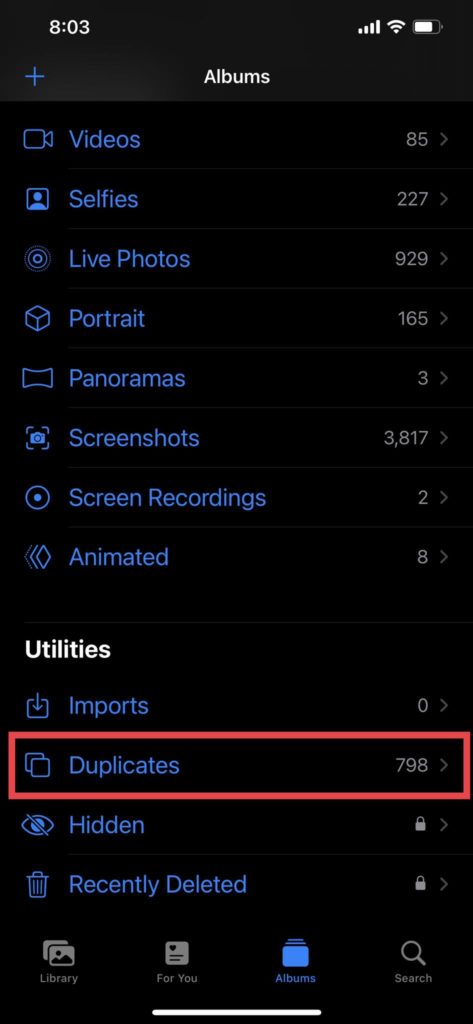
How to delete duplicate iPhone photos The quickest way to delete duplicate iPhone photos is to take advantage of the Duplicates section in the Photos app. It identifies identical copies of photos and videos in your library and lets you merge and delete them automatically to save space. Here's how it works with steps and pictures: Note: Apple officially added this feature starting with iOS 16.
You cannot use it on iPhones running older iOS versions. Launch the Photos app on your iPhone or iPad. Tap Albums at the bottom of the screen.
Scroll to the bottom of the page and tap the Duplicates album, which arranges duplicate photos and videos side by side. Press the Merge button in the upper-right corner for any group of duplicates. Click on Merge Exact Copies to confirm.
In order to delete all duplicate groups: Press “Select” in the upper right corner. Tap “Select All” in the top-right corner to mark them. Click Merge to confirm.
The Merge button will create a comprehensive image by adding relevant information from all duplicates to the highest quality image. It keeps that photo in your photo library and moves the other copies to the Recently Deleted album. In order to delete duplicate iPhone photos permanently: Go to Albums > Recently Deleted.
Click “Select” in the upper right corner. From the Photos app, go to the Recently Deleted Photos folder. Select multiple photos in the Recently Deleted Photos folder. In the Photos app, tap “Delete” in the bottom-left corner. Tap “Delete from this iPhone” to confirm.
Note: The Duplicates option does not appear under Albums if you don't have duplicate photos or videos in your library. Delete duplicate iPhone photos manually. You can also do this process manually to have full control over the saved and deleted photos. It's a process like manually deleting photos from Google Photos.
Here's how to do it: Open the Photos app on your phone. Go to the “Library” tab at the bottom of the screen. Click on all photos to see every photo on the device.
Manually scroll through photos to find duplicate photos. Press “Select” in the upper right corner of the screen and mark the duplicate photos you want to delete. Tap the trash icon in the bottom right corner of the screen.
Click Delete Photos to confirm. Delete duplicate iPhone photos via external applications While the manual method for deleting duplicate iPhone photos works on any device running iOS, the Duplicates feature described above only works on devices running iOS 16 and later, as we mentioned previously. You can use a third-party app to manage duplicate photos if you have a lower OS version and don't want to go through the time-consuming manual process.
These apps will scan your iPhone for duplicate photos. After scanning, you can select the photo you want to keep and remove it manually or let the app handle it automatically. Popular examples on the App Store include: Remo Apart from deleting duplicate iPhone photos, the app can recognize and manage photos with minor differences.
Like the official Photos app on your device, it automatically chooses the highest quality photo to keep and removes the rest. The app is free to download and use. Gemini Photos Gemini Photos identifies duplicate and similar photos and automatically keeps the best option.
Detects and manages screenshots, notes, and blurred images. It offers a free trial and a subscription plan for $2.99 per month or a final purchase of $14.99. Smart Cleaner Apart from removing duplicate photos and videos, Smart Cleaner can manage duplicate contacts, old calendar events and test your internet speed.
It offers a three-day free trial for new users, a $4.99 weekly subscription plan, and a $29.99 lifetime membership. You may also be interested in: How to hide photos and videos on the iPhone without using applications In conclusion, deleting photos on your iPhone can, of course, be tedious. However, this process allows you to better manage your photos in the future.
This also means you can free up storage space on your phone, allowing you to take more photos. So, if you've been putting off the procedure for a while, take action now. Deleting duplicate iPhone photos will be very convenient and will help you keep your device space under control as well as keep the photos organized.
DROPIDEA
We hope this article has added real value to you. At DROPIDEA, we always strive to deliver high-quality content that helps you grow and evolve in the digital space. Follow us for more useful articles and guides.
Admin
DROPIDEA
Latest Articles

Nscale Acquires Anyscale for $1.65 Billion to Expand Its Dominance in AI Infrastructure

How Is AI Accelerating Meta's New App Launches?

Okta Acquires Security Firm Permiso for Around $200 Million

Microsoft Gains $3.2 Billion from Its Investment in Anthropic



