A comprehensive guide to solving the problem of the iPhone stuck on the Apple logo
 By Admin
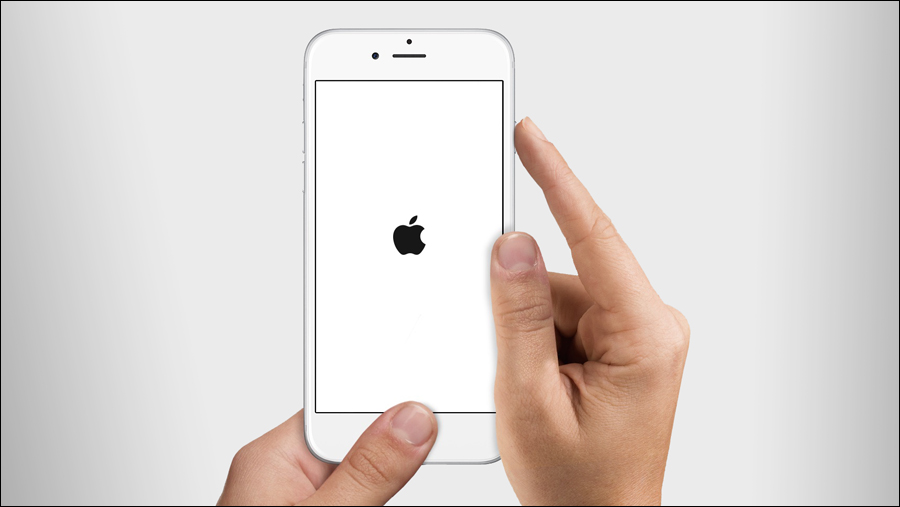
Have you ever experienced that terrifying moment when your iPhone is stuck on the Apple logo refusing to respond to any command? It's definitely an unsettling experience, especially when you think about all the important photos and data stored on your device. But fortunately, thanks to some information and previous experiences, I was able to help my friend solve the problem and restore his iPhone 13 to its normal state and overcome the problem of the iPhone stuck on the Apple logo!
This issue, in which the iPhone gets stuck on the Apple logo, is surprisingly common. It may occur for various reasons, such as an operating system update, problems with applications, or even hardware damage. Fortunately, there are several ways to solve this problem, and in this article I will share with you the solutions I used to help my friend, as well as some other tips that may be useful.
In this comprehensive guide, we will discuss the possible causes behind this problem, how to diagnose it, and most importantly, the practical and safe solutions that you can apply yourself. Our goal is to help you recover your precious phone and access your important data as quickly as possible. Don't worry, with a little knowledge and patience, you can easily overcome this problem.
This guide was updated on August 12, 2024. We've added detailed steps and new illustrations, based on practical experiences and in-depth research. Now, you can solve the problem of iPhone stuck on the Apple logo with confidence and ease!
What are the causes of the problem? Problems updating the operating system: Problems with applications: Problems with hardware: Jailbreak process: Restore from a damaged backup: Low battery level: How to check an iPhone stuck on logo? Check the battery level: Check the charging cable and port Check for updates: Additional tips from user experience and Apple Support: Make sure the charging cable is safe: Try a different USB port or another computer: Disconnect all accessories: Solutions to iPhone stuck on Apple logo For iPhone 8 and later: For iPhone 7 and iPhone 7 Plus: For iPhone 6s and earlier, iPad, and iPod touch: Monitor the device after a reboot: See our dedicated article: Backup explained For iPhone in more than one way: For iPhone 8 and later: For iPhone 7 and iPhone 7 Plus: For iPhone 6s and earlier, iPad, and iPod touch: Choose “Restore” to factory reset the iPhone (this step will delete all data, so make sure you have a backup copy of the data previously on your computer via iTunes.
If recovery mode fails to solve the problem, you may need to resort to DFU mode, which is a more advanced mode that allows for a complete reinstallation of the operating system. However, this mode should be handled with extreme caution, as it may result in data loss or device damage if not performed properly.
Warning: Apple does not provide official instructions on setting
DFU, we strongly recommend that you contact Apple Support or visit an authorized repair center before trying to use it. If you want to try DFU mode at your own risk, make sure you have a recent backup of all your data and follow these steps carefully: For iPhone 8, iPhone SE (2nd generation) and later: Connect your iPhone to your computer using an MFi-certified USB cable. Press and quickly release the Volume Up button, then do the same with the Volume Down button.
Press and hold the side button. Then, when you get a black screen, press and hold the Volume Down button. Hold these buttons for about five seconds.
Then, release the Side button while continuing to hold the Volume Down button. Follow the instructions on your computer. For iPhone 7 or iPhone 7 Plus: Connect your iPhone to your computer using an MFi-certified USB cable.
Press and hold the side button and the volume down button at the same time. Hold both buttons for eight seconds before releasing the side button. Keep holding the Volume Down button until the computer recognizes your smartphone.
For iPhone 6S, iPhone SE (1st generation) or earlier: Connect your iPhone to your computer with an MFi-certified USB cable. Press and hold the Sleep/Wake button and the Home button at the same time. Hold these buttons for about eight seconds, then release the Sleep/Wake button but continue holding the Home button.
Keep the Home button pressed until the computer recognizes your iPhone. Finally, make sure that the screen remains black after reaching the last step for each iPhone model. If so, it is now in DFU mode, and you need to follow the instructions on your computer.
However, if you see the iPhone screen or iTunes icon, it means it's in recovery mode instead. Reconnect your iPhone to the computer and repeat the instructions above. This time make sure you set the timing correctly.
Remember: Using DFU mode can be risky, so follow the instructions carefully and carefully. If you are unsure about any step, feel free to ask a professional technician for help or contact Apple Support. Remember: Do not enter passcode: Do not enter passcode Call your phone: Add someone to the call: Access settings: Free up storage space: Forced reboot: OS update issue: Conflicting app: Hardware issue: Important reminder: Conclusion, Important tips: Backup is the safety belt for your data: Stay away from suspicious programs: Patience is the key to relief: FAQ about iPhone stuck on apple logo: Will I lose my data if my iPhone gets stuck on Apple logo?
Why does the iPhone get stuck on the Apple logo after the update? Can I solve the problem without a computer?
How long does it take to solve the problem?
What is the difference between Recovery Mode and DFU Mode? Recovery Mode: Used to reinstall iOS on your device when it encounters software problems. It erases all data on the device.
DFU Mode: Used to reinstall, update, or even downgrade the operating system. It may also erase data, but in some cases, it may be possible to reinstall the operating system without losing data. DFU mode is more complex and requires precision in performing the steps.
Can I prevent this problem from occurring in the future? Create periodic backups of your data. Update your device with the latest version of iOS.
Avoid installing applications from untrusted sources. Maintain sufficient storage space on your device. Avoid jailbreaking your device.
DROPIDEA
We hope this article has added real value to you. At DROPIDEA, we always strive to deliver high-quality content that helps you grow and evolve in the digital space. Follow us for more useful articles and guides.
Admin
DROPIDEA
Latest Articles

Nscale Acquires Anyscale for $1.65 Billion to Expand Its Dominance in AI Infrastructure

How Is AI Accelerating Meta's New App Launches?

Okta Acquires Security Firm Permiso for Around $200 Million

Microsoft Gains $3.2 Billion from Its Investment in Anthropic



