A guide explaining how to use Microsoft Family Safety to protect your child online
 By Admin
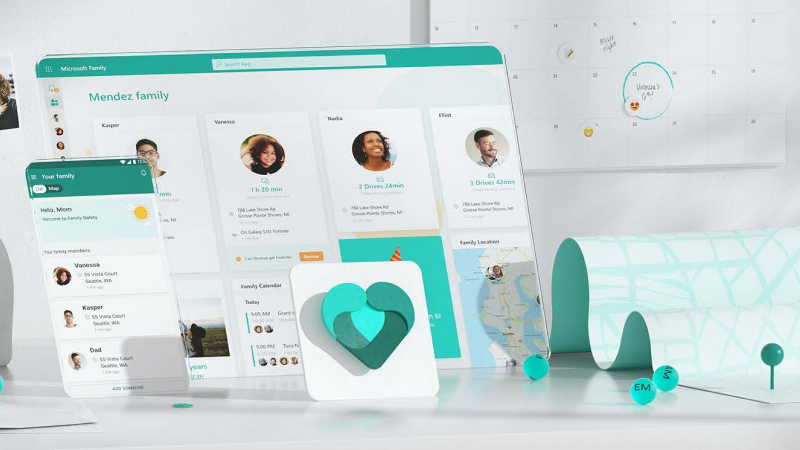
Many parents today are confused, as the spread of technology and the Internet in every home and place puts them in a big dilemma. With the presence of dangerous applications for children
Should I permanently block the Internet from my child and thus deprive him of it?
Of the technology and entertainment tools of this age, or should I allow him to use the Internet without supervision? Fortunately, Microsoft offers a solution to this problem with Microsoft Family Safety, which is a comprehensive parental control program, but what are the advantages of this system and how do you use it?
What is Microsoft Family Safety?
Microsoft Family Safety is an application and digital tool that allows you to monitor your children's activities on the Internet and protect them from any harmful and malicious intentions. This tool allows you to manage your child's consumption of the Internet and electronic devices (whether the device is an Android or iOS phone, an Xbox gaming platform, or even a Windows computer). There are many other features, such as monitoring Internet browsing, blocking pornographic sites or sites that are inappropriate for the child’s age, controlling the time the device is used at specific times and scheduling them automatically, in addition to tracking your child’s location on a map. All of these basic features come for free, except that there is a paid version with the Microsoft 365 package that includes monitoring safe driving habits, such as monitoring driving speed and using the phone while driving for messaging, for example.
Create a family, add children, and configure the Microsoft Family Safety app Family Safety is fully based on, and integrated with, Microsoft apps. So, each family member should have a Hotmail account, and use the Edge browser regularly to get the best results. To create a family and add members, go to Settings on your computer (Windows) from Start, then Settings (or use the shortcut Win + I) and from the list of options, click “Accounts.”
Then go to “Family & Other users” from the sidebar, and click “Add family member.” As mentioned previously, every member of the family (whether parents or children) must have a Hotmail email. Log in using email. If your child does not have an email, create a new account for them and enter all the required details, such as age, name, new email, and password (be sure to save the email and password, as you will use them to log in to other devices your child uses). You can add multiple children sequentially in the same way.
After you finish adding family members, you must download the Microsoft Family Safety application on your children’s phones. The application is available on both Android and iOS, or sign in using the email you created for your child on Xbox and PC. After installing it, the application will guide you on how to configure it after logging into it, and it will ask for permissions such as access to the website and access to other content (give it full permissions to ensure that it works as desired).
Monitor children and set permissions and restrictions After you have all the devices set up and signed in to the corresponding accounts for each child, it's time to set each child's permissions, device usage times, and take advantage of other Microsoft Family Safety features. From the previous settings tab on the computer, click on “Manage family settings online” or go to this link directly.
When you go to the link, you will be asked to log in. Log in using your private email (parents account). You should see all the family members you added as shown in the image. To set restrictions and monitor a specific child, click More (three dots icon) in the upper corner, then “Go to overview,” or click directly on the icon.
Screen Time By going to the sidebar and clicking Screen Time, you can monitor your child's activity and time spent using devices (our example in the pictures includes one device, but it is possible for your child to be monitored across multiple devices in the same chart), in addition to the time used for each device and for each application. You can specify the times your child is allowed to use the device for each day separately by going to the bottom of the page and from the “Devices” tab, activate “Use one schedule on all devices” and choose the time range you want for each day. It is worth noting that this range is intended for personal computers running Windows 10 and Xbox gaming platforms only.
You can deactivate “Use one schedule on all devices” to specify a time range for each device (after you sign in to email on those devices). You can also check installed applications and the time your child spends on each of them, in addition to blocking them or setting a daily limit for their use, by going to the “Applications and Games” tab and clicking on More next to the application you want to control or block (make sure to turn on the “App and Game Limits” option first). Content Filters By going to Content Filters - from the sidebar - you can monitor all of your child's online activity, from the sites he visits to his searches, in addition to attempts to access blocked sites.
You can block any site that you feel is not appropriate for your child's age group by clicking Block next to it. We repeat that this feature requires installation of Microsoft's Edge browser in order for the family safety tool to be able to track your child's movements. Moving to the bottom of the page, you will notice the ability to add more blocked sites by writing their address in the designated box, in addition to the ability to allow your child to browse only certain sites by enabling the option “Allow them to use only permitted websites” and adding the allowed sites to the “Allowed Sites” list.
You can also block the use of some applications, and specify the age group of your child by going to the “Applications and Games” tab, so that only applications that are appropriate for your child’s age will work on his device (according to the rating of the Google Store or Play Store). Most Internet browsers are blocked automatically because the browsing operations that take place on them cannot be tracked using Family Safety. Read also: The 7 best parental control apps for Android to protect your child. Control spending. You can also track the purchases your child makes (to buy some items from a game, for example), and you can allocate a certain amount monthly to be used through the Microsoft account balance (as he is allowed to dispose of this amount in full) or activate the “Request approval for every purchase” option using the credit card, as the purchase will not be completed unless you authorize it. In addition to the option to send a notification for every purchase your child makes.
In conclusion, the Microsoft Family Safety tool is one of the best tools in the field of monitoring and protecting children, and by using it you ensure that your child uses these tools safely and has some entertainment at the same time. Related article: Spy software for Android to monitor children... Learn about the best programs with a comparison between them
DROPIDEA
We hope this article has added real value to you. At DROPIDEA, we always strive to deliver high-quality content that helps you grow and evolve in the digital space. Follow us for more useful articles and guides.
Admin
DROPIDEA
Latest Articles

Nscale Acquires Anyscale for $1.65 Billion to Expand Its Dominance in AI Infrastructure

How Is AI Accelerating Meta's New App Launches?

Okta Acquires Security Firm Permiso for Around $200 Million

Microsoft Gains $3.2 Billion from Its Investment in Anthropic



