Explainer guide: How to use Microsoft Planner to automate and manage work
 By Admin
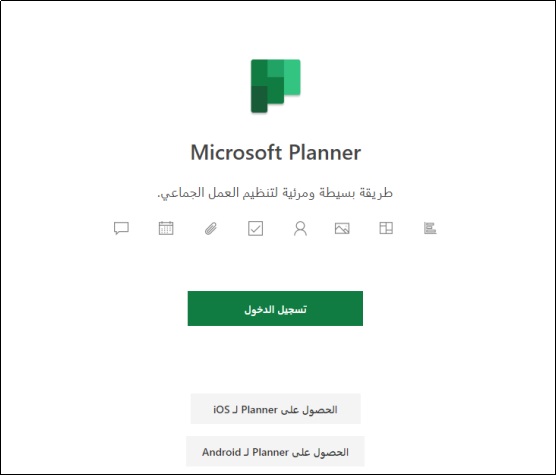
Microsoft has added new features and updates to Office 365 in order to improve its offerings and has also added new products and applications and one of these additions is Microsoft Planner. It is an application that enables you to create plans, assign tasks, and chat about tasks for you and your team. To learn more about this distinctive application, continue reading this article, which includes a definition of the Microsoft Planner program and an explanation of the use of Microsoft Planner and the features of Microsoft Planner.
Microsoft Planner is an application that helps you organize teamwork in a simple and visual way. You can create plans and tasks, assign them to team members, track progress, and collaborate easily.
You can also use Planner
inside
Microsoft Teams, the communication and collaboration app that brings together conversations, meetings, files, and apps in one place. In this article, we will review some of the features and features that make Planner
An effective task management tool. What is Microsoft Planner Microsoft Planner is a simple visual planning application that makes it easier to manage your tasks and organizes teamwork available on Microsoft 365
Basic. It is a team-oriented tool used in many ways. It helps in managing the team, assigning tasks, creating plans, getting quick reports, sharing files, communicating with team members, and receiving progress updates through various means.
The application is available for free on Google Play for users of Android devices, and in the App Store for users of iPhone and iPad devices. Features of Microsoft Planner One of the features of Microsoft Planner is its deep integration into your Office 365 environment. Which enables you to use it in integration with many other applications such as Microsoft Teams
And SharePoint. Plans on Microsoft Planner are rich in content and details like due dates, labels, and files are color-coded to help you focus on your work. It enables you to interact with colleagues easily, share tasks with them, and work together on projects in a very efficient way.
In addition, in Microsoft Planner, you have an individual work program that is equipped with all the tools that enable you to manage your task list on your own. How to use the Microsoft Planner app To access the app you have to go to a website
Microsoft Planner and sign in
Using your Microsoft account if you're already signed in. Then you will go directly to the application by clicking on the options icon in the upper left corner.
will open
The Planner application in the so-called Planner Hub, which clarifies and displays the plans that you have created or that have been added to you by other people. Create a new plan: It is obvious that you will find the Planner Hub empty if you have not created any plans previously. To create a new plan, follow these steps: Click on the (+) sign (New Plan) in the main menu in the left sidebar.
A new window will appear with your plan name on it. Choose the link to add the plan to an existing Microsoft 365 group, or skip this stage if you want to create a new group when setting up this plan. Make your plan “Private” so that only members will be able to view it, or “Public” so that it will appear in search results and people will be able to view it.
Everyone on your team can see it. Then click on (Create Plan). With these steps, Microsoft Planner will create a new plan for you to which you can now add tasks.
Add people to your plan: Select Members in the upper-left corner of the program window. Then type the email address or name of the person you want to add to the plan. Then click on the person's card when it appears.
Add tasks: Click on (Add Task) to add tasks to your plan. A panel will open for you. Record the name of the task and select the person assigned to accomplish this task, then click (Add Task). The task you created will appear at the bottom of the (Add Task) window.
To open this new task, all you have to do is click on it, and here you can add the remaining information, such as adding the start date and due date of the task: You must open the task.
Specify the start date you want.
Then select Select the due date you want. One of the best features of Microsoft Planner is that there is no “Save” option. Once any change is made to the task, these changes will be saved automatically after closing it using the X sign in the upper right corner.
Add an attachment to a task: Select the desired task. Select Add an attachment. Then select Attach a locally stored file, link, or SharePoint to attach a file from a SharePoint site.
Select the desired file or enter its association information. When you attach a file, you can upload it to your plan's OneDrive or you can browse to find it later. To be able to create and manage different lists of tasks, use the Buckets option, so that each new plan contains one Bucket or so-called To Do. You can also add any number of groups you want by clicking on (Add New Bucket).
When you finish a task, click “Completed” and Microsoft Planner will filter it in your group so that it becomes less clear. In order to move a task from one group to another, whether it is open or closed tasks, you can do so by clicking on the drag and drop option.
Read more: Learn about the 8 best open source project management programs Conclusion Microsoft Planner is an application that enables you to organize teamwork easily and effectively. You can create plans and tasks, assign them to team members, track progress, and collaborate in one place.
You can also use Planner within Microsoft Teams, the communication and collaboration app that brings together conversations, meetings, files, and apps.
Thanks to these features and features, Planner is an ideal tool for managing tasks in the digital age.
DROPIDEA
We hope this article has added real value to you. At DROPIDEA, we always strive to deliver high-quality content that helps you grow and evolve in the digital space. Follow us for more useful articles and guides.
Admin
DROPIDEA
Latest Articles

Nscale Acquires Anyscale for $1.65 Billion to Expand Its Dominance in AI Infrastructure

How Is AI Accelerating Meta's New App Launches?

Okta Acquires Security Firm Permiso for Around $200 Million

Microsoft Gains $3.2 Billion from Its Investment in Anthropic

Zuckerberg: Billions of People Will Have AI Assistants Within Five Years
Related Articles

ASUS ROG Flow Z13 (2025) available: Everything you could dream of in a gaming tablet.
Pay attention: 10 symptoms that confirm damage to the hard disk and the need for your quick intervention!
