A guide that collects the most important steps to speed up an old iPhone or slow iPad
 By Admin
Apple releases new iPhones and iPads with newer versions of iOS every year. But many of us do not have enough luxury to buy new devices every year, and for this reason let us share with you in this article the most effective methods that contribute to speeding up an old iPhone or iPad that suffers from slowness and irritation, as you should notice better performance after applying them. If you have an old iPhone or iPad, you may have noticed that it's not as fast as it used to be; Then you ask yourself, why is the phone not performing as well as it did when you used it for the first time?
Well, you have to admit the fact that the more you use your device, the more it slows down, regardless of its age. There are many different reasons why performance may slow down, but fortunately, speeding up an old iPhone is a relatively easy process – and you can even do it yourself when you know exactly what to do. In this article, we'll tell you, we've collected some great tips and tricks to make your phone fast again!
From deleting unwanted applications to disabling services running in the background... and more. If these tips cannot speed things up satisfactorily or solve the problem of the iPhone becoming slow after the update, then you may have to buy a new phone. So, let's get started!
The seven most effective steps to speed up the iPhone. The first step: Restart the iPhone/iPad. Have you tried turning off the iPhone or iPad and then restarting it again? At first glance it seems silly and will not work, but this solution is incredibly effective for almost all problems. If you're experiencing stuttering while gaming, an app not working, or something abnormal that keeps happening, a simple restart will solve the problem.
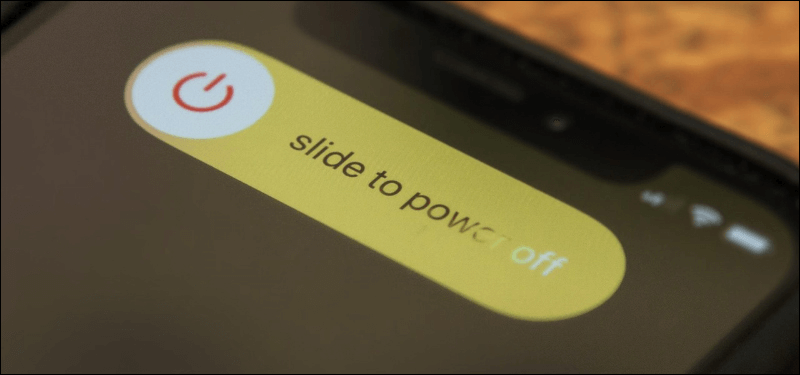
The idea is simple that the restart process performs several actions, including closing and starting iOS services, and this often contributes to solving problems. All you need to do is press and hold the power button until the message “Slide to turn off” appears, then drag the power off icon towards the right to turn off the device. After that restart it again to check the results.
Step Two: Delete Unwanted Apps If your iPhone or iPad has very full storage space, deleting unwanted or unused apps may boost performance. Note that applications use many processes in the background and as a result they consume device resources heavily for things like background refresh, which we will talk about later. Therefore, removing applications that you do not use can achieve much more than expected.
All you have to do is go to Settings - then to iPhone Storage or iPad Storage and there you will see all your applications installed on the phone, along with the space they consume in descending order. Now you can click on the application and choose “Delete App” to uninstall it from the phone. I know there is another way to achieve this through the Home Screen, but this method allows you to know how much space will be freed after deleting the app, which is important.
Some applications may have the “Offload App” option, which in turn leads to deleting the application itself while keeping its data on the phone, so that if you want to reinstall it later, you can start where you left off without starting from scratch. If you want another way to save space, there are great methods that we have reviewed before. Step Three: Disable Background App Refreshing Background App Refreshing is a feature that allows installed applications to remain running in the background while you are not using them. For example, the Messenger application refreshes itself in the background so that it sends you a notification whenever someone sends you a message.
But this feature confirms that there is an intensive consumption of resources, and fortunately you can disable it. Although this will make you need to open applications repeatedly to see if there is something new or not, this step contributes greatly to speeding up iOS and also speeding up iPhone charging. You can experiment by going to Settings, then General, then Background App Refresh.
There you will find two options: either disable the feature in general for all applications, or prevent specific applications from continuing to run in the background. Maybe you could start with disabling individual apps to see how that affects performance. If you don't notice a difference, try disabling the feature globally.
Step 4: Disable the aesthetic graphics of iOS. iOS is distinguished by its wonderful aesthetic graphics. In fact, it is a feature of this system. But as your iPhone or iPad ages, you may start to notice some lag when moving from one application to another or while opening an application. This is because these graphics often consume a large amount of the device’s resources. You can improve things a little by going to Settings, then General, then Accessibility. There you will find the Increase Contrast and Reduce Motion settings. You will click on the first setting and disable it.
This removes the transparency effects you see on some UI elements like the Action Center. When you disable the second setting, a lot of unnecessary graphics such as the Parallax 3D effect on the home screen will be reduced. You should now notice an improvement in performance when navigating between applications on your device.
Step Five: Use default Apple services. There is no doubt that third-party applications always provide more features and advantages than those found in the default Apple applications, or those pre-installed on the iOS system, whether for iPhone or iPad. But always keep in mind that these third-party applications need more resources – resources that older iPhones and iPads do not provide, so their use becomes very slow over time. If you feel this way too, try using the apps provided by Apple instead. For example, use the Safari browser instead of Google Chrome, the Maps app instead of Google Maps, the Mail app instead of Gmail, etc.
Because they are not constantly updated, and attention is paid to developing them to work well on the iOS system, Apple applications may have better efficiency than third-party applications when working on older phones. Step Six: Reset the iPhone/iPad if the previous steps do not work or notice a noticeable improvement in performance or speed up the slow iPad. There is a possibility that your device is suffering from a problem much larger than expected, such as data corruption, or corruption of system files. Which causes the iPhone or iPad to slow down.
It is always better in this case to start from scratch and open a new page with your mobile!.. I mean perform a factory reset without saving a backup and restoring it. Apple provides you with a quick and easy way to do this. Just go to Settings, then General, then Reset at the bottom.
You can start with the first option, Reset All Settings, which deletes a lot of data such as stored Wi-Fi network names, fingerprint saved in Touch ID, application permissions, and more. If there is no improvement in performance, this time choose the second option: Erase All Content and Settings, which literally erases everything from your data stored on the phone, so you can start from scratch. You should now notice that the phone is starting to work better.
Step Seven: Replace the device’s battery with a new one. If you want to speed up an old iPhone or slow iPad, the solution is to replace the battery! This seems illogical but it is true. Bell shocked everyone when it admitted that as the iPhone and iPad get older, the iOS system slows down the processor to avoid random shutdowns.
It's a little complicated, but the solution is to buy a new battery. Of course, there's no sign that the battery is the cause of slow performance, but if you've tried everything else and your old phone is still slow, it may be time to replace the battery. If you subscribe to AppleCare+, battery replacement will be free through Apple's support and maintenance centers.
If you're not a subscriber, the cost of replacing the battery through Apple's Battery Service is AED 180 – much cheaper than buying a new iPhone. We hope that these tips and steps have helped you speed up an old iPhone or slow iPad and give it a new lease of life. Of course, we can't guarantee that these methods will make it work as fast and performant as it did when you purchased it, but at least they will keep it working for another year before you have to upgrade and buy a new phone.
DROPIDEA
We hope this article has added real value to you. At DROPIDEA, we always strive to deliver high-quality content that helps you grow and evolve in the digital space. Follow us for more useful articles and guides.
Admin
DROPIDEA
Latest Articles

Nscale Acquires Anyscale for $1.65 Billion to Expand Its Dominance in AI Infrastructure

How Is AI Accelerating Meta's New App Launches?

Okta Acquires Security Firm Permiso for Around $200 Million

Microsoft Gains $3.2 Billion from Its Investment in Anthropic



