Your guide to learning how to delete Mac programs permanently and easily - 3 ways for a new user
 By Admin
In macOS, all programs generally prefer to stay within their own file package. Compare this to the Windows operating system, where the user can distribute files across the system in dozens of random places on the storage disk. Although this happens with some Mac apps as well, which is what you will see if you are trying to uninstall more complex apps manually forcing you to look for ways to free up your MacBook space.
If possible, you should always use an app uninstaller by default. Apps that always use an Internet connection, such as Adobe Creative Cloud and Microsoft Office 365, should be removed according to the instructions on the developer's website. If there is no application to uninstall or uninstall procedure, you can remove the application yourself.
It may take some time, unless you don't mind paying a few bucks for your peace of mind and successfully complete the job via specialized software removal software. The first method: Delete Mac applications via Launchpad. The Launchpad tool enables you to delete Mac programs and applications installed through the Apple Store with ease from within the system and without installing additional uninstall programs. Follow the below steps to delete an app installed via Mac.
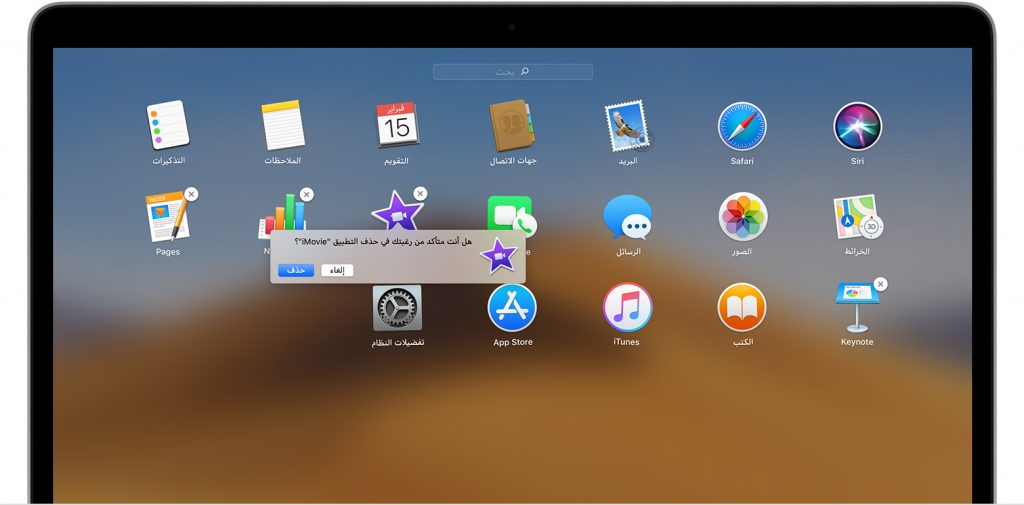
Launch the Launchpad tool from the Dock icons or the “Applications” folder, or type the name of the Launchpad application in the search box at the top of the screen until you find it. Press and hold the “Option” key (⌥), or press and hold any application until it vibrates. Click the Delete button × in front of the application you want to delete, then click the “Delete” button to confirm.
This method is suitable for deleting Mac applications that were downloaded from the Store, but if the applications and programs were downloaded from another source. Here we will use a second tool, Finder. Delete Mac programs via Finder. Locate the application using Finder, where you will find all the programs located in the “Applications Folder” by clicking on the Applications button from the list in the sidebar of the screen.
Or or Use Spotlight to search for the app. Then hold down the Command key (⌘) or double-click.
Drag the application to the Trash. In this step, you may be asked to enter the user password for the Mac admin account. To confirm the permanent deletion of applications on Mac - go to Finder and then “Empty Trash”.
Method 2: Use an App Cleaner The easiest way to completely uninstall a program on a Mac is to use an application that specializes in deleting Mac programs, such as App Cleaner. This cleaner works by searching for files associated with the application package and deleting everything together at the same time. You can download and install App Cleaner for free, but it costs $10 to unlock the basic file deletion functionality.
With the free version of App Cleaner, you can scan for programs without uninstalling them. You can download the program through this link. If you're looking for a free option, there's a free program with the same name,
AppCleaner , works similar but not identical to a paid app cleaner. Operating steps: Open App Cleaner. Type the name of the program you want to delete in the search bar below the list of applications. Check the box next to the program to highlight it and its associated files for deletion. If you want to completely uninstall more than one program, you can search for and check another program as well.
Both of them will be uninstalled in the last step to delete all the selected programs and their associated files. Click “Remove” Empty the Trash in Finder to remove the files from the disk completely. And here you are done Read also: Learn about IObit Uninstaller 10 to delete programs from their roots Method 3: Manually uninstall Mac programs App Cleaner is useful because not all programs are completely included in their application packages. While some programs can be deleted simply by just deleting the data package.
Some programs, especially powerful programs, store installation files in several different folders on your device. This way, developers can import Windows' least favorite feature into the Mac: manual uninstallation. To completely uninstall a program from macOS manually, you'll need to look for the files associated with the application in the following folders.
Within each folder, find the name of the software and the name of the company that created it. For example, if you were trying to uninstall Microsoft manually, you would search for both Word and Microsoft. /Library / Library / Application Support / Library / Preferences / Library / LaunchAgents / Library / LaunchDaemons / Library / PreferencePanes / Library / StartupItems / Library / / Library / Application Support / Library / LaunchAgents / Library / Preferences / Library / PreferencePanes / Library / StartupItems Additional locations of programs installed on your Mac Keep in mind that you will need to check for any relevant kernel extensions to ensure that your Mac programs are permanently deleted.
Known as “kexts,” kernel extensions are drivers of the macOS world. kext extends the communication capability of the kernel, adding new ways to interact with the system. You will find it installed in “/System/Library/Extensions”, and you will need to search carefully for anything related to your program.
When you are ready to remove kexts, you will need to use the sudo rm feature. You may also find files in the “~/Documents/” folder. This is especially true for programs and games that are transferred from Windows to macOS.
Storing user files in the Documents folder in Windows is a common but actually annoying thing to do but can easily be moved to macOS. Read also: The most important Mac programs to install when buying a new MacBook In conclusion, in most cases, deleting a data package is enough to uninstall a program from your Mac. While complete removal is preferred when the program contains large files, or when you are trying to fix some type of problem by reinstalling the program from scratch.
DROPIDEA
We hope this article has added real value to you. At DROPIDEA, we always strive to deliver high-quality content that helps you grow and evolve in the digital space. Follow us for more useful articles and guides.
Admin
DROPIDEA
Latest Articles

Nscale Acquires Anyscale for $1.65 Billion to Expand Its Dominance in AI Infrastructure

How Is AI Accelerating Meta's New App Launches?

Okta Acquires Security Firm Permiso for Around $200 Million

Microsoft Gains $3.2 Billion from Its Investment in Anthropic



