Formatting your phone remotely: The correct way for Android and iPhone devices
 By Admin
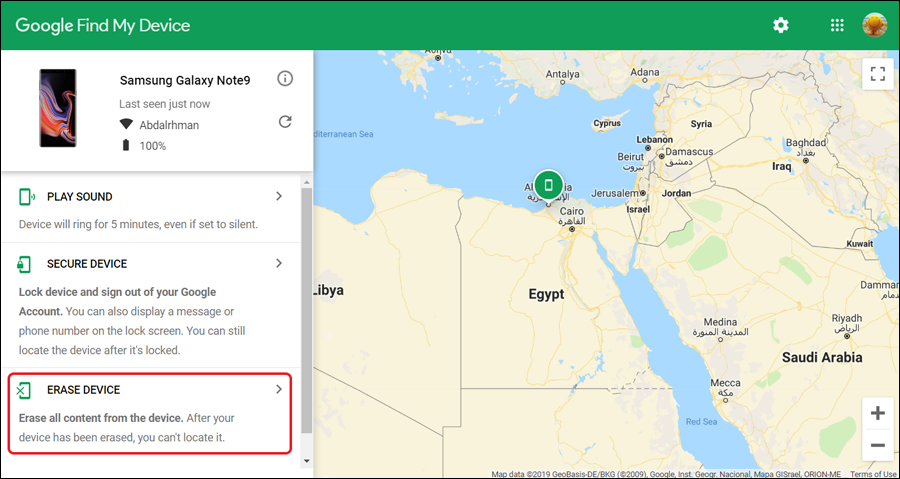
Why should you format your stolen phone? If your phone is stolen, it turns into a treasure trove for the thief. It can access your sensitive personal data, such as passwords, banking information, private photos, and conversations, and use it for malicious purposes.
It can also access your various accounts and track your location. Formatting your phone remotely is a crucial step to protecting your privacy and digital security. Important: To ensure a thief can't easily unlock your phone, make sure you use a strong screen lock (PIN, pattern, fingerprint, etc.) and encrypt your data.
What data can a thief get? In short, the thief can access everything on your phone: contacts, messages, photos, videos, passwords, banking data, your location, and much more. Every personal information you have stored on your phone is at risk.
How to format the phone remotely via Google Find My Device for Android Google Find My Device: Step 1: Make sure Find My Device is activated Step 2: Use Find My Device to format the phone Note: 3. How to format a Samsung phone remotely 4.
How to format iPhone/iPad remotely Step 1: Make sure
From activating Find My iPhone Step 2: Use Find My to format the device Note: Article updated May 2024: The article has been revised and explanation steps have been added for iPhone devices. Additional official source: Google Support, Apple Support, Samsung Support.
DROPIDEA
We hope this article has added real value to you. At DROPIDEA, we always strive to deliver high-quality content that helps you grow and evolve in the digital space. Follow us for more useful articles and guides.
Admin
DROPIDEA
Latest Articles

Nscale Acquires Anyscale for $1.65 Billion to Expand Its Dominance in AI Infrastructure

How Is AI Accelerating Meta's New App Launches?

Okta Acquires Security Firm Permiso for Around $200 Million

Microsoft Gains $3.2 Billion from Its Investment in Anthropic



