Your phone doesn't read the chip? Say goodbye to the “No SIM card” message in 10 easy steps!
 By Admin
There are many reasons why the phone does not read the SIM card. Some reasons may be that the card is not inserted correctly, or a problem with the phone's operating system itself. Whatever the reason, a solution must be found quickly.
In this topic, here are some of the methods that can be followed in order to solve the problem of there is no SIM card in the phone. What are the common causes of “No SIM card” issue? Usually, the problem of “SIM card not being recognized” occurs only when the SIM card is not inserted correctly into the mobile phone.
This is the most common reason behind the problem. But it's not the only one, SIM card issues: Phone issues: Mobile network issues: Phone apps: Multiple solutions to No SIM issue A quick solution to “No SIM card” issue: Check if the SIM card is installed: Restart the phone: Try Airplane mode: Network settings: If the issue persists: We will now go through several steps in detail below to solve all the SIM card issues so that you can use your phone as usual.
Because the phone does not read the SIM card, it means that you cannot make phone calls, connect to the Internet via mobile data, or send text messages. 1- Restart the phone If you insert a new SIM card, the phone will most likely not recognize it until you do a Restart. Or if the reason for the problem is related to the software; If there is an error in the operating system, it will be resolved by a simple reboot, so it is the simplest method you can follow to solve the problem.
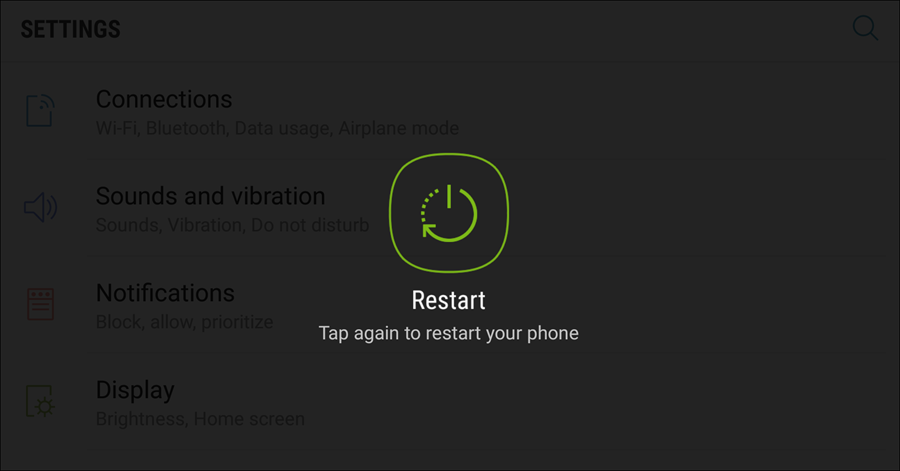
All you have to do is press and hold the Power button, then press the “Restart” option, then wait for the phone to try to connect to the network again, and hopefully you will not see the “SIM card not detected” error anymore. 2. Check, clean, and install the SIM card. If you have been using the same mobile phone for years without removing the SIM from its place, there is a high probability that the reason for facing the “No SIM card” problem is that both the SIM card and the SIM port in the phone are not clean, as dust and dirt create a barrier between the SIM and the port that leads to the failure of the SIM reading process.
Turn off the phone: Turn off your phone completely and wait for 30 seconds. Remove the SIM card: Using the SIM ejector tool, remove the SIM card from the phone for at least 30 seconds. Make sure the SIM card is safe: Check the SIM card for damage or dirt.
If the card is damaged, you will need to replace it. Also apply the same to the port and check whether the read pins built into the motherboard are intact or damaged. Reinsert the SIM card: Make sure to re-insert the SIM card in the Restart the phone: Turn your phone back on and wait until it turns on completely.
(You can try the SIM card on another phone to make sure that the problem is with it or with the phone itself). 3- Make sure to choose the correct SIM network operator and activate it. If the network operator you are using is not the one selected by the Android system, you will definitely get the SIM card not detected error in the phone. To confirm that this is actually the reason, go to the phone settings, then to Connections, then to Mobile networks, press Network operators, and finally press Search networks.
Once the search is finished and the results are displayed, click on the correct network operator for your SIM card. Receive network updates on iPhone Check for network settings updates: Go to Settings > General > About.
Follow the instructions if an update is available. According to Apple support. We hope that the No SIM card issue will be resolved this way, if not, follow the solutions below.
4- Change the network mode to automatic - Auto Connect The method of changing the network mode to automatic mode is another method that you can try to solve the problem of the phone not reading the SIM card. You can do this through the following steps: Go to Settings, then to the Connections section, then to the SIM card manager, or via the Mobile Network in some phones. Click on the SIM that was not read correctly (if there is more than one SIM), then click on Network mode and choose the first or second option (Auto connect), depending on the 5G/4G/3G network. After that, try restarting the phone and check if the Sim card is working.
Or activate/disable Airplane mode and check if the issue is resolved or not. 5- Activate Airplane Mode. One way to solve the No SIM card problem is to activate Airplane Mode for a short period of time and then deactivate it. This disables all cellular transmission and reception; Which means you are telling the operating system to re-check if there is a SIM card in the phone.
The method of activating the mode varies depending on the version of Android that you are using. Try dragging the status bar to the bottom. If you find the button to activate Airplane Mode, press it and wait a while and then disable it. Or go to Settings and then to the “Network and Communications” section and you will find a button to activate and disable Airplane Mode. In general, when you activate and then disable Airplane mode, the phone will start searching for the network and this may solve the problem. 6.
Clear cache in SIM Toolkit Data Go to Settings: Open the Settings app on your phone. Search for “Applications” or “Manage Applications”: The path may vary slightly depending on the Android version and UI. Search for “SIM Toolkit” or “SIM Tools”: Find the “SIM Toolkit” or “SIM Tools” application in the list of applications.
And press it. Click on “Storage,” then click on “Clear Cache.” Click on “Force Stop” to force stop the application. Restart phone: Restart your phone again.
Clearing the cache of all apps The problem is rarely resolved this way, but it is still one of the methods you should try. Clearing the Android operating system cache is a good attempt to simply fix the “No SIM card” error. Go to Settings, then look for the Storage section, then click on “Internal Storage - Device memory,” then click on “Cached data.” A window will appear telling you that this step will clear the cache of the applications installed on your device. Just click on “Clear” and then restart the phone.
7. Use the phone in Safe Mode - Sometimes, the cause of the problem of the phone not reading the SIM card is related to the software, but not by the operating system - but rather to an installed third-party application, as it causes damage that prevents the SIM card from being read. You can check if this is true or not by booting into Safe Mode in Android.
Staying in Safe Mode stops all apps you have installed and allows only essential apps to be used. If you notice that the phone reads the SIM card normally; I know then that the reason was due to one of the recently installed applications. I advise you to delete unused third-party applications and try to discover this application and delete it immediately. But if the problem still exists even in safe mode, continue scrolling down to try other solutions.
The steps to turn on Safe Mode vary depending on the Android version and UI, but in general, here are the basic steps: Turn off the phone: Press and hold the power button until the power options menu appears. Choose “Restart” or “Restart in Safe Mode”: The option may be labeled slightly different, but look for the words “Safe Mode.” The phone may ask you to confirm that you want to reboot in safe mode.
: Wait, the phone will take some time to reboot in safe mode. Notes: On some devices, you may need to press and hold the Volume Down or Volume Up buttons along with the Power button during reboot to enter Safe Mode. 8.
Updating the phone's operating system Telecommunications companies periodically issue important updates to network settings with the aim of improving connection performance, and adding new features and technologies such as: 5G and calls via Wi-Fi (WiFi Calling). Steps to update Android phone: Go to Settings: Open the Settings application on your phone.
Look for “System” or “Updates”: The path may vary slightly depending on the Android version and UI. Tap “Check for updates”: The phone will check for any available updates. If an update is available, download and install it: Follow the on-screen instructions to install the update.
Restart your phone: After installing the update, restart your phone. Steps to update iPhone iOS: Make sure you are connected to a Wi-Fi or mobile data network.
Open “Settings,” then “General,” then “About.” Follow the instructions displayed to download and install the update. Stay up to date: To see network operator information and the update version number, go to Settings, then General, then About.
Contact your service provider if further support is required. 9 Factory Reset Phone Settings Resetting your phone settings to their default settings may help solve the “No SIM card” issue.
Note: All your data will be deleted from the phone, so...
Make sure you have an Android backup or an iPhone backup before proceeding. Open the Settings app on your phone. Search for “System” or “Reset”: The path may vary slightly depending on the Android version and UI.
Tap “Reset” or “Reset Phone”: Open phone reset settings. Tap “Erase Everything (Factory Reset)”: Make sure to read the warnings carefully and then tap “Erase Everything (Factory Reset)”. Follow the on-screen instructions: You will see a series of on-screen instructions, follow them to complete the reset process.
Read more: How to reset an iPhone How to factory reset Android Note: 10. Contact your mobile phone service provider Contact customer service: You can contact the customer service of your mobile phone service provider by phone or through their website.
Explain the problem: Tell the customer service representative you are experiencing
“No SIM card” problem and describe the steps you took to solve it. Follow the customer service representative's instructions: The customer service representative will provide you with additional assistance and resolve the issue.
Note: Make sure to bring your phone with you for the finale
Comprehensive solutions to the problem of the phone not reading the SIM card With the variety of solutions to the problem of the phone not reading the SIM card, we hope that this article will help you reach a quick and effective solution. Remember that following the steps carefully and being patient are the keys to success. I hope this information helps you solve the “No SIM card” issue.
Additional tips: Feel free to search for solutions tailored to your phone model online. If the issue persists, contact your mobile service provider for additional support. Make sure to update your phone's operating system to the latest version.
Make sure the SIM card port is clean and free of dust or dirt. Related articles: Solution to the problem of phone data not working and the Internet cannot be used on Android Solution to the problem of phone not working - 6 solutions to the problem of the Android phone suddenly stopping working Editorial Note: The article was edited and modified on 4/19/2024 to add more comprehensive steps and information to present the solution to the problem in a more simplified and organized manner. FAQ: 1.What if the SIM card suddenly stops working?
Answer: Sometimes we encounter technical obstacles! There are several possible reasons why your SIM card has stopped working. It could be your device settings or a problem with the card itself. To address this issue: Make sure your phone's settings are correct.
Check the SIM card to make sure it is clean and in the correct place in the device. You can refer to the article above for more details about solving this problem and others. 2.
How do I start using my iPhone if I don't have a SIM card? Answer:
Don't worry!
Even without a SIM card, you can activate your device. Here are the different methods depending on the iOS version you have: For iOS 11.4 and above: You can ignore the “No SIM card” message when activation begins. For iOS 11.3 and below:
Try borrowing a temporary SIM card from a friend or family member so you can activate. Or connect your iPhone to a computer that has iTunes installed, and the software will help you through the activation process. Remember: During activation, choose “Set up as a new device”.
3. After activating my device, do I still need a SIM card?
Answer:
After the initial activation process, you can remove the SIM card from your device and you will be able to: Connect to Wi-Fi networks and enjoy surfing the Internet. Take advantage of applications that use the Internet for messaging and communication, such as WhatsApp and Facebook Messenger. Perform many daily tasks through your device without the need to connect to the mobile network controlled by the SIM card.
DROPIDEA
We hope this article has added real value to you. At DROPIDEA, we always strive to deliver high-quality content that helps you grow and evolve in the digital space. Follow us for more useful articles and guides.
Admin
DROPIDEA
Latest Articles

Nscale Acquires Anyscale for $1.65 Billion to Expand Its Dominance in AI Infrastructure

How Is AI Accelerating Meta's New App Launches?

Okta Acquires Security Firm Permiso for Around $200 Million

Microsoft Gains $3.2 Billion from Its Investment in Anthropic



