Solve the Disk Usage problem 100% in Windows... and reduce hard disk consumption
 By Admin
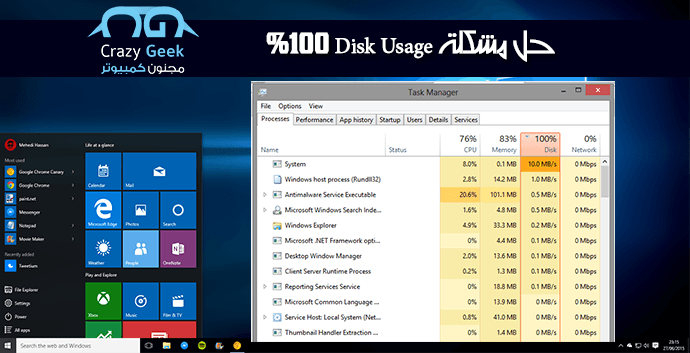
Users of the Windows system in all its versions face a problem with high hard disk consumption, and you always see a 100% disk usage problem in the Task Manager program. Unfortunately, Microsoft has not solved this problem for years due to some services that work incorrectly within the system. You can view this data by clicking with the right mouse on the bottom bar in Windows and then clicking Taskmanager. Read also: Solution to the problem of RAM consumption in Windows 10 - and why does the system consume 100% RAM? Solving the 100% disk usage problem in Windows. Perhaps if you randomly open the Task Manager program to find out which programs are consuming your computer, you will find that the hard disk usage is 100% or exceeds 90%, which may destroy the hard disk in random operations performed by the Microsoft system without your request, and some of the steps that I will review will solve this problem.
Read also: The 5 best sites for downloading secure computer programs without malware! 1- Disable the Windows Search feature. The search feature within Windows. When you search for something, you repeatedly archive files. Unfortunately, this archiving may continue for a long time even after canceling the search process. This is a common error in the Windows system for years and nothing has changed. Therefore, we will open the Run tool by pressing the Windows+R shortcut on the keyboard and we will type the command services.msc.
We will search for the Windows Search service and click on it twice to open the properties page for us. We will modify the first option to stop the service to stop the service and we will change the Startup Type option.
To Disabled
To prevent the service from starting, we will then save the modifications, and the modifications should appear in the next reboot. 2- Disabling the Superfetch service: If the previous step does not work for you, you can try closing the Superfetch services, which cache data and store it in random memory to speed up the reading process within applications, but this process does not occur correctly several times, and the hard disk may malfunction slightly in the process of starting and closing programs and applications. We can disable it in the same way as before by opening Run and then typing the command
services.msc, search for Superfetch and close it as shown in the picture.
Read also:
The 10 most famous and wonderful computer and Internet tricks that you should know now 3- Disable Windows 10 Tips This trick was mentioned by a Reddit user who noticed a large consumption due to Windows 10 Tips advisory services and you can close them through the settings from the Start menu, then Notifications & actions and close the turn off Show me Tips about Windows feature button. Now, restart your computer and make sure that your computer is up to speed and that there is no message about the disk usage problem 100%. If you do not notice any change, I advise you to do a comprehensive scan of the computer to ensure that it is free of viruses. You can see an article
The best free protection programs in 2016. Download a suitable program to clean the computer from malware that may cause the consumption of computer resources.
DROPIDEA
We hope this article has added real value to you. At DROPIDEA, we always strive to deliver high-quality content that helps you grow and evolve in the digital space. Follow us for more useful articles and guides.
Admin
DROPIDEA
Latest Articles

Nscale Acquires Anyscale for $1.65 Billion to Expand Its Dominance in AI Infrastructure

How Is AI Accelerating Meta's New App Launches?

Okta Acquires Security Firm Permiso for Around $200 Million

Microsoft Gains $3.2 Billion from Its Investment in Anthropic



