Solving the problem of unable to activate the iPhone: a comprehensive step-by-step guide
 By Admin
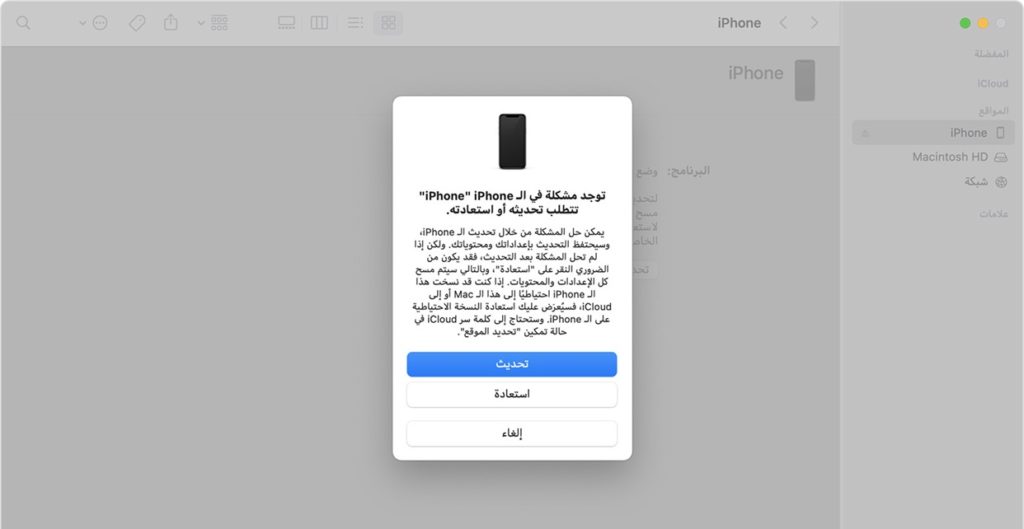
Have you just received your new iPhone, or perhaps you've reset your old one, and instead of being greeted by the familiar lock screen, you find yourself stuck on the activation screen? The “Unable to Activate iPhone” error message can be very frustrating, especially when you are excited to use your new device or recover your important data. Don't worry, you are not alone in this predicament.
Many iPhone users face this annoying problem, whether the device is brand new or an old one that has been restored. Fortunately, there are several solutions you can try to get your device back to working normally. In this comprehensive guide, we provide you with several solutions to the “Unable to activate iPhone” problem.
We'll start by explaining the possible causes of this issue, then go over a variety of solutions, from simple fixes you can do yourself, to more advanced solutions that may require help from professional software or Apple Technical Support. In this guide we will rely on reliable sources, including official Apple support, to provide accurate and up-to-date information. Additionally, we will share with you some additional tips and tricks that can help you avoid this problem in the future.
Whether you're a new iPhone user or a tech expert, in this guide you'll find everything you need to solve the iPhone activation issue and get your device back to full working order. Do not despair, and keep reading to discover the solution that is right for you. Basic solutions: Make sure your iPhone is connected to a stable Wi-Fi network.
You can try restarting your router to make sure it is working properly. Check for a valid SIM card in your iPhone. Make sure it is supported by your carrier and turned on.
Remove the SIM card from the device, then reinsert it properly. Make sure it is firmly fixed in place. Advanced Solutions: Force Restart iPhone If the previous solutions do not work, you can try force restarting the iPhone.
This process helps solve some simple software errors that may prevent the device from being activated. Here's how to do it depending on your iPhone model: For iPhone 8 and later: Quickly press and release the Volume Up button. Quickly press and release the Volume Down button.
Press and hold the Side button until the Apple logo appears on the screen. For iPhone 7, 6s and earlier: Press and hold the Power/Off button and the Home button at the same time.
Note: On iPhone 7, press and hold
“Power/Off” button and “Volume Down” button instead of “Home” button. Hold both buttons for about 10 seconds until the Apple logo appears on the screen.
Note: It may take some time for the Apple logo to appear
So keep pressing both buttons until it appears. Warning: You should know that a force restart only solves minor software problems. If the inactivation issue is caused by network or hardware issues, a force restart will not be effective.
Update iPhone using iTunes: Sometimes, some errors in iOS may prevent you from activating your iPhone, including the issue of not being able to activate Touch ID. Fortunately, you can bypass this issue and activate your device using iTunes, even if you don't insert a SIM card. Here are the steps: Open iTunes and connect iPhone: Open iTunes on your computer, and make sure you are using the latest version.
Turn off your iPhone. Connect your iPhone to your computer using a USB cable. Turn on and activate your iPhone via iTunes: Turn on your iPhone.
Once iTunes recognizes your device, it will ask you to activate it. If iTunes doesn't ask you to activate automatically, click the "Activate your iPhone" option in iTunes. Sign in and activate iPhone: Sign in with your Apple ID.
Follow the on-screen instructions to complete the activation process. Wait for your computer to recognize and activate your iPhone or iPad. If an alert appears saying “Set up as new device” or “Restore from backup”: This means your device has been successfully activated.
If an error message appears stating that the SIM card is incompatible or invalid: In this case, you should contact your carrier for assistance. If an error message appears stating that “Activation information was not valid” or “Activation information could not be obtained from the device”: In this case, you may need to use Recovery Mode to restore your iPhone or iPad. You can find instructions on how to do this on the Apple Support website.
Put your iOS device into recovery mode and fix it via computer Sometimes, you may not be able to activate your iOS device using normal methods. In this case, you may need to put it in Recovery Mode and restore it using your computer but here's how to do it: Put your iOS device into recovery mode: Connect your iOS device to your computer using a USB cable. Press and hold the following two buttons at the same time: On iPhone 8 or later: Press and hold the Volume Down button and then press and hold the Side button until the Apple logo appears.
On iPhone 7 or iPhone 7 Plus: Press and hold the Volume Down button and then press and hold the Power/Off button until the Apple logo appears. On iPhone 6s or earlier or iPod touch (6th generation or later): Press and hold the Home button and then press and hold the Power/Off button until the Apple logo appears. Continue holding both buttons until the Apple logo appears on the screen.
Restore iOS device using computer: Open iTunes on your computer. Make sure you are using the latest version of iTunes. Connect your iOS device to your computer using a USB cable.
Wait for iTunes to recognize your device. Click “Restore” in iTunes. Follow the on-screen instructions to restore your device.
Note: The restore process may take some time. Make sure you have enough battery on your computer.
Conclusion in final solutions: Article updated August 2024
A non-working link has been removed and some paragraphs have been slightly corrected.
DROPIDEA
We hope this article has added real value to you. At DROPIDEA, we always strive to deliver high-quality content that helps you grow and evolve in the digital space. Follow us for more useful articles and guides.
Admin
DROPIDEA
Latest Articles

Nscale Acquires Anyscale for $1.65 Billion to Expand Its Dominance in AI Infrastructure

How Is AI Accelerating Meta's New App Launches?

Okta Acquires Security Firm Permiso for Around $200 Million

Microsoft Gains $3.2 Billion from Its Investment in Anthropic



