Are you looking for the best video design programs for iPhone? Here are 12 unique options
 By Admin
In our digital age, video has become a global language of expression and communication. From recording our daily memories to producing professional content, videos have become an essential part of our lives. With the development of smartphone cameras, the iPhone has become a powerful photography tool accessible to everyone.
But to turn that raw footage into cinematic works of art, you need professional editing tools. Here comes the role of video design and editing applications on iPhone. Thanks to these applications, you can turn your phone into a mobile editing studio, where you can cut and merge clips, add visual and audio effects, apply smooth transitions, insert attractive texts and titles, and much more.
Whether you're an aspiring content creator, a vlogger, or even just want to enhance your family videos, the App Store has a wide range of options to meet your needs. In this comprehensive guide, we will review the best video design and editing programs available on the iPhone, whether free or paid. We'll take a look at the pros and cons of each app, and give you tips for choosing the perfect tool to suit your level and goal.
Get ready to unleash your cinematic creativity and turn your footage into amazing stories! Why is the iPhone an ideal video editing tool? In the world of digital content creation, the iPhone has become more than just a smartphone; It's a portable video production studio in your pocket.
Here are some reasons why it's the perfect choice for video editing: High-quality built-in camera: Modern iPhones feature exceptional cameras capable of shooting 4K video at high frame rates, giving you great key shots to work with. To prove these capabilities, Apple showed at its recent conference with the launch of the iPhone 16 Pro series how the phone was used to film a music video for international singer The Weeknd, which demonstrates the quality of the camera and its creative capabilities. Easy to carry and use anywhere: Thanks to its slim and lightweight design, you can carry your iPhone with you wherever you go, allowing you to capture and edit videos at any time and place, whether you are on a trip, at a special event, or even on the go.
High-resolution Touch Screen: iPhone's advanced touch screen provides a comfortable and intuitive video editing experience, where you can easily select clips, add effects, and control various video elements with the touch of a finger. Availability of a wide range of advanced video editing apps: The App Store has a huge selection of video editing apps for every need, from simple apps for beginners to professional tools that rival desktop video editing software. In short, the iPhone combines powerful performance, ease of use, and variety of applications, making it an ideal tool for editing videos anywhere and anytime.
Whether you're a professional content creator or a passionate hobbyist, iPhone has everything you need to turn your footage into cinematic works of art. The best video design and editing programs for iPhone: Unleash your cinematic creativity. In this section, we review a selection of the best video design and editing applications available on iPhone, whether you are looking for free options to get started or advanced professional tools. UPDATED: This article is not just a simple update, it is a complete rebuild!
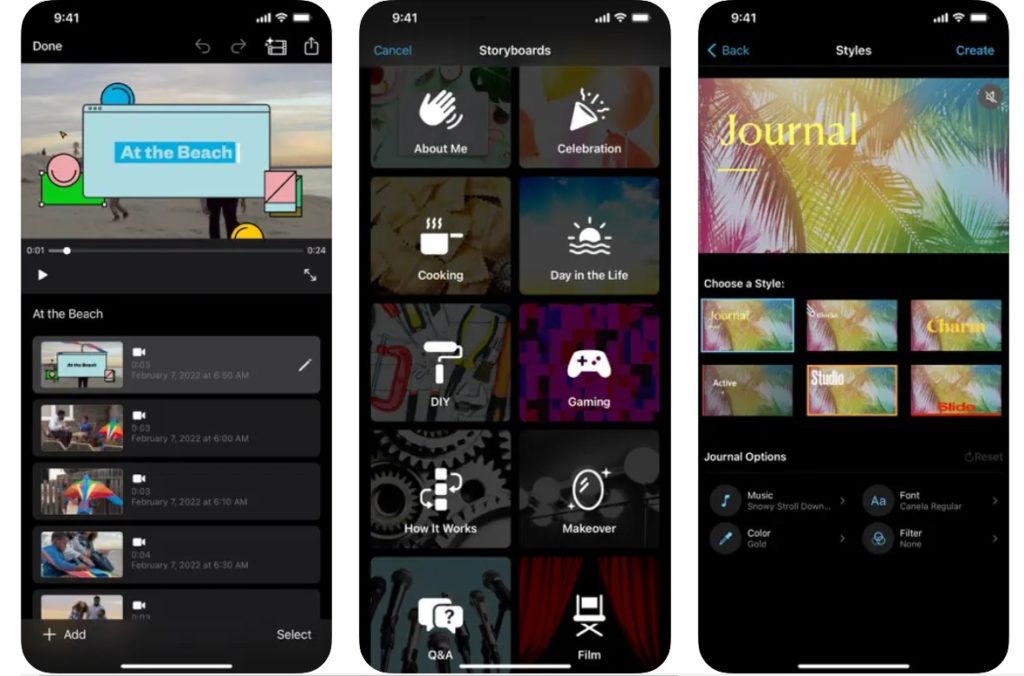
Updated September 29, 2024 to include the latest apps and expert advice. 1. iMovie: Apple's official video editor iMovie is the perfect app for beginners who want to edit videos on their iPhone and iPad.
It provides a simple and intuitive user interface, with basic editing tools such as cutting, merging, and adding music and effects. You can also easily create titles and transitions, and share finished videos directly to social media or via AirDrop. Although iMovie may not offer all the advanced features that professionals are looking for, it is still an excellent option for getting started in the world of video editing on iOS.
License: Free Features: Completely free. Very easy to use. It includes a good set of basic video editing features.
Integrates seamlessly with the Apple ecosystem. Cons: May be a bit limited for advanced users. It does not support some professional features such as advanced audio adjustment and color correction.
It is worth noting that Apple Support provides a guide explaining the use of the built-in video and photo editing programs on iOS and Mac as well. You can view Apple’s guide here. 2. InShot: A comprehensive, easy-to-use video editor InShot is an all-in-one video editing app that combines ease and power.
It offers a wide range of tools and features that allow you to edit your videos professionally, including cutting and merging, adding music and sound effects, creating animated texts and titles, applying filters, controlling speed, and many more. With its intuitive interface and comprehensive toolset, InShot is an ideal choice for users of all levels, whether you're a beginner or a pro. License: Free (with in-app purchases) Description: InShot is a comprehensive video editing app that provides a wide range of tools and features for creating and editing videos on your iPhone.
You can use it to cut and merge clips, add music and effects, create text and titles, apply filters, and much more. Features: Simple and intuitive user interface. Wide range of tools and features for video editing.
Ability to add music, effects, filters and texts. Export videos in high quality. Disadvantages: Some features require in-app purchases.
A watermark may appear on exported videos in the free version. 3. CapCut: Powerful and Popular Video Editor CapCut is a free and popular video editing application that provides a wide range of tools and features for creating and editing professional videos.
You can use it to cut and merge clips, add music, visual and audio effects, create text and titles, apply filters, and much more. With its modern interface and advanced tools, you can easily create professional and creative videos, even if you have no previous editing experience. AI Support: CapCut offers some AI-powered features, such as automatically removing background, converting text to speech, and automatically creating short videos from long clips.
License: Free Features: Completely free and no watermarks. Modern and easy to use user interface. A wide range of tools and features for video editing.
Ability to add music, effects, filters and texts. Export videos in high quality, including 4K. Disadvantages: There may be a slight learning curve for beginners.
You may encounter some ads within the app. 4. VivaVideo: Creative video editor with many effects VivaVideo is a video editing app that focuses on creativity and fun.
It offers a wide range of ready-made effects, filters, and transitions that you can use to give your videos a unique touch. You can also add music, text, and titles, control the speed, and create slow-motion or fast-motion videos. With its easy-to-use interface and wide range of effects, VivaVideo is an excellent choice for users who want to create fun and engaging videos.
AI Support: Videoleap offers some AI-powered features, such as removing unwanted objects from videos, automatically enhancing video quality, and creating amazing special effects. License: Free (with in-app purchases) Description: VivaVideo is a creative video editing app that provides a wide range of effects, filters, and transitions to create fun and engaging videos. You can use it to cut and merge clips, add music, create text and titles, apply filters, and much more.
Features: Easy to use user interface. A wide range of effects, filters and transitions. Possibility of adding music and texts.
Export videos in high quality. Disadvantages: Some features require in-app purchases. A watermark may appear on exported videos in the free version.
5. Videoleap: Professional Video Editor with Advanced Features Videoleap is a professional video editing app that provides a wide range of advanced tools and features to creatively create and edit videos. You can use it to cut and merge clips, add music, visual and audio effects, create text and titles, apply filters, control colors, and much more.
With its advanced features like keyframing and chroma key, you can achieve amazing cinematic effects on your iPhone. AI Support: Videoleap offers some AI-powered features, such as removing unwanted objects from videos, automatically enhancing video quality, and creating amazing special effects. License: Free (with in-app purchases) Features: Modern and easy-to-use user interface.
A wide range of tools and features for video editing, including advanced tools such as keyframing and chroma key. Ability to add music, effects, filters and texts. Export videos in high quality, including 4K.
Disadvantages: Some features require in-app purchases. There may be a learning curve for beginners. 6.
Splice: An easy-to-use video editor to create professional videos Splice is a video editing app that combines ease and power, allowing you to create professional, high-quality videos without any prior editing experience. You can use it to cut and merge clips, add music and effects, create text and titles, apply filters, and much more. With its intuitive interface and comprehensive set of tools, Splice is an ideal choice for users who want to create professional videos easily and quickly.
License: Free (with in-app purchases) Description: Splice is an easy-to-use video editing app that lets you create professional videos with ease. You can use it to cut and merge clips, add music and effects, create text and titles, apply filters, and much more. Features: Simple and intuitive user interface.
A good set of tools and features for video editing. Ability to add music, effects, filters and texts. Export videos in high quality.
Disadvantages: Some features require in-app purchases. A watermark may appear on exported videos in the free version. 7.
GoPro Quik: A quick and easy-to-use video editor for GoPro Quik is a free video editing app from GoPro, designed specifically for editing videos captured with GoPro cameras. It offers a simple and intuitive user interface, making it ideal for beginners. You can use it to cut and merge clips, add music and effects, and create titles and transitions.
Although it may be a bit limited for advanced users, it's still an excellent option for quick and easy editing of GoPro clips on your iPhone. License: Free Features: Completely free. Very easy to use.
It includes a good set of basic video editing features. Specially designed for GoPro clips. Cons: May be a bit limited for advanced users.
It does not support some professional features such as advanced audio adjustment and color correction. 8. LumaFusion: A professional editing studio in your pocket LumaFusion is a professional video editing app that provides an integrated and comprehensive editing experience on your iPhone.
It is considered one of the most powerful video editing applications available on iOS, and it offers professional features that compete with video editing programs on desktop computers. You can use it to create and edit cinematic videos in high quality, with multi-track support, color correction, advanced audio effects, and many other features. License: Paid (one-time payment) Price: $29.99 Features: Professional and customizable user interface.
Multi-track support for video and audio. Advanced editing tools such as keyframing and chroma key. Professional color correction.
Advanced sound effects and built-in music library. Export videos in high quality, including 4K. Disadvantages: Requires a one-time payment to purchase, and may be a bit pricey.
The learning curve may be a bit steep for beginners. 9. Kinemaster: Professional video editing with a creative touch Kinemaster is a comprehensive video editing app that provides a wide range of tools and features to create and edit professional videos on your iPhone.
You can use it to cut and merge clips, add music, visual and audio effects, create text and titles, apply filters, control colors, and much more. Kinemaster also offers multi-layer editing, allowing you to combine different videos, images, audio, and effects into a single project. License: Free (with in-app purchases and optional subscription) Price: Subscription starts at $4.99 per month or $39.99 per year.
Description: Kinemaster is a comprehensive video editing app that provides a wide range of tools and features for creating and editing professional videos on your iPhone. You can use it to cut and merge clips, add music, visual and audio effects, create text and titles, apply filters, control colors, and much more. Features: Intuitive and easy to use user interface.
Multi-track support for video and audio. A wide range of tools and features for video editing, including keyframing and chroma key. Ability to add music, effects, filters and texts.
Export videos in high quality, including 4K. Disadvantages: Some features require in-app purchases or a paid subscription. A watermark may appear on exported videos in the free version.
10. Filmora AI Video Editor: An intelligent video editor thanks to artificial intelligence technologies Filmora is a video editing application that combines ease of use with professional editing capabilities, while adding a touch of artificial intelligence to make the editing process smoother and more creative. It offers a wide range of tools and features, from basics like cropping and merging, to advanced effects and color correction.
Artificial Intelligence support: Filmora offers many features supported by artificial intelligence, such as: AI Smart Cutout: Remove the background from videos accurately and professionally. AI Audio Stretch: Automatically stretch or shorten audio to fit the length of the video. AI Audio Denoise: Remove unwanted noise from audio for pure audio recordings.
AI Portrait: Add special effects to faces in videos, such as changing the background or adding virtual makeup. Filmora is a suitable choice for users who are looking for a balance between ease of use and professional features, while harnessing the power of artificial intelligence to improve and speed up the editing process. License: Free (with in-app purchases) Price: In-app purchases start at $0.99.
Features: Simple and intuitive user interface. A large selection of ready-made effects, filters and transitions. Ability to add music, texts and titles.
Export videos in high quality. Disadvantages: Some features require in-app purchases. A watermark may appear on exported videos in the free version.
11. Adobe Premiere Rush: Professional video editing from Adobe Adobe Premiere Rush is a powerful video editing application from Adobe, specially designed for creating and editing videos on mobile devices. It offers a wide range of professional tools and features, including multi-track editing, color correction, audio effects, and many others.
With its seamless integration with other Adobe Creative Cloud services, you can easily move your projects between different devices and work on them anywhere. AI Support: Premiere Rush uses AI technologies in some features, such as Auto Reframe, which automatically resizes the video to suit different aspect ratios, and Content-Aware Fill, which helps remove unwanted elements from the video. License: Free (with optional paid plan) Price: Paid plan starts at $9.99 per month.
Description: Adobe Premiere Rush is a powerful video editing application from Adobe, designed specifically for creating and editing videos on mobile devices. It offers a wide range of professional tools and features, including multi-track editing, color correction, audio effects, and many others. Features: Modern and easy to use user interface.
Multi-track support for video and audio. Advanced editing tools. Professional color correction.
Advanced sound effects and built-in music library. Integration with other Adobe Creative Cloud services. Disadvantages: Some features require a paid Adobe Creative Cloud subscription.
There may be a learning curve for beginners. 12. PrettyUp: Professional video editing with the help of artificial intelligence PrettyUp- AI Body Editor is an app that combines the power of artificial intelligence with ease of use to edit your videos.
It offers a variety of AI-powered tools to make the editing process faster and easier, such as automatically removing background, improving video quality, and adding amazing special effects. The application focuses on changing body dimensions and facial effects through multiple tools and controls. AI Support: PrettyUp relies heavily on AI to offer advanced and easy-to-use editing features.
License: Free (with in-app purchases) Price: In-app purchases start at US$3.99. Features: Simple and intuitive user interface. A variety of AI-powered tools for video editing.
Possibility of removing background automatically. Automatically improve video quality.
Add amazing special effects.
Disadvantages: Some features require in-app purchases. It may not be suitable for users looking for full manual control over the editing process. Remember, these are just examples of some of the best iPhone video design and editing software available.
There are many other great apps you can explore. Choose the app that best suits your needs and creative style, and enjoy a fun and productive video editing experience on your iPhone! Criteria for choosing the best video design and editing programs for iPhone: A guide to making the right decision With many video editing applications available on the App Store, it may be difficult to choose the application that best suits your needs.
Here are some key criteria to consider when making a decision: Ease of use: Are you a beginner or a pro? Choose an app with an intuitive user interface and easy-to-use tools if you're new to the world of video editing. If you're a professional, you may prefer an app that provides more manual control over editing settings.
Features: Select the features you need in an editing application. Are you looking for basic tools like cropping and merging, or do you need advanced features like visual effects, color correction, and animation? Make sure the app you choose provides the tools that meet your creative needs.
AI Support: In a rapidly evolving world, AI is playing an increasing role in video editing applications. Look for apps that use artificial intelligence to make the editing process easier and faster, such as suggesting appropriate effects and transitions, automatically removing backgrounds, or improving image and audio quality. Performance: If you are dealing with high-resolution video files, it is necessary to choose an application that has fast and smooth performance, to avoid delays or hanging during the editing process.
Compatibility: Make sure the app supports the latest versions of iOS, and that it integrates with other apps you use, such as cloud storage and social media, to make sharing and syncing videos easier. Price: Compare free and paid apps, and decide if you're willing to invest in a paid app for additional features and advanced editing capabilities. Make sure that the app you choose offers good value for money, and that it has all the features you need.
Additional Features: You may want to look for additional features such as 4K support, video stabilization, color correction, sound effects, and the ability to add text and animation. Try free versions: Many paid apps offer limited free versions or trial periods. Use this opportunity to try out the app and see if it fits your business style and needs before committing to a purchase.
Read User Reviews: Before making your final decision, check out other users' reviews and ratings of the app. This will help you get a better idea of the app's performance, ease of use, and suitability for your needs. By keeping these criteria in mind, you can choose the perfect video editing app that will help you turn your footage into cinematic works of art on your iPhone.
FAQ: Can I edit 4K videos on iPhone? Yes, many modern apps support 4K video editing on iPhone, including iMovie, LumaFusion, Kinemaster, and Adobe Premiere Rush. Make sure your device supports 4K video recording and playback.
How do I add music to my video? Most video editing applications allow you to add music to your video. You can use the app's built-in music, or import your own music from your iTunes library or cloud music services.
Check out our article (4 sites to get royalty-free music) if you are looking for various clips. How can I share my edited videos on social media? Most apps let you share your edited videos directly on social media like Facebook, Instagram, YouTube, and TikTok.
You can also save the video to your device and then share it manually. Do I need to pay money to get a good video editing app? No, there are many excellent free apps available on the App Store, such as iMovie, CapCut, and InShot.
However, if you need advanced features or are a pro, you may want to invest in a paid app like LumaFusion or Kinemaster. What is the best video editing app for beginners? iMovie is an excellent choice for beginners due to its ease of use and intuitive interface.
InShot and CapCut also have relatively easy-to-use interfaces. What is the best video editing app for professionals? LumaFusion is considered the best choice for professionals, as it provides a wide range of professional features that rival desktop video editing software.
Kinemaster and Adobe Premiere Rush are also good options for professionals. Can I use these apps to create professional videos? Yes, you can create professional videos using many of these apps, especially paid apps like LumaFusion and Kinemaster.
However, the level of professionalism also depends on your editing and creativity skills. Conclusion: In this guide, we reviewed a selection of the best video design and editing applications available on the iPhone. Whether you're a beginner or a pro, there's an app to fit your needs and budget.
Remember, choosing the best app depends on the type of videos you want to edit and your level of editing experience. You may be interested in reviewing our comprehensive article (the best mobile video editing applications), which is directed to the Android and iPhone platforms as well. Feel free to experiment with different apps, and have fun turning your shots into cinematic works of art on your iPhone!
Related articles nominated by the author: An explanation of merging multiple video clips into one file on the computer and mobile phone The 10 best free editing programs for Windows - video editing The 10 best free editing programs for Mac - video design and editing in Mac OSx An explanation of how to compress video size without downloading programs for the computer or phone How to delete audio from the video on the phone or computer
DROPIDEA
We hope this article has added real value to you. At DROPIDEA, we always strive to deliver high-quality content that helps you grow and evolve in the digital space. Follow us for more useful articles and guides.
Admin
DROPIDEA
Latest Articles

Nscale Acquires Anyscale for $1.65 Billion to Expand Its Dominance in AI Infrastructure

How Is AI Accelerating Meta's New App Launches?

Okta Acquires Security Firm Permiso for Around $200 Million

Microsoft Gains $3.2 Billion from Its Investment in Anthropic



