How to use Safe Mode in Windows 10 and 11 to fix your device?
 By Admin
Hunting for Hidden Problems: Anti-Virus and Malware: Go Back in Time to Fix Your System: If you changed system settings that caused problems, you can use System Restore in safe mode to return to an earlier point in time when your computer was working fine. Total Control: In this article, I will be your personal guide in the world of Safe Mode. I will explain to you in detail how to access it in Windows 10 and 11, its various uses, and important tips for solving common problems.
Don't worry, after reading this guide, you will be able to deal with most computer malfunctions with confidence and regain control of it. What is Safe Mode? Your last resort in the world of Windows Features of Safe Mode: Simplicity: Download only essential programs: Access to repair tools: Types of Safe Mode: Safe Mode: Safe Mode with Networking: Safe Mode with Command Prompt: When do you use Safe Mode?
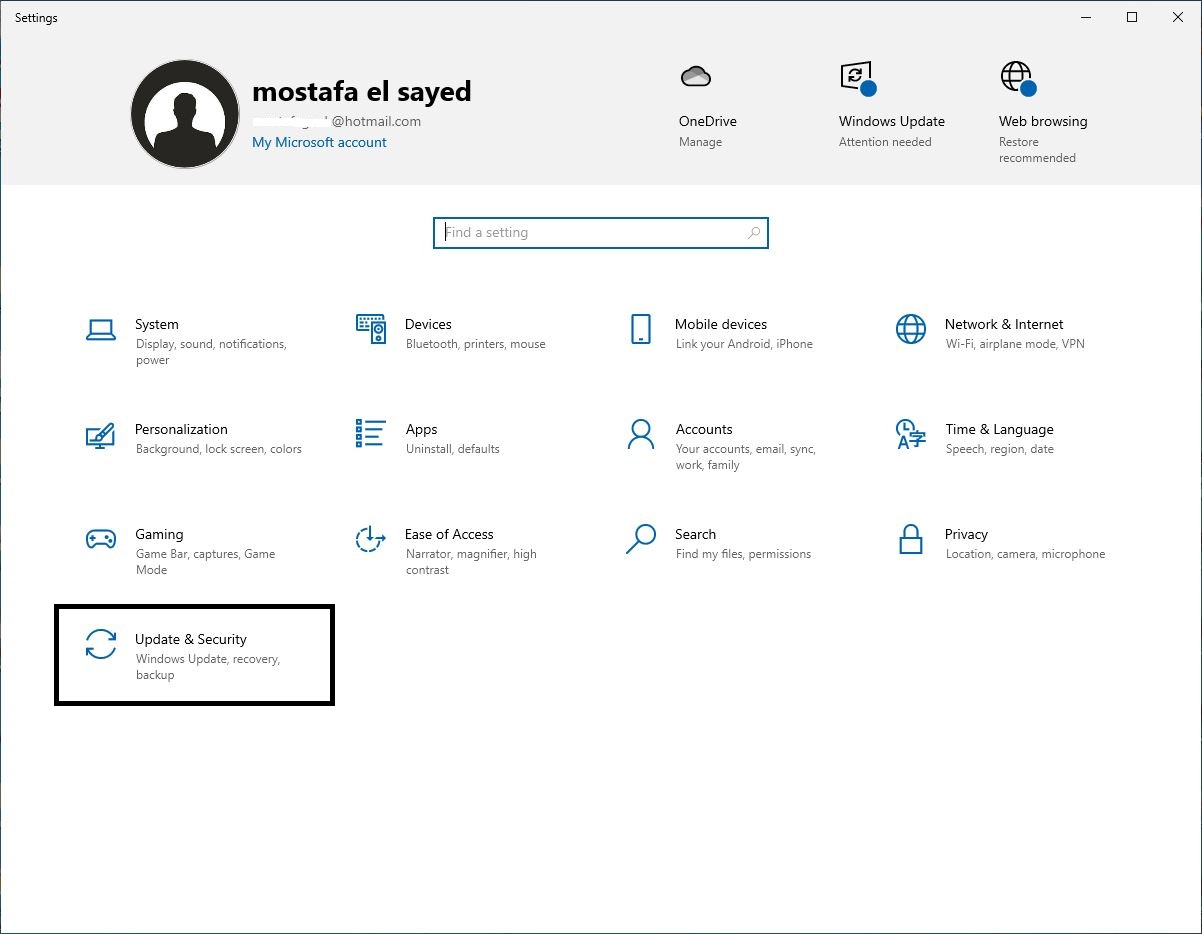
Blue Screen of Death (BSOD): System crash or inability to boot: Viruses and malware: Problems with drivers: Changing system settings: Now that you understand what Safe Mode is and its importance, let’s move on to how to enter it in Windows 10 and 11. How to enter Safe Mode in Windows 10: Multiple ways to access the “Emergency Room” 1. Through Settings: Steps: “Start” “Settings” “Update and Security” “Recovery” “Startup” Advanced” “Restart Now” “Option selection screen” “Troubleshooting” “Advanced options” “Startup Settings” “Restart” “Startup Settings” menu Safe Mode: 4 F4 Safe Mode with Networking: 5 F5 Safe Mode with Command Prompt: 6 F6 2.
From the login screen: Steps: Shift “Restart” “Choose option screen” 3. Using the Shift key during reboot: Steps: “Start” “Restart” and holding down the Shift key “Choose option screen” 4. From a repair disc or bootable USB drive: Steps: “Repair your computer” “Troubleshooting” “Advanced options” “Command prompt” To exit safe mode, restart the computer normally.
Note: How to enter Safe Mode in Windows 11 Minor updates to the familiar experience through Settings: Start Operation: Steps: Repeatedly press the F11 key through a repair disc or bootable USB drive: Key differences between Windows 10 and 11: User interface: F11 key: Tip: Exit Safe Mode: Return to normal life Windows + R msconfig “OK” Enter “System Configuration” “Boot” Z “Boot Options” “Safe Mode” Uncheck “Apply” “OK” Safe Mode Uses: Solve problems and restore the system Diagnose and fix problems: Identify programs or programs Operations that cause conflicts: Uninstall programs or drivers: Run a virus scan: Restore the system to a previous point: Note: Now that you know how to use Safe Mode to diagnose and fix problems, let's move on to how to make changes to system settings in Safe Mode. Making changes to system settings: Fine-grained control in a safe environment How to access advanced system settings: Control Panel: Device Manager: Registry Editor: Examples of changes you can make: Update or uninstall drivers: Modify startup settings: Change security settings: Fix network problems: Warning: Now that you know how to use Safe Mode to make changes to system settings, let's move on to some important tips and instructions.
Tips & Tricks: Use Safe Mode Smartly and Safely
Caution: Backup: Patience The key to relief: Solving common problems: Exiting Safe Mode: Conclusion: Safe Mode - Windows Security Shield Related articles: Guide to solving the black screen problem on a Windows computer - The screen does not display anything! Solve the problem of endless automatic repair in Windows 10!
DROPIDEA
We hope this article has added real value to you. At DROPIDEA, we always strive to deliver high-quality content that helps you grow and evolve in the digital space. Follow us for more useful articles and guides.
Admin
DROPIDEA
Latest Articles

Nscale Acquires Anyscale for $1.65 Billion to Expand Its Dominance in AI Infrastructure

How Is AI Accelerating Meta's New App Launches?

Okta Acquires Security Firm Permiso for Around $200 Million

Microsoft Gains $3.2 Billion from Its Investment in Anthropic



