How to completely format the hard drive - ensuring that files are deleted without recovery from the SSD or HDD
 By Admin
Many people know that when a file is deleted from a hard drive, it does not mean that the file is a thing of the past – it can be restored again. So, when you decide to sell your computer or just the hard drive, you must completely format the hard drive to preserve the security of your data and prevent it from being recovered. Here's what you need to know about how to complete this task.
When you delete a file from your computer, it is not permanently removed from the hard drive. Instead, the area of the drive that contained the file is designated as usable and can be overwritten later. This means that your personal files remain available even after you delete them.
So if you sell your computer or just the hard drive, the person who bought it will be able to get your important files back – whether they're financial records, personal photos or anything private that you don't want anyone else to view. This is done by recovery tools such as Recuva. If you think that reinstalling the operating system is enough to ensure that your files cannot be recovered from the hard drive, then you are completely wrong, as the possibility of recovering files is still available.
The only solution to get out of this dilemma is to completely format the hard drive, or “wiping”. What is meant here is to overwrite all sectors and regions on the hard disk, and replace the deleted files with zeros or random files.
This will delete the deleted files, and this ensures that no one can recover your personal data from the hard drive even with the most powerful software. Well, in this article I will explain everything about this process... Read also: 5 effective tips to preserve the hard disk for a longer period of time First: Know whether the hard disk in your device is an SSD or an HDD Before you begin to explain anything, you must first know the type of hard disk used in your device and on which you want to erase everything stored, whether an SSD or HDD, as each type has its own way of formatting and deleting files permanently; If the formatting method for HDD disks is used on SSD disks, it will significantly affect performance, but this will reduce the life of the hard drive. So, knowing the type of hard drive is imperative here.
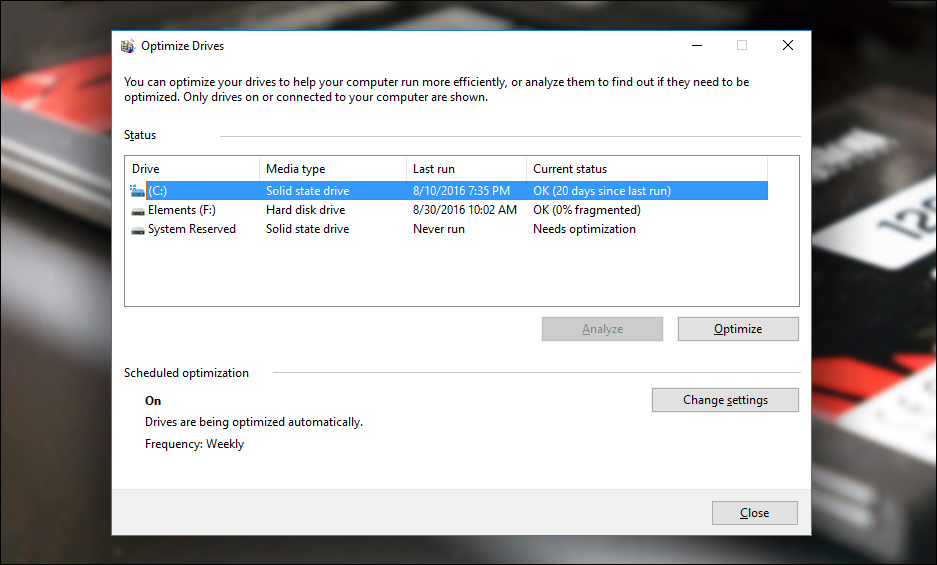
If you are using a Windows operating system, knowing the type of hard drive is a very easy task. All you have to do is press the Windows logo button + the letter R together on the keyboard, then type “dfrgui.exe” in the Run window that has appeared on the screen and press Enter. This will open the Optimize Drives hard drive defragmentation tool.
From there, take a look at what is under the Media Type field: If you find “Solid state drive,” this means that your device contains an SSD disk. If you find “Hard disk drive”, this means that your device is running an HDD hard disk. If you find the two together, this indicates that the computer contains more than one hard disk, one SSD and one HDD.
Second: Verify that the TRIM feature is activated. If you find that your computer or laptop contains an SSD hard disk, in this case you do not need to do anything except verify that the TRIM feature is activated. When you activate this feature - which is only available on SSD disks - and you delete a file from the hard drive, it will be deleted immediately and permanently and cannot be restored. The TRIM feature is usually activated by default on SSD disks, but it is recommended that you verify this yourself now.
All you have to do is download and run the program
SSD-Z on your device, and see if you find the word “Enabled” in the TRIM rectangle or not. If you find “Disabled”, this means that the feature is inactive. If you find that the TRIM feature is not activated, you can activate it by opening the Command Prompt tool “CMD” in the Windows system, then typing the following command and pressing the Enter button to execute it: fsutil behavior set DisableDeleteNotify 0 When you see the message “DisableDeleteNotify = 0,” this indicates that the TRIM feature has become activated on the hard disk on your device.
Now you can safely delete your personal files before you sell your computer or hard drive. But if the hard drive has a large area and holds a large number of files, it will be difficult to delete this amount of data manually - better than that is to use the “Reset this PC” feature built into Windows 8 and Windows 10, or reinstall the system again to delete all the files at once. If you choose to use the “Reset this PC” feature, all you have to do is press the Windows logo button + the letter i together to open the Settings window, and from there you will go to the Update & Security section, then go to the Recovery page. On the right side, press the “Get Started” button, then from the pop-up window select the “Remove everything” option and follow the instructions that will appear until the computer is restarted and all files are deleted.
Third: Use a DBAN disk to fully format the HDD. If your device contains an HDD hard disk, the method for fully formatting the hard disk differs from the SSD due to the lack of the TRIM feature. Therefore, deleting files in the normal way and reinstalling the operating system will not lead to permanently deleting the files - rather, they remain recoverable. The only effective solution so far to permanently eliminate all data stored on an HDD hard disk is to use a DBAN disk, as it is a free program that can eliminate everything on the hard drive - including its operating system. Using it is very easy, as we will see, but before starting you will need to download the ISO file for the program from the official website, then use any of the programs to burn the ISO to a USB flash or DVD.
After that, open the BIOS screen and adjust the Boot settings so that it boots to the flash or disc on which the DBAN program was burned. You may be interested in: How to boot into the BIOS on any laptop and change the boot settings easily
Steps to use a DBAN disk once it has booted
To the DBAN program on the computer, you will see a blue screen similar to what is in the image attached above. On this screen you will find options for starting use and an introductory overview of the program...etc. What we need to do now is to click on the Enter button to start using, and wait a little while until the settings screen appears for you and then press the “M” key on the keyboard. After clicking on the “M” key, the “Wipe Method” menu will appear, through which you can select the method for deleting data from the hard disk. There is a Quick Erase option to quickly delete data, which we do not recommend selecting. The best thing is to press the “K” key to scroll down and select the “DoD Short” or “Gutmann Wipe” option, which is the strongest option to ensure that all data is permanently deleted.
Generally, after selecting the option according to the appropriate method, press the Space button on the keyboard to select it. After that, you will find under the “Disks and Partitions” list all the storage disks currently connected to the computer. If there is more than one hard disk used on the same device, you must select the hard disk that you want to format, then press the Space button to select it for the program, and finally press the “F10” button to immediately begin the formatting process and deleting files from the selected hard disk. This process takes a long time depending on the amount of data and the deletion method.
However, once the process is finished, you will see a “DBAN succeeded” message, which indicates that the hard drive has been fully formatted successfully. You can now sell your computer or hard drive without worrying about the person who bought it recovering deleted files.
DROPIDEA
We hope this article has added real value to you. At DROPIDEA, we always strive to deliver high-quality content that helps you grow and evolve in the digital space. Follow us for more useful articles and guides.
Admin
DROPIDEA
Latest Articles

Nscale Acquires Anyscale for $1.65 Billion to Expand Its Dominance in AI Infrastructure

How Is AI Accelerating Meta's New App Launches?

Okta Acquires Security Firm Permiso for Around $200 Million

Microsoft Gains $3.2 Billion from Its Investment in Anthropic



