How to cancel computer password and log in automatically in Windows 10 and 11 (without a Microsoft account)
 By Admin
Did you know that the average person enters their passwords more than 70 times a day?! Imagine how much valuable time is wasted typing those special letters, numbers and symbols, especially if you frequently use your computer for work, study or even entertainment. I completely understand how annoying this can be.
In a fast-paced world, every second matters. Fortunately, there are solutions that allow you to log into Windows 10 and 11 directly without typing a password. Imagine turning on your device and starting work immediately, without having to waste time entering the password!
Automatic login not only saves you time, but also increases your productivity and improves your overall computer experience. Because we care about the security of your data, in this comprehensive guide we will focus on official and safe methods that ensure you maintain your privacy.
Whether you are using Windows 10 or 11, and whether you prefer to use a Microsoft account or a local account, in this article you will find the perfect solution for you. Let's start our journey towards the world of fast and secure login!
Before you begin: Warning about the security risks of canceling your computer password Before we delve into ways to bypass the login screen, it is necessary to highlight the potential security risks that may arise from canceling your password or using automatic login. Unauthorized access: Without a password, anyone who accesses your computer can access all of your personal data and files, putting you at risk of identity theft, fraud, or loss of sensitive information.
Malware: Your device may become more vulnerable to malware and viruses, as these programs can more easily infiltrate your system without having to bypass any password protection.
Data loss:
If your device is stolen or lost, anyone can access, modify or delete your data without any restrictions. So, before you decide to skip the login screen, make sure you understand these risks and evaluate whether the potential benefits of automatic login outweigh the potential security risks. If you use your computer in a public place or to store highly sensitive information, it may be best to keep a strong password and log in manually each time.
Remember: Security is your personal responsibility. Make decisions that protect your data and preserve your privacy.
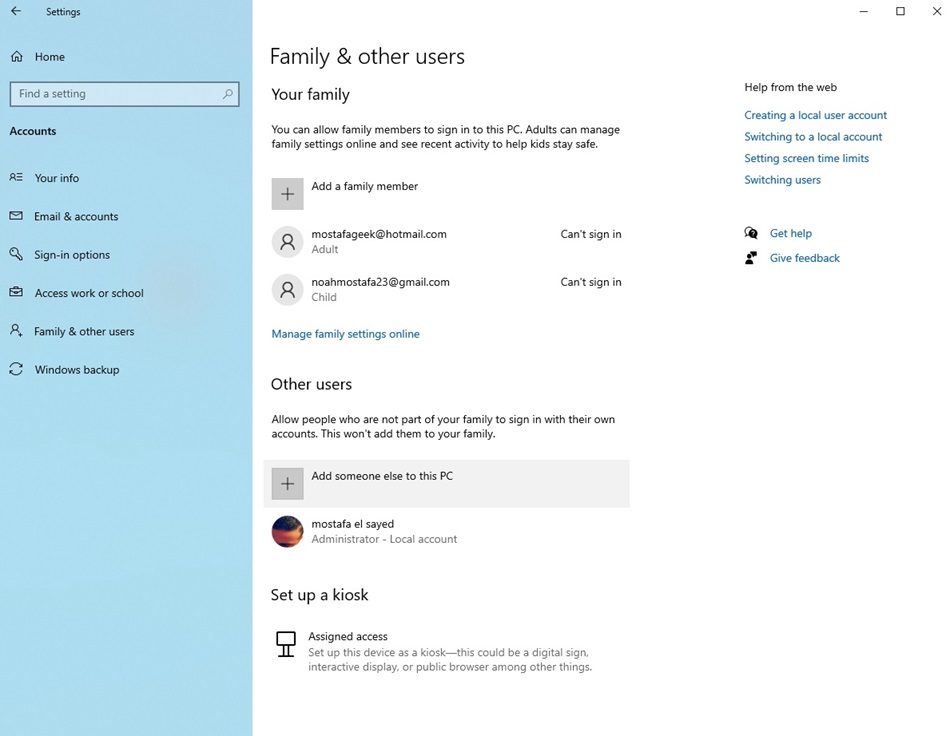
Remove Windows 10 password: Automatic login methods 1. Use a local account without a password: Simplicity at its best How to create a new local account without a password: Go to Settings: Choose Accounts: Add another account: Skip linking a Microsoft account: Create the account: How to convert an existing account to an account without a password: Go to Settings: Choose Accounts: Choose your account: Sign-in options: Change password in Windows: Remove password: Pros: Ease of use: Suitable for personal use: Cons: Low level of security: Not suitable For use in public places or shared devices: Advice from an expert: Remove Windows 11 password: Bypass Microsoft account and automatic login A bit complicated and does not work in all cases Disable some Windows features 1. Disconnect from the Internet: Steps: Start the Windows 11 installation process.
When you reach the “Let’s connect you to a network” screen, disconnect, turn off, click on the back button. You will see an error message. Next, you will now be able to create a local account 2. Create an installation disk with Microsoft Account Bypass settings Steps: Download the Windows 11 ISO file: Insert a USB flash drive: Download and run Rufus: Select the USB drive: Choose the ISO file: Start the process: Activate the Remove Microsoft Account Requirements option: Confirm Wipe Data: Warning: Steps: Start the Windows 11 installation process. “Let’s connect you to a network” Shift + F10 At the command prompt, type the following command: The computer will restart itself.
On the next screen, I don't have Internet Complete the installation process A bit complicated Doesn't work in all cases Disables some Windows features Are you ready to move on to the next section about setting up a local account in Windows 11? How to create a new local account without a password: Go to Settings: Choose Accounts: Add another account: Choose “I don’t have this person’s login information”: Choose “Add a user without a Microsoft account”: Create Account: How to convert an existing Microsoft account to a local account: Go to Settings: Choose Accounts: Choose “Your Info”: Click “Sign in with a local account instead”: Enter your Microsoft account password: Create the local account: In my case here I am using the Pin code but if you have set up a password or another sign-in method For Windows, it will appear among the options. Pros and cons of using a local account: Pros: Privacy: Autonomy: Full control: Cons: Lack of features: Low security: Advice from an expert: Other Windows sign-in options: Speed and security at your fingertips Windows Hello: The future of sign-in How to set up Windows Hello: Make sure your device is compatible: Go to Settings: Choose Accounts: Sign-in options: Set up Windows Hello: Pros: Fast and easy: High security: Cons: Requires compatible hardware: You may encounter problems sometimes: PIN: Simplicity and security all in one How to set up PIN: Go to Settings: Choose Accounts: Sign-in options: Set up PIN: Enter your account password: Create a PIN: Pros: Easy to use and remember: Reasonable security: Cons: Less secure than Windows Hello: May be vulnerable to being guessed: Expert tip: Additional security tips: Protect your account from hackers Strong passwords are your safe guard: Password manager: Keep you organized and secure: Regular updates: Your shield: External software: Be careful: Conclusion: Windows without a password, it's possible And safe!
“If you want to learn more about how to recover a forgotten Windows password, including using a Microsoft account, security questions, or a reset disk, you can visit our detailed guide on the topic [Forgot your Windows 10 or 11 password? Here are the official solutions to recover your account]
DROPIDEA
We hope this article has added real value to you. At DROPIDEA, we always strive to deliver high-quality content that helps you grow and evolve in the digital space. Follow us for more useful articles and guides.
Admin
DROPIDEA
Latest Articles

Nscale Acquires Anyscale for $1.65 Billion to Expand Its Dominance in AI Infrastructure

How Is AI Accelerating Meta's New App Launches?

Okta Acquires Security Firm Permiso for Around $200 Million

Microsoft Gains $3.2 Billion from Its Investment in Anthropic



