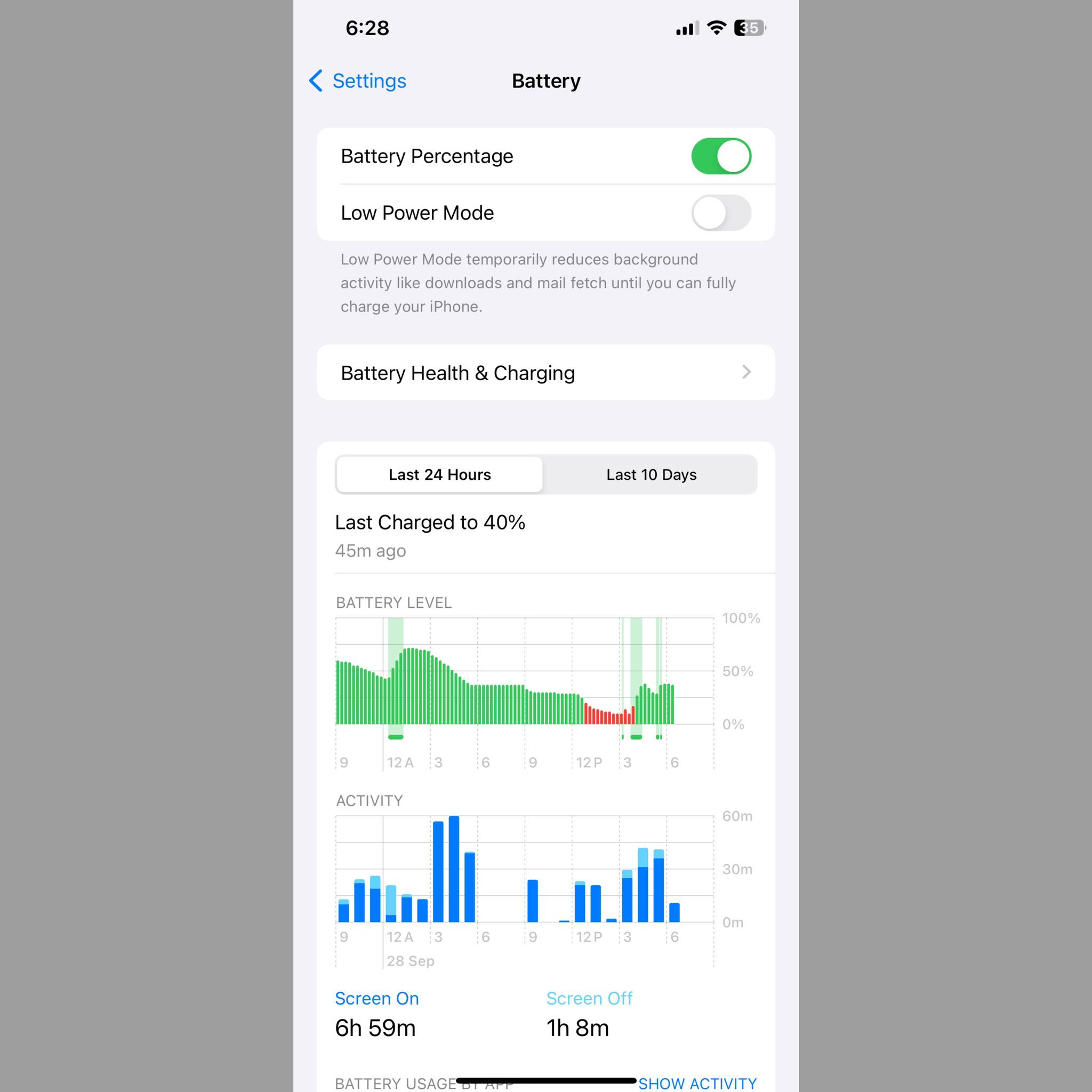
An iPhone's battery percentage is an integral part of any Apple phone's identity, and if you have a recent iPhone with a notch, you may have noticed that the battery indicator in the status bar no longer shows how much battery life is left. To check the battery percentage, you have to scroll down and access Control Center as the easiest way. However, older iPhones with a home button, such as the iPhone 8 and iPhone SE, always had the option to display the battery percentage in the status bar.
It is interesting that Apple introduced the long-awaited option to display the battery percentage on the latest iPhone devices, specifically in conjunction with the launch of the iOS 16 operating system. So you no longer have to worry about the question “What is my battery percentage?”, as in this article we will discuss how to show the iPhone battery percentage using many methods and steps.
The importance of showing the iPhone battery percentage is knowing the percentage
iPhone battery charge is crucial for several reasons: Planning usage: It helps you plan your day and determine the appropriate time to charge the device. You can select tasks that require extensive phone usage and postpone them until the device is fully charged. Avoid running out of charge in critical situations: It allows you to take the necessary precautions to reduce iPhone battery consumption to avoid running out of battery charge at times when you need to use the phone urgently, such as while traveling or in an emergency.
Evaluating battery performance: By monitoring the charge percentage over the long term, you can evaluate the performance of your device’s battery and see if it needs to be replaced. Activate power saving features: Some smart devices allow power saving features to be automatically activated when the charge percentage reaches a certain level, which helps extend battery life.
How to show iPhone battery percentage in this article
You will learn how to display the battery percentage on iPhone devices using several methods. Since we're talking about battery levels, you might want to prevent the charge level from dropping too low to avoid unpleasant scenarios where you might have to accept that your phone's battery is completely drained. Note: Note that you need iOS 16 for the option to display battery percentage, which is unfortunately a prerequisite and this feature cannot be enabled in older versions.
1. Show the battery percentage in the status bar. Apple has made significant improvements to the battery life and capacity of the latest iPhone models. By turning on the battery percentage indicator, you can better manage your phone usage and see if your battery life has really improved.
As mentioned earlier, it is possible to view the iPhone's battery percentage directly next to (or inside) the battery icon in the upper right corner at any time. Here's how to turn this feature on: On your iPhone, open the Settings app. Scroll down to “Battery” and tap on it.
Turn on the toggle next to “Battery Percentage.” 2. Display the battery percentage through iPhone Widgets. One way to quickly show the iPhone battery percentage is to add the appropriate widget to your home screen.
To do this, simply long press on the home screen and tap the + button in the upper left corner. Scroll down to find the Batteries widget option and click on it to choose the shape of the widget. Click Add widget > Done, and now your screen displays the battery charge level at all times.
If you don't want the widget to appear directly on your home screen, you can add it to Today View. To do this, simply go to Today View by swiping right on the home screen. Next, tap and hold any empty space anywhere in Today View.
Click the + button in the upper right corner. Browse the widgets and add battery status among the displayed options as shown above. The Battery widget is now available on your iPhone's Today View.
3. Show battery percentage from Control Center You can see the exact percentage of battery remaining by opening Control Center. Swipe your finger down from the top right corner of the screen to open the Control Center on your iPhone (this can be done whether your phone is locked or unlocked).
Your iPhone's battery percentage will appear right next to the battery indicator on the Control Center. 4. Connect the charger to know the iPhone’s battery percentage. There is another easy way to check your phone’s battery percentage is to connect the phone to the charger.
The battery percentage will appear on the screen. The ease of this method is that you can simply look at the phone screen. You'll usually find a battery icon at the top of the screen that displays the remaining percentage of charge, which is what we're looking to know.
5. Ask Siri to show your iPhone's battery percentage Make sure Siri is set up (swipe down on your iPhone screen to reveal Search, type Siri, tap Siri & Search, and check that the toggle is turned on to listen for “Hey Siri” and say something like “Hey Siri, what's my battery percentage?”). The great thing about this is of course that you don't even need to unlock your phone to check the battery (unless you choose in Settings to prevent Siri from responding when the phone is locked).
Note: You need to be connected to the Internet for Siri to work. 6. Detect the iPhone battery percentage through the Apple Watch using the tool to show the battery icon. You can see the battery percentage of your iPhone on the Apple Watch, but not the other way around.
Get the Remote Battery Level app on your Apple Watch. Open the app, and you will see your iPhone's battery percentage on your Apple Watch. Don't miss out on Apple's official guide to detecting your iPhone's battery percentage on your Apple Watch for more details.
7. Use the Battery Shortcut Here's how to use an iOS shortcut to find out your iPhone's battery percentage: Click this iCloud link to add a simple battery shortcut we designed for you. Click on the shortcut to see the iPhone battery percentage.
Important: Add this shortcut to your iPhone's home screen for faster access. Optional: In the Shortcuts app, tap the three dots icon at the top right of the Battery shortcut box to edit the text to whatever you want. You can also turn off the sound if you want.
Note: You can refer to the company's official user guide in order to successfully display the iPhone battery percentage, if you need any additional details. As you can see, there are several ways through which you can check the exact battery percentage of your phone. You can view it in Control Center, ask Siri for help, use the battery widgets, and connect your charger.
iPhones running iOS 16 allow you to display the battery percentage next to (or inside) the battery icon in the upper right corner at any time. This is a useful feature for almost all users, and will allow them to monitor their phone's battery percentage and know the appropriate time to charge the phone and avoid battery death. Read also about batteries in Apple: How to check the condition of the iPhone battery How to choose the best reliable and certified original iPhone charger How to calibrate the mobile battery: Extending battery life in steps
DROPIDEA
We hope this article has added real value to you. At DROPIDEA, we always strive to deliver high-quality content that helps you grow and evolve in the digital space. Follow us for more useful articles and guides.

Admin
DROPIDEA
Latest Articles

Nscale Acquires Anyscale for $1.65 Billion to Expand Its Dominance in AI Infrastructure

How Is AI Accelerating Meta's New App Launches?

Okta Acquires Security Firm Permiso for Around $200 Million

Microsoft Gains $3.2 Billion from Its Investment in Anthropic



