How to check the laptop temperature and solve the problem of computer overheating in the summer
 By Admin
Most of us have probably encountered the problem of the computer suddenly shutting down on its own, getting frantic when running certain programs, or the blue screen from time to time. While there are many reasons for this, the most common reason is overheating of the central processor. This problem is very common among fans of playing video games or those who run programs that drain the device's resources intensively, such as animation and montage creation programs. There is another category of users who are always working to break down the processor's frequencies in order to make the most of it.
While modern laptops still suffer from the problem of overheating of the processor, even those equipped with more than one internal cooling fan. The only solution will be to constantly monitor the device temperature and limit its increase in any way, as an excessive increase in the processor temperature leads to damage to the motherboard and other hardware components in the shortest possible time. Read also: The best ways to cool your laptop..
Five effective tips for lowering the laptop temperature to help you, if you are a laptop user. In this article, we will explore the different ways in which you can check the laptop temperature, but before that it is necessary to answer the most important question, which is as follows: What is the maximum temperature of the Intel & AMD processor? Checking the temperature of the laptop is very easy, as we will explain below, but there is no benefit in knowing the current temperature as long as you do not know the maximum temperature, which if exceeded, many problems will occur. Therefore, we recommend continuous monitoring throughout the day in order to avoid approaching this limit, if maintaining the condition of the laptop is something that concerns you. So, what is the maximum temperature of the processor?
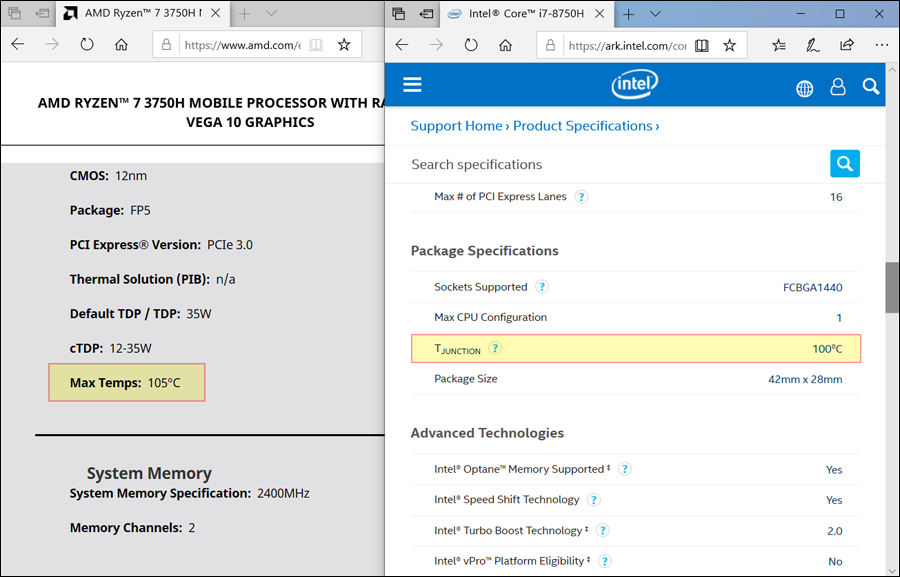
Let me tell you that there is no easy answer to this question, due to the different shapes, types and specifications of computers' central processors. But in general, you can search on the Internet on the official website of Intel or AMD for the page that reviews the specifications of the processor used in your personal computer, then look for the place where it lists the maximum temperature of the processor. In the case of Intel, this information is displayed in front of the “T Junction” section, while for AMD it is displayed in front of the “Max Temps” section. This is the temperature that you must do your best to avoid exceeding.
It is also said that the temperature must be kept at least 30 degrees Celsius below the mentioned temperature, so if the maximum temperature is 100 degrees Celsius, it is better for the temperature not to exceed 70 degrees Celsius most of the time. Now let us move to the second and most important part within the framework of the topic, which is: Methods for checking the temperature of the laptop on Windows 10. The first method: The Open Hardware Monitor program is considered one of the distinguished programs to easily monitor the status of the laptop’s internal hardware with a completely clean user interface. Open Hardware Monitor collects comprehensive statistics on almost every piece of hardware used in the device. It not only displays the temperature of the processor, but also the temperature of the graphics processor, RAM, and digital data storage unit.
It also displays the amount of energy consumed by each piece, and you can even know how fast the cooling fans in the device are. All this in a tool that is completely free, only 10 MB in size, easy to use, and compatible with almost all versions of the Windows operating system. You can find the temperature of your central processor under the Temperatures category under the processor model name.
The tool will list the temperature of each core your processor has, as well as the maximum temperature reached, and the average processor temperature. Heat monitoring tools like this Open Hardware Monitor usually allow you to place a heat meter on the taskbar. This feature is undoubtedly very useful, especially if you are performing resource-intensive tasks and want to monitor temperatures without moving between the tool window and the active window you are working on.
If you want to always see the temperature of the central processor, right-click on any of the values under Temperatures and click “Show in Tray” from the drop-down menu. Now, if you look at the taskbar, you will notice that the temperature indicator appears in black, and you can change the color when you right-click on the indicator itself and then choose Change The Color. This way the temperature is always visible as long as you can see the taskbar while working on the computer.
Click to download the OPEN HARDWARE MONITOR program. See also: The best ways to cool the laptop... Five effective tips to reduce the laptop temperature. The second method: The Core Temp program. If you are looking for a method that focuses more on the processor itself, then the Core Temp tool is a good choice when you need to check the temperature of the central processor in a laptop running the Windows operating system. It provides you with everything you might want to know about the processor, such as the manufacturer, the model name, the generation to which it belongs, the number of supported cores, and most importantly, its temperature.
The program will inform you of the maximum temperature limits of the processor, as this appears in the Tj section. Max is under the Temperature Readings section and there you will also find the temperatures for each core in the processor. As for continuous monitoring of the temperature, after running the program, you should notice that the temperature indicator appears on the taskbar by default.
If not, click the Options section of the toolbar and then choose Settings from the drop-down menu. After that, go to the Windows Taskbar tab, then place a check mark next to Enable Windows 7 Taskbar features and select Temperature from the Settings pane as shown in the image above. After completing, press the OK button below to display the indicator. Click to download the CORE TEMP program. Method 3: Speccy is another multi-functional program, and its efficiency may exceed Open Hardware Monitor by many levels.
Speccy provides information about everything big and small in the laptop, starting from the operating system, to the motherboard, and not ending with the graphics processing unit, audio card, and network, including of course the ability to know many details about the central processor and check the temperature of the laptop. Read also: Is it safe to leave the laptop charging and running for a long time? If you move to the CPU section from the list on the left side, you will find a huge amount of data about this processor on the right side, such as the basic frequency, the number of cores, virtual processing threads, the generation it belongs to, and the technologies it supports...etc.
In front of Average Temperature, you will see the current average temperature of the processor, while below Cores, you will see the status of each core with its temperature. If you want to display the temperature indicator in the taskbar, click “View” and then choose “Options” from the drop-down menu. In the window that will appear, go to the “System tray” tab, then place a check mark next to “Minimize to tray.” Repeat the same thing for the “Display metrics in tray” option, then select “CPU” from the Output drop-down menu under the Tray metrics section.
Finally press the OK button. Now when you minimize you will be able to see the processor temperature indicator in the taskbar as with the other programs reviewed above.
Click to download the SPECCY program
DROPIDEA
We hope this article has added real value to you. At DROPIDEA, we always strive to deliver high-quality content that helps you grow and evolve in the digital space. Follow us for more useful articles and guides.
Admin
DROPIDEA
Latest Articles

Nscale Acquires Anyscale for $1.65 Billion to Expand Its Dominance in AI Infrastructure

How Is AI Accelerating Meta's New App Launches?

Okta Acquires Security Firm Permiso for Around $200 Million

Microsoft Gains $3.2 Billion from Its Investment in Anthropic



