How to schedule Gmail messages and send them at a specific time later automatically
 By Admin
In this article, we share with you the best methods that you can follow in order to schedule Gmail messages, so that you can write an email and schedule the time of sending it to the other party, so that it is sent automatically on the specific date and time that you choose. This is definitely very useful for answering emails outside working hours, or in case you are afraid of forgetting to congratulate someone on time. Gmail is by far the largest free email service in the world.
If you have a personal email, there is a good chance that you use a Google Gmail account. It is popular among users, not only because it is very easy to set up and use; While also because it always remains at the forefront of email technology and Google is constantly developing it to ensure the best experience for users. And if you use email a lot – for example, as part of your job – you know that the ability to schedule email is an indispensable feature.
This feature allows you to send emails at a specific time automatically. Suppose your friend has an upcoming event and you are afraid that you will forget to congratulate him on this occasion when the time comes, then through scheduling you can write the message normally and specify the date and time to send it to your friend. There are many situations where the scheduling feature is really important and useful.
So if you want to be able to schedule Gmail messages, here are some ways that will allow you to do that. The best ways to schedule Gmail messages on the computer The first method: Through the new scheduling option in the Gmail service. The Gmail email service provides an already built-in feature for scheduling messages, whether on the web or the smartphone application, but it is considered one of the modern features of Gmail, as this capability was added about a month ago to be available to all users.
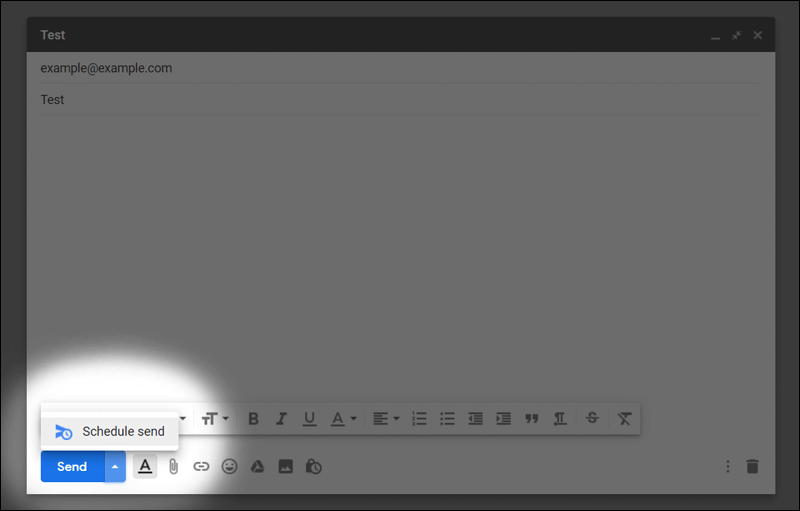
So, if you're visiting the Gmail website, compose your email as you always do, typing in the other party's email, address, and content normally. But instead of clicking on the Send button after finishing, click on the upward arrow button next to the Send button to bring up a menu containing the Schedule Send option. If you are using the Gmail application for iPhone or Android, all you have to do is compose an email normally from within the application, but instead of clicking on the Send button, click on the menu button located in the upper right corner of the screen and then click on the “Schedule Send” option from the menu.
Now a list will appear for you containing some pre-set dates to choose from quickly. You can choose to send tomorrow morning, tomorrow afternoon, or the day after tomorrow, or if you want to specify a specific date and time, click on the “Pick date & time” option and select the appropriate date as you wish from the window that will appear in front of you. After completing completely, press the Schedule send button to immediately save the message until the time for sending it comes. This is done automatically and without warning.
After successfully scheduling the email as we explained in the previous steps, you can go to the Scheduled folder within Gmail where you can find and manage all the scheduled messages. If you want to cancel sending a specific message, tap the Cancel send button in the upper right corner of the email. The message will be immediately returned to the Draft folder, where you can edit its contents and reschedule or send the email immediately.
If you don't want to send the message in the first place, you can delete it from the draft as well. The second method: By adding Boomerang for Gmail. Although Gmail has a feature to schedule sending messages, there are many other services that allow you to do the same thing, but with more options and capabilities. These services integrate with the service and add many useful features that Google does not provide in its email service.
In this article, we will only review one of the best of these services, which is the Boomerang for Gmail extension for browsers on the computer. This plugin is powerful and used by millions of Gmail users. It not only allows you to schedule messages, but also set up follow-up emails, set reminders, and more. The only problem with using this service is that the free version only allows users to schedule 10 messages per month.
If you want more, you will have to join the paid version which starts at $5 per month. In general, if you want to try the free version, start by installing the extension on your favorite browser and then go to the Gmail website. You will be asked to agree to some permissions that allow the service to integrate with your Gmail account.
After approval, create a regular email and you will find a new bar appears at the bottom containing scheduling options. Click on the Send Later button and you will see a list containing prior appointments that you can choose from to schedule quickly, or specify a time and date through the At specific time field, and after completion click Confirm to save the message in the scheduled messages folder. While you use the add-on, you will discover many other features other than scheduling. Even if you use the free version, you will still be able to benefit from a huge number of useful features that increase your productivity at work and improve the way you use Gmail.
Download the BOOMERANG FOR GMAIL extension
DROPIDEA
We hope this article has added real value to you. At DROPIDEA, we always strive to deliver high-quality content that helps you grow and evolve in the digital space. Follow us for more useful articles and guides.
Admin
DROPIDEA
Latest Articles

Nscale Acquires Anyscale for $1.65 Billion to Expand Its Dominance in AI Infrastructure

How Is AI Accelerating Meta's New App Launches?

Okta Acquires Security Firm Permiso for Around $200 Million

Microsoft Gains $3.2 Billion from Its Investment in Anthropic

Zuckerberg: Billions of People Will Have AI Assistants Within Five Years
Related Articles

ASUS ROG Flow Z13 (2025) available: Everything you could dream of in a gaming tablet.
Pay attention: 10 symptoms that confirm damage to the hard disk and the need for your quick intervention!
