How to solve Windows 10 update problems with these five easy and effective steps
 By Admin
In this article, we explain easy and effective steps to fix problems with Windows updates, such as taking a long time to check for new updates, not completing the download, or not installing updates correctly. If you're seeing error codes like 0x80070643, 0x8024402F, 0x80073712, 0x8024200B, the steps outlined here should resolve your Windows 10 update issues, whatever the error code and type of problem. Many Windows 10 users face a lot of different problems while using the system.
So, it is constantly receiving updates to address these issues and provide a more stable user experience. But the strange thing is that some people face problems even when trying to update the system. In most cases, an error message appears while installing new updates, such as “Feature update to Windows 10 Failed to install.” There is usually a specific error code, but it fails to explain to users the cause of the problem and how to solve it.
There is no single way to solve all the different problems that may occur when updating or upgrading Windows 10, for this reason we decided to review all possible solutions in order to solve Windows 10 update problems in this topic, in addition to the article on fixing Windows Update problems that is officially provided by Microsoft. After completing these steps, you should be able to get the latest updates available for Windows 10 again. 5 steps to solve Windows 10 update problems. The first solution: Run the Windows Update Troubleshooter tool. This step is very simple, but at the same time effective and good for troubleshooting and solving all problems.
Windows 10 updates. This step relies on the Windows Update troubleshooting tool, which searches for any corruption or damage to the files responsible for making the system receive the latest updates without problems. It's not always helpful, as it will sometimes tell you that there is no problem when there is, but it is worth a try.
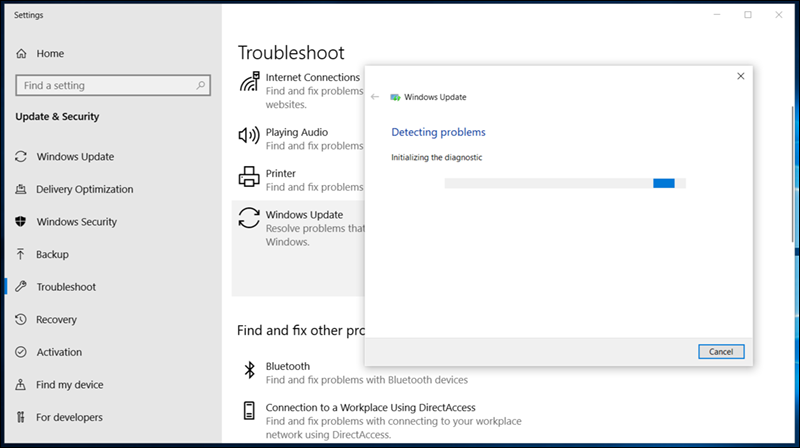
To access this tool in Windows 10, all you have to do is open Settings (by clicking the Windows key + the letter i together), then go to the Update & Security section, then to the Troubleshoot page. On the right side, specifically under the Get up and running section, click on Windows Update and then on the Run the troubleshooter button and a new window will open. Now it will start detecting and fixing any problems automatically.
If the tool does not recognize a real problem, click the Close button and continue with the following steps. If the issue is detected, it will be resolved automatically and you will be notified. Second solution: Empty the contents of the Updates folder If you are facing a problem that downloads updates are stuck or some new updates refuse to install while other updates have been installed without problems, the error may be in the files for the update itself.
So, clearing these files will force the Windows Update service to download updates again, which will eventually solve the problem. It's very simple, all you have to do is press the Windows key + the letter R together on the keyboard to open the Run window, where you paste the following path into the Open field and press the OK button: C:WindowsSoftwareDistributionDownload Now that you are inside the Download folder, press the Ctrl key + the letter A to select all the files and folders, after that press the Delete button to remove everything and empty the contents of the Updates folder. If you find that some files refuse to be deleted, try repeating the process in safe mode.
If you need help with this, check out our previous topic on How to enter Safe Mode. Anyway, once you finish deleting all the files from the Download folder, restart your computer and check for new updates again.
This time you should be able to successfully get new updates. Third solution: Run DISM and SFC commands if the above methods do not solve Windows 10 update problems.
Microsoft recommends this step to address common errors that occur and cause obstruction in obtaining new updates or failure to download and install any update. All you have to do on Windows 10 is open the command prompt with administrator privileges, by clicking on the Windows key + the letter Half an hour.
But after finishing, you do not do anything except to also execute the following command to run the Chkdsk tool: sfc /scannow After entering this command, wait an additional 15 minutes for it to complete. Note that you have to run both DISM and SFC commands together and not just one of them. Once done, restart Windows and then run Windows Update to check for new updates.
You may also be interested in: Solve the sound problem in Windows 10 through five effective steps Fourth solution: Upgrade with the Media Creation Tool (MCT) If the Windows Update service is still not working, you can circumvent getting the latest version of #Windows_10 by using the Media Creation Tool. This creates a Windows 10 installation file and may be what is used to upgrade to the new version of the system when using the Windows Update service. There is no need to worry about deleting data, as this method will not cause any damage, but rather force the system to be upgraded through a different method.
First, go to the tool download page from the Microsoft website and then run it on your device. I accept the license terms, then select the Upgrade this PC now option and press the Next button until you reach the Ready to Install page, then press the Change what to keep option and select Keep your files and apps.
When you're ready, press the Install button. After that, the computer will restart and you will eventually find that you are running the latest version of Windows 10. Fifth solution: Reset Windows 10 If you are not satisfied with the previous method and insist on updating via the Windows Update service, then you have no choice but to reset Windows 10.
The idea here is that this method solves all Windows 10 problems by returning everything in the system to its default state without sacrificing user files, only all installed programs will be deleted and you can reinstall them again later.
Now all you have to do is go to Settings, then to the Update & Security section, then to the Recovery page from the side menu. On the right side, click on the Get Started button under the Reset this PC section, then from the window that appears, click on the Keep My Files option, and follow the instructions that appear in front of you until the device is restarted and Windows 10 is reset. Updates after that should work normally.
DROPIDEA
We hope this article has added real value to you. At DROPIDEA, we always strive to deliver high-quality content that helps you grow and evolve in the digital space. Follow us for more useful articles and guides.
Admin
DROPIDEA
Latest Articles

Nscale Acquires Anyscale for $1.65 Billion to Expand Its Dominance in AI Infrastructure

How Is AI Accelerating Meta's New App Launches?

Okta Acquires Security Firm Permiso for Around $200 Million

Microsoft Gains $3.2 Billion from Its Investment in Anthropic



