How to read or send text messages from your computer with the Your Phone app on Windows 10
 By Admin
One of the new things that we saw after the October 2018 update for Windows 10 is the Your Phone application from Microsoft, which allows the ability to connect a smartphone to a computer in order to receive or send text messages from the computer or access all the photos stored on the phone’s memory directly from the desktop. Therefore, it is worth trying and using, and we will try to help you with that through this article. Despite the advancement of technology that has allowed us to exchange messages and conversations easily and for free via applications such as WhatsApp, Messenger, etc.; However, sending short messages (SMS) is still the preferred method for communication for many.
But sometimes it is annoying to need a mobile phone to send an SMS while working on the computer, perhaps because the phone is far from you or because you left it at home or for any other reason. Fortunately, there are multiple ways to make this task easier for you, such as Samsung's SideSync program, AirDroid, or Pushbullet, which allow you not only to read or send text messages from the computer - but also to view photos, create contacts, review call logs, and so on. Recently, a system occurred
#Windows_10 has a new update that brings with it an application called Your Phone, which performs almost the same function, where you can receive and send SMS messages and view photos and videos on the computer screen without referring to the mobile phone. Let me tell you in the following lines about how to use it... Read also: How to share files between two Windows 10 devices using the new Nearby Sharing feature. Using the Your Phone application to send text messages from the computer First of all, you will need to connect your smartphone, whether Android or iOS, to the Your Phone application on Windows 10.
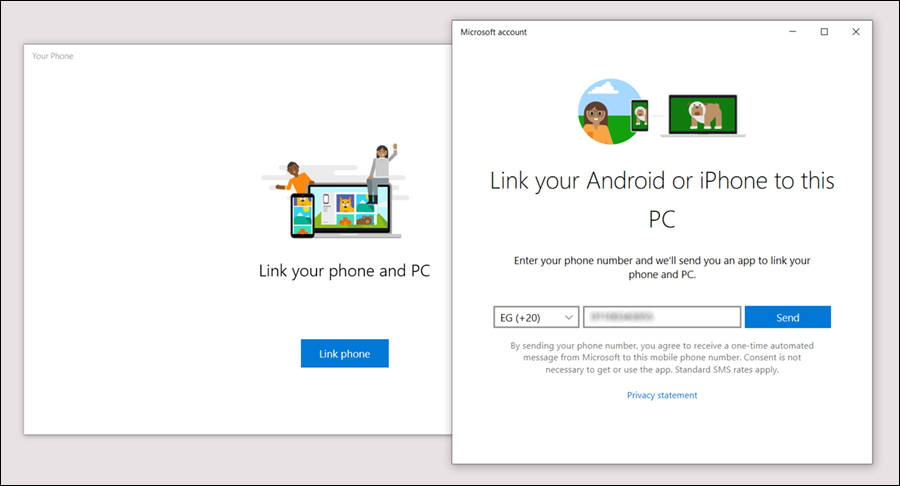
It is very simple, all you have to do is type “Your Phone” in the search field on the taskbar to access the application from the results, or view the list of applications on the Start menu to find it at the end of the row. After running it for the first time, click Continue to continue running the application based on the Microsoft account email currently associated with the computer. After that, you will click on the “Link phone” button to display a pop-up window where you select the phone code of the country in which you reside, then enter your personal mobile number and press the Send button.
Note: Make sure that your phone is connected to a Wi-Fi network and that your computer is connected to the same network or on the same router so that the connection process occurs correctly. Within a minute, you will receive an SMS text message on your mobile phone containing a link. When you click on it, you will be directed to the Play Store, where the Your Phone Companion application is located, which is responsible for connecting the mobile phone to the computer. So you click on the Install button to begin the download and installation process on the phone. After that, launch the application and press the Sign in with Microsoft button, and then start logging in to your Microsoft account by writing your email and password and clicking Sign in.
After logging in, press the Continue button to continue. The Your Phone Companion application will ask you to grant it some important permissions, such as reading SMS messages, photos, videos, and contacts stored on the phone. You must grant it all of these permissions in order for it to work. Then the “Check your PC” screen will appear. Here you must make sure to leave the Your Phone application open on the computer. Pairing will take place directly. The phrase “Your phone and PC are linked” will appear, which confirms that your phone is connected to the computer. Now in the Your Phone application on the computer, click on the gear sign (⚙️) to go to the settings page, and there you activate the Photos and Messages option to allow the application to start synchronizing with the Your Phone Companion application on the phone.
Then, the most recent photos taken using the phone's camera will be displayed in the Photos section after you go to it via the side menu, and you will also be able to drag and drop any photo outside the application so that it can be transferred and saved on the computer immediately. Let us move to the most important part of this topic, which is reading or sending text messages from the computer, as it is one of the services provided by the Your Phone application. After moving to the Messages section from the side menu, you will find a list of all SMS messages on the left side. You can read them and copy the content of any of them with ease.
By clicking on the “New message” button, you will be able to send a new text message to any person registered as a contact on the mobile SIM card. You write his name from the top, then write the text of the message and click on the Send button to send immediately. One of the wonderful things that you will notice after pairing the Your Phone application on Windows 10 with your smartphone is that you will get a notification of receiving new messages on your desktop [as shown in the image above]. Once you click on this notification, the entire text of the message will be displayed within the application so that you can respond to the sender also through the computer.
DROPIDEA
We hope this article has added real value to you. At DROPIDEA, we always strive to deliver high-quality content that helps you grow and evolve in the digital space. Follow us for more useful articles and guides.
Admin
DROPIDEA
Latest Articles

Nscale Acquires Anyscale for $1.65 Billion to Expand Its Dominance in AI Infrastructure

How Is AI Accelerating Meta's New App Launches?

Okta Acquires Security Firm Permiso for Around $200 Million

Microsoft Gains $3.2 Billion from Its Investment in Anthropic



