How to permanently prevent friend requests from being sent to your Facebook profile easily (the official method)
 By Admin
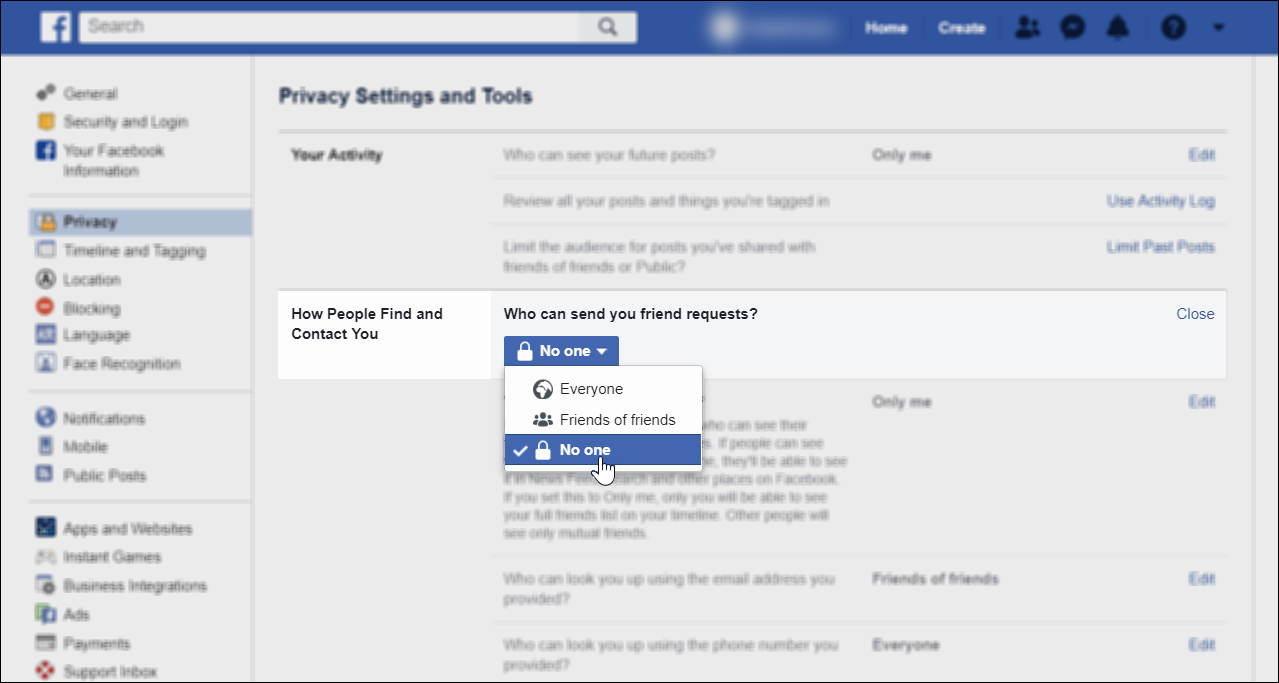
Have you ever received a friend request on Facebook from someone you didn't know? This situation usually happens since Facebook accounts are public, but let me tell you there is a way to permanently prevent sending friend requests on your personal account in an easy way and without browser add-ons. It is no secret to everyone that Facebook is a social site. By its nature, it depends on forming friendships between users and communicating with each other, whether through messages or free calls.
Since all user accounts on Facebook are public and it is not possible to keep your account away from the eyes of others, it is natural that one day you will receive a friend request from a stranger you do not know. Perhaps he sent you this request because you appear on his list of suggestions or he wants to increase the number of his friends...or any other reason, and as the matter increases, Facebook will become an annoying place. Read also: How to temporarily disable a Facebook account - stop a Facebook account without deleting it. Fortunately, the Facebook website and application allow you to change the privacy setting for friend requests. You can make only friends of friends able to send friend requests, or prevent everyone from sending a friend request; Meaning, delete the Add Friend button from your Facebook profile. We will explain in this guide how you can change this setting, whether from the computer or the application on the smartphone.
Preventing the sending of friend requests on Facebook from the computer. It is very simple when it comes to completely preventing the sending of friend requests on Facebook on the computer, as all you have to do is open the Facebook website and log in to your personal account, then click on the downward arrow button located in the top bar, and from the drop-down menu click on “Settings”, then from the side menu go to the Privacy page and then click on the Edit button located in front of “Who can send you friend requests”. Alternatively, head to
This link directly
The desired option will be displayed. Now click on the menu below “Who can send you friend requests?” To specify who can send friend requests - everyone, friends of your friends on Facebook, or no one at all - just select the option you want from the list and the settings will be saved as specified. If you select the last option, no one on Facebook will be able to send your account a friend request.
Preventing sending friend requests on Facebook from your phone. You do not need a personal computer or laptop in order to complete these steps. Rather, you can do the same thing through the basic Facebook application on smartphones, whether Android or iOS. All you need to do is open the Facebook application and then click on the menu button located at the top left. From the menu, scroll down until you click on the “Settings and Privacy” section. Below this section, you will click on “Privacy Shortcuts.” On the Privacy Shortcuts page, you will click on “View more privacy settings” as shown in the image above, then click on “Who can send you friend requests?” The same three options will appear to you as they appear on the Facebook website on the computer, where you can select “All,” “Friends of Friends,” or “No Limit.” Once you select the option you want, exit the privacy settings page, and the settings will be saved on that. The “Send a Friend Request” button will appear on your profile to your friends on the site, or it will not appear at all if you select “No One.”
DROPIDEA
We hope this article has added real value to you. At DROPIDEA, we always strive to deliver high-quality content that helps you grow and evolve in the digital space. Follow us for more useful articles and guides.
Admin
DROPIDEA
Latest Articles

Nscale Acquires Anyscale for $1.65 Billion to Expand Its Dominance in AI Infrastructure

How Is AI Accelerating Meta's New App Launches?

Okta Acquires Security Firm Permiso for Around $200 Million

Microsoft Gains $3.2 Billion from Its Investment in Anthropic



