Sharing your iPhone's Wi-Fi password with another Apple device means you won't have to tell anyone your Wi-Fi password. Previously, you had to download a third-party app to do this. However, after iOS 11, Apple has made it easier to share Wi-Fi password from one iPhone to another iPhone, iPad or any Mac computer running macOS Sierra or later.
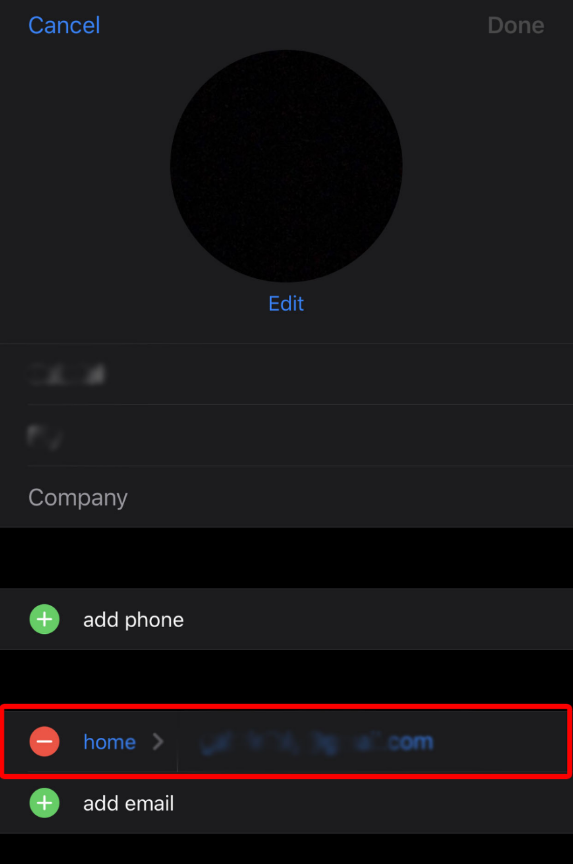
Share Wi-Fi Password for iPhone Before you start, make sure your Apple ID is in the other person's contact list. You can find your Apple ID here. Then go to Contacts, click Edit in the top right corner, and add your Apple ID under the email address of the contact name.
How to Share a Wi-Fi Password from Your iPhone Go to Settings on your iPhone which is located in the form of a gear icon on your home screen. Then click Bluetooth and make sure it is turned on. You'll know Bluetooth is on if the slider at the top of the screen is green.
Then go back to Settings and tap on Wi-Fi. Make sure Wi-Fi is turned on, and log in to the network you want to access. You can sign in to a Wi-Fi network by clicking its name from the list below and entering your login information.
If your iPhone automatically logs in to your Wi-Fi network, you can skip this step. On an iPhone that needs a Wi-Fi password, go to Settings. Tap Wi-Fi.
If you're trying to share a Wi-Fi password with a Mac computer, click the Wi-Fi icon in the upper-right corner of the screen and select a Wi-Fi network from the drop-down list. Choose the same Wi-Fi network. This should be the same network that the iPhone you'll be sharing the password with is already connected to.
Do not enter your password when prompted. On an iPhone that's already connected to the Internet, go to Wi-Fi. Click on Share Wi-Fi Password for iPhone in the pop-up window.
Both iPhones must be within Bluetooth connection range. The other iPhone will then receive the password and be able to connect to the same Wi-Fi network as you.
What to do when the Share Word feature doesn't work
Wi-Fi Password for iPhone If you're having trouble sharing your Wi-Fi password between iPhones, here are some ways to make it work: Restart your iPhone and another device. Make sure that both devices have the latest software updates installed. To update your iPhone, go to Settings > General > Software Update > Download and Install.
If you don't see the Download and Update option, it means your iPhone is updated to the latest version. Disconnect from the Wi-Fi network and rejoin. To do this, go to Settings > Wi-Fi and tap the network name.
Click on the letter “i” icon and then click on “Forget this network.” Once done, rejoin the network and enter your password. Reset network settings on your iPhone.
To do this, go to Settings > General > Reset > Reset Network Settings. Finally, try restarting your router because that may be the biggest problem in the end. Read also: Two ways to share the iPhone screen with the TV to display content. Explanation of the Instant Hotspot feature to turn on the hotspot on the iPhone
DROPIDEA
We hope this article has added real value to you. At DROPIDEA, we always strive to deliver high-quality content that helps you grow and evolve in the digital space. Follow us for more useful articles and guides.

Admin
DROPIDEA
Latest Articles

Pangram Raises $9 Million to Detect AI-Generated Content

Encore AI تجمع 30 مليون دولار لبناء وكلاء ذكاء اصطناعي يتعلمون من مكالمات العملاء

Hint: The AI-Powered Home Management Assistant with Martha Stewart's Touch

Startup Runlayer Accuses Rippling of Stealing Its MCP Product Idea