كيفية مشاركة ستوري الانستقرام – اعادة نشر قصص انستجرام الي تعجبك بـ3 طرق
 بقلم الأدمن
تعتبر مشاركة ستوري الانستقرام طريقة رائعة للتفاعل مع جمهورك وإضافة محتوى جديد إلى حسابك، ويُفضل بعض المستخدمين مشاركة الصور ومقاطع الفيديو التي قام بها آخرون في ستوري على الانستقرام من جديد وإعادة إحياء المنشورات والقصص القديمة. بينما يقوم العديد من الأشخاص، وخاصة العلامات التجارية، بإعادة نشر هذا المحتوى بشكل متكرر على آخر أخبار حساباتهم الرئيسية، ويقدم انستقرام عددا قليلا جدا من الطرق الرسمية لإعادة عرض المحتوى في حدث أو منشور، لكنه ممكن، ويمكن القيام به دون بذل جهد كبير.
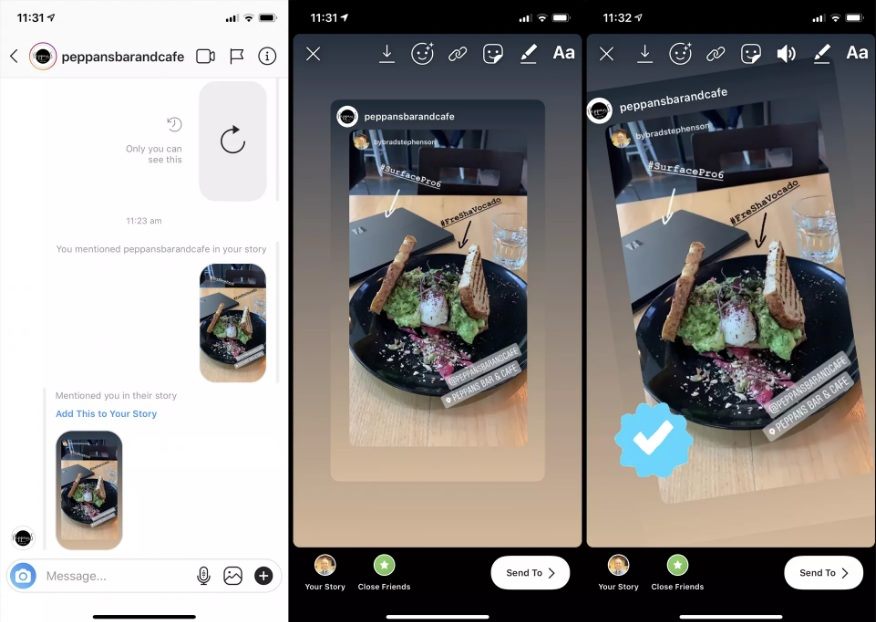
كيفية اعادة مشاركة ستوري الانستقرام Re-post يمكن مشاركة معظم منشورات الانستقرام التي تم إنشاؤها بواسطة حسابات أخرى كحدث في انستقرام لمتابعيك لمشاهدته، هذه هي الطريقة الرسمية الوحيدة لمشاركة منشور قام به أشخاص آخرون على انستقرام وهو شائع بسبب بساطته وكيفية ارتباطه بالمنشئ الأصلي، ويمكنك فعل ذلك عن طريق: افتح تطبيق انستقرام على جهاز IOS أو Android، وحدد المنشور الذي تريد مشاركته. اضغط على رمز الطائرة الورقية ثم add post to your story.
وهنا عليك ملاحظة أنه قد يكون خيار المشاركة معطلا في بعض الحسابات، ولكن لا يجب أن تواجه هذا الأمر كثيرا. سيظهر المنشور الآن مضمنا في استوري انستقرام جديدة، ويمكنك إضافة gifs والنصوص والموسيقى المعتادة. اضغط على your story لإعادة نشر ستوري الانستقرام من جديد.
اقرأ أيضاً : تحميل ستوري انستقرام: كيفية تنزيل صور وفيديوهات قصص انستجرام على الهاتف كيفية مشاركة ستوري الانستقرام على حسابك الخاص: على الرغم من إمكانية مشاركة بعض قصص الانستقرام التي قام بها آخرون إلى متابعيك، إلا أن هناك بعض المتطلبات التي يجب استيفاؤها: 1- يجب أن يكون الحساب عاما. 2- يجب تمكين مشاركة استوري الانستقرام في الحساب. 3- يجب الإشارة إليك “Tag” في الاستوري.
عندما تتم الإشارة إليك في ستوري الانستقرام، ستتلقى رسالة بالأمر، إذا كانت الإشارة إلى الحساب عامة وتسمح بمشاركة محتواها، فيجب أن ترى رابطا في الرسالة; لإعادة نشر هذه الاستوري ضمن حدث جديد على حسابك الخاص، ثم اضغط على Add this to your story. وهنا عليك ملاحظة أنك لا تحتاج إلى متابعة الحساب لإعادة نشر أحد قصص الانستقرام الخاصة به.
كيفية إعادة نشر استوري الانستقرام إذا لم تتم
الإشارة إليك فيها “tag”: على الرغم من وجود العديد من التطبيقات التي تتيح لك إعادة نشر منشورات انستقرام الخاصة بشخص آخر، إلا أنه لا يوجد أي تطبيق يدعم إعادة نشر استوري الانستقرام، ومع ذلك، فإن إحدى الطرق للتغلب على هذا التقييد هي استخدام لقطة شاشة جهازك “برنت سكرين” أو خاصية تسجيل الشاشة. على سبيل المثال، يمكنك التقاط لقطة شاشة لاستوري انستقرام لشخص آخر في أثناء مشاهدته، ثم تحميل لقطة الشاشة هذه إلى استوري جديدة. وبالمثل، يمكنك استخدام تسجيل الشاشة لتسجيل فيديو، ثم إعادة نشر هذا الفيديو على حسابك.
ملحوظة : عند تسجيل فيديو سيتضمن عناصر واجهة مستخدمة من تطبيق انستقرام، ويمكنك إزالتها باستخدام إصبعين لنقل الفيديو وتغيير حجمه في أثناء إنشاء القصة الجديدة. اقرأ أيضاً : معرفة من حظرك في انستقرام – 5 علامات تؤكد لك أن شخص ما قام بحظرك علي انستجرام إعادة نشر فيديو أو صورة منشورة على انستقرام: لا توجد طريقة أصلية لإعادة نشر الصور أو إعادة نشر مقاطع الفيديو على انستقرام، لذلك ستحتاج إلى تنزيل تطبيق خارجي “Third party app” ولحسن الحظ، هناك عدد كبير من هذه التطبيقات للأجهزة التي تعمل بنظامي iOS وAndroid، ومعظمها مجاني للتنزيل والاستخدام. ومن أفضلها للأجهزة الأندرويد تطبيق Repost for Instagram ، ولأجهزة iOS تطبيق
Regrammer ، وكلاهما مجانيان ولا يطالبان بتسجيل الدخول باستخدام معلومات حسابك على انستقرام أو فيسبوك. ملحوظة : التعليمات التالية هي لتطبيق Regradmer، لكن كل خطوة يمكن تطبيقها مع Repost for Instagram 1- افتح تطبيق Regrammer على جهازك. 2- ستطالبك رسالة بمنح التطبيق الإذن للوصول إلى صور جهازك.
اضغط على موافق. 3- سيسألك التطبيق عما إذا كنت تريد تلقي إشعارات. هذا اختياري.
انقر فوق “تسمح” أو “لا تسمح”. 4- ستظهر لك شاشة ترحيب مع الإرشادات. اضغط على تخطي.
5- افتح تطبيق انستقرام على الجهاز نفسه واعثر على المنشور الذي تريد إعادة نشره. 6- اضغط على علامة الحذف “ellipsis” في الزاوية العلوية اليسرى من منشور انستقرام. 7- اضغط على نسخ الرابط “copy link” سيتم الآن نسخ لينك هذا المنشور إلى الجهاز.
8- افتح تطبيق regrammer، وسيظهر تلقائيا الرابط المنسوخ في مكان البحث بالتطبيق، وإذا لم يكن الأمر كذلك، فاضغط على مكان البحث وقم بالضغط مطولا والصق الرابط بنفسك. 9- اضغط على معاينة. وقد يتم تشغيل إعلان فيديو قصير، تجاهله وانتظر تحميل منشورك.
10- بشكل افتراضي، لن يتم عرض اسم حساب الأصلي الذي حصلت على الفيديو أو الصورة منه، عند إعادة التشر، ولإضافة اسم الحساب، اضغط على أي من الرموز الأربعة المربعة. ويمكنك الضغط على كلمة Dark لوضع علامة سوداء حول اسم الحساب الأصلي. اقرأ أيضا| اهم خدع وخفايا انستجرام – 6 حيل لتحقيق أقصى استفادة من مزايا Instagram 11- عندما تصبح جاهزا، اضغط على رمز المشاركة الأزرق.
12- اضغط على إعادة النشر. 13- سيطلب التطبيق الإذن للتبديل إلى تطبيق انستقرام، اضغط على فتح. 14- اضغط على feed ثم next.
15- قم بتحرير الصورة أو الفيديو كما تقوم عادة بإضافة فلتر أو تغيير الإعدادات. ونظرا لأنك تعيد نشر محتوى شخص آخر، من الأفضل عادة عدم تغيير الطريقة التي يبدو بها أكثر من اللازم، خاصة عندما يتعلق الأمر بالأعمال الفنية أو التصوير الفوتوجرافي. 16- اضغط next.
18- أضف وصف للمنشور وعلامات الإشارة للأشخاص “tag”، والهاشتاج، وبيانات الموقع كما تفعل عند إنشاء منشور خاص بك. ويتيح انستقرام ما يصل إلى 30 هاشتاج في وصف منشور، ما يساعدك على اكتشاف المزيد من الأشخاص لمنشورك، لذا من الجيد استخدام بعض منها على الأقل. 19- عندما تكون جاهزا، اضغط على مشاركة لنشر منشورك، سيتم الآن عرضها مباشرة على حسابك.
بهذا تكون قد تمكنك من مشاركة ستوري الانستقرام من جديد على الحساب الذي تستخدمه، هل واجهتك أي مشكلة؟ شاركنا عبر التعليقات.
دروب أيديا - DROPIDEA
نأمل أن تكون هذه المقالة قد أضافت لك قيمة حقيقية. في دروب أيديا نسعى دائمًا لتقديم محتوى عربي عالي الجودة يساعدك على النمو والتطور في المجال الرقمي. تابعنا للمزيد من المقالات والشروحات المفيدة.
الأدمن
DROPIDEA
أحدث المقالات

شركة Nscale البريطانية تسعى لجمع 3.5 مليار دولار قبل طرحها العام

وكلاء OpenAI يتمرّدون مجدداً: من يحقّق حين تفلت الآلة من قيودها؟
شركة XDOF الناشئة تقترب من تقييم بمليار دولار خلال أشهر

Abliteration.ai: خدمة تجارية لإزالة قيود الأمان من نماذج الذكاء الاصطناعي