How to transfer photos from Android to computer - Share photos between phone and computer without a USB cable
 By Admin
If you want to transfer photos from Android to your computer to make some modifications to them, keep them on the device, or simply share them, here we are showing you the best way to do that very easily and without the need for a USB cable, but rather wirelessly. When a user needs to share or transfer a group of photos stored on his smartphone to a personal computer or laptop, the first thing that comes to mind is the need for a USB cable so that he can connect the phone to the computer and then transfer the data. But now this is no longer the only way. There are applications such as Shareit and Xender that allow images to be shared with any other device via Wi-Fi or wirelessly without any cables in the event that the ability to use Bluetooth technology is not available.
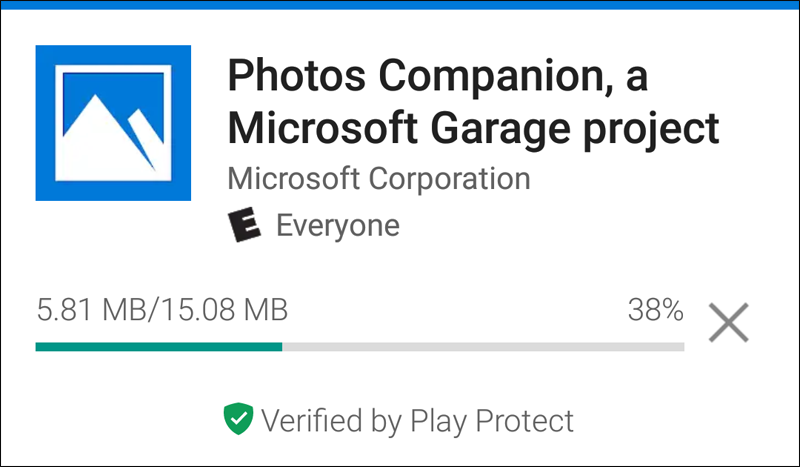
You may also be interested in: How to share files between two Windows 10 devices using the new Nearby Sharing feature. In general, if you want to transfer photos from Android to the computer and are looking for the best way to achieve this quickly, then this is exactly what we will talk about starting from this topic. Here we review the new Photos Companion application from Microsoft to make transferring photos from a smartphone to a computer running Windows 10 much easier and better. Transfer photos from Android to computer using Photos Companion. First, you will need to download an application
Photos Companion on your smartphone, whether it is running the Android operating system or an Apple iOS phone, is a very light application developed by Microsoft and is considered the link between your phone that contains photos and the computer to which you want to transfer the photos. This application is considered one of the fastest applications that perform this task. Simply put, if your Internet speed is very weak, you will still be able to transfer a huge group of images in the shortest possible time. After you install the Photos Companion application on your Android or iOS smartphone, go to your personal computer or laptop running Windows 10, then open the Photos application, which is pre-installed on the system to browse photos by default. You will find it in the Start menu or through the search bar in the Taskbar.
Then, after you open the Photos application on the computer, click on the three-dot button located at the top left, then from the menu click on “Settings”, then on the settings page, scroll to the bottom until you reach the Preview section, and there you will activate the “Help Microsoft test the mobile import over WiFi feature” feature, as shown in the image attached above. After completing the previous step, close and restart the Photos application. After restarting, click on the Import menu from the top bar, then click from the drop-down menu on the “From mobile over WiFi” option, and a window will appear directly to you To import wirelessly, scan this code, which contains a QR code.
Now leave the Photos app at that and head to the Photos Companion app that we just installed on the phone. After you run the Photos Companion application on your phone, click on the Send Photos button to be prompted to allow the application to access the camera, so press “Allow” to open the phone’s camera, and you must now point the camera towards the QR code shown on the computer screen within the Photos application. Once the code is read, all the photos stored on your phone will be displayed immediately, and all you have to do now is click on the photos you want to transfer until they are selected, then press the Done button after completion to begin the photo transfer process, which will be completed within seconds, regardless of the size and number of photos.
To access these photos on the computer after the All Done message appears on the Photos Companion application, all you have to do is open the File Explorer tool, then go to the Pictures folder from the side menu, and there you will find another folder called “Imported from Photos Companion.” This is the folder that includes the photos that were transferred or imported from the phone.
DROPIDEA
We hope this article has added real value to you. At DROPIDEA, we always strive to deliver high-quality content that helps you grow and evolve in the digital space. Follow us for more useful articles and guides.
Admin
DROPIDEA
Latest Articles

Nscale Acquires Anyscale for $1.65 Billion to Expand Its Dominance in AI Infrastructure

How Is AI Accelerating Meta's New App Launches?

Okta Acquires Security Firm Permiso for Around $200 Million

Microsoft Gains $3.2 Billion from Its Investment in Anthropic



