How to save laptop battery – and quickly solve the problem of the laptop running out of power in Windows 10!
 By Admin
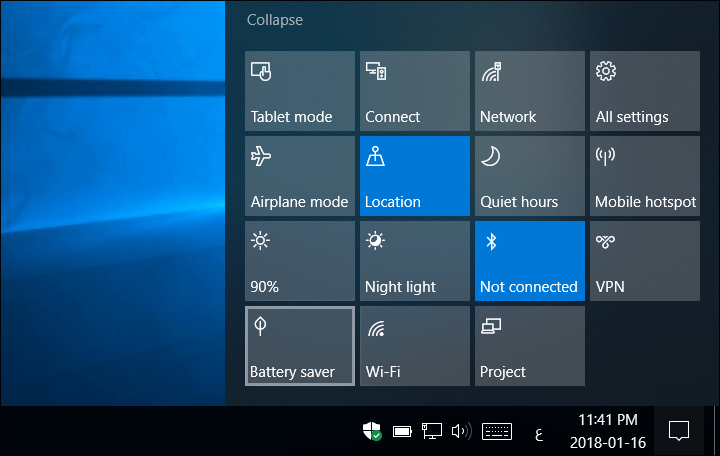
Improving battery life on a Windows 10 device is not as difficult as you might assume. Here we will give you important tips in order to save the laptop battery and preserve power for as long as possible. Most laptops running Windows 10 suffer from a problem that causes insomnia for many users, which is that the laptop battery runs out of power quickly, even if you have the best laptop in terms of capabilities, but with a large consumption of the device’s resources.
You may need to connect the device to the charger almost constantly so that you can complete your work on it. This, of course, loses one of the most important advantages of the laptop, which is the freedom to move anywhere.
How to save laptop battery Most devices suffer from
Laptops running on Windows 10 have a problem that causes insomnia for many users, which is that the laptop battery runs out of power quickly, which leads to the need to connect the device to the charger almost constantly so that you can complete your work on it. This, of course, loses one of the most important advantages of the laptop, which is the freedom to move anywhere. Let's explore the steps to save your laptop battery in Windows 10 together..
Activate Battery Saver mode Windows 10 comes with a new mode called Battery saver, which is different from the normal usage mode. Once you activate it through the Action Center, the system will start reducing battery drain and reducing its usage by 20%. You notice that the brightness is reduced to the lowest level, unnecessary Windows services are disabled, unused computer features do not work, and many other actions are taken the moment this mode is activated.
So, if the power is about to run out, activate Battery saver and you will find a noticeable difference. Activate AirPlane Mode if you are doing work that does not require the Internet on your laptop, such as designing a project in Photoshop, editing a video, watching a movie, browsing and transferring some files, writing a document...and other work that does not require an Internet connection. In this case, activate Airplane mode, which is completely similar to what is on our smartphones and contributes a lot to saving the laptop battery for a longer period.
Once you activate Airplane Mode, the Internet connection (Wi-Fi only) will be disabled, as well as Bluetooth. To activate this mode, do the following: Open the Settings application by pressing the Windows button + the letter i together. Go to the Network & Internet section.
From the side menu, go to the Airplane mode page. On the right side, activate Airplane mode. Thus, Wi-Fi and Bluetooth are temporarily disabled until the mode is deactivated.
During this time, it will greatly reduce battery consumption and thus last longer. Read also: https://www.majnooncomputer.net/%d8%a5%d8%b9%d8%af%d8%a7%d8%af%d8%a7%d8%aa-%d8%a7% d9%84%d8%b7%d8%a7%d9%82%d8%a9-%d9%81%d9%8a-%d9%88%d9%8a%d9%86%d8%af%d9%88%d8%b2-10/ Stop applications running in the background Windows 10 comes with many applications installed as standard, most of which are Microsoft's own applications and others are advertisers' applications. I do not think that users need them. You may need most of them if you find them useful, but in general, not all applications are necessary for the user.
However, these applications remain running in the background constantly, consuming the device's resources, leading to battery drain. I will not tell you to remove them, as you may need them later, but it is better to disable all applications from working in the background so that the laptop’s battery and power are saved, and this is done after performing the following steps: Open the Settings application by pressing the Windows button + the letter i together. Go to the Privacy section.
From the left side, click on the Background apps page. On the right side, disable the option to Let apps run in the background. All installed applications will be disabled from running in the background at once, which in turn will save more power while improving computer performance.
Take a look at the Task Manager: One of the very important steps is to constantly review the status of your device’s resources (processor, RAM, hard disk), and this is what the Task Manager tool in Windows provides you with. You can monitor the consumption of resources by currently active programs and processes, and if there is any process that consumes resources abnormally, you must examine it to ensure that it is not affiliated with a virus, or stop it from working to reduce usage. From the same Task Manager window, also take a look at the Startup section and run Disable for unnecessary programs to disable them from starting work at the beginning of the system boot.
In the end, make sure that any of these steps you take will have a significant impact on battery power and saving. Knowing the programs that consume the battery You can also find out what are the installed applications and programs that consume the laptop’s battery power at a high rate. By knowing this information, you can limit the use of the program that consumes the most battery or search for alternatives to it in an effort to save the laptop’s battery. This is very easy on Windows 10. All you have to do is: Open the Settings application by pressing the Windows button + the letter i together.
Go to the System section. From the left side, click on the Battery page. On the right side, click on Battery usage by app to display the programs and applications from highest to lowest consumption.
By clicking on the Time period menu you can view statistics by specific time periods. Read also: Is it safe to leave the laptop charging and running for a long time? Solving the battery problem in Windows 10 The maintenance tools in Windows 10 include the power problem repair tool, and its role is to change the power settings on the device to what is appropriate for you to save consumption, and all of this without any intervention from you, you will only need to do the following steps: Go to the Settings application.
Go to the Update & security section. From the left menu, go to the Troubleshoot page. On the right side, press Power.
Then press the Run the troubleshooter button. The scanning process will begin immediately and the power settings will automatically change to what is appropriate to save energy.
DROPIDEA
We hope this article has added real value to you. At DROPIDEA, we always strive to deliver high-quality content that helps you grow and evolve in the digital space. Follow us for more useful articles and guides.
Admin
DROPIDEA
Latest Articles

Nscale Acquires Anyscale for $1.65 Billion to Expand Its Dominance in AI Infrastructure

How Is AI Accelerating Meta's New App Launches?

Okta Acquires Security Firm Permiso for Around $200 Million

Microsoft Gains $3.2 Billion from Its Investment in Anthropic



