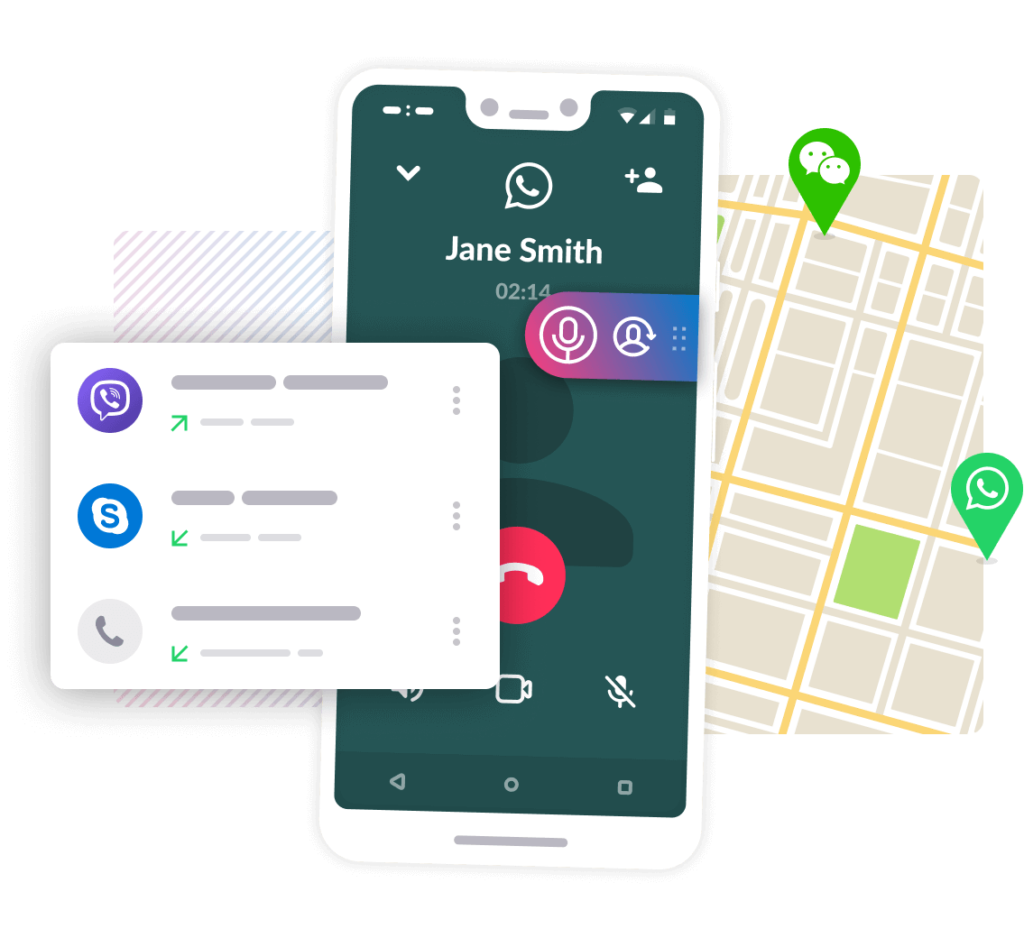
WhatsApp is one of the most widely used and downloaded messaging, voice and video calling applications. It is also evolving into a one-stop solution for all your messaging requirements, including file sharing, group chats and video calling. In this article, we will explain to you how to record a WhatsApp call on Android and iPhone devices in the best and easiest way possible, which is a requirement for many users, regardless of the reasons or motives that may prompt them to do so.
Note that you must be in a region or country that supports WhatsApp call recording. Unfortunately, not all sites offer the ability to record calls. As a result, some places do not even support the ability to make WhatsApp calls at all, so the matter may differ depending on your country or region.
For ethical and privacy reasons, always ask for the other person's consent before proceeding to learn how to record a WhatsApp call. Ensure that recorded calls are handled responsibly and not used for malicious purposes.
Why would someone want to record a WhatsApp call?
One common reason: In business situations, call recordings can serve as a useful record of discussions and agreements. These recordings can be revisited later to clarify or confirm something, which is especially useful for important business calls or interviews. Another reason may be for documentation, for example.
Journalists or researchers conducting interviews can record them to ensure that their reporting is accurate and comprehensive. In personal situations, people may record WhatsApp calls to preserve and memorialize private conversations or moments. This could be a call to a loved one who lives far away, or a special personal occasion that he wants to reminisce about from time to time.
Related articles: The best way to restore WhatsApp from Google Drive to iPhone And don't forget that sometimes you may need to know how to record a WhatsApp call to keep proof of something, especially when it comes to protecting your family members, for example. If your child receives a bad call on WhatsApp from their friend, recording the call gives you solid evidence that you can take to school if someone is bullying them. There are many other scenarios where recording WhatsApp calls can become important and effective.
How to record a WhatsApp call on Android is a recording
WhatsApp voice calling is fairly easy on Android. There is this application known as Call Recorder: Cube ACR, which allows you to record calls. However, it is important to note that the app does not support all phones.
So, I suggest you go to their support page first to see if your phone is compatible with the app. If your phone is on the list, you can follow these steps to learn how to record a WhatsApp voice call on your Android smartphone: Go to the Google Play Store and search for the Cube Call app. Download and install it on your Android smartphone.
Open the Cube Call voice call recorder app and switch to WhatsApp. There will be a Cube Call widget when you make a voice call on WhatsApp. If not, open Cube Call Recorder settings and choose Force VoIP call as a voice call.
Call back and see if the tool appears. If you still get the error, it means your phone may not work with the app. You can also try some various Android audio recording applications such as Easy Voice Recorder or Samsung Voice Recorder for the same purpose.
How to Record a WhatsApp Call on iPhone Knowing how to record a WhatsApp audio call on an iPhone is a difficult task. There is no specific application that allows you to record WhatsApp audio calls easily. However, there is a workaround that requires both a Mac and an iPhone, and here's how you can do it: Connect your iPhone to your Mac using a Lightning cable.
Select the “Trust This Computer” option on your iPhone. Open the QuickTime app on your Mac. Go to the “File” option and choose the “New Audio Recording” option.
Choose iPhone as the option and press the Record button in QuickTime. Now, from your iPhone, make a WhatsApp call on your phone. Click on the Add User icon once connected.
Now, call the person you want to record audio and start your conversation. Once you're done, simply hang up and stop recording in QuickTime. Save the file on your Mac and your WhatsApp voice call will be recorded.
Related article: The best audio recording apps for iPhone How to record WhatsApp video calls on Android Although there is no official feature for recording WhatsApp video calls on your Android smartphone, there is always an alternative solution in order to know how to record a WhatsApp call. If you want to record a WhatsApp video call, you can simply use the screen recorder app on your Android smartphone. Although there are a large number of applications available on the Google Play Store that allow you to record WhatsApp video calls.
One such app is the AZ Screen Recorder app. The application allows you to record WhatsApp video calls with audio. Here's how you can record it: Go to the Google Play Store app and search for AZ Screen Recorder app.
Download and install the application on your smartphone. Open the app and the app will create a popup widget on the notification panel. It is important to note that you must switch to “Enable Audio Recording” before recording the call.
Now open the WhatsApp application and make a call with the person you want to record the call. Once the call starts, press the record button on the AZ Screen Recorder tool. Once done, simply stop recording and your WhatsApp video call will be saved in the app.
You can try other solutions via our article dedicated to the best phone screen recording apps. How to Record WhatsApp Video Calls on iPhone Starting with iOS 11, Apple introduced a built-in screen recorder feature, which is honestly a very useful feature. Using this feature, you can also record WhatsApp video calls on your iPhone without much hassle.
This also means that you do not need any third-party apps to record WhatsApp video calls on iPhone. Here's how you can take advantage of this feature: Go to Settings and open Control Center. Click on “Customize Controls” and simply add the “Screen Recording” option to the list of active controls.
Open Control Center on your iPhone and tap on the Screen Recording option to start recording. Now, go to the WhatsApp app and make a call with the person you want to record the call. Make sure your microphone is enabled and call volume is set to maximum audio recording.
Once the call is complete, simply stop recording and save the file to your device. You may be interested in trying other solutions via our previous article: How to record screen video on iPhone with sound. So that's all it takes in the end!
Knowing how to record a WhatsApp call has become really clear and easy, whether it is audio or even video, and now you have the ability to do so on different devices. It is a practical feature that can come in handy in different situations – whether it is for work, for a memorable personal conversation, or even to ensure the safety of your children and family, and the best thing about this process is that you do not need to do any complicated procedures like rooting or anything else, it just involves apps available in the store or tools built into the system.
DROPIDEA
We hope this article has added real value to you. At DROPIDEA, we always strive to deliver high-quality content that helps you grow and evolve in the digital space. Follow us for more useful articles and guides.

Admin
DROPIDEA
Latest Articles

Nscale Acquires Anyscale for $1.65 Billion to Expand Its Dominance in AI Infrastructure

How Is AI Accelerating Meta's New App Launches?

Okta Acquires Security Firm Permiso for Around $200 Million

Microsoft Gains $3.2 Billion from Its Investment in Anthropic



