How to run games on an external graphics card to get the best performance in Windows 10
 By Admin
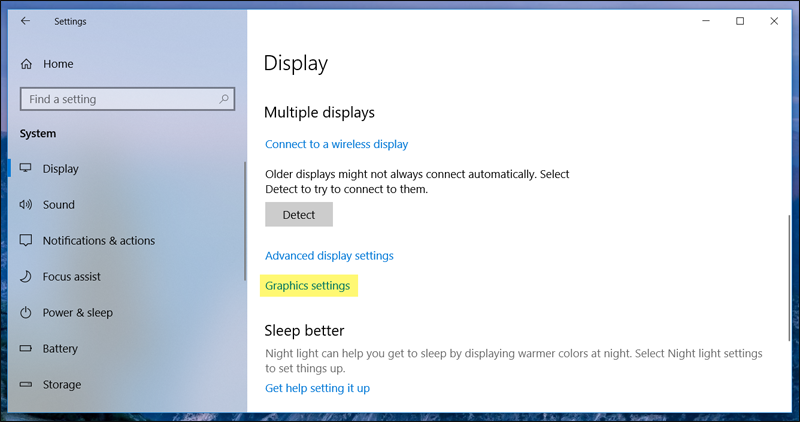
In this article, we will review with you the steps to run games on the external graphics card in your computer, whether PC or Laptop. With this step, you will make the games work better because by default they run on
Screen card
Internal, which is naturally less efficient and faster than external. Sometimes your computer has more than one GPU and powerful hardware, yet lag occurs in games and constant stopping. The reason here is that the game consumes the performance of the internal Intel or AMD card.
Fortunately, you do not need to download third-party tools or programs for the steps to run games on an external graphics card, as Microsoft has added this option to Windows 10 after the April 2018 Update that it recently launched. Let's see how to access and use this option in order to get the best performance and experience playing games without any obstacles.
How to run games on an external graphics card?
All the user has to do is open Settings in Windows 10 via the Start menu or the Action Center menu, or by simply pressing the Windows logo button + the letter R together on the keyboard. After the Settings window appears, go to the System section, then scroll down on the Display page to click on the Graphics settings option as shown in the image above. Note that if you do not find an option with this name, it is because you did not update the operating system and obtain the new April 2018 Update.
You may also be interested in: 3 effective ways to make games faster on the computer On this page you will find several options. The first thing you must do is select an option from the Choose and app to set preference list, whether it is “Universal app” or “Classic app.” If you choose the first, another list will appear for you to select one of the installed Windows 10 applications, whether this application is related to a game or a service, so select it and press Add. While if you want to run games on the external graphics card, you will choose the second option, which is the Classic app, and then press the Browse button. A window will appear in which you can select the game launch file (which has an .exe extension). Just select it and the game will be added to the list.
Naturally, you can add an unlimited number of games and programs. Then, click on any game in the list and press the Options button. The Graphics Specifications window will appear to you as shown in the image attached above. Through it, you can select Power saving if you want to run this game on the internal graphics card and conserve energy - if you are using a laptop - or you can select the High performance option, which is best for the game to run on the external graphics card.
Finally, click Save to save the new changes. You can now activate the High Performance option with any of the games or applications added to the list to run on the external graphics card instead of the internal one to get the best performance in the event that the application, program or game needs high graphics, then the internal Intel or AMD card will certainly not be able to do that and you will face slowness in performing tasks on these programs or when running games.
DROPIDEA
We hope this article has added real value to you. At DROPIDEA, we always strive to deliver high-quality content that helps you grow and evolve in the digital space. Follow us for more useful articles and guides.
Admin
DROPIDEA
Latest Articles

Nscale Acquires Anyscale for $1.65 Billion to Expand Its Dominance in AI Infrastructure

How Is AI Accelerating Meta's New App Launches?

Okta Acquires Security Firm Permiso for Around $200 Million

Microsoft Gains $3.2 Billion from Its Investment in Anthropic



