How to correct Arabic writing in Photoshop - Solve the problem of letters being cut off and far apart
 By Admin
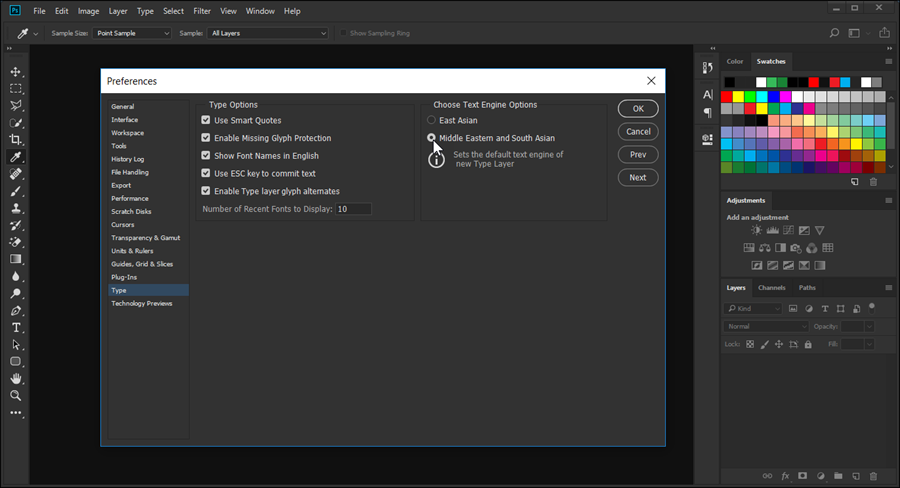
Users of the famous image editing program “Photoshop” sometimes suffer from problems related to writing in Arabic within the program, if the letters appear intermittently and separately. That is, far from each other. Fortunately, the user can get rid of this problem directly from within the program, so let's see how to correct Arabic writing in Photoshop.
Photoshop
It is one of the most famous computer programs - in fact, an icon for editing and modifying images. How could it not? It includes a huge amount of tools to transform any ordinary photo taken with a phone camera into a creative and impressive photo as if it had been taken from a DSLR camera. There is a lot that you can do to edit images, whether in terms of adjusting colors, brightness, or contrast, or adding new elements to the image... and much more. It is certainly not possible to list the features of such a giant program in a few lines. But perhaps the first problem you will encounter with this program, specifically immediately after installing it and starting to test writing in Arabic on an image through it, is that the letters appear intermittently or far apart from each other similar to the method of writing in Latin languages, except that the writing is directed from left to right, which does not make you feel comfortable when writing - in fact, it is a major problem if you always use the program to design images that contain texts, so you must look for a solution as soon as possible, otherwise the program will be of no use.
Fortunately, the solution to this problem is very simple and takes a few steps. We have prepared this article specifically to list these steps and together we will see how to correct Arabic writing in Photoshop, whether you are using CC 2018 or older versions. Read also: Solve the black screen problem in Photoshop Steps to correct Arabic writing in Photoshop without programs First: Solve the problem of intermittent writing in Photoshop Initially, run your Photoshop program on the computer.
After that, open the Preferences window, which contains the program's control settings. You can access this window either by pressing Ctrl + the letter K together on the keyboard, or by pressing the “Edit” section at the top, then “Preferences” then “General” to display the same required window. Through the preferences window, go to the “Type” page from the side menu, and on the right side you will find several options that can be modified, the most important of which is “Choose Text Engine Options,” where you select the second option “Middle East and South Asian.”
Now press the OK button and close the Photoshop program and open it again, as the changes will not be affected until you restart the program. When the program is restarted, click on the “Type” section at the top, and then direct the mouse cursor towards the “Language Options” menu and from the submenu that will appear, select the “Middle Eastern Feature” option. After completing all of that, try writing Arabic text on any image and it will appear correctly without any interruptions.
Second: Solving the problem of aligning writing from left to right. We now come to the second part of correcting Arabic writing in Photoshop, which is making the writing align from right to left. By default, the program makes the alignment from left to right, which leads to a clear confusion when writing a Latin word in the middle of Arabic text. The strange word is at the end of the text and is followed on the right by the rest of the phrase, which ultimately makes it unintelligible. The solution that some people used was to put the Latin word in a special layer, placed in the middle of the sentence, which is certainly difficult. So here's the solution.
Open Photoshop on your computer, then click on the “Alignment” icon on the right side to open the Paragraph window. Or if it is not available, click on the “Window” section at the top, then choose “Paragraph” to display the desired window. In the Paragraph window, specifically in the right corner, you will find a small menu button. Click on it to reveal a submenu from which you will select the “Middle Eastern and South Asian Layout” option. From the same menu, select the “Middle Eastern Features” option. Immediately, you will notice that new additional options appear within the Paragraph window to help you set Arabic texts as they should be.
Among these new additions, there are two options to specify the method of directing writing. You will, of course, select the first option, which is “Right To Left Paragraph Direction - or from right to left.” You will also notice the appearance of a new option to specify the horizontal spacing (mm) between letters. Thus, you have done all the steps that had to be taken in order to correct Arabic writing in Photoshop. You can now write within Photoshop without problems.
DROPIDEA
We hope this article has added real value to you. At DROPIDEA, we always strive to deliver high-quality content that helps you grow and evolve in the digital space. Follow us for more useful articles and guides.
Admin
DROPIDEA
Latest Articles

Nscale Acquires Anyscale for $1.65 Billion to Expand Its Dominance in AI Infrastructure

How Is AI Accelerating Meta's New App Launches?

Okta Acquires Security Firm Permiso for Around $200 Million

Microsoft Gains $3.2 Billion from Its Investment in Anthropic



