How to install and run Google Chrome extensions for Android in a 100% guaranteed way
 By Admin
For a long time, Google Chrome users have been demanding that extensions be supported on the browser app for smartphones, but to no avail. However, this does not mean that there is no way you can use Google Chrome extensions for Android. In fact, there is a method and it works 100% guaranteed.
So if you want to install Chrome extensions on Android phones, here is an explanation of this method. For many years, there was a big difference between the Chrome application on smartphones and the Chrome browser on computers, as the latter was a simple and fast browser that could be enhanced with powerful extensions, while the former was only a fast browser; That is, it does not contain many features, and Chrome extensions cannot be installed from the store. However, things have changed now.
Android phone users can enjoy their favorite Google Chrome add-ons on mobile instead of being limited to computers only. This includes adding HTTPS Everywhere, Adblock, Grammarly, Dark Reader...etc. Unfortunately, it is still not possible to do this through the default Chrome browser that comes installed on Android smartphones – you have to use another browser built on the Chromium kernel called Kiwi Browser, which allows you to use Google Chrome extensions for Android easily.
Below we explain the steps to be followed... Steps to download and run Google Chrome extensions for Android First: Download Kiwi Browser To take advantage of this new feature, you will need to download the latest available version of Kiwi Browser, which is the ideal Google Chrome alternative for Android! The browser is available on the Google Play Store for free. But since this version is relatively new, it may not be available for your device – at the moment.
Therefore, after installing the browser from the store on your phone you need to check that you have installed the latest version. To do this, go to Settings, then open the applications list, choose Kiwi Browser, then look for the version number at the bottom of this screen - if it is not version 79 or higher, you will have to wait until the new version becomes supported for your phone. Alternatively, you can download the APK file for the latest version of the browser and install it manually.
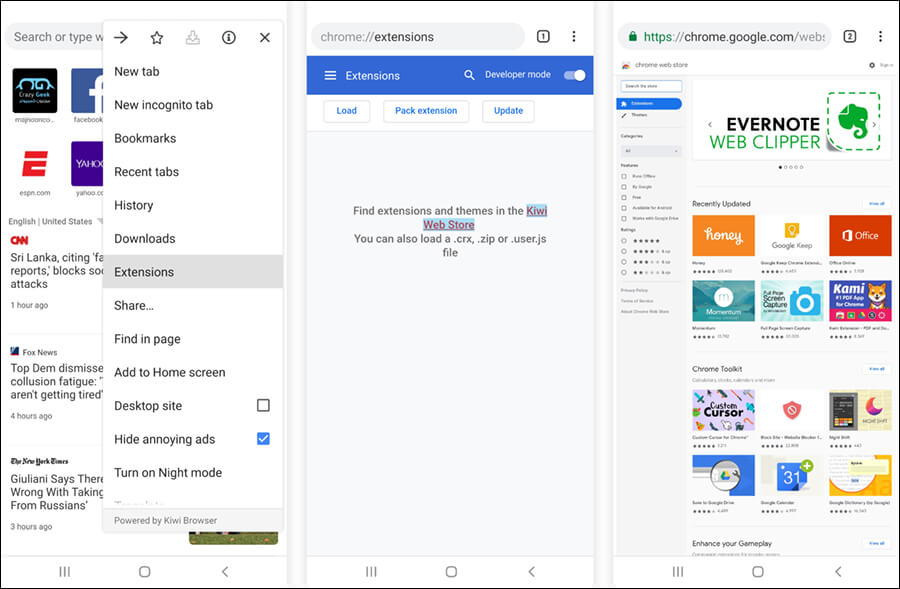
In general, after installing the browser on your Android phone and running it for the first time, press the menu button at the top and then choose Extensions. Alternatively, you can type “chrome://extensions” in the address bar and press Enter to go to the same page where you can press the Kiwi Web Store button to head to the Chrome Web Store to download the first extension. Download KIWI BROWSER Second: Download your favorite Chrome add-ons on your mobile phone. On the Chrome Web Store page, you can search for your favorite add-ons that you use in the Chrome browser on your computer and install them without problems.
Just click on the search field located in the left corner, then write the name of the add-on. You can also use the suggestions below. Whether it is VPN extensions for Chrome, ad blocking extensions, or security extensions... all applications are available for installation.
Once you find the appropriate extension, click on the “Add to Chrome” button. A confirmation pop-up will appear. Click “OK” and the extension will be downloaded and installed immediately. During our testing, we noticed that many of the extensions work perfectly and are not much different than in the desktop version of Chrome. You can run add-ons and adjust settings without any problems.
But it should also be noted that there are add-ons that do not work and keep showing errors whenever we try to launch them, this is to be expected. So, be aware that you may face a problem or two but all popular add-ons should work. Third: Manage installed extensions once you install a number of Chrome extensions.
You can manage them easily through the Extensions page, which is exactly like managing Chrome extensions on your computer. Through this page, you can activate or disable add-ons, remove them, review the permissions they request, make changes to the settings of any add-on, check for updates...etc. Running Google Chrome extensions for Android is a really cool thing and improves the browsing experience on a smartphone significantly.
If you use a lot of add-ons on your computer, you will find it familiar in this case, as there are many add-ons that cannot be dispensed with when browsing the web.
DROPIDEA
We hope this article has added real value to you. At DROPIDEA, we always strive to deliver high-quality content that helps you grow and evolve in the digital space. Follow us for more useful articles and guides.
Admin
DROPIDEA
Latest Articles

Nscale Acquires Anyscale for $1.65 Billion to Expand Its Dominance in AI Infrastructure

How Is AI Accelerating Meta's New App Launches?

Okta Acquires Security Firm Permiso for Around $200 Million

Microsoft Gains $3.2 Billion from Its Investment in Anthropic



