How to install unknown apps from outside the Google Play Store
 By Admin
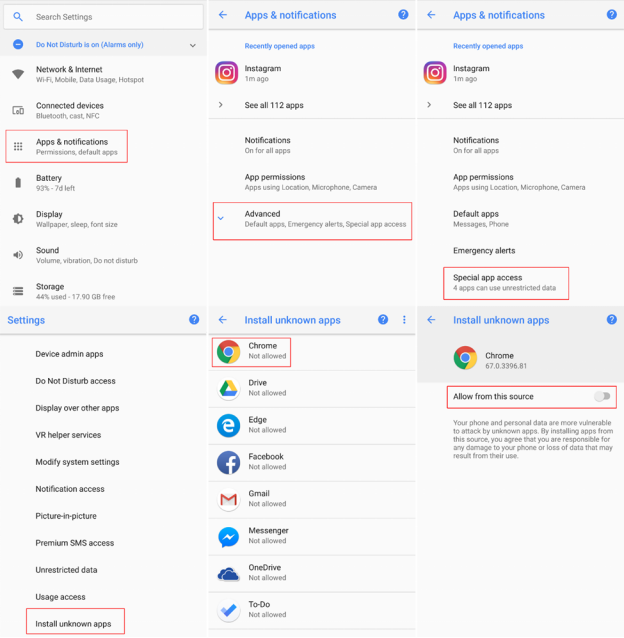
Not all apps are available in Google Play, and some may not be listed as compatible with your device. We show you how to get around this by downloading apps from outside the Google Play Store and then allowing unknown apps to be installed on your phone. By default, all Android phones and tablets are designed so that you cannot download and install APK apps from sources other than Google Play.
This is to help keep your device safe, as Google does not control the security of apps outside of its own store. This is useful for you in many scenarios, especially if you cannot differentiate between a legitimate application and a malicious one that may allow viruses and malicious files to enter your device. But the user has a legitimate right to desire more and more.
If an app isn't available on Google Play (or if it should be available but isn't showing up on your device because Google thinks it's not compatible), there is a way to install it from outside the Store. Danger of Downloading Apps from Outside the Google Play Store There is a reason why we warn you against installing apps from outside the Google Play Store because it is inherently unsafe to download random APK files from the web and install them on your phone. While this may seem contradictory to our article today on how to install apps from outside the Google Play Store, as long as you know (and trust) where you download your third-party apps from, you're safe.
How to Install Unknown Apps from Outside the Google Play Store The exact process to enable the option to install apps from other sources varies depending on which version of Android you are running. The steps below assume you're running Android 11, but on older or custom versions of Android, you may find this option instead in the Security menu. On a Samsung Galaxy phone, for example, in Settings, Lock Screen & Security, “Install unknown apps.”
If you cannot find the “Unknown Sources” or “Install Unknown Apps” option, go to the search bar at the top of the Settings app and type one of the two sentences in it. Alternatively, when you download and try to install the apk file. (equivalent to Windows .exe files for computers), you should be asked to enable downloading of applications from unknown sources.
It's nice to take advantage of this prompt, but it makes reversing the permission after installation more difficult when you don't know where to find it. Open the Settings app Select “Apps & notifications” Click on Advanced Choose “Special app access” Go to the bottom of the page and select the “Install unknown apps” option Select the app you will use to download the file Toggle on the slider next to “Allow from this source” You should now be able to download and install apps from unknown sources outside of the Google Play Store using this method. Simply click on the .apk file to start installation and follow the instructions.
Make sure to only download those apps from sources you trust, and remember to reverse the permission once you install the third-party app you want. How to Download and Install APK File on Your Mobile Now, you know that where you download the APK from is key. Let's take a simple example like downloading and installing WhatsApp from outside the Play Store.
In this case, the application provides its own direct download page, which you can either visit on your computer and then transfer the file to your phone, or visit it on your phone's browser (by requesting the desktop site from your browser settings) and then download it directly to your device, just as WhatsApp provides this via its website. Once the downloading is finished, you can check the downloads in the notification bar and select the downloaded APK file. Clicking on that will start the installation process and, if necessary, ask you to allow the app's permissions to continue.
How to follow the safe method of downloading an application from outside the Google Play Store What if the application you need is not available in the official store, but you still need to install it? Search for alternative similar apps: Try searching for alternatives in the official store. There may be an app on Google Play that has functions that suit your needs.
Delete the file before installation: Even if you cannot do without an external source, do not rush to change your settings. First, download the installation file, and before opening it, scan it with the antivirus application on your smartphone. Check Permissions: Consider the list of permissions that the app requests during installation.
If the app is too demanding, try to find an alternative option that doesn't ask for too many permissions. Disable installation of unknown apps: Remember to change your settings back after installation. Don't leave your phone exposed to applications of unknown origin!
Read also: How to solve the offline problem in the Play Store
DROPIDEA
We hope this article has added real value to you. At DROPIDEA, we always strive to deliver high-quality content that helps you grow and evolve in the digital space. Follow us for more useful articles and guides.
Admin
DROPIDEA
Latest Articles

Nscale Acquires Anyscale for $1.65 Billion to Expand Its Dominance in AI Infrastructure

How Is AI Accelerating Meta's New App Launches?

Okta Acquires Security Firm Permiso for Around $200 Million

Microsoft Gains $3.2 Billion from Its Investment in Anthropic



