Don't give in to slowness: your comprehensive guide to speeding up an old Android phone
 By Admin
In a forgotten corner of my desk drawer, lies my old phone, a companion of unforgettable memories. He has always been my loyal companion, sharing moments of joy and anticipation with me, but time has not been kind to him. Turning into a digital turtle is slow and boring, forcing me to wait impatiently for every click.
Still, I can't give it up. I need it as a backup phone for emergencies, but it's so slow it's worrying me.
Can I really bring him back to life?
Is there a way to speed up an Android phone and restore its usual speed? Fortunately, the answer is yes! Whether you have an old tablet or your phone is Android or iPhone, there are many magical steps that can turn your old phone from a turtle into a digital rabbit.
In this article, we will review the latest and best ways to speed up old phones, regardless of their operating system, and restore their youth and vitality. Let's start the journey to restore our old companion! Factors affecting the slowness of old Android phones Over time, your old Android phone may start to slow down, making using it a frustrating experience.
There are several factors that contribute to this slowdown, let us review them in an organized manner: Accumulation of unnecessary files: As the phone continues to be used, many unnecessary files accumulate on it, such as: Temporary files: created by applications while they work. Unused apps: that uselessly occupy storage space. Stored data: such as old photos and videos that you no longer need.
All these files consume storage space and negatively affect the phone's performance. Installed apps: Some apps, especially those running in the background without your knowledge, heavily consume system resources, such as processor, memory, and phone battery, slowing down the device. Old hardware: With the continuous development in the world of technology, applications and games become more demanding in terms of processing capabilities and memory.
Old hardware in your phone may not be able to keep up with these requirements, resulting in slow performance. Sometimes the phone's temperature rises excessively, which may greatly affect the performance and the condition of the internal hardware parts. Bad settings: Some bad settings in the system or in an app may cause unnecessary consumption of device resources, slowing it down.
For example, there may be services running in the background that are not needed, or there may be settings related to animation or visual effects that consume a lot of processing resources. So, you should know that, in some cases, the solutions presented here may contribute to improving the performance of your phone, but if it is very old, it may be the end, and you may consider buying a new phone that keeps up with the latest systems and applications. By identifying these key factors, we can now focus on effective ways to speed up your old Android phone and overcome these challenges.
Steps to speed up an old and slow Android phone! Now that we've gone over the common reasons why old phones slow down, it's time to move on to the practical part: How can you bring your old phone back to life and give it better speed and responsiveness? In this section, we'll go over a set of effective steps you can take to achieve this.
Remember that some of these steps may be simple and quick, while others may require some time and effort, but the results will definitely be worth it. Whether you're an Android or iPhone fan, here you'll find tips and tricks to suit your device. Let's start our journey towards a faster, more efficient phone!
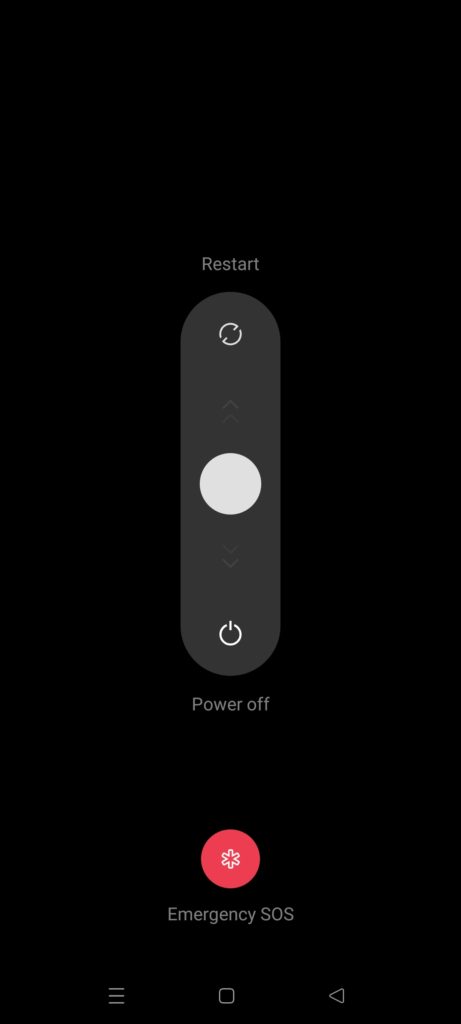
1. Forced Reboot: The Magic Start Before we dive into the big changes, let's start with a simple but effective tap. Sometimes, all your phone needs is a short break to reorganize its thoughts.
Perform a hard restart by holding down the Power button and Volume Down button together for a few seconds until the device restarts. This simple step can solve many simple problems and restore activity to your phone. 2.
Operating System Update: A Refreshing Dose of Modernity Updating your operating system may seem like a boring chore, but it's actually a vital step to bringing your old phone back to life. Imagine the operating system as a car engine. Over time, this engine needs maintenance and updates to improve its performance and avoid malfunctions. Likewise, updating the operating system gives your phone a refreshing dose of modernity, and makes it run more smoothly and efficiently.
Steps to update the operating system: Check for updates: Make sure your phone is connected to a Wi-Fi network. Go to “Settings” and then look for the “System Update” section or similar. Click on “Check for updates.”
Install update: If you find an update available, tap “Download and install.” Wait for the installation to complete, then restart your phone if prompted. Update applications: In addition to updating the operating system, also make sure to update the applications installed on your phone regularly.
Check for updates in the App Store and install them. For more information about the importance of updating the system and applications, you can see our previous article: [The importance of updating the phone and updating applications automatically: A comprehensive guide for Android] 3.
Uninstall Unused Apps: Get rid of excess weight Do you keep apps that you haven't used for months? Do games you tried once and then forgot stack up? It's time to get rid of those extra pounds weighing down your phone!
Every installed app, even if you don't use it, consumes storage space and leaves its mark on the device's performance. Imagine that you are carrying a suitcase full of things that you do not need. It will feel heavy and hinder your movement, right? It's exactly the same with your phone.
Steps to uninstall apps: Traditional method: Go to the apps list on your phone. Press and hold the icon of the app you want to delete. A menu of options will appear, choose “Uninstall”.
Confirm that you want to delete the application. Via the App Store (Google Play or App Store): Open the App Store. Find the app you want to delete.
Click the “Uninstall” button. Confirm that you want to delete the application.
Additional Tips: Review the list of installed apps regularly and uninstall them
For those that you have not used for a long time, also check out our article (How to Delete System and Third-Party Apps on Android: 4 Methods) for a deep examination of the apps. If you're hesitant to delete an app, you can disable it instead. This will prevent it from running in the background and consuming resources, but it will still be installed on your device in case you need it later.
Don't forget to close open windows in the browser! Each open window consumes part of the device's memory, affecting its overall performance. By following these simple steps, you will be able to free up significant storage space on your phone, which will lead to a noticeable improvement in its speed and responsiveness.
Remember, every megabyte freed is a step towards a faster, more efficient phone. 4. Clean Cache and Data: More Space, Better Performance Imagine that you are working at a desk cluttered with old papers and files.
You find it difficult to find what you need, and you feel overwhelmed and disorganized. This is exactly what happens to your phone when temporary files and app data accumulate over time. These files, although sometimes useful for speeding up the loading of applications or saving some settings, consume precious storage space and negatively affect the phone's speed and responsiveness.
Steps to clean cache and data: Go to phone settings. Find the “Applications” section. The exact name may vary slightly depending on the operating system version.
You will be shown a list of all installed applications. Choose the application you wish to clean. Typically, applications that consume a lot of storage space are browsers, social media applications, and games.
Click on the “Storage” option. You will find two options: “Clear Cache” and “Clear Data”. Tap “Clear Cache” first.
This step will delete temporary files used by the app, which will help free up storage space. If you are still experiencing performance issues, you can click on “Clear Data”. This step will return the app to its original state upon installation, and you will lose any data saved within the app, such as login and custom settings.
So, use this option with caution! For more information about the difference between clearing cache and data, you can see our article: [The difference between clear app cache or clear app data for Android] Additional tips: Clean the app cache regularly. This is a good habit to maintain your phone's performance.
Don't forget to clean your browser cache. Browsers keep a lot of temporary files that can consume a lot of space. See photos and videos saved on your phone.
Delete those you no longer need, or move them to an external memory card or cloud storage service. By following these steps and tips, you will be able to free up significant storage space on your phone, which will give it a boost in performance and speed. Remember, your phone deserves to breathe freely!
5. Minimize animations and live wallpapers: Simplicity is the secret to elegance. The animations and live wallpapers dancing on your screen may seem like a charming painting, but remember that behind this beauty lie complex processes that consume valuable system resources. Every fluid movement, every flash of light, every transition effect, taxes your phone's processor and memory.
For an older phone, this burden may be very heavy, resulting in slow and delayed response times. So, if you are looking for a quick and effective way to boost your phone's performance, reducing or disabling animations and live wallpapers is an excellent option. You may lose some aesthetics, but you will gain better speed and responsiveness, which is especially important on older phones.
Steps to reduce animation: Go to phone settings. Look for the “About phone” section. Repeatedly tap “Build number” until you see a message stating that you have become a developer.
Go back to the main settings, and you will now find a new section called “Developer options”. Find the following settings and change their values to 0.5x or off completely: Window animation scale Transition animation scale Animator duration scale Steps to disable live wallpapers: Press and hold on any empty area on the home screen. Choose “Wallpapers”.
Make sure to choose a static wallpaper and not a live wallpaper. Additional Tips: Delete Widgets: Widgets may be useful, but they also consume system resources. Delete those you don't use frequently.
Use a simple launcher: Some launchers come with many features and animations that may slow down your phone. Try using a simple and lightweight launcher. See our article (The 7 Best Reliable, Free, and Fast Android Launchers) By following these simple steps, you will be able to free up valuable system resources, which will lead to a noticeable improvement in the speed and responsiveness of your phone.
You may lose some aesthetics, but you'll gain better performance, which is what really matters in the end, right? 6. Use an external memory card: additional storage space If your phone supports external memory cards (SD Card), do not hesitate to take advantage of this feature!
An external memory card is like adding a new room to your home, an additional space that you can use to store everything you need without affecting the original space. You can move photos, videos, large files, and even move apps to the external memory card, freeing up internal storage space and giving your phone more room to breathe and work smoothly.
Steps to transfer files to the external memory card: Enter
Memory card in your phone. Open the File Manager or My Files app. Go to Internal Storage, and select the files you wish to transfer.
Click on the “Move” option, and choose the external memory card as the destination. Wait for the transfer to complete. Move apps to external memory card: If the option is available, you will find a button labeled “Move to SD card” or similar.
Click on it and wait for the transfer to complete. Not all applications are portable. Go to Settings, then Apps, and choose the app you want to move.
7. Battery inspection and calibration: Battery health is the secret to life. Have you ever felt that your phone suddenly slows down, or turns off unexpectedly even with a good percentage of charge? This could be caused by a deteriorating battery condition.
The battery is the beating heart of your phone, and over time and frequent use, its ability to hold a charge and provide the energy needed to operate the device wears down efficiently. This deterioration may lead to a noticeable slowdown in performance, or even to the phone suddenly shutting down to protect itself from damage. Fortunately, there are ways to check your battery's health and take action to preserve it for as long as possible.
One of the best ways is to use specialized apps like AccuBattery. AccuBattery: Your Battery Doctor The AccuBattery app provides a range of useful tools and features to preview your battery's health and optimize its performance: Actual Capacity Measurement: Instead of relying on inaccurate system estimates, AccuBattery measures your battery's actual capacity (mAh) based on charge and discharge data. Track battery health: The app monitors battery wear and tear with each charging cycle, and gives you an estimate of remaining battery life.
Improve charging habits: The app offers tips on best charging practices to maintain battery health, such as avoiding fully charging and completely discharging the battery. Battery Calibration: The application helps you calibrate the battery, which improves the accuracy of charge percentage readings and prevents sudden shutdowns.
Steps to use AccuBattery: Download and install the AccuBattery app
From the App Store. Open the app and follow the instructions to set up your account. Fully charge and discharge your phone several times to allow the app to collect the necessary data.
Review the information the app provides about battery health and charging habits. Follow the tips provided to improve battery health and extend its life.
When should the battery be replaced?
If the battery health is significantly degraded, you may need to replace it. Some signs of this include: Rapid drop in charge. The phone shuts down suddenly even with a good charge rate.
The battery is visibly swollen or damaged. If you notice any of these signs, it is best to consult a professional technician to replace the battery with a new one. Related: How to properly calibrate the mobile battery...and why do you need to do that?
Additional tips: Avoid exposing your phone to high temperatures. Heat is the enemy of batteries, so try to keep your phone in a cool, dry place. Reduce the use of applications that consume a lot of power.
Some apps, such as games and streaming apps, consume a lot of battery power, causing them to deteriorate faster. Turn off features you don't use. Bluetooth, Wi-Fi, and location services all consume battery power even when not in use.
Turn it off when you don't need it. 8. Factory reset: the last solution After you have tried all the previous methods and your phone is still resisting your attempts to return it to its previous state, it may be time to resort to the last solution: factory reset.
Think of this step as a “comprehensive wipe” of your device, removing all the apps, data, and settings you’ve installed or modified since purchasing the phone, returning it to its original state just like new. We explained in our article how to factory reset Android in easy steps, so I advise you to check it out. This step may seem a little scary, but it is often the magic solution to stubborn performance problems, especially on older phones that have suffered from years of use and accumulation of data and files.
It's like a new clean slate, an opportunity to give your phone a fresh start, free of the burdens weighing it down. Before you begin: Backup is the key to safety Before you hit the reset button, remember that this process will erase all the data on your phone, including contacts, photos, videos, documents, apps, and everything else. So, it is very important to back up all your important data before proceeding with this step.
You can make a backup using cloud storage services such as Google Drive or iCloud, or by transferring data to a computer or external memory card. Make sure your backup is complete and up-to-date before continuing. We provided a comprehensive explanation in a previous article: Android Backup: A comprehensive guide to saving all files. I advise you to read it and apply it to all your devices.
Factory reset steps: The exact steps to factory reset vary slightly depending on the phone model and OS version, but in general, you can follow these steps: Go to your phone's settings. Find the “System” section. Choose “Reset”.
Click on “Factory data reset”. You will see a warning screen telling you that this process will erase all data. Make sure you have made a backup, then tap “Erase everything.”
The phone will begin the reset process, which may take some time. Once the process is complete, the phone will reboot and you will be shown the initial setup screen as if the phone was new. Restore your data from the backup you created previously.
Additional tips: Battery charging: Make sure that your phone's battery is sufficiently charged before starting the reset process, as this process may take some time. Internet connection: You may need to be connected to the Internet to complete the reset process and restore your data from the backup. Patience is the key to relief: The reset process may take some time, so be patient and wait for the process to complete successfully.
Factory reset is a powerful step that can solve many performance issues, but it should only be used as a last resort. Always remember to back up your data before embarking on this process.
Conclusion:
In the fast-paced world of technology, an old phone may seem like an artifact of the past. But don't let its slowness fool you! By following the steps we mentioned in this article, you can revive your old phone, speed up your Android mobile, and restore some of its youth and vitality.
Remember, every phone, no matter its age, deserves a second chance. So, feel free to try these tips and tricks, and enjoy your old phone like new!
Articles providing solutions to other Android problems:
Solving the problem of “the phone does not charge”: A guide that includes 16 steps. Fixing the problem of the phone not working and not charging: A comprehensive guide. Solving the problem of Android charging slowly or not charging. The tablet does not turn on or charge? Here are 6 solutions to fix a tablet with a black screen
DROPIDEA
We hope this article has added real value to you. At DROPIDEA, we always strive to deliver high-quality content that helps you grow and evolve in the digital space. Follow us for more useful articles and guides.
Admin
DROPIDEA
Latest Articles

Nscale Acquires Anyscale for $1.65 Billion to Expand Its Dominance in AI Infrastructure

How Is AI Accelerating Meta's New App Launches?

Okta Acquires Security Firm Permiso for Around $200 Million

Microsoft Gains $3.2 Billion from Its Investment in Anthropic



